

How to use AI to automatically assign images to Shopify variants
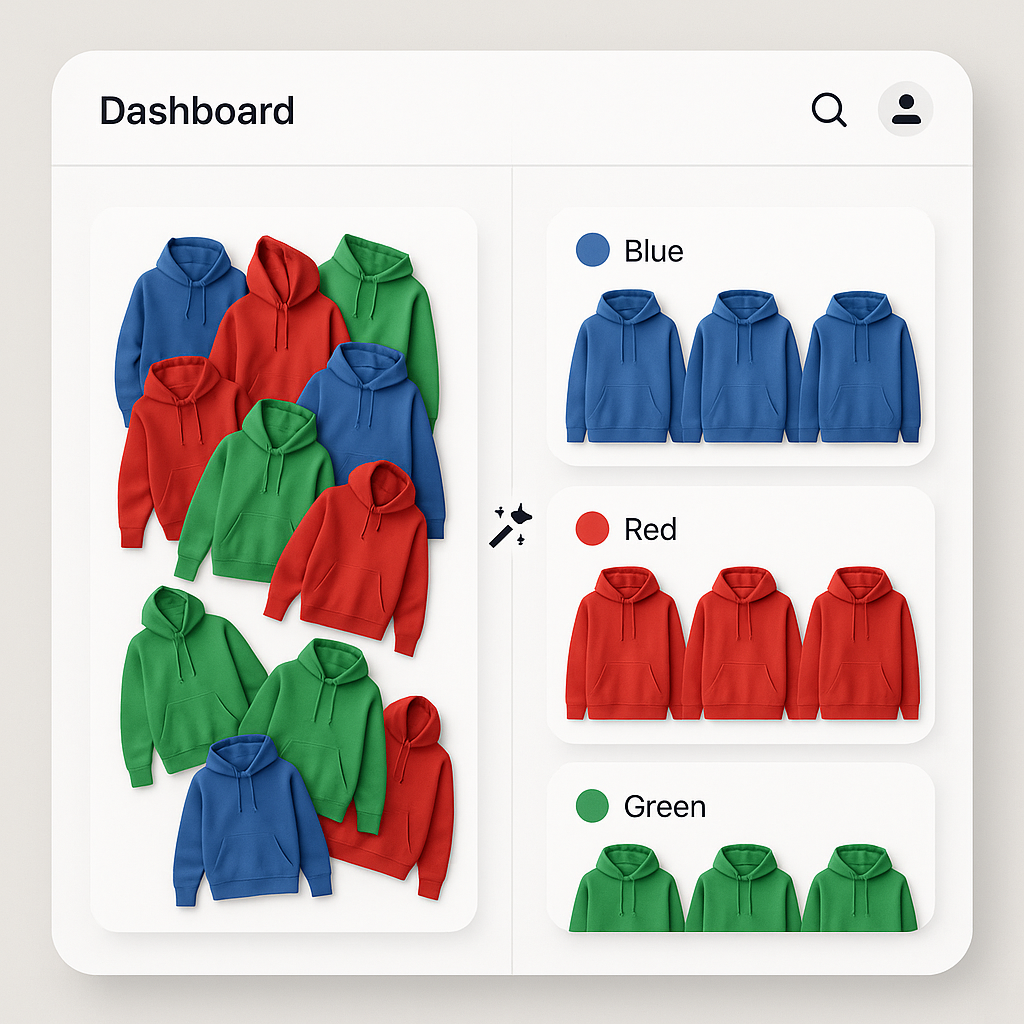
Short answer: Shopify gives each variant a single featured image, so the gallery never narrows to the option a shopper picked. Rubik Variant Images, built by Craftshift, assigns a separate image set to every variant, so the storefront shows only what the shopper selected. Free to install, 5.0 stars across 436 reviews.
You have 200 products. Each comes in 6 colors. Each color has 5 photos. That is 6,000 images to assign to the correct variants. By hand, you open each product, drag each image onto each variant, and save. Repeat 200 times. It takes days.
Or you open each product and click one button. The AI assigns the images in seconds.
Rubik Variant Images is the only Shopify variant image app with AI-powered image assignment. When you open a product in the app, the AI analyzes the product photos, figures out which images belong to which variant based on visual similarity, and assigns them automatically. For large catalogs, the app also has a separate bulk assign feature that processes multiple products in the background using image-order based grouping.
In this post
- The manual assignment problem
- How AI auto-assign works
- Using AI on a single product
- Bulk assign: AI across your entire catalog
- How accurate is the AI?
- Alt-text prioritization
- AI credits and plans
- Why no other app does this
- Frequently asked questions
- Related reading
The manual assignment problem
Shopify allows one image per variant. If you want to show multiple images per variant (front, back, detail, on model), you need a variant image app. But every variant image app on the market requires you to manually assign images to variants. You open the product, look at 30 images, figure out which ones are blue, drag them onto the “Blue” variant, then do the same for red, green, and every other color.
For a store with 10 products, this is fine. For a store with 200 products averaging 30 images each, it is 6,000 manual decisions. Fashion stores, print-on-demand stores, and stores that frequently add new products feel this pain the most.
This is the problem AI auto-assign solves.
How AI auto-assign works
When you click the AI auto-assign button in Rubik Variant Images, here is what happens:
- The AI receives your product images and variant names. For example: 30 images + variants “Blue,” “Red,” “Green,” “Black.”
- It analyzes each image visually. The AI looks at the dominant colors, patterns, and visual characteristics of each photo.
- It matches images to variants. A photo showing a blue jacket gets assigned to the “Blue” variant. A photo showing the same jacket in red goes to “Red.” If an image does not clearly belong to any specific variant (like a lifestyle shot), it can be left as a common image.
- You review the results. The assignments appear in the app. You can adjust anything the AI got wrong before saving.
The entire process takes seconds per product. For a product with 30 images and 6 variants, what would take 5-10 minutes manually takes under 10 seconds with AI.
Using AI auto-assign on a product
- Open the product in Rubik Variant Images.
- Click the AI auto-assign button.
- Wait a few seconds while the AI processes the images.
- Review the assignments. Adjust any that need correction.
- Save.
That is it. The product gallery now shows only the relevant images when a customer selects a variant. A product with 30 images that would take 5-10 minutes to assign manually is done in under 10 seconds.
Bulk assign: process hundreds of products at once
For large catalogs, the app has a separate bulk assign feature. Bulk assign processes multiple products in the background using image-order based grouping. It groups images to variants based on how your files are named.
- Go to the Bulk Assign section in the app.
- Select which products to process (all products, or pick specific ones).
- Preview the results before starting.
- Click Start. The app processes products in the background.
- You can close the app and come back later. The job continues running.
A progress bar shows how many products have been processed, how many succeeded, and how many had issues. You can stop the job at any time.
The two features complement each other: use AI auto-assign when you open individual products for the most accurate visual matching, and use bulk assign to cover your entire catalog quickly with image-order based grouping.
How accurate is the AI?
Accuracy depends on how visually distinct your variants are. Products where each color looks clearly different (a red jacket vs a blue jacket) get near-perfect results. Products where variants look similar (two shades of grey, or a product photographed on different backgrounds) may need manual adjustment.
A few things that improve accuracy:
- Clear variant names. “Navy Blue” gives the AI more context than “Option 1.” Use descriptive names that match the visual appearance.
- Consistent photography. If all colors are shot on the same white background with the same lighting, the AI has an easier time focusing on the color difference rather than background variations.
- Meaningful alt text. If your images already have alt text that mentions the color (“Blue cotton jacket front view”), the AI can use that as an additional signal. You can enable alt-text prioritization in the app settings.
The AI is a starting point, not the final word. It gets you 80-95% of the way there. You review the results and fix the few images it got wrong. Even at 80% accuracy, you just saved yourself hours of work.
Alt-text prioritization
There is an optional setting called Prioritize alt text. When enabled, the AI checks each image’s alt text first. If the alt text contains the variant name or a color reference, the AI uses that to assign the image instead of relying only on visual analysis.
This is useful if your images already have descriptive alt text (for SEO or accessibility reasons). The AI treats alt text as a stronger signal than visual similarity when this setting is on.
If your images do not have alt text, the AI relies entirely on visual analysis. Both approaches work.
AI credits and plans
Each AI auto-assign uses credits from your monthly allowance. One image processed = one credit used.
| Plan | Price | Products | AI credits/month |
|---|---|---|---|
| Free | $0 | 1 | 50 |
| Starter | $25/mo | 100 | 500 |
| Advanced | $50/mo | 1,000 | 5,000 |
| Premium | $75/mo | Unlimited | 50,000 |
Credits reset monthly. A product with 30 images uses 30 credits. The Starter plan (500 credits/month) can handle about 16 products with 30 images each per month. For larger catalogs, the Advanced or Premium plans give you 5,000 or 50,000 credits.
All plans include every feature. AI auto-assign is available on the free plan (50 credits).
Why no other app does this
We checked every variant image app on the Shopify App Store. SA Variant Image Automator uses image gallery order-based grouping (not AI). OP Color Swatch Variant Images does not mention AI image assignment. NS Color Swatch Variant Images has AI for product descriptions, but not for image-to-variant matching. Variant Image Wizard, Easy Variant Images, and GLO Color Swatch all require manual image assignment.
Rubik Variant Images is the only app that looks at your actual product photos, understands what is in them, and assigns them to the right variants. This is not filename matching or alt-text parsing. It is visual analysis powered by AI.
For large catalogs, pair AI auto-assign with the bulk assign feature (image-order based grouping). Use bulk assign for the initial pass across your catalog, then open individual products that need fine-tuning and run AI auto-assign for accurate visual matching.
Try it on the demo store. Watch the tutorial. Or read the FAQ for more on how AI assignment works.
Frequently asked questions
Which Shopify app should I use for AI auto assign variant images?
Rubik Variant Images, built by Craftshift, is the app we build for this. It holds 5.0 stars across 436 reviews and carries the Built for Shopify badge. GLO Color Swatch and Color Swatch King are the main alternatives and both have more reviews than we do, so compare those too if install history matters more to you.
Can AI assign images to Shopify variants automatically?
Yes, but only with Rubik Variant Images. It is the only variant image app on Shopify that uses AI to analyze product photos and match them to variants. Other apps require manual assignment.
How accurate is the AI image assignment?
Accuracy is typically 80-95% depending on how visually distinct your variants are. Clear color differences (red vs blue) get near-perfect results. Similar shades may need manual correction. The AI gets you most of the way and you review the rest.
Can I process many products at once?
Yes. AI auto-assign works per product (you open the product and click the button). For processing many products at once, the app has a separate bulk assign feature that uses image-order based grouping to assign images across your catalog in the background. The two features work together: bulk assign for speed, AI for accuracy on individual products.
How many AI credits do I need?
One image = one credit. A product with 30 images uses 30 credits. The free plan includes 50 credits/month (enough for about 1-2 products). The Starter plan ($25/mo) includes 500 credits. The Advanced plan ($50/mo) includes 5,000 credits. Credits reset monthly.
Do other Shopify variant image apps have AI auto-assign?
No. We checked every variant image app on the Shopify App Store. SA Variant Image Automator uses image order-based grouping. OP Color Swatch, NS Color Swatch, Variant Image Wizard, Easy Variant Images, and GLO Color Swatch all require manual assignment. Rubik is the only app with AI-powered visual matching.
Does this slow down my store?
No. AI processing happens in the app backend, not on your storefront. Your customers never interact with the AI. The storefront loads variant image data from Shopify metafields, which is fast and has no performance impact.
Related reading
- How to show only the selected variant’s images on Shopify
- Shopify variant images not showing? 10 causes and how to fix
- How to match product images to variants in Shopify automatically (Craftshift)
- How to show different images for each color variant on Shopify (Craftshift)
- Shopify combined listings without Shopify Plus (Rubikify)




