

cropped rubikvariantimageslogocropped rubikvariantimageslogo
  • Pricing
  • Help Center
    • FAQ
    • Documentation
    • Video Tutorials
    • Contact Us
    • Questions & Answers
  • Partners
  • Affiliate
  • Blog
badge shopify app store light
Integrations & Partnerships, Rubik Variant Images Guides

How to show multiple variant images with Shopify EComposer page builder
March 30, 2026
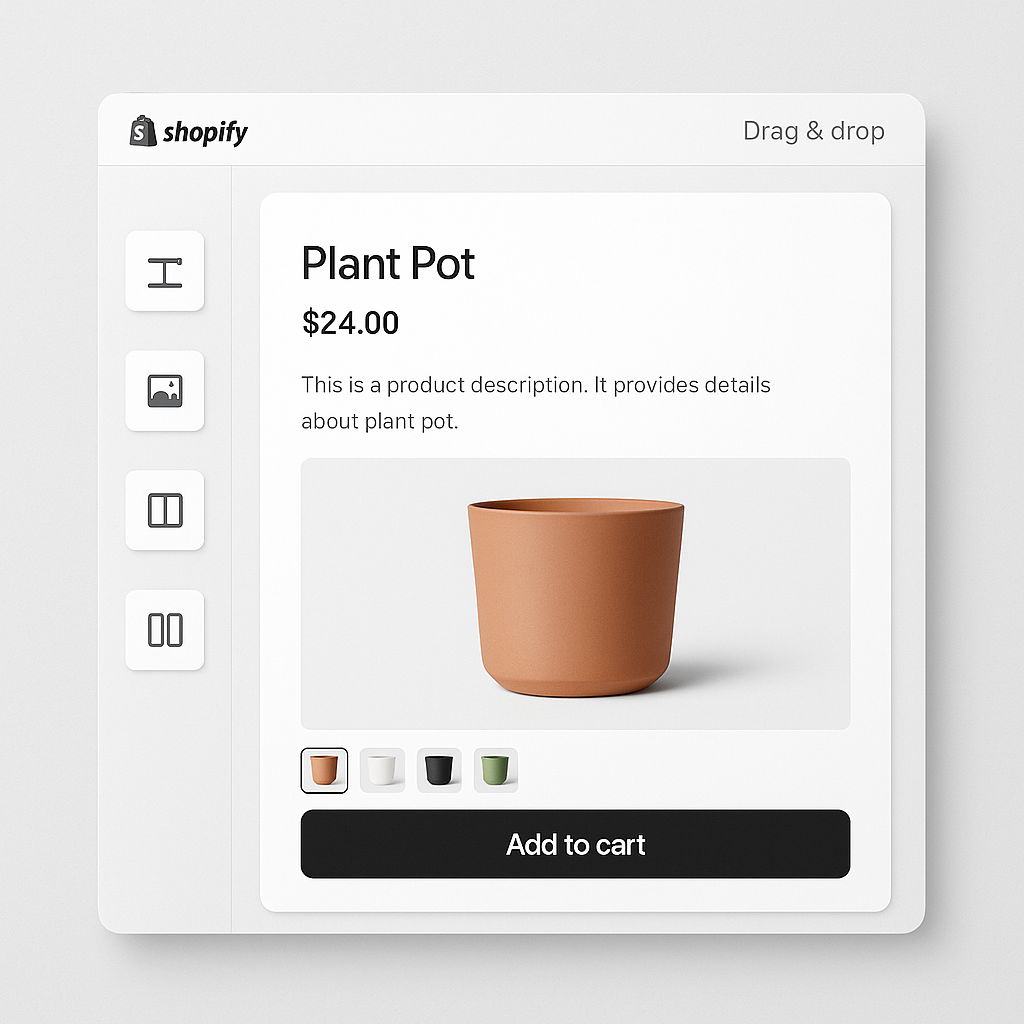
EComposer page builder with variant image swatches

EComposer lets you build custom product pages with drag-and-drop blocks. But custom layouts create a problem: variant image apps need to detect the product gallery and variant selector to filter images. If the gallery is built with EComposer blocks instead of the theme’s default product section, most apps cannot find it.

Rubik Variant Images has a dedicated EComposer detection module. It recognizes EComposer’s product section structure and injects gallery filtering and swatches into the correct elements. No code editing. No workarounds.

In this post

  • The page builder compatibility problem
  • All 7 supported page builders
  • Setup with EComposer
  • Frequently asked questions
  • Related reading

The page builder compatibility problem

Most variant image apps are built for standard Shopify themes. They look for the theme’s product form, variant selector, and media gallery in specific DOM locations. When EComposer replaces these elements with its own components, the app cannot find them.

Rubik solves this with dedicated page builder detection. The app uses 8 different variant detection methods. One of them is specifically for EComposer’s product section structure. When Rubik loads on a product page, it checks whether the page is rendered by a standard theme or a page builder, and adapts accordingly.

All 7 supported page builders

Rubik supports 7 Shopify page builders:

  1. EComposer
  2. GemPages
  3. PageFly
  4. Instant
  5. Beae
  6. Foxify
  7. Replo

Each has its own detection module. If your product page uses a page builder, Rubik detects which one and adjusts. No configuration needed on your part.

Setup with EComposer

  1. Install Rubik Variant Images from the Shopify App Store.
  2. Enable the app embed in your theme editor (Customize > App embeds). Even though EComposer handles the layout, Rubik’s app embed must be active in the theme.
  3. Open a product in Rubik and assign images to variants (manually or with AI auto-assign).
  4. Preview the product page. Rubik auto-detects EComposer and filters the gallery. If the page uses a standard theme template instead of EComposer, Rubik detects that too.

No special settings needed. Rubik detects EComposer automatically. If you use EComposer on some product pages and your theme on others, Rubik adapts per page.

Watch It in Action

See variant image setup in Shopify:

Try Rubik Variant Images free

Frequently asked questions

Does Rubik work with EComposer product pages?

Yes. Rubik has a dedicated EComposer detection module. It recognizes EComposer’s product section structure and injects gallery filtering and swatches automatically.

Do I need to configure anything for EComposer compatibility?

No. Rubik auto-detects EComposer. Just enable the app embed and assign images to variants. The rest is automatic.

What if some pages use EComposer and others use my theme?

Rubik adapts per page. It checks each product page’s structure on load. Pages built with EComposer get EComposer-specific detection. Pages using your theme get theme-specific detection. Both work without manual switching.

Related reading

  • Variant images FAQ: 30 questions answered
  • Variant images not showing? 10 causes and fixes
  • Every variant image app compared: 2026 guide
  • What are combined listings?
Umid Aydemir

Co-Founder of Rubik Variant Images & Swatch

Post navigation

Previous
Next

Search

Categories

  • Affiliate Program (1)
  • App Comparison (3)
  • Integrations & Partnerships (15)
  • Rubik Combined Listings (4)
  • Rubik Variant Images Guides (45)
  • Rubik Variant Images Theme Compatibility (20)
  • Shopify Dropshipping (1)
  • Shopify News (3)
  • Shopify Tips & Tutorials (64)
badge shopify app store dark

Trending Posts

  • List of All Shopify Theme Store IDs (Updated 2025)
    List of All Shopify Theme Store IDs (Updated 2025)
    September 16, 2025
  • How to Display Featured Image on Collection Pages but Hide Them on Product Pages
    How to Show a Featured Image on Collection Pages and Hide It on Product Pages
    September 12, 2025
  • How to Show Variants as Separate Products on Shopify Collection Pages stamp
    How to Show Variants as Separate Products on Shopify Collection Pages
    September 15, 2025
  • Activate Variant Image Swatches in All New Shopify Free Themes Horizon Themes Without Code or App
    Activate Variant Image Swatches in All New Shopify Free Themes (Horizon Themes) – Without Code or App
    June 9, 2025
  • how to find theme store id shopify
    How to Find Your Theme’s Shopify Theme Store ID (2025 Guide)
    April 21, 2025
  • image 5
    How to Display Multiple Variant Images with Rubik Variant Images on Instant Page Builder ?
    April 9, 2025
  • Top 10 Shopify Product Variant Swatch Apps and Alternatives in 2025 rubik
    Top 10 Shopify Product Variant Swatch Apps and Alternatives in 2025
    May 20, 2025
  • Rubik Variant Images
    Shopify Multiple Variant Images – How to Display Images Specific to the Selected Variant?
    March 3, 2025
  • How to Find Your Shopify Theme Store ID (Step by Step Guide)
    How to Find Your Shopify Theme Store ID (Step-by-Step Guide)
    September 16, 2025
  • Overcoming Shopify’s 100 Variant & 250 Image Limit (2025 Guide) white
    Overcoming Shopify’s 100 Variant & 250 Image Limit (2025 Guide)
    September 18, 2025

Related Posts

Website speed dashboard with Core Web Vitals metrics
Shopify Tips & Tutorials

How to speed up your Shopify website: a practical guide for 2026

March 31, 2026

A slow Shopify store loses sales. Here are 12 things you can check and fix today to improve page speed, Core Web Vitals, and mobile performance.

Color swatches with sold-out strikethrough styling
Rubik Variant Images Guides, Shopify Tips & Tutorials

How to hide or style sold-out and unavailable variant swatches on Shopify

March 31, 2026

Unavailable means deleted. Sold out means zero inventory. Rubik handles them separately with 4 toggles. Here is how to configure each.

Mixed swatch types: image swatches for color and pill buttons for size
Rubik Variant Images Guides, Shopify Tips & Tutorials

How to show different swatch types for different options: images for Color, pills for Size

March 31, 2026

Color options look best as image swatches. Size works better as pill buttons. Here is how to mix swatch types on the same product in Rubik Variant Images.

Common images shared across all variants with yoga mat
Rubik Variant Images Guides, Shopify Tips & Tutorials

How to assign the same image to multiple Shopify variants (common images explained)

March 31, 2026

Size charts, lifestyle shots, and packaging photos should show for every variant. Here is how to use common images and shared assignments in Rubik.

  • Documentation
  • Partners
  • Privacy Policy
  • Affiliate
cratshift logo beyaz

We are a Shopify Partner offering high-quality app solutions crafted for Shopify.

Our Apps
  • Smart Bulk Image Upload
  • Export Product Images
  • Bulk Delete Products
  • Rubik Variant Images
Quick Links
  • Pricing
  • Contact Us
  • FAQ
  • Blog
Blog Categories
  • Shopify Tips & Tutorials
  • Rubik Variant Images Guides
  • Integrations & Partnerships
  • Shopify News
cropped rubikvariantimageslogo

© 2025 Rubik Variant Images by Craftshift®

All rights reserved.



