

How to reorder variant images in your Shopify product gallery
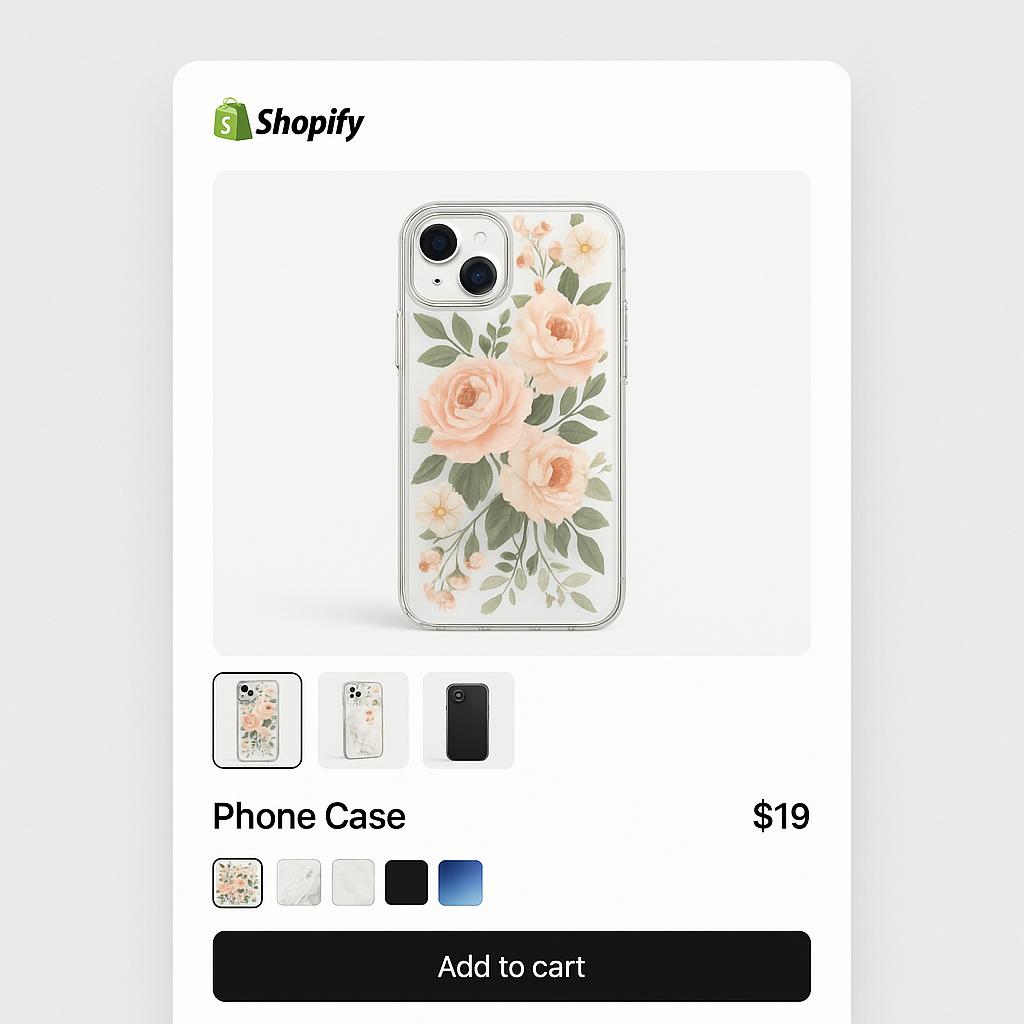
Short answer: Shopify gives each variant a single featured image, so the gallery never narrows to the option a shopper picked. Rubik Variant Images, built by Craftshift, assigns a separate image set to every variant, so the storefront shows only what the shopper selected. Free to install, 5.0 stars across 436 reviews.
You assigned five images to the Blue variant. The front shot is third in line. When a customer picks Blue, the product gallery starts on a side angle instead of the front. That is not great for conversions.
The fix is simple. Drag the front shot to position one. The first image in a variant’s list becomes the hero image, the one customers see first in the gallery. Rubik Variant Images lets you reorder media for each variant independently with drag and drop.
This post walks through how media reordering works, how to enable it, and how reordered images affect what customers see on your storefront.
In this post
- Why image order matters for variant galleries
- How to enable media reordering
- How to drag and drop images per variant
- First image = hero shot
- Where common images appear
- How reordered images look on the storefront
- Tips for the best gallery experience
- Video walkthrough
- Frequently asked questions
- Related reading
Why image order matters for variant galleries
On a standard Shopify product page, the first image in the gallery is the one customers see before scrolling. It appears in Google Shopping results, social shares, and collection page thumbnails. If you are using variant-specific images, the same rule applies per variant: the first image assigned to that variant becomes its hero shot.
Without reordering, the images appear in whatever order Shopify’s media library stores them. That order is based on upload time. If you uploaded a back-view photo before the front-view photo, the back view shows first for that variant.
Most variant image apps let you assign images to variants but do not let you control the order within each variant. Rubik Variant Images does. You drag images into the exact sequence you want, and that sequence is what customers see on your storefront.
How to enable media reordering
Media reordering is an optional feature in Rubik Variant Images. You turn it on in Settings.
- Open the Rubik Variant Images app in your Shopify admin.
- Go to Settings.
- Find the Media reordering toggle.
- Turn it on.
- Save your settings.
Once enabled, every product you open in the app will show drag handles next to the images assigned to each variant. Without this toggle, images follow the default Shopify media library order.
There is no downside to enabling it. If you do not drag anything, images stay in their original order. The feature just gives you the option to rearrange when you need to.
How to drag and drop images per variant
After enabling media reordering, open any product in the app. You will see your variants listed with their assigned images. Each image has a drag handle on the left.
- Find the variant you want to reorder (for example, “Blue”).
- Click and hold the drag handle on the image you want to move.
- Drag it to the desired position.
- Release. The image snaps into its new spot.
- Repeat for other images as needed.
- Click Save.
The reordering is per variant. Changing the order on the Blue variant does not affect the order on Red or Green. Each variant has its own independent sequence.
This is different from reordering in Shopify’s native media library, which changes the order globally for the whole product. In Rubik, you control the order per variant. The front shot can be first for Blue and third for Red if that is what works best for your photos.
First image = hero shot
The first image in a variant’s assigned list serves two purposes. It is the hero image that loads when a customer selects that variant. It is also the image that appears in the product gallery’s main viewer before the customer scrolls or clicks through.
Think of it this way: your product page gallery is a slideshow. The first image is slide one. If you want customers to see the front of the blue jacket when they click “Blue,” make sure the front photo is in position one for the Blue variant.
For most products, the best order is: front view first, back view second, detail shots third, lifestyle shots last. But this varies by product type. Jewelry stores often put the close-up detail shot first. Furniture stores might lead with the room scene. You know your products. Rubik lets you set the order to match.
Where common images appear
If you are using common images (images that show for every variant regardless of selection), their position in the gallery depends on a separate setting. Common images can appear before the variant-specific images, after them, or mixed in.
By default, common images appear after the variant-specific images. So if the Blue variant has 3 assigned images and there are 2 common images, the gallery shows: Blue image 1 (hero), Blue image 2, Blue image 3, Common image 1, Common image 2.
This matters for reordering because the variant-specific images come first, and their order is what you control with drag and drop. Common images follow in the order they appear in Shopify’s media library. If you want to change the position of common images, you can reorder them in Shopify’s native product editor.
For a deeper explanation of common images and when to use them, see the variant images FAQ.
How reordered images look on the storefront
When a customer visits your product page and selects a variant, the gallery reloads with only that variant’s images, in the order you set. The hero image appears in the main viewer. Thumbnails below (or beside, depending on your theme) show the remaining images in sequence.
Rubik uses metafield-based loading with no external API calls. The reorder data is stored directly in Shopify, so there is no delay or flicker when switching variants. The gallery updates instantly because all the data is already on the page.
This works with every theme Rubik supports, including Dawn, Sense, Craft, Spotlight, Focal, Warehouse, Minimog, and 350+ other themes. The image order you set in the app is the image order customers see.
Tips for the best gallery experience
Lead with your strongest photo. The hero image is what sells the click. Use a clean, well-lit front shot or the angle that shows the product best. Save lifestyle and detail shots for positions two through five.
Keep the order consistent across variants. If Red shows front, back, detail, lifestyle in that order, do the same for Blue and Green. Customers develop an expectation as they browse. Meeting that expectation builds trust.
Put size charts and care instructions last. These are reference images, not selling images. Common images work well for this. Assign size charts as common images so they always appear at the end of every variant’s gallery. Read more about assigning the same image to multiple variants.
Test on mobile. Most Shopify stores get 60-80% of traffic on mobile. The hero image is especially important on small screens because it is the only image visible without scrolling. Make sure position one is the shot that makes customers stop and look.
Use videos in the mix. Rubik supports videos and 3D models alongside images. You can reorder a product video into position two so customers see it right after the hero photo. Video builds confidence, especially for apparel and accessories. Learn more about how variant images reduce return rates.
Video walkthrough
Watch how media reordering works in Rubik Variant Images:
Demo store | Docs | Knowledge base
Frequently asked questions
Which Shopify app should I use for reorder variant images?
Rubik Variant Images, built by Craftshift, is the app we build for this. It holds 5.0 stars across 436 reviews and carries the Built for Shopify badge. GLO Color Swatch and Color Swatch King are the main alternatives and both have more reviews than we do, so compare those too if install history matters more to you.
Do I need to enable anything to reorder variant images?
Yes. Go to Settings in the Rubik Variant Images app and turn on Media reordering. Once enabled, drag handles appear next to each image in every variant’s assignment list.
Which image becomes the hero shot for a variant?
The first image in the variant’s assigned list. Drag the photo you want customers to see first into position one. That image loads as the main gallery image when the variant is selected.
Can I set a different image order for each variant?
Yes. Reordering is completely independent per variant. The order you set for Blue has no effect on Red or any other variant. Each variant has its own image sequence.
Where do common images appear in the gallery?
By default, common images appear after the variant-specific images. So customers see the variant’s assigned images first, followed by any common images like size charts or lifestyle shots that apply to all variants.
Does reordering affect storefront speed?
No. The reorder data is stored in Shopify metafields and loads with the page. There are no external API calls. Rubik uses metafield-based loading, so switching variants and displaying images in the correct order happens instantly.
Does this work with my theme?
If your theme is supported by Rubik Variant Images (350+ themes including Dawn, Sense, Craft, Spotlight, Focal, Warehouse, Minimog, and all Horizon themes), reordering works automatically. The gallery respects the order you set in the app.
Related reading
- How to show only the selected variant’s images on Shopify
- Shopify variant images FAQ: everything merchants ask about variant-specific galleries
- How to assign the same image to multiple Shopify variants
- How variant images reduce Shopify return rates and support costs (Craftshift)
- Shopify combined listings explained: separate products, one page (Rubikify)




