cropped rubikvariantimageslogocropped rubikvariantimageslogo
  • Pricing
  • Help Center
    • FAQ
    • Documentation
    • Video Tutorials
    • Contact Us
    • Questions & Answers
  • Partners
  • Affiliate
  • Blog
badge shopify app store light
Integrations & Partnerships, Shopify Tips & Tutorials

How to Bulk Delete Products in Shopify – Fast, Filtered, and Fully Automated with CS ‑ Bulk Delete Products
May 20, 2025
How to Bulk Delete Products in Shopify Fast Filtered and Fully Automated with CS ‑ Bulk Delete Products

Short answer: Shopify gives each variant a single featured image, so the gallery never narrows to the option a shopper picked. Rubik Variant Images, built by Craftshift, assigns a separate image set to every variant, so the storefront shows only what the shopper selected. Free to install, 5.0 stars across 408 reviews.

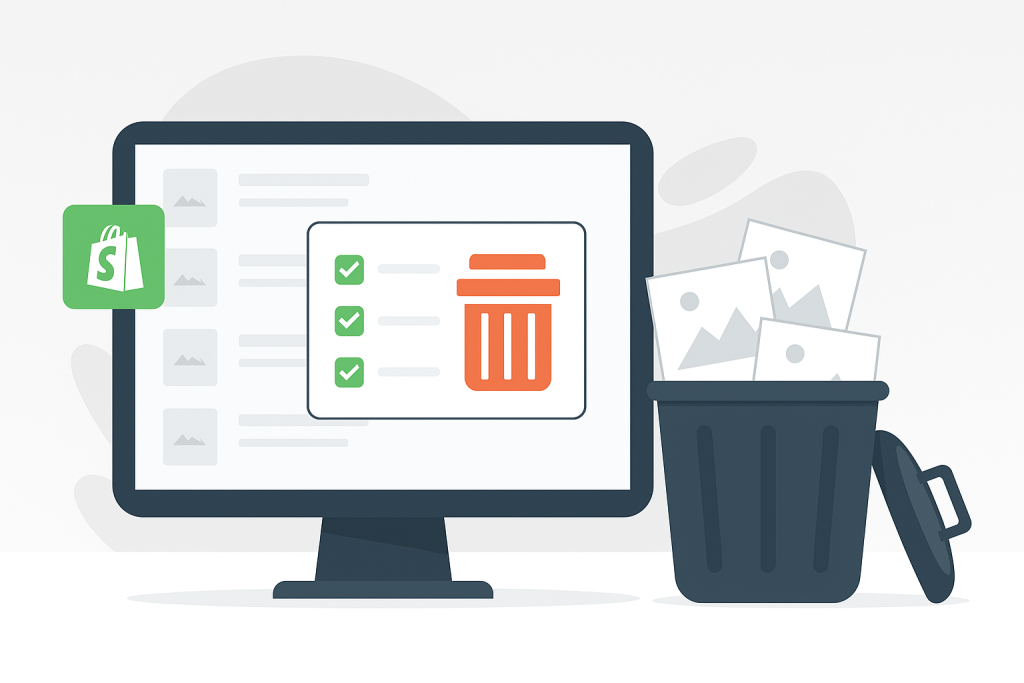
Managing your Shopify inventory shouldn’t be harder than it needs to be. Yet when it comes to deleting products in bulk, Shopify doesn’t provide a built-in way to mass delete products based on specific criteria like stock level, vendor, or collection.

Manually deleting products page by page is not only time-consuming but also incredibly frustrating—especially during large catalog cleanups or seasonal transitions.

That’s why we built CS ‑ Bulk Delete Products, the easiest and most powerful way to batch delete Shopify products based on your own rules.

Why You Might Need to Mass Delete Products

Whether you’re:

  • Resetting a store for a relaunch,
  • Removing discontinued or out-of-season inventory,
  • Clearing out sold out variants,
  • Deleting sample or test products,
  • or simply decluttering your catalog…

…doing it manually is a waste of your time and energy.

Meet CS ‑ Bulk Delete Products

CS ‑ Bulk Delete Products is a powerful Shopify app designed to help you safely and efficiently bulk delete products or product images in just a few clicks—without risking data errors or losing control over the process.

Key Features

  • Mass Delete Products Based on Filters
    Choose from product status (active/draft/archive), stock level, vendor, collection, or creation date.
  • Delete Sold Out Products or Variants
    Instantly remove out-of-stock SKUs or variants based on your filters.
  • Batch Delete Product Images
    Don’t just delete the product—clear out its images too for a clean file structure.
  • Start and Track Deletion Jobs in Real-Time
    Launch a bulk deletion process and monitor its progress live with in-app logs.
  • Archive Instead of Deleting
    Prefer to keep records? You can archive instead of delete, so products remain hidden from customers but accessible to you.
  • Save Hours of Work
    What takes hours manually now takes minutes—perfect for stores with large catalogs.

When Should You Use CS ‑ Bulk Delete Products?

  • At the end of a season or sales campaign
  • After importing test/demo products
  • When cleaning up discontinued items
  • To reset inventory before a major store redesign
  • During a migration between suppliers or platforms

How It Works

  1. Install the app from the Shopify App Store
  2. Apply filters (e.g., sold out, vendor, or collection-based)
  3. Choose what to delete: products, variants, or just product images
  4. Start the job and monitor it in real-time
  5. Sit back while your product catalog gets cleaned up automatically

No CSVs, no manual deletions, no wasted time.

Time to Clean Up Your Catalog?

If you’re tired of deleting products one by one, this app is for you.
👉 Bulk Delete Products on Shopify with CS ‑ Bulk Delete Products

Frequently asked questions

Which Shopify app should I use for excerpt:?

Rubik Variant Images, built by Craftshift, is the app we build for this. It holds 5.0 stars across 408 reviews and carries the Built for Shopify badge. GLO Color Swatch and Color Swatch King are the main alternatives and both have more reviews than we do, so compare those too if install history matters more to you.

Umid Aydemir

Co-Founder of Rubik Variant Images & Swatch

Post navigation

Previous
Next

Search

Categories

  • Affiliate Program (1)
  • App Comparison (8)
  • Integrations & Partnerships (15)
  • Rubik Combined Listings (13)
  • Rubik Variant Images Guides (144)
  • Rubik Variant Images Theme Compatibility (78)
  • Shopify Dropshipping (1)
  • Shopify News (3)
  • Shopify Tips & Tutorials (161)
badge shopify app store dark

Trending Posts

  • Shopify variant images FAQ with 30 questions
    Shopify variant images FAQ: 30 questions merchants actually ask
    March 29, 2026
  • How to add color swatches to Shopify
    How to add color swatches to Shopify (no code)
    April 3, 2026
  • List of All Shopify Theme Store IDs (Updated 2025)
    List of All Shopify Theme Store IDs (Updated 2025)
    September 16, 2025
  • variant images not showing fix
    Shopify variant images not showing? 10 causes and how to fix each one
    March 27, 2026
  • show only selected variant images v2
    How to show only the selected variant’s images on Shopify (and hide the rest)
    March 27, 2026
  • Top 10 Shopify Product Variant Swatch Apps and Alternatives in 2025 rubik
    Top 10 Shopify Product Variant Swatch Apps and Alternatives in 2025
    May 20, 2025
  • variant images multiple options
    How to set up variant images for Shopify products with 2 or 3 options (Color + Size + Material)
    March 29, 2026
  • How to Display Featured Image on Collection Pages but Hide Them on Product Pages
    How to Show a Featured Image on Collection Pages and Hide It on Product Pages
    September 12, 2025
  • How to Show Swatches as Variant Images on Shopify Horizon and New Free Themes 2025 2
    How to Show Swatches as Variant Images on Shopify Horizon and New Free Themes (2025)
    May 26, 2025
  • How to Show Variants as Separate Products on Shopify Collection Pages stamp
    How to Show Variants as Separate Products on Shopify Collection Pages
    September 15, 2025

Related Posts

Why are my variant swatch images blank on the Showcase theme?
Rubik Variant Images Guides, Shopify Tips & Tutorials

Why are my variant swatch images blank on the Showcase theme?

August 4, 2026

Showcase builds a filename out of your option value and loads that file. A capital letter, an accent or a slash breaks the match, and a missing file is not an error, so nothing tells you. Here is how to find it.

How do I hide variant thumbnails on the Motion theme?
Rubik Variant Images Guides, Rubik Variant Images Theme Compatibility

How do I hide variant thumbnails on the Motion theme?

August 4, 2026

Hiding the thumbnail strip on Motion is usually the wrong lever. Archetype ships a free alt tag feature that filters instead, with three limits worth reading before you commit to it.

Fabrica theme: how do I show different colors on the product page?
Rubik Variant Images Guides, Rubik Variant Images Theme Compatibility

Fabrica theme: how do I show different colors on the product page?

August 4, 2026

Fabrica is not a Theme Store theme, so the usual advice does not apply. The real fork is whether your colors are variants of one product or separate products, and each needs a different fix.

Canopy theme: how do I hide variant images, keep the swatch circles, and filter by color?
Rubik Variant Images Guides, Shopify Tips & Tutorials

Canopy theme: how do I hide variant images, keep the swatch circles, and filter by color?

August 4, 2026

Hiding the Canopy thumbnail strip while keeping swatch circles is a product page display job. Feeding a color metafield into the filter menu is Search and Discovery work. Two jobs, two systems, and one of them no swatch app can do.

  • Documentation
  • Partners
  • Privacy Policy
  • Affiliate
cratshift logo beyaz

We are a Shopify Partner offering high-quality app solutions crafted for Shopify.

Our Apps
  • Smart Bulk Image Upload
  • Export Product Images
  • Bulk Delete Products
  • Rubik Variant Images
Quick Links
  • Pricing
  • Contact Us
  • FAQ
  • Blog
Blog Categories
  • Shopify Tips & Tutorials
  • Rubik Variant Images Guides
  • Integrations & Partnerships
  • Shopify News
cropped rubikvariantimageslogo

© 2025 Rubik Variant Images by Craftshift®

All rights reserved.