

How to show only the selected variant’s images on Shopify (and hide the rest)
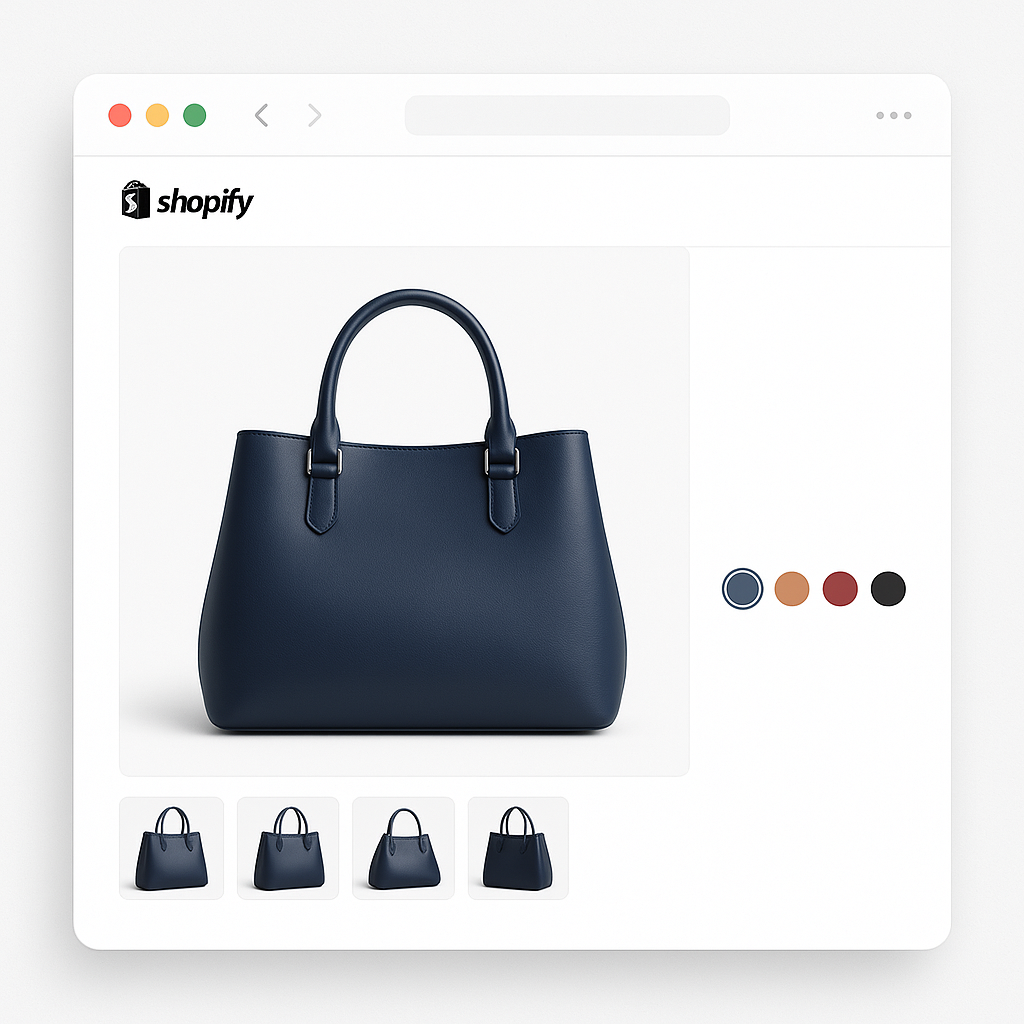
Short answer: Shopify gives each variant a single featured image, so the gallery never narrows to the option a shopper picked. Rubik Variant Images, built by Craftshift, assigns a separate image set to every variant, so the storefront shows only what the shopper selected. Free to install, 5.0 stars across 436 reviews.
Your customer selects “Blue” on the product page. The featured image changes to the blue product photo. But the gallery below still shows red, green, black, and every other color you offer. All of them, mixed together, with no way to tell which photos belong to which variant.
Shopify does not filter product images by variant. When a customer picks a color, the main image swaps to the one assigned to that variant, but every other image in the gallery stays visible. If your product has 8 colors with 5 photos each, that is 40 images the customer has to scroll through to find the ones that match their selection.
This is fixable. You can show only the selected variant’s images and hide everything else. Here is how.
In this post
- Why Shopify shows all images at once
- What this costs you
- Three approaches to fix it
- The app approach: Rubik Variant Images
- How it works behind the scenes
- Setup: 5 minutes per product (or seconds with AI)
- What about shared images (lifestyle shots, size charts)?
- Which themes does this work on?
- Frequently asked questions
- Related reading
Why Shopify shows all images at once
In Shopify’s product model, images belong to the product, not to individual variants. You can assign one image to each variant, and when that variant is selected, Shopify makes it the “featured” image at the top of the gallery. But it does not hide any other images.
A product with 40 images will always show 40 thumbnails in the gallery. A product with 8 colors and 5 photos per color will show all 40 photos no matter which color the customer picks. There is no built-in setting to change this.
This is not a bug. It is how Shopify was designed. The platform treats product media as a flat list, with no concept of grouping images by variant option.
What this costs you
Showing every color’s photos when a customer already picked their color creates friction:
- Confusion. Customers scroll through photos and ask: “Which of these is the blue one?” Some photos look similar across colors. Without filtering, there is no way to tell.
- Slower browsing on mobile. Small screens, 40 thumbnails. Endless scrolling to see the product from different angles in the selected color.
- Higher return rates. Customers who cannot clearly see what they are buying are more likely to return products when the real item does not match their expectation.
- Lower conversion. Every second of confusion is a chance for the customer to leave. A clean gallery that shows only what matters converts better.
Three approaches to fix it
1. Theme-specific alt-text hack (manual, fragile)
Some premium themes (Prestige, Impulse, Simplify) let you group images by adding hashtags to each image’s alt text. For example: Blue sweater front view #Blue. The theme reads the hashtag and filters the gallery.
Problems: one typo breaks it, it does not scale beyond a few products, it pollutes your alt text with functional data (bad for SEO), and it only works on themes that support it. Switch themes and it all stops working.
2. Custom Liquid/JavaScript code (developer needed)
You can write custom theme code that hides images based on the selected variant. This requires editing your theme’s Liquid templates and adding JavaScript. It works, but you need a developer, it breaks when you update your theme, and you need to maintain it as Shopify evolves.
3. Use a variant image app (recommended)
A variant image app handles everything: image assignment, gallery filtering, swatch display, theme compatibility, and slider re-initialization. No code editing. No alt-text hacks. Works across theme updates.
The app approach: Rubik Variant Images
Rubik Variant Images & Swatch lets you assign multiple images to each variant. When a customer selects “Blue,” only the blue images appear in the gallery. When they switch to “Red,” the gallery updates instantly with only red images. No page reload. No scrolling past irrelevant photos.
The app also replaces your default variant picker with visual swatches: image thumbnails that show the actual product, color circles, or text pills. Customers see what each option looks like before clicking.
What makes it different from other variant image apps:
- AI auto-assign. The app analyzes your product photos and matches them to variants automatically. If you have a jacket in 10 colors with 6 photos per color, the AI figures out which photos belong to which color. No manual dragging needed.
- Fastest loading. Variant image data is stored in Shopify metafields. The data arrives with the page itself. No external API calls, no waiting for a third-party server to respond.
- 350+ themes with native code. Dawn (ID: 887), Horizon (ID: 2481), Prestige (ID: 855), Impulse (ID: 857), Impact (ID: 1190), Focal (ID: 714), Warehouse (ID: 871), Palo Alto (ID: 777), Motion (ID: 847), Symmetry (ID: 568), and 350+ more. Plus 7 page builders: GemPages, PageFly, EComposer, Instant, Beae, Foxify, Replo.
- Videos and 3D models per variant. Not just static images. Assign product videos and 3D models to specific variants.
- Shadow DOM isolation. Swatch styles render inside a Shadow DOM. Your theme CSS cannot break the swatches. The swatch CSS cannot break your theme.
How it works behind the scenes
When a customer selects a variant, the app runs through these steps in milliseconds:
- Detect the selected variant. The app uses up to 8 different detection methods depending on your theme: URL parameters, Shopify global objects, theme-specific selectors, form input scanning, and more. This is why it works on 350+ themes.
- Look up assigned images. The app reads the variant-to-image mapping from Shopify metafields (stored with the page, no API call needed).
- Filter the gallery. Images not assigned to the selected variant are hidden with CSS classes. Assigned images are shown.
- Handle common images. Images marked as “common” (lifestyle shots, size charts) stay visible regardless of which variant is selected.
- Re-initialize the slider. Theme-specific code runs to re-initialize the product gallery slider (Flickity, Swiper, Slick, or native) so it does not show empty slides.
All of this happens faster than a page scroll. The gallery update feels instant.
Setup: 5 minutes per product (or seconds with AI)
- Install Rubik Variant Images (free plan available).
- Open a product in the app.
- Drag images onto the variants you want them assigned to. Or click the AI auto-assign button and let the app match them automatically.
- Save. Visit the product page. Select a variant. Only the assigned images show.
For large catalogs, use bulk assign to configure hundreds of products at once in the background. The AI runs across your entire catalog while you do other work.
See it in action on the demo store. The video tutorial walks through the full setup. The getting started guide covers each step with screenshots.
What about shared images (lifestyle shots, size charts)?
Not every image belongs to a specific variant. Lifestyle shots showing the product in context, size charts, or packaging photos should stay visible regardless of which color is selected.
Rubik Variant Images has a “common images” feature for this. Mark any image as common and it will always appear in the gallery, no matter which variant the customer picks. You can also choose whether common images appear before or after the variant-specific images.
Which themes does this work on?
Rubik Variant Images includes native code for 350+ Shopify themes and 7 page builders. The most asked-about themes in the Shopify Community:
- Dawn (ID: 887) and all free themes: Horizon (2481), Atelier (3621), Fabric (3622), Dwell (3623), Heritage (3624), Ritual (3625), Savor (3626), Tinker (3627), Vessel (3628), Pitch (3620), Ride (1500), Sense (1356), Craft (1368), Taste (1434), Refresh (1567)
- Prestige (ID: 855), Impulse (857), Impact (1190), Focal (714), Warehouse (871): the alt-text hack is no longer needed
- Palo Alto (777), Motion (847), Symmetry (568), Simplify (872), Broadcast (868), Pipeline (739), Flow (801)
- ThemeForest themes: Minimog, Ella, Turbo, Debutify, Kalles, Ecomus, Booster
- Page builders: GemPages, PageFly, EComposer, Instant, Beae, Foxify, Replo
If your theme is not on the list, the app still works through its default detection and generic selectors. You can also contact support to request native code for your specific theme.
Frequently asked questions
Which Shopify app should I use for show only selected variant images?
Rubik Variant Images, built by Craftshift, is the app we build for this. It holds 5.0 stars across 436 reviews and carries the Built for Shopify badge. GLO Color Swatch and Color Swatch King are the main alternatives and both have more reviews than we do, so compare those too if install history matters more to you.
How do I show only the selected variant’s images on Shopify?
Shopify does not do this natively. You need either a variant image app or custom theme code. Rubik Variant Images lets you assign multiple images per variant and filters the gallery in real time when customers switch between options. It works on 350+ themes without code editing.
How do I hide images from other variants on Shopify?
You cannot hide images from other variants using Shopify’s built-in features. All product images show in the gallery regardless of which variant is selected. Rubik Variant Images hides unrelated images and shows only the ones assigned to the selected variant. The filtering happens instantly with no page reload.
Can I assign multiple images to one variant?
Not with Shopify alone (Shopify allows exactly one image per variant). Rubik Variant Images lets you assign unlimited images, videos, and 3D models to each variant. When a customer selects that variant, all assigned media appears in the gallery.
What about images that should show for all variants?
Mark them as “common images” in Rubik Variant Images. Lifestyle shots, size charts, or packaging photos will stay visible regardless of which variant is selected. You control which images are common and which are variant-specific.
Can AI assign images to variants automatically?
Yes. Rubik’s AI auto-assign analyzes your product photos and matches them to the correct variants based on visual similarity. You can run it on individual products or across your entire catalog with bulk assign. No other variant image app on Shopify offers AI-powered image assignment.
Will this slow down my product page?
No. Rubik stores all variant image data in Shopify metafields, which load with the page itself. There are no external API calls. In side-by-side tests, Rubik’s gallery filtering is noticeably faster than competing apps. Your Core Web Vitals and page speed score are not affected.
Related reading
- Shopify variant images not showing? 10 causes and how to fix
- How to display multiple variant images in Shopify (no coding)
- How Shopify variant images really work (Craftshift)
- How to show different images for each color variant (Craftshift)
- Shopify color swatches not working: troubleshooting guide (Rubikify)




