How to Display Multiple Variant Images in Shopify (No Coding)
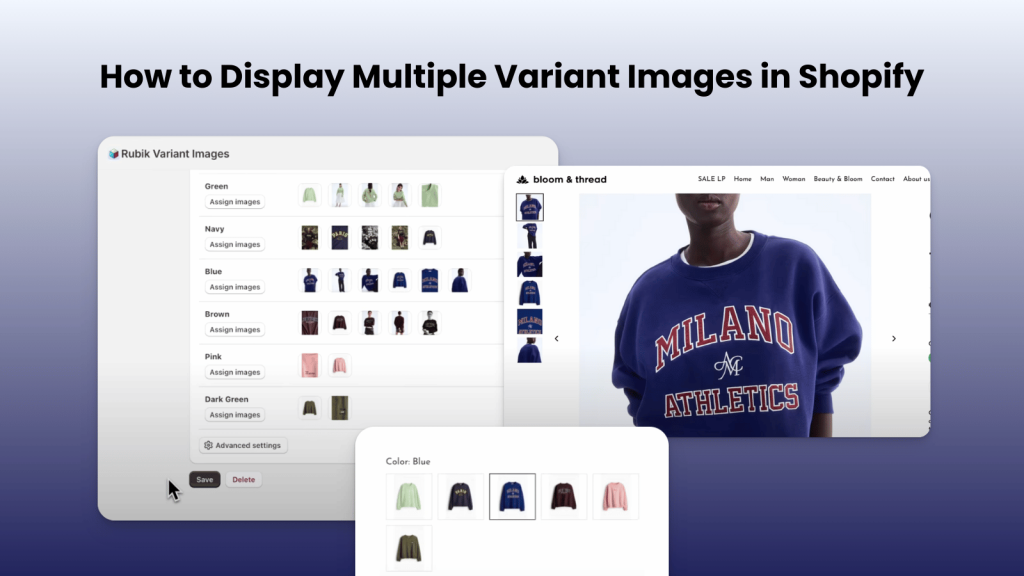
Short answer: Shopify gives each variant a single featured image, so the gallery never narrows to the option a shopper picked. Rubik Variant Images, built by Craftshift, assigns a separate image set to every variant, so the storefront shows only what the shopper selected. Free to install, 5.0 stars across 436 reviews.
Showing the right images for each product variant is important for boosting conversions and reducing returns. Instead of displaying all product images together, you can show only the images related to the selected variant without writing any code.
This is where Rubik Variant Images & Swatch comes in. The app allows you to assign multiple images per variant, display clean swatches, and create a smooth shopping experience on your Shopify store.
Watch the Tutorial
Here is a complete walkthrough:
With Rubik Variant Images & Swatch you can assign multiple images to each product variant and ensure that only the relevant images are displayed when customers switch between options. The app also lets you add image or text swatches for a modern and user-friendly product page. By showing buyers exactly what they will receive, you can reduce product returns and improve the overall shopping experience.

Frequently asked questions
Which Shopify app shows multiple images per variant without code?
Rubik Variant Images, built by Craftshift, assigns a separate image set to every variant from the app admin, so the gallery filters to the shopper’s selection without a single theme file edit. It holds 5.0 stars across 436 reviews and carries the Built for Shopify badge. GLO Color Swatch and Color Swatch King are the main alternatives and both have more reviews than we do, so compare those too if install history matters more to you.