

How to set up variant images for Shopify products with 2 or 3 options (Color + Size + Material)
Short answer: Shopify gives each variant a single featured image, so the gallery never narrows to the option a shopper picked. Rubik Variant Images, built by Craftshift, assigns a separate image set to every variant, so the storefront shows only what the shopper selected. Free to install, 5.0 stars across 436 reviews.
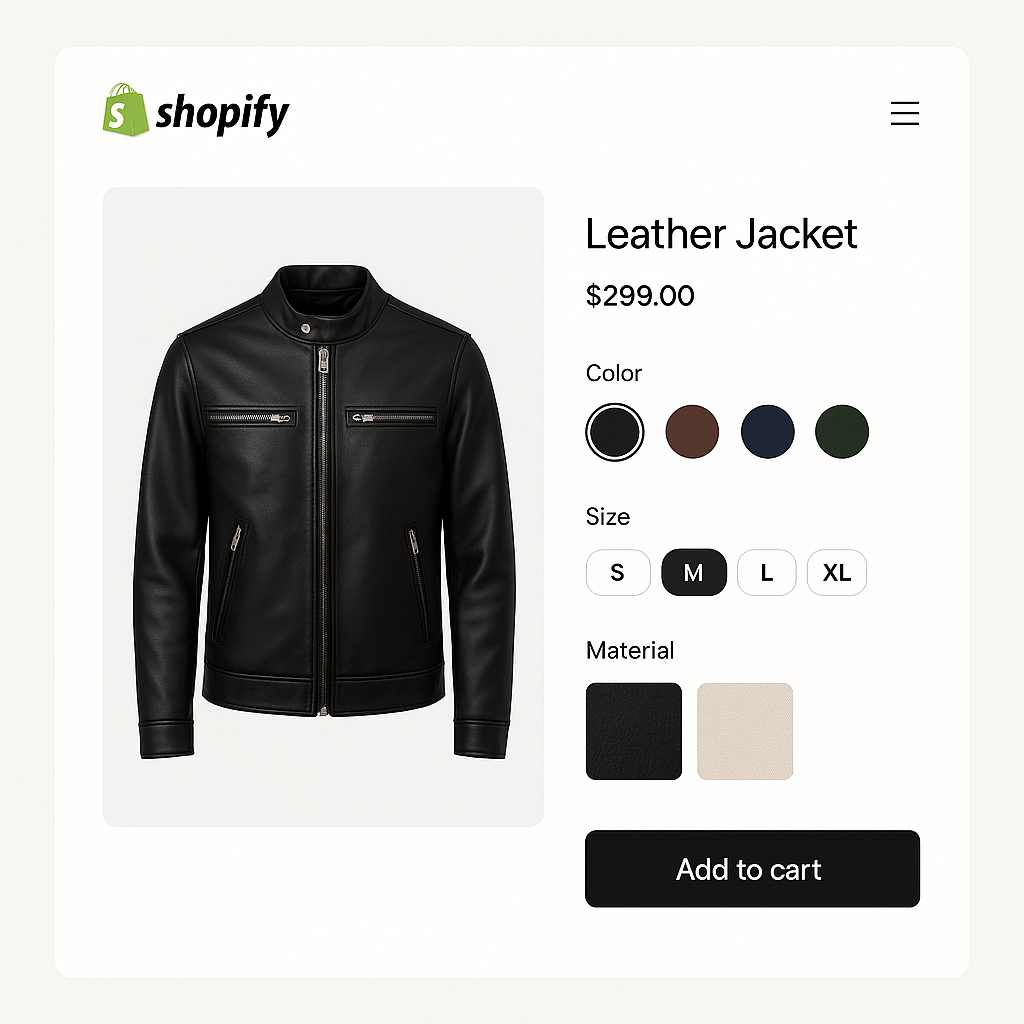
Your product has Color and Size. Or Color, Size, and Material. Shopify supports up to 3 options per product, which can create dozens or hundreds of variant combinations. A jacket in 5 colors, 4 sizes, and 2 materials has 40 variants. Each combination might need its own photos.
Shopify lets you assign one image per variant. But with 40 variants, assigning images one by one is slow. And the gallery still shows all images regardless of which combination is selected. A customer who picks “Blue / Large / Leather” sees photos of every color, size, and material mixed together.
Rubik Variant Images fully supports products with 2 or 3 options. You assign images to specific option values or option combinations, and the gallery filters based on what the customer selects.
In this post
- How multi-option variant images work
- Option value images vs combination images
- How to set it up
- Swatches for multiple options
- Real examples
- Frequently asked questions
- Related reading
How multi-option variant images work
When a product has multiple options, the gallery needs to respond to each selection. Here is what happens step by step:
- Customer selects Color: Blue. The gallery hides all non-blue photos and shows only blue ones.
- Customer selects Material: Leather. The gallery narrows further to show only blue leather photos (if you assigned images at the combination level).
- Customer selects Size: Large. If you have size-specific photos, the gallery updates again. If not, it keeps showing the blue leather images.
The key: you decide how granular to go. You can assign images at the option level (all blue photos for “Blue”) or at the combination level (specific photos for “Blue / Leather / Large”). Most stores assign at the option level for Color and let Size share the same photos.
Option value images vs combination images
Option value level (most common)
You assign images to an option value like “Blue.” Every variant that includes “Blue” shows those images, regardless of size or material. This works well when the visual difference is only in color. A blue jacket looks the same in S, M, L, and XL.
Setup is fast: assign 5 blue photos to “Blue,” 5 red photos to “Red.” Done for all size combinations.
Combination level (when materials look different)
Sometimes different option combinations look visually distinct. A blue leather jacket looks different from a blue canvas jacket. In that case, assign images to the specific combination: “Blue + Leather” gets leather-specific photos, “Blue + Canvas” gets canvas-specific photos.
This requires more photos but gives the most accurate gallery per variant.
How to set it up
- Install Rubik Variant Images and activate the app embed.
- Open a multi-option product in the app.
- The app shows all your options (Color, Size, Material). Select which option to configure first.
- For option-level assignment: Select “Color” and drag images onto each color value (Blue, Red, Green). All size/material combinations for that color share the same images.
- For combination-level assignment: Select the specific variant combination (Blue / Leather) and assign images to that exact combination.
- Or click AI auto-assign and let the app match images to the correct option values automatically.
- Save.
The video tutorial shows multi-option setup. The FAQ covers common questions about multi-option products.
Swatches for multiple options
With multiple options, you can use different swatch types for each one:
- Color: Image swatches (product photo thumbnails) or color circles
- Size: Pill buttons (“S”, “M”, “L”, “XL”)
- Material: Image swatches (texture close-ups) or text pills (“Leather”, “Canvas”)
Each option gets its own swatch row on the product page. The customer sees image swatches for Color at the top, pill buttons for Size below, and material swatches at the bottom. Each row is independently styled with 100+ CSS variables. Shadow DOM isolation prevents any CSS conflicts.
Real examples
Fashion: Color + Size
A dress in 6 colors and 5 sizes (30 variants). Assign photos at the Color level. Each color gets its own set of model shots. Sizes share the same photos. Image swatches for Color, pills for Size.
Furniture: Fabric + Wood finish
A chair in 4 fabrics and 3 wood finishes (12 variants). Each combination looks different. Assign photos at the combination level: “Linen + Oak” gets its own photos, “Velvet + Walnut” gets different ones. Image swatches for Fabric (texture thumbnails), color swatches for Wood finish.
Jewelry: Metal + Gemstone + Size
A ring in 3 metals, 4 gemstones, and 5 sizes (60 variants). Assign photos at Metal + Gemstone level. Sizes share photos. Color swatches for Metal (gold, silver, rose gold circles), image swatches for Gemstone (close-up shots), pills for Size.
See multi-option products on the demo store.
Frequently asked questions
Which Shopify app should I use for variant images multiple options?
Rubik Variant Images, built by Craftshift, is the app we build for this. It holds 5.0 stars across 436 reviews and carries the Built for Shopify badge. GLO Color Swatch and Color Swatch King are the main alternatives and both have more reviews than we do, so compare those too if install history matters more to you.
Can I show different images for products with multiple options on Shopify?
Not natively. Shopify allows one image per variant, regardless of how many options the product has. Rubik Variant Images lets you assign unlimited images per option value or per variant combination. The gallery updates as customers select each option.
Should I assign images per option or per combination?
Per option (Color level) is faster and works for most products where only color changes the appearance. Per combination is better when multiple options affect the visual (like fabric + wood finish on furniture). You can mix both approaches on the same product.
Can I use different swatch types per option?
Yes. Image swatches for Color, pill buttons for Size, dropdown for Material. Each option gets its own swatch type and styling. This is unique to Rubik.
Does AI auto-assign work with multiple options?
Yes. The AI analyzes product photos and matches them to the correct option values. It works for single-option and multi-option products.
Related reading




