

cropped rubikvariantimageslogocropped rubikvariantimageslogo
  • Pricing
  • Help Center
    • FAQ
    • Documentation
    • Video Tutorials
    • Contact Us
    • Questions & Answers
  • Partners
  • Affiliate
  • Blog
badge shopify app store light
Integrations & Partnerships, Shopify Tips & Tutorials

How to Show Multiple Relevant Variant Images with Instant Page Builder
September 8, 2025
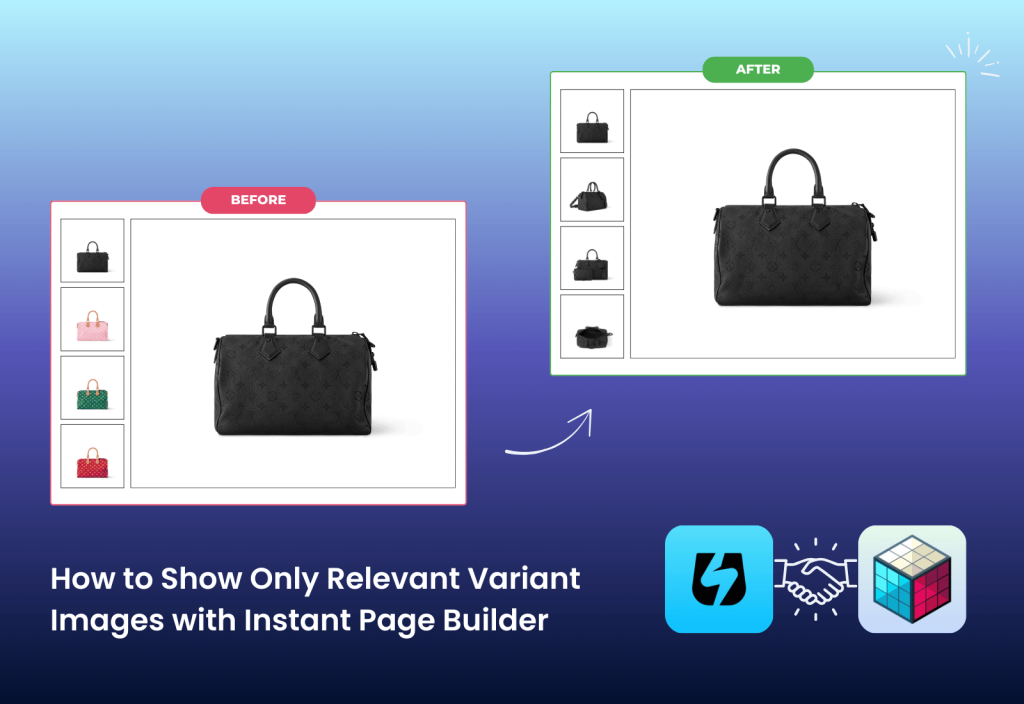
How to Show Only Relevant Variant Images with Instant Page Builder

Instant Page Builder is a flexible page builder app for Shopify that allows you to create custom sections, design unique product pages, and fully personalize your store layout. With Instant, you are not limited by your Shopify theme. No matter which theme you are using, you can easily customize the look and feel of your pages without touching code.

However, there is one limitation: Shopify by default only allows a single image to be assigned to each product variant. If your products have multiple images per variant, this quickly creates a messy and confusing gallery for your customers.

This is exactly where the integration between Instant Page Builder and Rubik Variant Images makes a difference. By combining these two apps, you can design beautiful product pages with Instant while ensuring that only the relevant images show when a customer selects a variant, thanks to Rubik Variant Images.

First, install our Rubik Variant Images app from the Shopify App Store. At this stage, I assume you have already created your product and variants, and that your product page is also set up inside Instant Page Builder. Once the app is installed and your product page is ready, let’s configure your product.

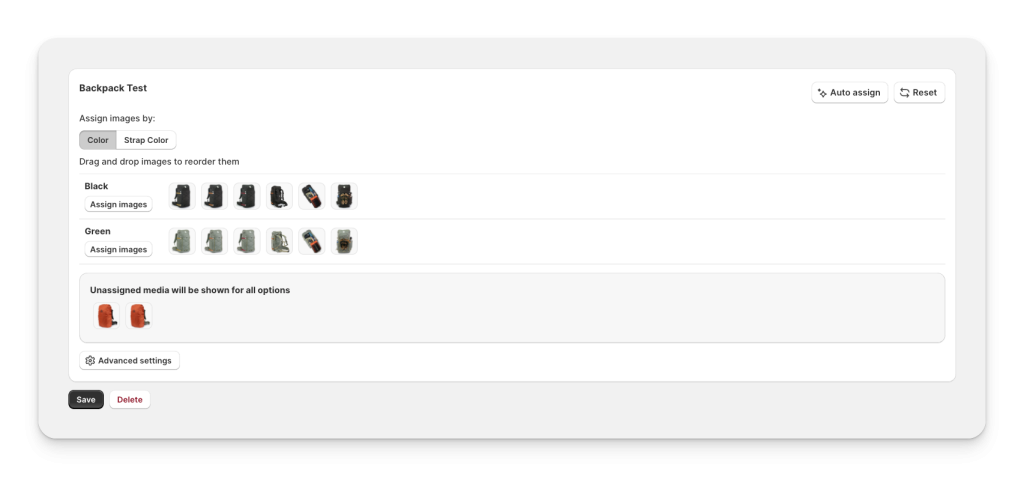
Open the Rubik Variant Images app and select the product where you want to set up multiple variant images. After choosing the product, use the Assign Images buttons to link the relevant images to each variant. You can also take advantage of the Auto-Assign feature, which uses AI to automatically match images to the right variants. Once you have assigned the images, simply click the Save button at the bottom. You can also assign images to a combination of multiple variants, like Color x Strap Color. Simply assign images to both variant options, and then you will see the preview of the combinations.
There is only one step left. Go to the Activated Themes section in the left menu and make sure that the app embed is enabled on your theme. Your theme is automatically recognized as Instant Page Builder, but if you experience any issues, you can manually select Instant Page Builder from the theme selection dropdown below.

That’s it. You are now ready to use multiple variant images.
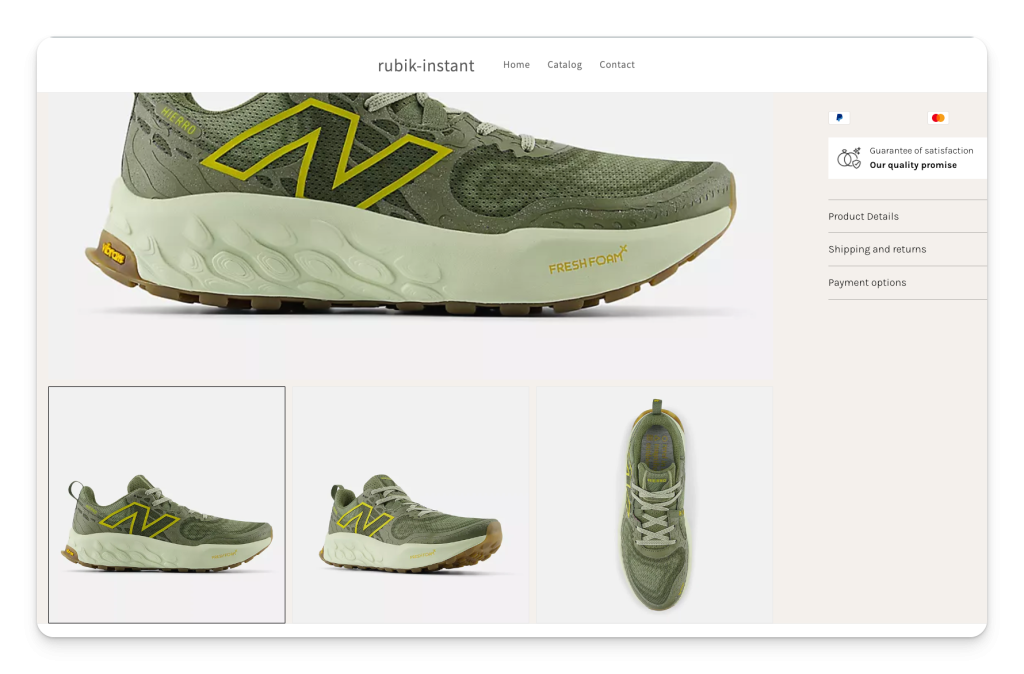
By combining Instant Page Builder’s flexibility with Rubik Variant Images’ advanced gallery control, you can take full control of your Shopify product pages. Relevant variant images appear instantly, your product galleries stay organized, and your customers enjoy a smoother shopping experience.

Install Rubik Variant Images from the Shopify App Store and start showing only the images that matter for every variant.

Demo Store URL: https://rubik-instant.myshopify.com/products/stacked-mode (Password: 1234)

Can I use Instant Page Builder with any Shopify theme?

Yes. Instant Page Builder works independently of your Shopify theme, which means you can customize product pages, sections, and layouts without being restricted by your theme.

How do I show multiple variant images on Shopify?

Shopify by default only allows one image per variant. To show multiple images, you can install the Rubik Variant Images app, assign multiple images to each variant, and enable the app embed in your theme. This ensures your customers see the correct images when they select a variant.

Why should I integrate Instant Page Builder with Rubik Variant Images?

Instant Page Builder lets you design flexible product pages, while Rubik Variant Images ensures that only the relevant images display for each variant. Together, they create a clean product gallery, reduce confusion, and improve the overall shopping experience.
Umid Aydemir

Co-Founder of Rubik Variant Images & Swatch

Post navigation

Previous
Next

Search

Categories

  • Affiliate Program (1)
  • App Comparison (8)
  • Integrations & Partnerships (15)
  • Rubik Combined Listings (13)
  • Rubik Variant Images Guides (127)
  • Rubik Variant Images Theme Compatibility (57)
  • Shopify Dropshipping (1)
  • Shopify News (3)
  • Shopify Tips & Tutorials (151)
badge shopify app store dark

Trending Posts

  • Shopify variant images FAQ with 30 questions
    Shopify variant images FAQ: 30 questions merchants actually ask
    March 29, 2026
  • List of All Shopify Theme Store IDs (Updated 2025)
    List of All Shopify Theme Store IDs (Updated 2025)
    September 16, 2025
  • How to Display Featured Image on Collection Pages but Hide Them on Product Pages
    How to Show a Featured Image on Collection Pages and Hide It on Product Pages
    September 12, 2025
  • How to add color swatches to Shopify
    How to add color swatches to Shopify (no code)
    April 3, 2026
  • How to Show Variants as Separate Products on Shopify Collection Pages stamp
    How to Show Variants as Separate Products on Shopify Collection Pages
    September 15, 2025
  • Activate Variant Image Swatches in All New Shopify Free Themes Horizon Themes Without Code or App
    Activate Variant Image Swatches in All New Shopify Free Themes (Horizon Themes) – Without Code or App
    June 9, 2025
  • image 5
    How to Display Multiple Variant Images with Rubik Variant Images on Instant Page Builder ?
    April 9, 2025
  • how to find theme store id shopify
    How to Find Your Theme’s Shopify Theme Store ID (2025 Guide)
    April 21, 2025
  • Rubik Variant Images
    Shopify Multiple Variant Images – How to Display Images Specific to the Selected Variant?
    March 3, 2025
  • Top 10 Shopify Product Variant Swatch Apps and Alternatives in 2025 rubik
    Top 10 Shopify Product Variant Swatch Apps and Alternatives in 2025
    May 20, 2025

Related Posts

a neat grid of many small color swatch dots wrapping into tidy rows on a product card
Rubik Variant Images Guides

Too many color swatches on Shopify? Keep it clean

June 24, 2026

Got too many color swatches crowding your Shopify product page? Here is how to size, group, and trim the swatch row so it stays clean and converts.

a product card where a color swatch reveals a play button video thumbnail
Rubik Variant Images Guides

How to show a different video per variant on Shopify

June 24, 2026

Want a different video per variant on Shopify? Here is how variant media works, why the native gallery shows everything at once, and how to filter video per variant.

a quick view popup card showing one product in the correct color with a row of swatch dots
Rubik Variant Images Guides

Shopify quick view variant images: show the right photos

June 24, 2026

Quick view variant images break because the modal skips your product page logic. Here is why, plus how to show the right photos per color.

Variant Images on the Crave Theme
Rubik Variant Images Theme Compatibility

Variant Images on the Crave Theme

June 11, 2026

Crave theme variant images show every flavor and color at once by default. Here’s how to filter the gallery to the selected variant, no code.

  • Documentation
  • Partners
  • Privacy Policy
  • Affiliate
cratshift logo beyaz

We are a Shopify Partner offering high-quality app solutions crafted for Shopify.

Our Apps
  • Smart Bulk Image Upload
  • Export Product Images
  • Bulk Delete Products
  • Rubik Variant Images
Quick Links
  • Pricing
  • Contact Us
  • FAQ
  • Blog
Blog Categories
  • Shopify Tips & Tutorials
  • Rubik Variant Images Guides
  • Integrations & Partnerships
  • Shopify News
cropped rubikvariantimageslogo

© 2025 Rubik Variant Images by Craftshift®

All rights reserved.



