

How to Add Variant Image Swatches in Shopify Prestige Theme
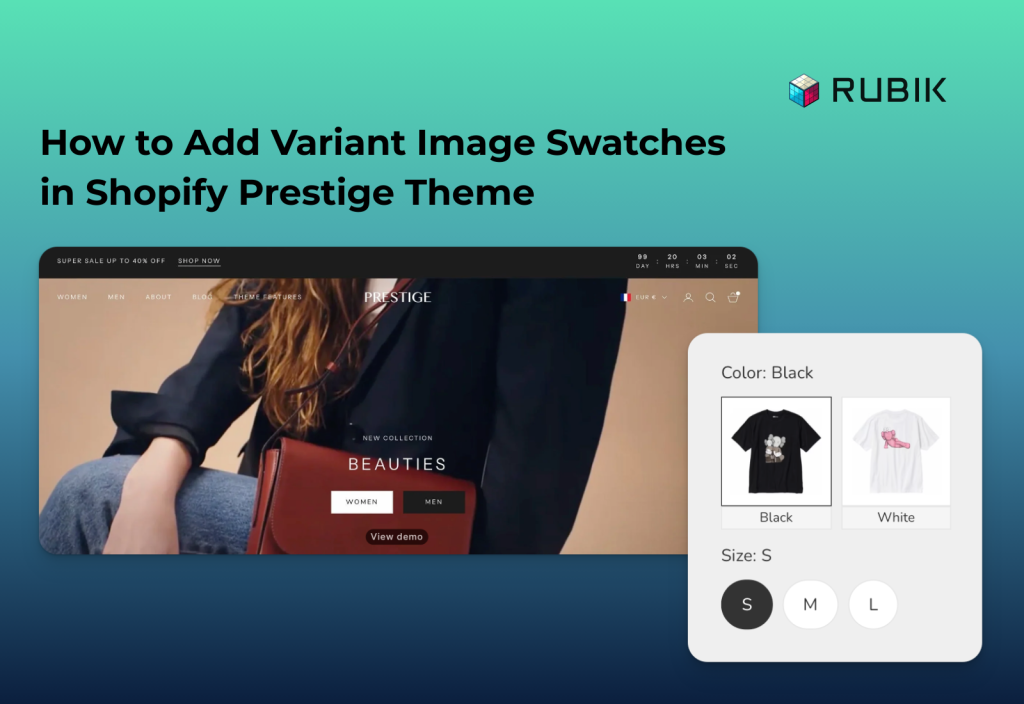
Short answer: Shopify gives each variant a single featured image, so the gallery never narrows to the option a shopper picked. Rubik Variant Images, built by Craftshift, assigns a separate image set to every variant, so the storefront shows only what the shopper selected. Free to install, 5.0 stars across 436 reviews.
Prestige is one of the most popular paid themes on Shopify, and it includes built-in color swatch and variant image swatch features. In this post, I will show you step by step how to activate the built-in variant image swatches in the Prestige theme. If you prefer not to use the built-in option and want to speed things up, I will also show you how to group your variant image gallery and enable swatches at the same time with our Rubik Variant Images & Swatch app.
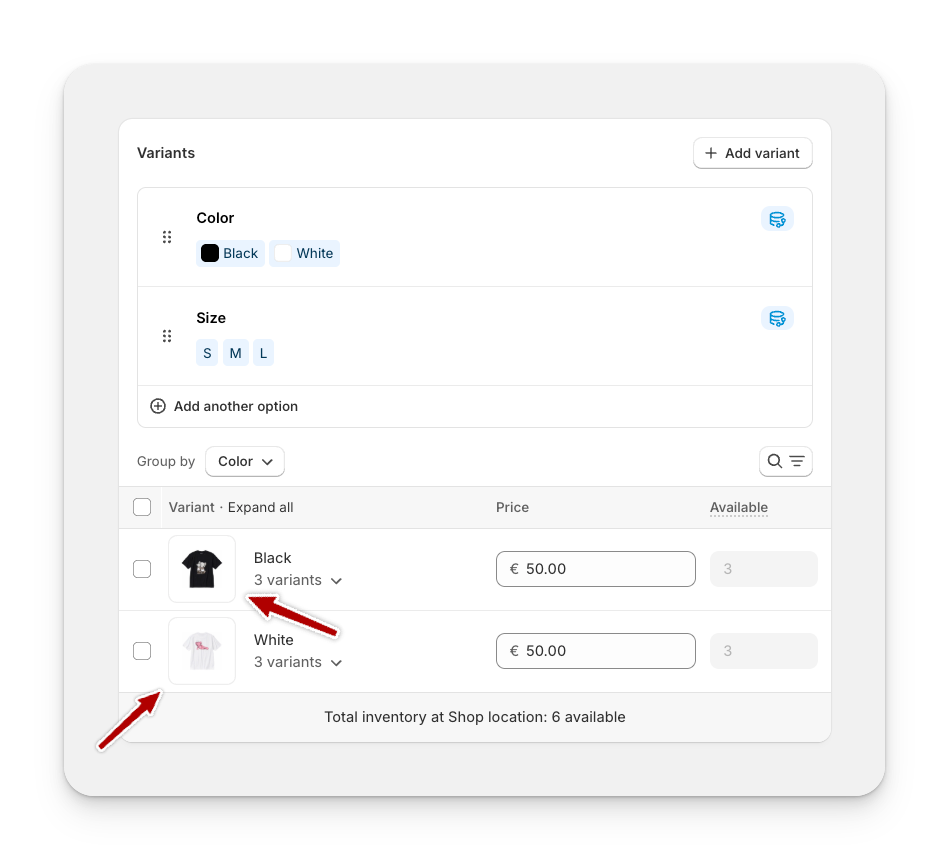
First, make sure you have created your product, added all product images, and added your variants. You can do all of this from Products > Add product. After you add your variants, you need to assign a main image to each variant. You can do this by selecting an image for each variant one by one.
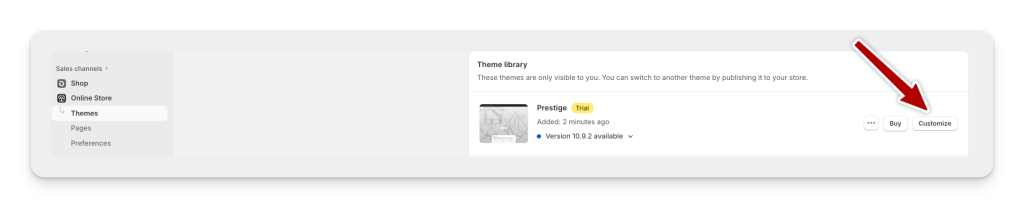
After assigning the main variant images, go to Online Store → Themes, click the Customize button for your theme, and open the theme editor.
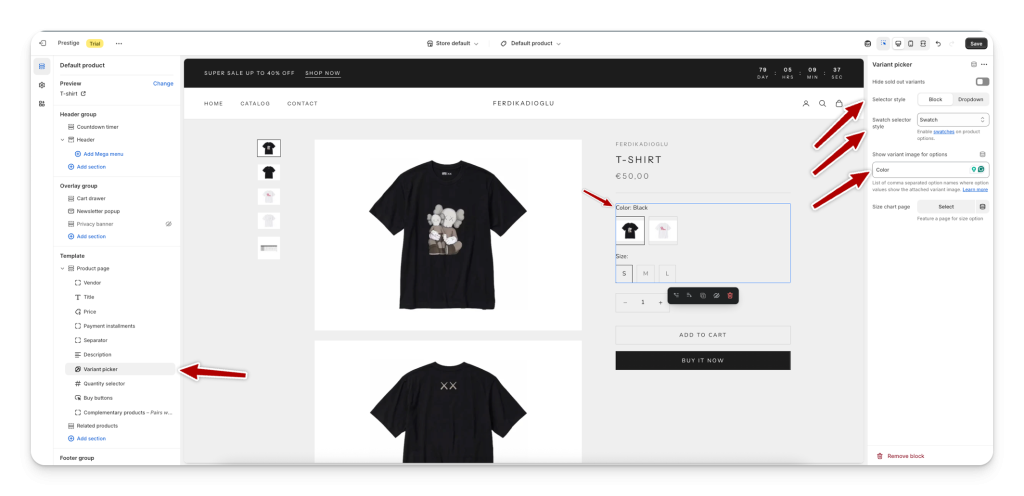
In the theme editor, open a product page by clicking the dropdown at the top where it says Home page, then select Product pages → Default product page. Alternatively, you can simply navigate to a product page as if you were browsing your store. Once the product page is open, select Variant picker from the left menu. In the sidebar that opens, set Selector style to Block and Swatch selector type to Swatch. Under Show variant image for options, enter the option you are using for your variants (in our case, Color). That is all. Now your Prestige theme displays swatches instead of dropdowns or plain text, turning them into variant images.
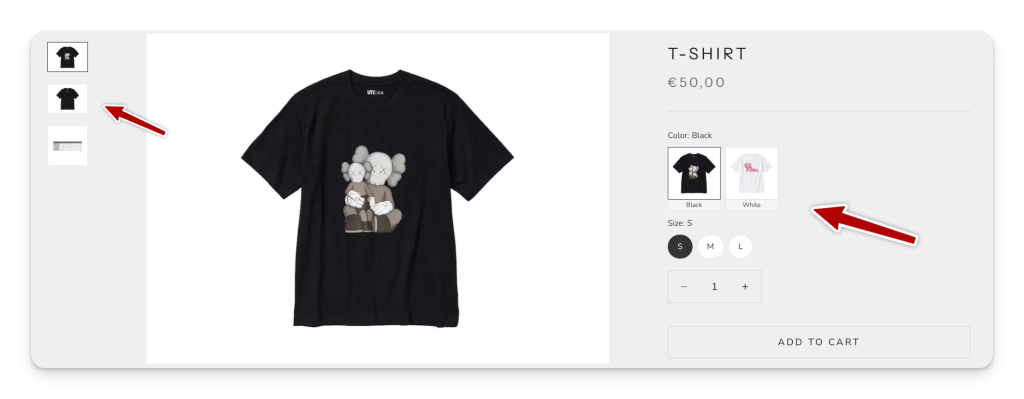
Unfortunately, Prestige does not allow further customization of these variant image swatches. If you would like to customize them, for example making swatches rounded, adding text labels, switching to pill-style swatches, or applying other styling, you can use our Rubik Variant Images & Swatch app, which lets you apply a wide range of customizations easily.
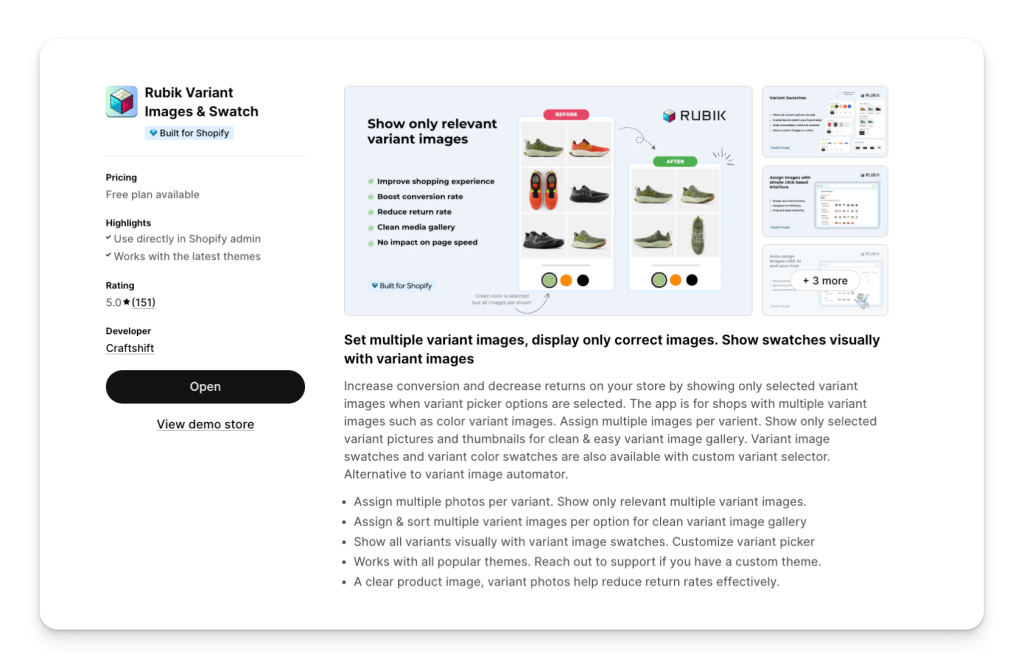
Install Rubik Variant Images & Swatch, and with just a few simple clicks, you can both hide non-selected variant images and fully customize your swatches the way you want. You can change the shape to rounded or pill style, add or remove text labels, adjust sizes, and even control how your variant image gallery is grouped. This gives you much more flexibility than the built-in Prestige settings and ensures that your product pages look clean, professional, and optimized for conversions.
Results
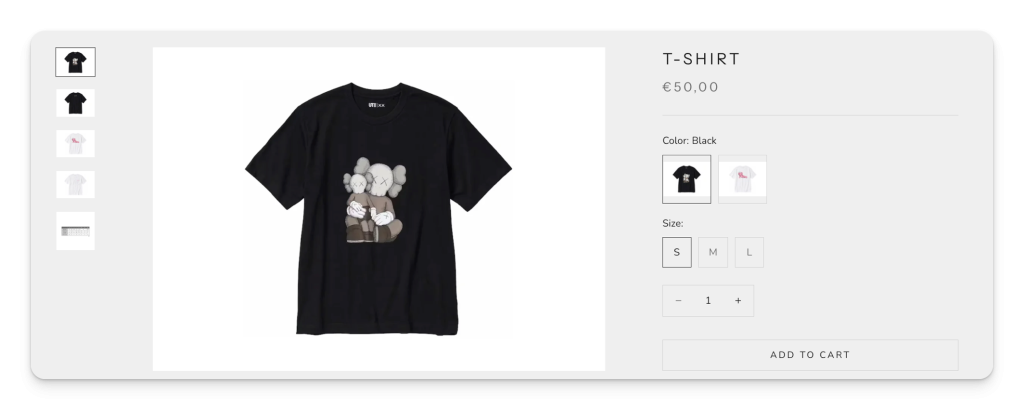
Built-in Prestige swatches result: Variant swatches are displayed, but customization options are limited.
Rubik Variant Images & Swatch result: Swatches are fully customizable, and non-selected variant images are hidden for a cleaner shopping experience.
With Prestige, you can get started quickly using the built-in swatches, but if you want full control, advanced customization, and a smoother shopping experience, Rubik Variant Images & Swatch is the best solution to take your product pages to the next level.
FAQ
Which Shopify app adds variant image swatches to the Prestige theme?
Rubik Variant Images, built by Craftshift, assigns a separate image set to every variant and turns the option picker into image or color swatches, and Prestige is one of the themes it supports natively. It holds 5.0 stars across 436 reviews and carries the Built for Shopify badge. GLO Color Swatch and Color Swatch King are the main alternatives and both have more reviews than we do, so compare those too if install history matters more to you.
Does the Prestige theme have a built-in color swatches feature?
What version of the Prestige theme supports native color swatches?
How do I show color swatches on collection pages in Prestige?
Can I customize the style of color swatches in Prestige?
What is the easiest way to add both variant image swatches and color swatches in Shopify?




