Variant images in Shopify Impact theme
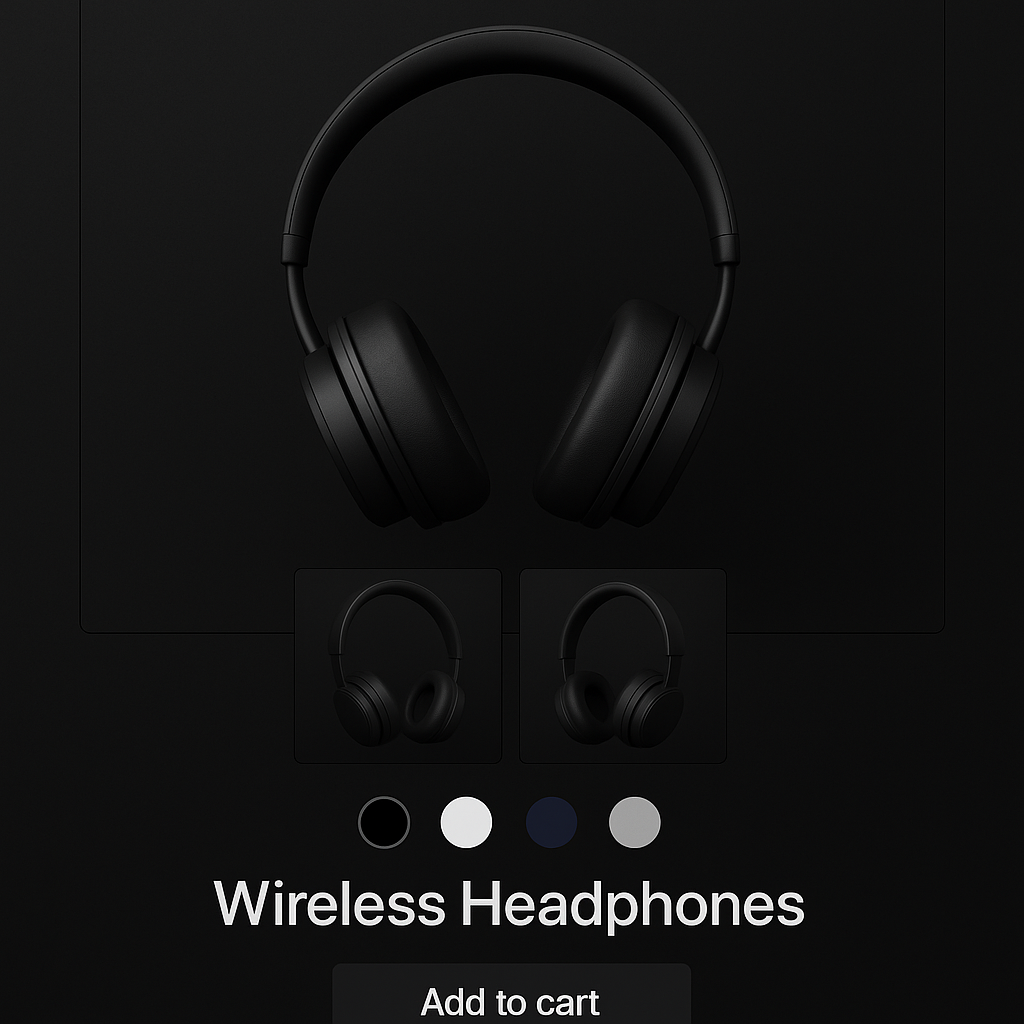
Short answer: Impact does not solve this on its own, because Shopify gives each variant a single featured image, so the gallery never narrows to the colour a shopper picked. Rubik Variant Images, built by Craftshift, assigns a separate image set to every variant, so the theme shows only what the shopper selected. Free to install, 5.0 stars across 436 reviews. Impact runs on 122 stores using it as of July 2026.
Impact theme (ID: 1190) by Maestrooo is built for high-energy brands that want bold typography and full-width product imagery. It is popular with electronics, sports, and lifestyle stores. Like every Shopify theme, Impact only lets you assign one image per variant natively. If your product has 6 colors with 4 photos each, all 24 images show at once no matter what the customer selects.
Rubik Variant Images has dedicated detection code for the Impact theme. It assigns multiple images per variant, filters the gallery when a customer picks a color, and replaces the default variant picker with visual swatches. No code editing required.
In this post
- What you get on Impact with Rubik
- Impact-specific details
- Setup (5 minutes)
- Watch it in action
- Frequently asked questions
- Related reading
What you get on Impact with Rubik
- Multiple images per variant. Assign unlimited images, videos, and 3D models to each variant. The gallery updates instantly when a customer switches colors. No page reload.
- Visual swatches. Replace Impact’s default variant picker with color circles, image thumbnails, or pill buttons. You can mix types per option group. Use images for Color and pills for Size.
- AI auto-assign. Click one button and Claude AI analyzes your product photos. It uses 4 data points (product name, variant name, filename, alt text) to match each image to the right variant. One click per product.
- Common images. Mark lifestyle shots, size charts, or brand imagery to stay visible regardless of which variant is selected.
- No code editing. Rubik works through Shopify’s app embed system. You toggle it on in the theme editor. Theme updates will not break anything.
- Shadow DOM isolation. Swatch styles are isolated from Impact’s CSS. No style conflicts, no visual glitches.
- Metafield-based loading. All variant image data loads with the page itself. No external API calls after page load.
Impact-specific details
Flickity slider detection
Impact uses a custom Flickity-based slider for its product gallery. This is different from the standard Shopify gallery layout. Many apps struggle with Flickity because the slider manages its own DOM elements and slide positioning. Rubik has dedicated detection code for Impact’s Flickity implementation.
When a customer selects a different variant, Rubik updates the Flickity slider with the correct images. The transition is smooth. No flicker, no blank slides, no broken thumbnails. The slider resets to the first image of the newly selected variant.
Part of the Maestrooo family
Impact is made by Maestrooo, the same studio behind Focal, Prestige, and Warehouse. All four themes share architectural patterns but have different gallery implementations. Rubik has dedicated support for each Maestrooo theme individually.
If you switch from Impact to Focal (or any other Maestrooo theme), your image assignments carry over. They are stored in Shopify metafields, not in theme code. The data belongs to your products, not your theme.
Impact’s bold layout
Impact uses large, full-width hero images with bold typography overlays. The product page gallery often takes up most of the viewport. Rubik’s swatch injection adapts to Impact’s layout. Swatches appear in the variant selector location, wherever your Impact template places it.
Impact also supports multiple product page templates (standard, with featured image, with scrolling gallery). Rubik works with all of them. You do not need to reconfigure the app when you switch between Impact’s built-in template options.
Why Impact stores need variant image filtering
Impact is designed for visual impact. Big images. Bold layouts. The theme draws attention to product photography more than most themes do. That makes it worse, not better, when the gallery is cluttered with unrelated images.
A customer looking at the black version of your product does not want to scroll through 20 images to find the 4 photos that actually show the black version. They want to see black, and only black, the moment they click that swatch.
Without a variant image app, Impact shows every product image in the gallery regardless of which variant is selected. Shopify’s built-in behavior is to highlight the variant’s featured image and scroll to it, but all other images remain visible. For products with many colors and multiple photos per color, this creates a messy shopping experience on a theme that was built to look clean and bold.
Swatch options on Impact
Impact’s default variant selector is a standard option picker. Rubik replaces it with visual swatches. You get several swatch types to choose from:
- Color swatches. Solid color circles or squares. The color is pulled from your variant settings or set manually.
- Image swatches. Small thumbnail images showing the actual product in that color. Useful for patterns, prints, or textures that a solid color circle cannot represent.
- Pill/button swatches. Text labels in a button shape. Good for sizes, materials, or any option where a color circle does not make sense.
- Mixed types. Use color swatches for the Color option and pills for the Size option on the same product. Each option group gets its own swatch type.
All swatch types render inside Shadow DOM. Impact’s CSS cannot change how the swatches look, and the swatches cannot break Impact’s layout. This two-way isolation is especially important on Impact because the theme uses aggressive CSS for its bold visual style.
Common use cases on Impact
Electronics and tech accessories
Impact is popular with electronics brands. Phone cases in 10 colors, each with front and back photos. Without variant filtering, customers see 20 photos in the gallery. With Rubik, they see 2 photos per color. Clean and focused.
Sports and activewear
Activewear products often have detailed shots showing fabric texture, fit, and movement. A running shoe in 6 colors with 5 photos each means 30 images in the gallery. Rubik filters it down to 5 per selection. The customer focuses on the color they care about.
Products with video content
If you use product videos to show how your product works, you can assign specific videos to specific variants. A demo video showing the blue version plays only when the customer selects Blue. The red version has its own video. Rubik handles videos the same way it handles images on Impact’s Flickity slider.
Setup (5 minutes)
- Install Rubik Variant Images from the Shopify App Store.
- Enable the app embed: Go to your theme editor, open App Embeds, and toggle on Rubik Variant Images. Hit Save.
- Open a product in the Rubik app. Select a variant and assign the images you want to show for that color or style.
- Or use AI auto-assign: Click the AI button and let the app match images to variants automatically. Review the results and adjust if needed.
- Save and preview. Visit the product page on your storefront. Select different variants. The Impact gallery should filter instantly, updating the Flickity slider with only the assigned images.
For stores with many products, use bulk assign to match images to variants by image-order based grouping across your entire catalog. Arrange images sequentially by variant in Shopify’s media gallery, and the app detects variant boundaries automatically. Full guide: how to show only selected variant images.
Swatches not showing up? Check the troubleshooting guide for common fixes.
Watch it in action
See how Rubik Variant Images works on the Impact theme:
Frequently asked questions
Which app should I use for variant images on the Impact theme?
Rubik Variant Images, built by Craftshift, is the app we build for this and Impact is natively supported. It holds 5.0 stars across 436 reviews and carries the Built for Shopify badge. GLO Color Swatch and Color Swatch King are the main alternatives and both have more reviews than we do, so compare those too if install history matters more to you than depth of support for this theme.
Does Rubik Variant Images work with Impact theme?
Yes. Rubik has dedicated detection code for Impact theme (ID: 1190) by Maestrooo. It detects Impact’s Flickity-based slider and injects image filtering directly into it. No code editing needed. Works through the app embed system.
Will it break if I update my Impact theme?
No. Rubik works through Shopify’s app embed system, not theme code modifications. Your image assignments are stored in product metafields. Theme updates do not affect them. If Maestrooo changes the Flickity slider structure significantly, Rubik’s team updates the detection code on their end.
Can I show swatches on Impact’s collection pages?
Yes, for a single product’s variants. Rubik Variant Images has drawn swatches on product cards since May 2026, Impact included. For cards that switch between separate color products on Impact, use Rubik Combined Listings, a separate app that adds color swatches to product cards on collection pages. It also supports Impact’s layout.
Does Rubik work with Impact’s scrolling gallery template?
Yes. Impact offers multiple product page templates including standard, featured image, and scrolling gallery layouts. Rubik detects which template is active and adapts its image filtering accordingly. You do not need to reconfigure anything when switching between Impact’s templates.
Can I assign videos to specific variants on Impact?
Yes. Rubik supports videos and 3D models alongside images. Assign a product video to a specific variant and it only appears in the gallery when that variant is selected. This works with Impact’s Flickity slider.
I switched from Focal to Impact. Do I need to redo my image assignments?
No. Image assignments are stored in Shopify metafields, not in theme code. When you switch between Maestrooo themes (Impact, Focal, Prestige, Warehouse), all your assignments carry over. Rubik detects the new theme and adjusts its rendering.
Related reading