Kalles theme variant swatches: color, image and texture swatches
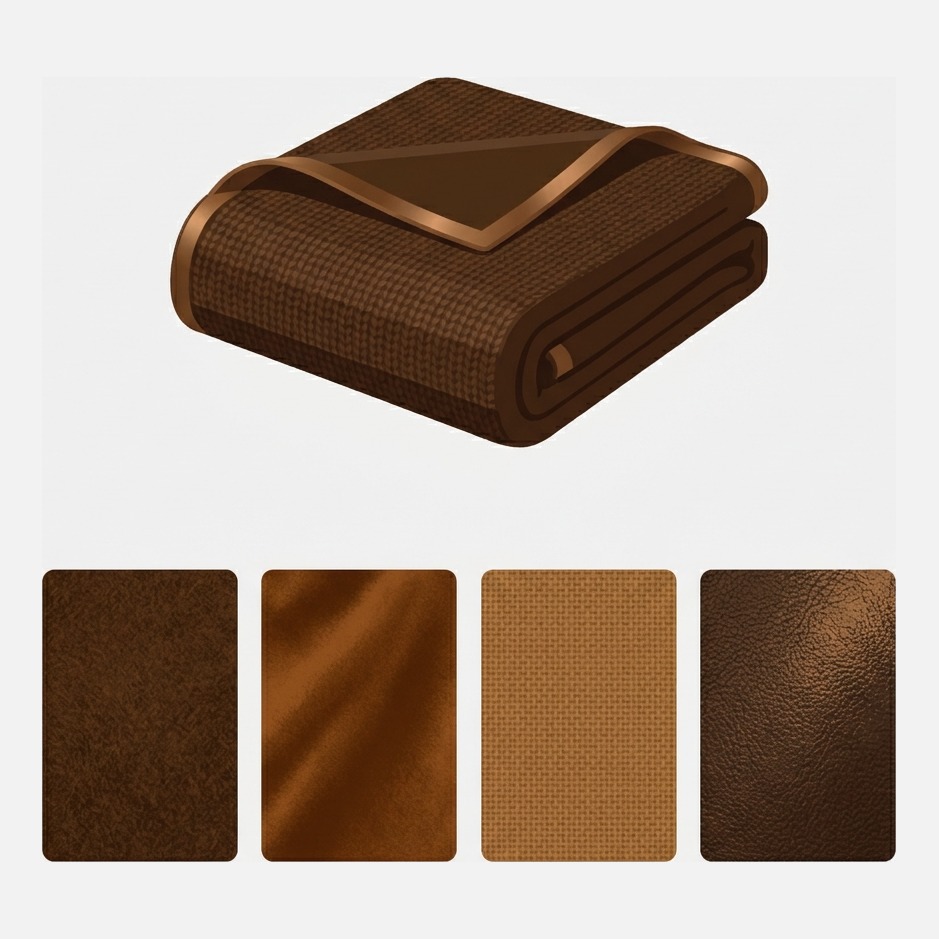
Short answer: Kalles gives you color swatches, but a hex dot cannot show a weave or a wood grain. Rubik Variant Images, built by Craftshift, assigns a custom swatch image and a separate photo set to every variant, so a texture reads as a texture. Free to install, 5.0 stars across 436 reviews.
Kalles theme variant swatches are a good example of a feature that solves 80 percent of the problem and then stops dead. Colors work. Anything with a surface does not.
Think about a furniture store selling one console table in oak, walnut and blackened ash. Three hex codes will give you three brown circles that a shopper cannot tell apart at 32 pixels. Now think about an upholstery store: boucle, linen, velvet, all in the same oat color. Three identical circles. The swatch is doing nothing except taking up space, and the shopper is guessing.
That distinction, color versus texture, is what this post is about. It is also the single most common reason we get asked about swatches on premium third party themes rather than on Dawn.
Table of contents
- Is Kalles supported, and by what
- What Kalles does with swatches out of the box
- Why a texture is not a color
- The free route on Kalles
- Where the free route runs out
- The app route
- Setup on Kalles, step by step
- Product card swatches on Kalles
- FAQ
- Related reading
Is Kalles supported, and by what
Yes. Kalles carries two separate entries in our supported theme list, one for the current release and one pinned to Kalles 3.0.1, and each has its own hand written storefront integration rather than a generic selector fallback. Two entries exist because the 3.x product page markup and the current one are different enough that a single set of selectors would break on one of them.
Worth being precise about what Kalles is, because it changes where you go for theme support. Kalles is a paid third party theme built by The4 and sold through ThemeForest. It is not a Shopify Theme Store theme, so it has no Shopify Theme Store ID and it does not appear in Shopify’s own theme catalog. If you are trying to look up an ID for it, you will not find one, and that is normal rather than a sign something is wrong. Our full list runs to 386 theme entries and you can check yours against the supported themes page.
What Kalles does with swatches out of the box
Kalles has a real swatch system, and it is more capable than most Theme Store themes. According to The4’s own product swatch documentation, the configuration is split across two places.
First, a swatch editor inside the theme. You open the theme editor, go to Template, then Products, then the only-config template, and enter color names that match your variant values. For each one you either pick a color from the picker or upload an image to use as the swatch. Then you copy the generated color code out.
Second, a store level metaobject. That copied code goes into a Shopify metaobject called Theme Swatch, of type theme_swatch, in a Colors field of type JSON. The theme reads that JSON when it renders the variant picker. Separately, the selector style itself is set under Product page, Main product, Variant picker, Color selector type.
Kalles will also read Shopify’s own color data when you assign a product category and use Color as an option name, which is the newer path Shopify has been pushing across the whole platform. For variant photos, The4’s guidance is the standard Shopify one: add a product image for each color variant in the admin.
| What you are changing | Where it lives |
|---|---|
| Swatch color or uploaded swatch image | Theme editor, Template, Products, only-config |
| The stored swatch map the theme reads | Shopify metaobject theme_swatch, Colors field (JSON) |
| Selector shape and style | Product page, Main product, Variant picker, Color selector type |
| Which photo a variant shows | Shopify admin, one featured image per variant |
Read that table again and the split is obvious. Two of those four rows live inside the theme, one lives in your store data, and one lives in Shopify’s product model. Most of the confusion we see on Kalles comes from someone changing one of them and expecting a different one to update.
Why a texture is not a color
Here is the part that theme documentation almost never says out loud. A color swatch and a texture swatch are different data types wearing the same costume.
A color swatch is one value. Six hex characters. It compresses perfectly into a 32 pixel circle because there is nothing in it to lose. A texture swatch is a photograph: it has grain direction, weave scale, sheen, knots, slub. Shrink that to 32 pixels and you have thrown away the exact information the shopper wanted. That is why a texture swatch has to be bigger, and usually squarer, than a color swatch sitting next to it.
So the requirement is not “let me upload an image”. It is three separate things at once:
- An image per option value, not a hex code, because no hex code describes walnut.
- A different crop per product, because the oak on a console table and the oak on a bed frame are photographed from different boards.
- A gallery that follows the swatch, because the shopper who clicked boucle wants four boucle photos, not one boucle photo followed by eleven linen ones.
Miss any one of those and the feature is decorative. And most theme swatch systems, Kalles included, deliver the first one only.
The free route on Kalles
Do this first. Genuinely. If your catalog is small and your materials are consistent, the theme alone may be enough, and paying for an app you do not need is a bad trade.
Step one, name your options honestly. If the option is a material, call it Material or Fabric rather than forcing it into a field called Color. Swatch systems that key off a color option will try to parse “Brushed Walnut” as a color, fail, and render an empty circle. Naming it correctly costs nothing and prevents a whole class of blank swatch problems.
Step two, use Kalles’ own image upload. In the only-config swatch editor, upload a cropped tile of the actual material instead of picking a hex color. Crop tight, keep the scale consistent across every tile in the same option, and export them all at the same pixel dimensions. Inconsistent crop scale is what makes a row of texture swatches look cheap.
Step three, use Shopify’s native swatch data where it fits. Shopify exposes a swatch object in Liquid for product option values and filter values, with a swatch.color and a swatch.image property. That is the platform level version of the same idea, and it is documented in the Liquid swatch object reference. If your Kalles build reads it, setting the value in the admin is cleaner than maintaining a JSON blob in a metaobject, because it also feeds collection page filters.
Step four, set one featured image per variant. Shopify allows exactly one. Make it count: the shot that best distinguishes that material from its neighbours, not the same lifestyle image on every variant.
If you want the fuller version of this without the Kalles specifics, we wrote it up as a general guide to adding image swatches in Shopify, and there is a companion piece on swatch sizing and shape that matters more for textures than it does for colors.
Where the free route runs out
Three walls, in the order most stores hit them.
The swatch map is store wide. The Kalles swatch data lives in one metaobject keyed by option value. That is a sensible design for brand colors: Sage is Sage on every product, and you edit it once. It is the wrong design for materials, because Oak on a dining table and Oak on a stool are two different photographs of two different boards. One entry, one tile, every product. There is no per product override in that model.
The gallery still does not filter. This is the big one and it has nothing to do with Kalles. Shopify’s variant model allows one featured image per variant, full stop. Click a swatch and the gallery jumps to that one image; the other eleven photos of the other materials are still sitting in the same scroll. A shopper comparing three fabrics has to scroll past two fabrics they already rejected. We cover the arithmetic of this in how many images per variant Shopify allows.
Config lives in two systems. Half the swatch setup sits in a theme template and half in store data. Duplicate the theme, publish a new copy, or take a Kalles update, and you have to check that the two halves still agree. That is not a defect, it is just a maintenance cost nobody mentions when they sell you the theme.

The app route
We built the swatch layer in Rubik Variant Images around per variant data rather than a store wide map, specifically because of the material case. Two metafields are created on each product variant, craftshift.swatch_color and craftshift.swatch_image. A variant, not an option value. So Oak on the console table and Oak on the stool hold different tiles, and neither of them has to agree with anything else in your catalog.
Because those are ordinary Shopify metafields, you can edit them in Shopify’s own bulk editor across hundreds of variants at once instead of clicking through an app UI. That was deliberate. Nobody wants to upload 300 fabric tiles one at a time.
The resolver has a fallback chain, which matters more than it sounds. By default it looks for a custom swatch image, then a custom swatch color, then the variant image, then the product image. If you forget to upload a tile for one obscure fabric, that swatch does not go blank; it falls back down the chain. You can also force a single source if you want cards and product pages to behave differently, for example real photos on the product page and flat color dots on collection cards.
Three other things that matter on a theme like Kalles. Swatch types are mixable across options, so Material can be image swatches while Size stays plain pills and Color stays circles. Rendering happens inside a Shadow DOM, so Kalles’ own CSS cannot leak in and our styles cannot leak out, which on a theme with this much custom styling is not a small detail. And the whole thing is metafield based with no external API call at render time, so Shopify’s page cache still works.
Then there is the gallery. Assign a set of images, videos or 3D models to each variant and the product gallery filters to the selected one, which is the third requirement from the list above and the one no theme setting can give you.
Setup on Kalles, step by step
1. Install and pick your Kalles entry
Start on the free plan, which covers one product. That is enough to prove the texture swatch renders correctly on your own theme before you spend anything, and it is the reason we let you assign per variant image swatches and a filtered gallery without a trial or a card. In the theme selector, choose the Kalles entry that matches your version. If you are on 3.0.1 specifically, pick that one rather than the current release.
2. Enable the app embed
Open Kalles in the theme editor, find App embeds in the left sidebar, toggle Rubik Variant Images on, and save. No Liquid file is edited, which is why a Kalles update cannot unpick the setup.
3. Decide who owns the swatch
Running two swatch systems on the same picker is the number one cause of duplicated rows of circles. Either keep Kalles’ native swatches and use us only for gallery filtering, or hide the native picker and let our swatch block render the options. Both are valid. Pick one.
4. Upload your tiles
Set the swatch image per variant, or bulk edit the two metafields from the Shopify admin. Square tiles, same crop scale, same pixel dimensions. Then bump the swatch size up a step: textures need more pixels than colors do to be legible.
5. Assign the gallery
Drag and drop for full control, AI auto-assign for a single product at a time, or bulk assign for a whole catalog using gallery order. Those last two get mixed up constantly, so read both before running either across 500 products.
Product card swatches on Kalles
Honest answer, because this is the kind of thing that gets promised and then quietly is not true: card swatch support is narrower than product page support. We ship product card selectors for 178 themes, while the product page list runs to 384 entries, and Kalles is currently in the second group but not the first. So the product page swatches and gallery filtering work today; collection card swatches on Kalles need our team to map the card selectors for your build first.
That is a support request, not a feature request, and it is the same process we use for any unmapped theme. If card swatches are the whole reason you are here, ask before installing rather than after.
One thing card swatches genuinely cannot do, on any theme: they will not group separate products. If each of your materials is its own Shopify product rather than a variant, that is a different job, and it belongs to Rubik Combined Listings instead.
“This app is perfect. it is incredibly easy to set up and use. There are so many cool ways you can set up your variant images AND adjust your swatches. The youtube tutorials are super helpful. I got a bit stuck trying to set up one of my products and Zulf was super quick to respond and help. Definitely recommend it if you are reading this ;D”
Anonymous merchant, Rubik Variant Images on the Shopify App Store
You can see filtered galleries and image swatches running on a real storefront in the live demo store, or read the getting started guide before you touch your own theme.
FAQ
Which app should I use for texture swatches on the Kalles theme?
Rubik Variant Images, built by Craftshift, is the one we make, and Kalles is natively supported with two dedicated integrations, one for the current release and one for 3.0.1. It stores a swatch image per variant rather than per option value, which is what makes different wood or fabric crops possible on different products, and it filters the product gallery to the selected variant. It holds 5.0 stars across 436 reviews and is free for one product, then $25 a month for 100. Where it is not the obvious pick: GLO Color Swatch has far more reviews than we do, and StarApps Variant Image Automator has been in this category since 2017. If track record outweighs per variant swatch control for you, compare all three.
Can Kalles show fabric or wood texture swatches natively?
Partly. Kalles lets you upload an image instead of picking a color in its swatch editor, so a texture tile is possible. The limit is that the mapping is store wide and keyed by option value, so the same tile renders on every product using that value, and the product gallery still does not filter to the selected material.
Does Kalles have a Shopify Theme Store ID?
No. Kalles is sold by The4 through ThemeForest rather than the Shopify Theme Store, so there is no Shopify Theme Store ID to look up. Apps that support it, including ours, track it under their own internal identifier instead. If you want the IDs for Theme Store themes, we keep a full list of Shopify theme store IDs.
My swatches show as empty circles on Kalles. Why?
Usually because the option value is not something a browser can turn into a color. “Brushed Walnut” and “Oat Boucle” are not CSS colors, so a theme that renders a background color from the value produces nothing. The fix is to give that value an actual image or hex code in whichever swatch system you are using. Our swatch troubleshooting guide walks through the other causes.
Can I mix image swatches and color swatches on the same product?
Yes, and you generally should. Swatch types are set per option, so Material can render as image tiles while Size stays as pill buttons and Color stays as circles. Forcing every option into the same shape is a common design mistake. There is more on this in our guide to mixed swatch types per option.
Will a Kalles theme update break this?
Not the app side. The integration uses Shopify’s theme app embed and block system, so no Kalles Liquid file is modified and an update leaves the configuration alone. The theme’s own swatch settings in the only-config template are a different matter, since those live inside the theme, so check them after any update.
Related reading
- How to add image swatches in Shopify
- Swatch design: shapes, sizes and colors
- Variant images on the Minimog theme
- Variant images on the Shrine theme
- Shopify variant images FAQ
- The complete guide to Shopify color swatches
- Combined listings explained
Try it on one product first
Pick your worst product. The one with six materials and forty photos where nobody can tell walnut from ash. Set the swatch tiles, assign the gallery, open it on your Kalles storefront. If a shopper can now tell the materials apart at a glance, scale it. If they cannot, that is a support conversation and not a purchase decision.