

How Rubik bulk assigns variant images by image order
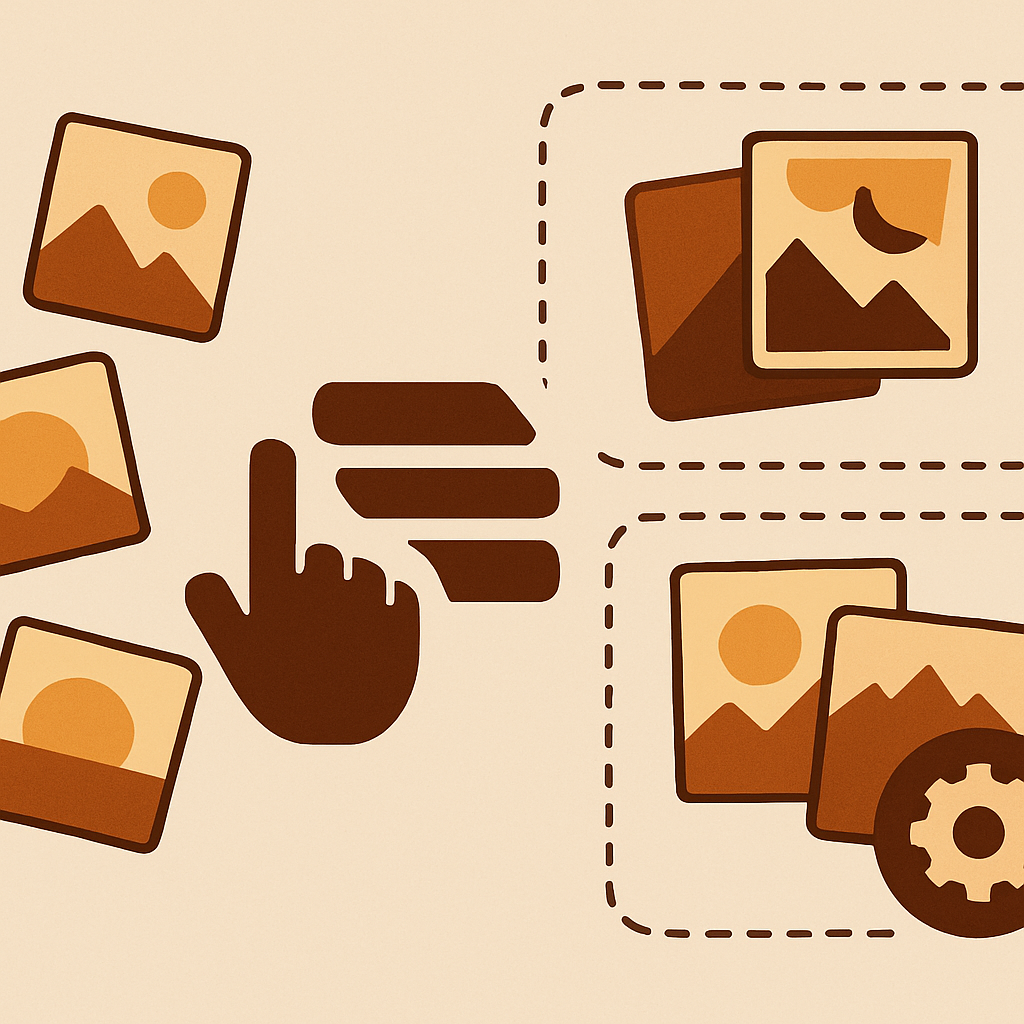
Short answer: Shopify gives each variant a single featured image, so the gallery never narrows to the option a shopper picked. Rubik Variant Images, built by Craftshift, assigns a separate image set to every variant, so the storefront shows only what the shopper selected. Free to install, 5.0 stars across 436 reviews.
Shopify bulk assign variant images is the feature most merchants reach for once their catalog crosses a few dozen products and manual clicking stops being sane. Rubik Variant Images handles this with an image-order based bulk flow that reads your Shopify gallery exactly how your photography team uploaded it and groups images into variant sets using featured image boundaries. This is a deliberately simple, content-blind method. It does not read filenames. It does not call any AI. It just trusts the order your team already established and propagates that order into the variant system across hundreds of products in the background. If your photographers follow a consistent pattern, this is the fastest way to get your whole store assigned. Rubik Variant Images is a [product page focused app](https://rubikvariantimages.com/), so bulk assign only affects how images appear on the product page after a shopper picks a variant. We explain how that fits with collection page swatches at the end of this post.Table of contents
– [What bulk assign does](#what) – [Image order, not filename](#order) – [Featured image boundary detection](#boundaries) – [Background processing at scale](#background) – [Bulk vs AI auto-assign](#vs) – [Gallery setup for bulk assign](#setup) – [Handling exceptions](#exceptions) – [FAQ](#faq)What bulk assign does
Bulk assign takes every product in scope, reads the gallery, splits it into variant groups based on featured image boundaries, and writes back a complete variant-to-image mapping. It runs in the background, so you can close the tab and come back to a finished job. The key word is “scope”. You can run bulk on your whole catalog, on a collection, on a tag, or on any filtered slice of products. Rubik respects the filter and only touches what you selected. The output is the same as if you had manually assigned every image in every product: each variant points to one or more gallery images, and the product page image filter switches between them when a shopper clicks a swatch. The difference is you did not click anything. The work happened in the background, driven by order and boundaries alone.Image order, not filename
This is the part that trips people up, so it is worth saying directly: **bulk assign does not read filenames**. It does not care whether your image is called `red-front.jpg` or `IMG_2031.jpg` or `sku-0001-a.png`. Filenames are invisible to bulk. What bulk reads is the position of each image in the Shopify gallery. Position 1, position 2, position 3, and so on. Shopify stores that order, the merchant controls it through the product edit screen, and Rubik treats it as ground truth. That means the quality of the bulk result depends entirely on the order your team uploads and arranges images. If the gallery is clean and consistent, bulk is nearly perfect. If the gallery is a jumble, bulk will produce a jumble. The tool is content-blind by design, which is a feature, not a bug: it lets you run across a huge catalog without paying for per-product AI analysis. If you want filename-aware matching, use the [AI auto-assign flow](https://rubikvariantimages.com/rubik-ai-auto-assign-variant-images/) instead. That reads filenames, alts, and variant names using Claude AI, and works per product.Featured image boundary detection
The magic of bulk assign is in how it groups images. Rubik uses the Shopify featured image concept as a delimiter. A typical product gallery, uploaded by a consistent photography team, looks like this: 1. Red front (featured for red) 2. Red back 3. Red detail 4. Blue front (featured for blue) 5. Blue back 6. Blue detail 7. Green front (featured for green) 8. Green back 9. Green detail Bulk reads that as three groups, split at each featured boundary. Group one goes to the red variant, group two goes to blue, group three goes to green. If your variants are in the same order as the groups, which they almost always are if a human built the gallery, the mapping is correct on the first pass. If your gallery does not have explicit featured markers, Rubik uses heuristics based on variant count and image count. For a 3-variant product with 9 images, it splits into 3 groups of 3. For a 4-variant product with 12 images, it splits into 4 groups of 3. The math only breaks down when image counts do not divide evenly, which is why the exception handling below matters.Background processing at scale
Bulk assign is designed to run across hundreds of products at once without blocking the Rubik app. When you start a job, Rubik queues it and processes products in the background. You can close the tab, navigate around Shopify, or come back tomorrow. The job finishes on its own and the results are visible in the app once done. This matters when you are rolling out Rubik on a catalog of 500 or 1000 or 5000 products. You are not going to sit through a two-hour job with a progress bar. You queue it, you walk away, and it finishes. Rubik’s bulk flow is metafield-based under the hood, like everything else in the app. No external API calls are made during page rendering, so your product page speed stays clean even on a big catalog. See the [speed and performance notes](https://rubikvariantimages.com/shopify-speed-variant-images/) for more on how this architecture avoids the slowdowns you get with apps that phone home on every page load.Bulk vs AI auto-assign
Two different tools, two different jobs. Pick based on how your data looks. | Question | Bulk assign | AI auto-assign | |—|—|—| | Scope | Store-wide or filtered | One product at a time | | Reads filenames? | No | Yes | | Reads alt text? | No | Yes | | Reads product name? | No | Yes | | Uses AI? | No | Claude | | Best when | Gallery order is consistent | Filenames and alts carry signal | | Worst when | Gallery order is random | All data is generic | | Speed | Fast, runs in background | Per product, a few seconds each | | Cost | No AI credits | Uses AI credits | A simple rule of thumb: if you can describe your photography team’s standard gallery order in one sentence (“front, back, detail, per color, in alphabetical order”), use bulk. If you cannot describe the order but you can describe the filenames (“every file has the color name in it”), use AI. You can also mix. Run bulk across the catalog, then run AI on the handful of products that came out wrong. This is the workflow most merchants end up using after their first month on Rubik.Gallery setup for bulk assign
The cleaner the gallery, the better the result. Here is the setup most successful Rubik merchants follow: 1. **Upload images in variant order.** All red images together, all blue images together, etc. Do not interleave. 2. **Use the same number of images per variant.** Three for red, three for blue, three for green. Bulk’s boundary math loves even counts. 3. **Set the featured image for each variant block.** Shopify lets you mark an image as the main image for a variant. Rubik reads this as a hard boundary. 4. **Keep the variant option order consistent across products.** If red is always first on your product A, keep red first on product B, C, D. 5. **Avoid “hero shots” that mix multiple colors in one photo.** These confuse the boundary detection because they do not belong to any single variant. If you follow this setup during photography and product creation, bulk assign will produce clean results across your entire catalog in one run. If you inherited a messy catalog, the [Shopify product data cleanup guide](https://rubikvariantimages.com/shopify-product-data-cleanup/) walks through how to normalize galleries before running bulk. For teams that build products through a [Shopify page builder](https://rubikvariantimages.com/shopify-page-builders-variant-images/), gallery order is usually preserved through the builder. Rubik reads the underlying Shopify product gallery regardless of how the page itself is rendered.Handling exceptions
Bulk assign gets it right on most products in a clean catalog, but there will always be a few exceptions. Common exception types: – **Uneven image counts.** Product has 4 variants but only 10 images. Bulk does its best with the 10, but you may want to check the result. – **Missing variant images.** A new variant was added but photos were never uploaded. Bulk cannot invent images. – **Hero shots in position 1.** An image that shows all variants at once, meant as a lifestyle header. Bulk might assign it to the first variant only. – **Legacy products with messy galleries.** Anything uploaded before your photography team standardized. For exceptions, the workflow is: let bulk run across the whole catalog, then open the Rubik app’s issue list, and either manually fix the handful of problems or run AI auto-assign on those specific products. Rubik flags products that produced a suspicious mapping (too few images per variant, empty variants, duplicate assignments) so you do not have to audit every product by eye.Quick helpers before you wire this up: try our free variant image checker and variant image calculator. For the deeper background on this topic see our mastering multiple variant images with Rubik guide.
FAQ
**Does bulk assign use AI?** No. Bulk assign is image-order based and does not call any AI model. It reads the Shopify gallery order and featured image boundaries directly. For AI-driven matching, use AI auto-assign per product. **Does bulk assign read filenames?** No. Filenames are invisible to bulk. Only image position and featured image markers are used. **Can I run bulk on my whole catalog at once?** Yes. Bulk supports store-wide runs as well as filtered runs (by collection, tag, or vendor). It processes in the background. **How long does a bulk run take on 500 products?** Usually a few minutes. Rubik processes in the background, so you do not need to watch it. **What happens to products that do not match the expected pattern?** Rubik flags them in the issue list after the run. You can fix them manually or re-run AI auto-assign on those specific products. **Does bulk assign work on collection pages?** No. Rubik Variant Images only touches the product page. For collection page swatches, you need [Rubik Combined Listings](https://rubikify.com/shopify-combined-listings-explained/?utm_source=rubikvariantimages&utm_medium=blog&utm_campaign=rubik-bulk-assign-variant-images). **Can I undo a bulk assign?** Yes. Rubik keeps the previous state and you can revert from the app if a run went wrong.Related reading
– [How Rubik AI auto-assigns variant images](https://rubikvariantimages.com/rubik-ai-auto-assign-variant-images/) – [How to show color swatches on Shopify collection pages](https://rubikvariantimages.com/shopify-collection-page-color-swatches-guide/) – [Shopify variants vs separate products](https://rubikvariantimages.com/shopify-variants-vs-separate-products-decision/) – [Shopify themes variant images guide](https://rubikvariantimages.com/shopify-themes-variant-images-guide/) – [Rubik Combined Listings explained](https://rubikify.com/shopify-combined-listings-explained/?utm_source=rubikvariantimages&utm_medium=blog&utm_campaign=rubik-bulk-assign-variant-images)Try Rubik Variant Images
Got a big catalog waiting to be assigned? [Install Rubik Variant Images](https://apps.shopify.com/rubik-variant-images?utm_source=rubikvariantimages&utm_medium=blog&utm_campaign=rubik-bulk-assign-variant-images) and run your first bulk job this afternoon.



