

How to Add Multiple Variant Images in Shopify Shrine Pro Theme
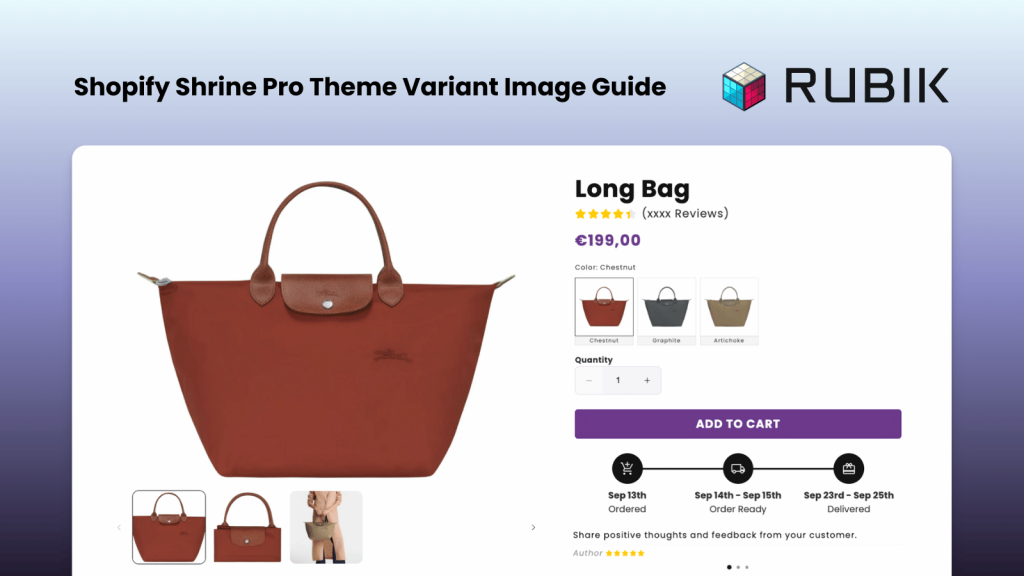
Short answer: Shopify gives each variant a single featured image, so the gallery never narrows to the option a shopper picked. Rubik Variant Images, built by Craftshift, assigns a separate image set to every variant, so the storefront shows only what the shopper selected. Free to install, 5.0 stars across 436 reviews.
Although Shrine Pro is not officially listed on the Shopify Theme Store, it has become one of the most popular themes among Shopify merchants. One of the most common issues with this theme is the inability to display relevant variant images properly. For example, if your product has 5 color variants and each variant contains 5 images, customers end up seeing 25 images on the product page. This not only creates confusion but also makes it harder for shoppers to understand what they are actually purchasing, ultimately lowering your conversion rate.
To solve this problem, we built Rubik Variant Images, a powerful Shopify app that allows you to filter your media gallery based on selected variants. With just a few clicks, you can display variant-specific images only, providing customers with a cleaner shopping experience and boosting conversions.
First, go to the Shopify App Store and search for Rubik Variant Images & Swatch, then click Install to add the app to your store. For quicker access, you can click here.
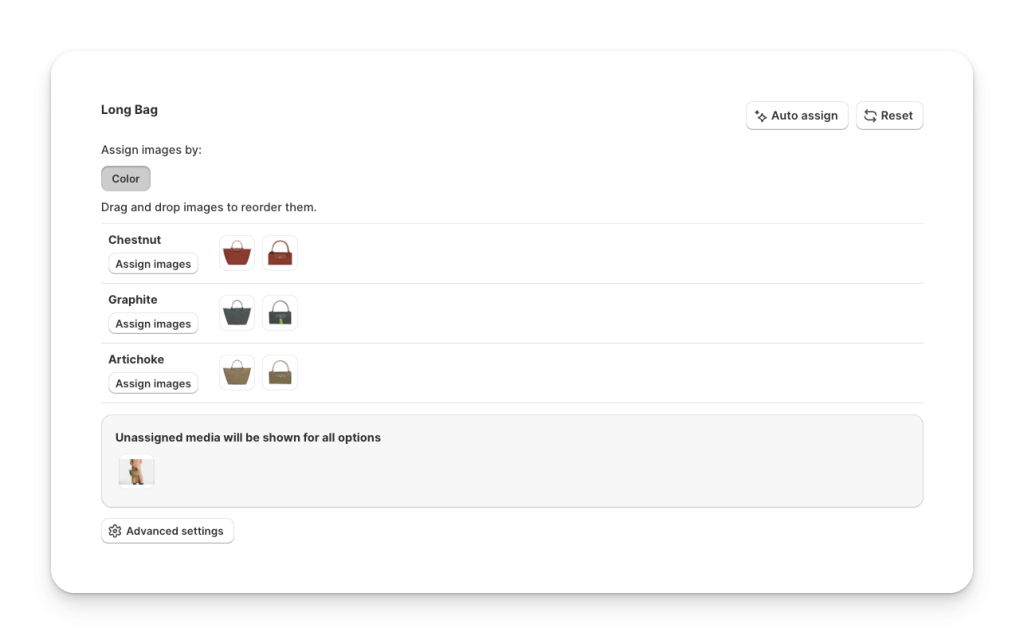
Once installed, continue with the onboarding process. Start by selecting your first product. The setup is simple: for each variant option, assign the corresponding product image. If you have common images (such as size charts or lifestyle photos) that should appear across all variants, you can leave them unassigned. Thanks to our built-in feature, unassigned images will automatically display on every variant.
You can also assign a single image to multiple variants by enabling the option in the settings. Additionally, if your products have combinations of options (for example, Color + Size), Rubik fully supports assigning specific images to those combined variants as well.
After assigning images to your product variants, click the Save button. Next, a pop-up will appear at the top of the page. Click Activate. Alternatively, you can go to the Activated Themes section on the right side, select your theme, and choose Activate on Theme. Just make sure that the app embed for Rubik Variant Images is enabled in the Shopify theme editor, and you clicked Save in the top-right corner.
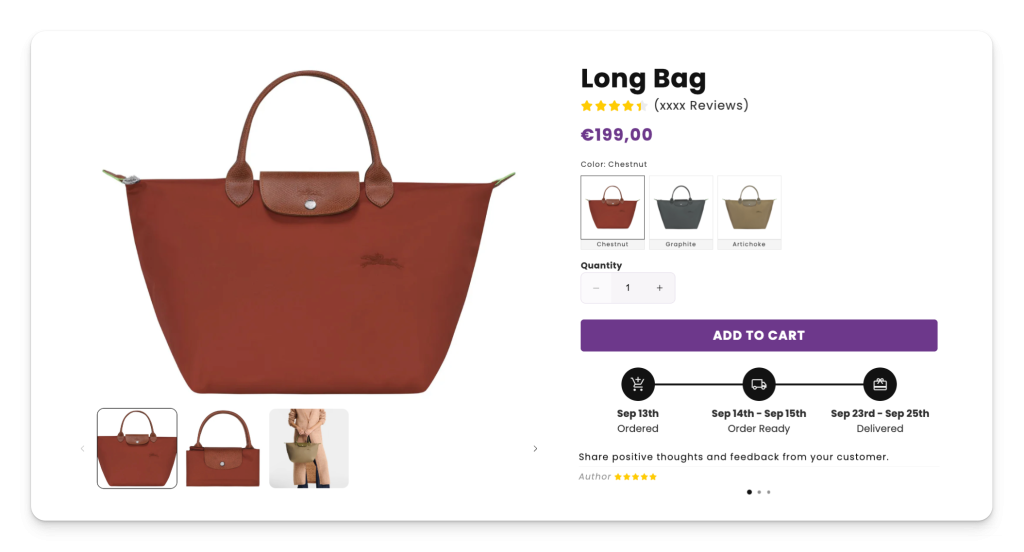
That’s it. Everything is ready. Now, on your product page, only the variant-specific images will be displayed once a customer selects a variant. This creates a cleaner, more professional shopping experience and helps increase your conversion rate.
BONUS FEATURE [Variant Image Swatches]
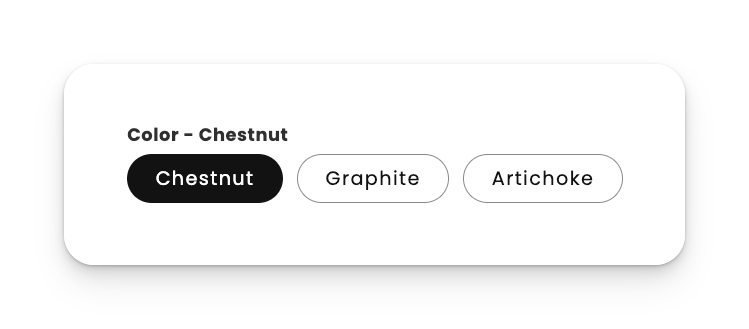
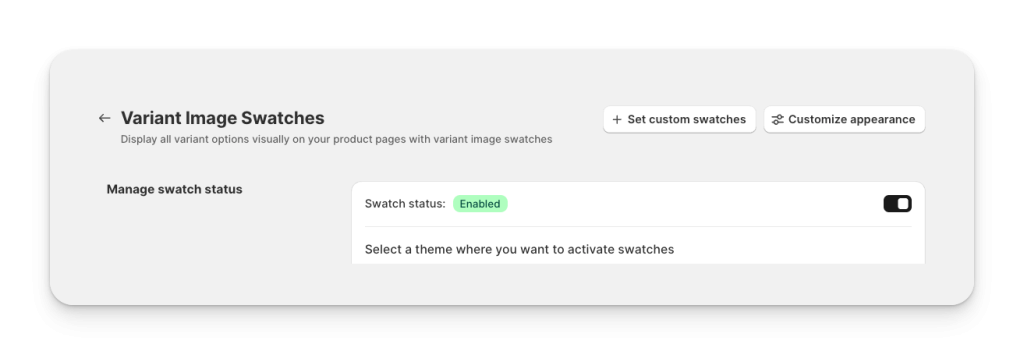
If you would like to replace the default text swatches with variant image swatches, go to the Swatch (Variant Picker) section in the menu and enable the swatches. Make sure you have also enabled the app embed for swatches. Once this is done, your swatches will appear directly on the product page.
By default, swatches are displayed using the main variant images, but you can customize them. Use the Set Custom Swatches button to upload your own images or choose custom colors. You can also adjust the design of the swatches by using the Customize Appearance option so the style fits perfectly with your product page.
You have now successfully set up multiple variant images on the Shopify Shrine Pro theme using Rubik Variant Images & Swatch. From now on, your product pages will only display the relevant variant-specific images, creating a clean and professional gallery that makes shopping easier for your customers. This simple improvement helps reduce confusion, increase trust, and boost your conversion rate.
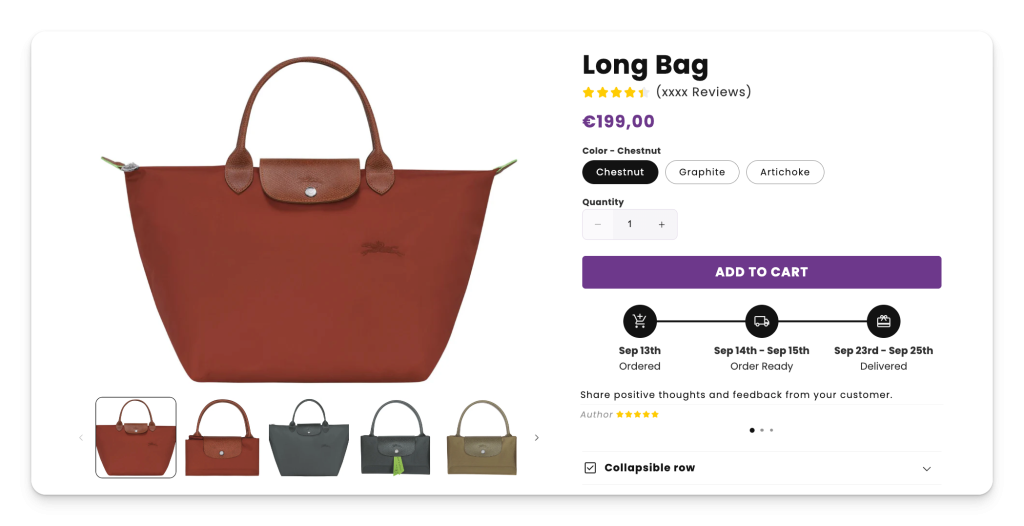
Below you can see the final result of how the product page looks after enabling variant-specific images:
FAQ
Which Shopify app adds multiple images per variant to the Shrine Pro theme?
Rubik Variant Images, built by Craftshift, assigns a separate image set to every variant, so Shrine Pro shows only the photos for the selected option instead of the whole gallery. It holds 5.0 stars across 436 reviews and carries the Built for Shopify badge. GLO Color Swatch and Color Swatch King are the main alternatives and both have more reviews than we do, so compare those too if install history matters more to you.
How do I add multiple variant images on the Shopify Shrine Pro theme?
Why are all variant images showing at once on my Shrine Pro product page?
Can I show both common images and variant-specific images in Shrine Pro?
Does Shrine Pro support color swatches or variant image swatches?
Can I assign images to combined options like Color + Size in Shopify Shrine Pro?
Will enabling variant-specific images improve conversion rates?
Keywords: Shopify Shrine Pro theme, multiple variant images Shopify, variant-specific images Shopify, Shopify product gallery variants, assign variant images Shopify, Shopify color swatches, variant image swatches, Shopify variant gallery customization, Rubik Variant Images & Swatch app, display relevant product images Shopify, Shopify conversion rate optimization, hide unassigned images Shopify, Shopify theme app embed, customize swatches Shopify




