Shopify Blum theme variant images setup
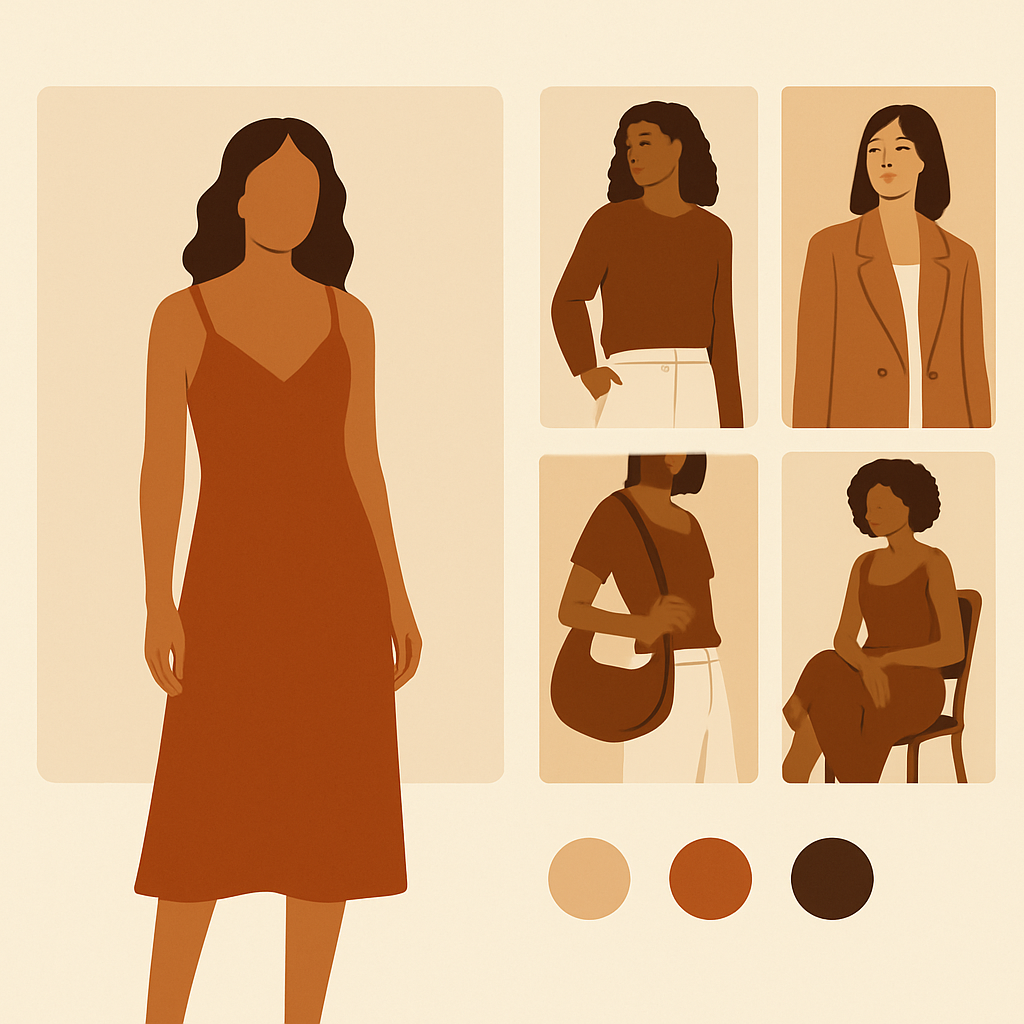
Getting shopify blum theme variant images set up correctly is a quick win for any apparel store running Blum. Blum is the $350 fashion-focused theme that has become one of the go-to picks for modern apparel and accessories brands on Shopify. Bold typography, large product imagery, layered lookbook sections, and a product page designed for clothing first. It is built to sell clothes, and clothes mean variants.
The catch is that Blum, like every other Shopify theme, ties one image to one variant in the native product editor. If you sell a t-shirt in five colors and shoot four angles per color, the gallery shows all 20 images at once. The customer picks navy, the main image jumps to one navy shot, and the other 16 images stay visible. That is not the experience Blum’s design promises.
This guide walks through Blum’s strengths, why the native variant image setup falls short for fashion catalogs, and how Rubik Variant Images fixes it on the product page in a way that matches the theme’s visual style.
## Table of Contents
– [Why apparel brands pick Blum](#why-blum)
– [Blum features that matter for variants](#blum-features)
– [Native variant image limits in Blum](#native-limits)
– [How Rubik fixes variant images on the product page](#how-rubik-fixes)
– [Step-by-step Blum setup](#setup)
– [Swatch customization for Blum](#swatch-customization)
– [Troubleshooting Blum-specific issues](#troubleshooting)
– [Real-world example](#example)
– [FAQ](#faq)
– [Related reading](#related)
Why apparel brands pick Blum
Blum was built around the way fashion brands actually shop their own stores. Big imagery, scroll-driven product pages, lookbook sections that feel like an Instagram feed, and a product detail layout that prioritizes fit, fabric, and the photography itself.
For apparel brands launching their first Shopify store or migrating off a slower theme, Blum is one of the cleanest fashion-first picks at the $350 price point. It is heavy on visual sections, model imagery, editorial blocks, and bold typography that pairs well with editorial photography.
The blocker is variant images. Fashion is the highest-stakes category for getting variant images right. Customers compare colors before they decide. They scan multiple angles. They expect to click navy and see only navy. Blum’s design assumes that experience but does not deliver it on its own.
For broader theme context, see the [Shopify variant images complete guide](/shopify-variant-images-complete-guide/).
Blum features that matter for variants
Blum has a few features that change how you should think about variant image setup compared to a more generic theme.
**Large hero gallery.** Blum’s product page gallery dominates the viewport. If the gallery shows the wrong color, the customer sees the wrong color in full screen. There is nowhere else for the eye to go.
**Lookbook sections on the home page and collections.** Blum stores often feature specific colorways in lookbook sections. Customers click an image expecting a specific color and land on the product page. If the product page does not honor that expectation, the click is wasted.
**Quick add and quick view.** Blum supports quick view modals from collection grids. The modal needs to render swatches and filter the gallery the same way the full product page does, otherwise customers see two different experiences for the same product.
**Sticky add to cart bar.** Blum’s sticky add to cart bar mirrors the variant selector. It needs to stay in sync with the swatch state.
**Color name labels.** Blum often shows the active color name next to the swatches. The label needs to update when the customer clicks a different swatch.
For a closer look at how swatches drive conversion in fashion contexts, the [Shopify swatches vs dropdowns post on Craftshift](https://craftshift.com/shopify-swatches-vs-dropdowns-color-variants/?utm_source=rubikvariantimages&utm_medium=blog&utm_campaign=shopify-blum-theme-variant-images) is a useful starting point.
Native variant image limits in Blum
Blum inherits Shopify’s core variant image model. One image per variant, attached through the product editor. When a customer picks a variant, the gallery jumps to that one image. Every other image, from every other color, stays visible.
For an apparel store, the breaks are obvious:
First, multiple angles per color. A t-shirt in navy might have a flat shot, a model front, a model back, and a fabric detail. Native Shopify only attaches one of those four to the navy variant.
Second, lifestyle and editorial shots. Lifestyle photos for a campaign are usually shared across colors in the editor. They sit in the gallery without a variant attached and show for every selection.
Third, the swatch experience. Blum’s variant selector can be styled as swatches, but the swatches only change the selected variant. They do not filter the gallery. Customers expect both behaviors and get half the result.
These are not bugs in Blum. They are the limits of Shopify’s native variant data model. The fix has to happen at the data layer, which is exactly where Rubik Variant Images works.
How Rubik fixes variant images on the product page
Rubik Variant Images is a product page only app. That fits Blum perfectly because Blum’s whole identity is the product page.
After install, here is what changes:
The product gallery filters to show only the images assigned to the selected variant. Pick navy, see only the four navy photos. Pick rust, see only the four rust photos. Lookbook and lifestyle images can be included with the variant they belong to or excluded entirely.
Color swatches replace or augment Blum’s native variant selector. Customers click a swatch, the gallery filters, and the color name label updates. Image swatches are an option for prints, patterns, washes, and material variants where a flat color does not communicate the look.
Quick view modals get the same swatch and filter behavior as the main product page, so the experience is consistent across collection grids and product pages.
All of this loads through metafield-based loading, no external API calls. The variant image data sits in the page itself. Blum is a fast theme and Rubik does not slow it down.
For more on the assignment side, see the [bulk assign guide](/rubik-bulk-assign-variant-images/) and the [AI auto-assign guide](/rubik-ai-auto-assign-variant-images/).
Step-by-step Blum setup
Here is the install flow specific to Blum.
**Step 1. Install Rubik Variant Images.** From the Shopify App Store. The free plan covers one product so you can verify the install on a hero product before rolling it out.
**Step 2. Pick a hero product with multiple colors and angles per color.** A bestselling t-shirt or dress with three to five colors and four photos per color is the easiest verification.
**Step 3. Assign images to variants.** Three options.
Manual assign: drag images into variant slots in the Rubik UI. Best for one or two hero products.
AI auto-assign: the app analyzes product name, variant name, image filename, and image alt text using Claude AI. One product at a time. Good for products with messy filenames where you want a head start.
Bulk assign: reads Shopify gallery order and detects featured image boundaries to group images by variant. Runs in background across hundreds of products. Best for full catalog rollout. Not filename matching, no AI, just gallery order.
**Step 4. Configure swatches in the Rubik dashboard.** Pick the shape, size, border, and gap. Blum’s design language pairs well with circle swatches sized around 32 to 36 pixels.
**Step 5. Replace Blum’s native picker.** Most Blum stores replace the native variant selector with Rubik swatches because the visual upgrade is significant. You can keep Blum’s picker if you want and let Rubik filter the gallery in the background.
**Step 6. Test on the storefront.** Open the hero product on Blum and click through the variants. Watch the gallery filter, the sticky add to cart bar update, and the color name label change.
**Step 7. Test the quick view modal.** Open quick view from a collection grid and verify swatches render and the gallery filters inside the modal.
**Step 8. Roll out to the catalog.** Once verified, run bulk assign across the rest of the products. Review a sample of 10 to 20 products after the bulk job finishes.
For a comparison with how this same flow looks on free themes, see the [Dawn theme variant images guide](/shopify-dawn-theme-variant-images/) and the [Refresh theme variant images guide](/shopify-refresh-theme-variant-images/).
Swatch customization for Blum
Blum is bold and modern. Rubik swatches need to match that energy.
**Shape.** Circle swatches sit best with Blum’s rounded button language. If your store leans more architectural, square swatches with a 4 pixel radius read well too.
**Size.** Use 32 to 36 pixel swatches. Blum’s product info column has more horizontal room than a theme like Prestige, so you can go a touch larger without dominating the layout.
**Border.** Add a 1 pixel border in your theme’s neutral. The selected state should use a 2 pixel border in your accent color, with a small inner gap so the border does not touch the swatch itself.
**Image swatches.** Blum is a strong fit for image swatches. Patterns, washes, and prints all benefit. Use 56 to 64 pixel image swatches with 12 pixel gaps.
**Color name labels.** Connect the swatch click event to your color name label so the label updates on click. The event fires `rubik-swatch-clicked` with four properties: optionName, optionValue, optionValueId, and element. A few lines of theme JS bind it to the label.
Troubleshooting Blum-specific issues
A few things come up specifically on Blum.
**Quick view modal not filtering.** If quick view opens with a stale gallery, your Blum quick view template renders before Rubik binds. Add the Rubik filter call inside the modal open event. The setup docs cover the exact selector.
**Sticky add to cart bar out of sync.** If the sticky bar shows the old variant after clicking a swatch, the bar has its own variant state that does not subscribe to swatch clicks. Wire the sticky bar to the `rubik-swatch-clicked` event.
**Color name label not updating.** If the color name next to the swatches does not refresh, your Blum theme is reading the label from the original variant selector. Bind the label to the Rubik swatch click event.
**Lookbook section linking to wrong variant.** If a lookbook image links to a product page with a specific variant in the URL, Blum does not always pre-select that variant. The fix is a small theme snippet that reads the URL parameter and clicks the matching Rubik swatch on page load.
**Image swatches wrapping awkwardly.** Reduce the swatches per row in the Rubik dashboard or shrink the image swatch size. Blum’s product info column is generous but not infinite.
For broader troubleshooting patterns, the [complete variant images guide](/shopify-variant-images-complete-guide/) covers issues that apply across themes.
Real-world example: a fashion brand on Blum
A modern apparel brand on Blum had 140 products across tops, bottoms, and outerwear. Most products had three to six colors and four photos per color. They had run their photography pipeline tightly so every product had a consistent gallery order: model front, model back, flat lay, fabric detail.
Before Rubik, the product page gallery showed every photo at once. Customers clicked navy, the main image switched, and the rail still showed all 20 photos. Add to cart rate was lower than they expected for the traffic they were getting from paid social.
They installed Rubik and ran bulk assign across the full catalog. Because their gallery order was consistent and they had used featured image boundaries the same way on every product, the bulk job grouped the photos correctly on 138 of 140 products. Two needed manual fixes.
They replaced Blum’s native swatch picker with Rubik circle swatches sized at 36 pixels with a 1 pixel neutral border and a 2 pixel accent border on the selected state. They wired the color name label to the swatch click event.
After install, the customer flow looked like this: lookbook image on the home page links to product page with navy preselected, the page loads with only the four navy photos in the gallery, the swatch row shows navy as selected, the color name label reads “Navy”, and the sticky add to cart bar shows the navy variant. End to end consistency.
For more on how AI auto-assign handles edge cases on hero products, see the [AI auto-assign post](/rubik-ai-auto-assign-variant-images/).
FAQ
**Does Rubik Variant Images work on the Blum theme?**
Yes. Blum is on the supported theme list. Rubik filters the product gallery and renders swatches on the product page.
**Will it slow down my Blum product page?**
No. Rubik uses metafield-based loading, no external API calls. Blum is a fast theme and Rubik does not change that.
**Does Rubik work with Blum’s quick view modal?**
Yes. Quick view modals get the same swatch and gallery filter behavior as the main product page.
**Can I keep Blum’s native variant selector?**
Yes. You can keep Blum’s selector and let Rubik filter the gallery in the background, or replace the selector with Rubik swatches. Most Blum stores replace it for the visual upgrade.
**Does Rubik work on Blum’s collection page?**
No. Rubik Variant Images is product page only. For collection page swatches and grouped product navigation, [Rubik Combined Listings](https://rubikify.com/shopify-combined-listings-explained/?utm_source=rubikvariantimages&utm_medium=blog&utm_campaign=shopify-blum-theme-variant-images) handles that.
**How does bulk assign work on a 150 product fashion catalog?**
Bulk assign reads Shopify gallery order and detects featured image boundaries to group images by variant. It runs in the background and processes hundreds of products at a time. It is not filename matching.
**What does it cost?**
Free for 1 product, Starter $25/month for 100, Advanced $50/month for 1,000, Premium $75/month for unlimited.
Related reading
– [Shopify variant images complete guide](/shopify-variant-images-complete-guide/)
– [Dawn theme variant images setup](/shopify-dawn-theme-variant-images/)
– [Horizon theme variant images setup](/shopify-horizon-theme-variant-images/)
– [Craft theme variant images setup](/shopify-craft-theme-variant-images/)
– [Impact theme variant images setup](/shopify-impact-theme-variant-images/)
– [Refresh theme variant images setup](/shopify-refresh-theme-variant-images/)
– [Bulk assign variant images](/rubik-bulk-assign-variant-images/)
– [AI auto-assign variant images](/rubik-ai-auto-assign-variant-images/)
– [Shopify swatches vs dropdowns for color variants](https://craftshift.com/shopify-swatches-vs-dropdowns-color-variants/?utm_source=rubikvariantimages&utm_medium=blog&utm_campaign=shopify-blum-theme-variant-images)
– [Shopify combined listings explained](https://rubikify.com/shopify-combined-listings-explained/?utm_source=rubikvariantimages&utm_medium=blog&utm_campaign=shopify-blum-theme-variant-images)
## Watch the walkthrough
Video walkthrough: https://www.youtube.com/watch?v=JXvkj_WlnjI
## Get Rubik Variant Images for Blum
Install Rubik Variant Images from the Shopify App Store and give your Blum product page the variant image experience the theme is built for. Free plan covers one product, paid plans start at $25 a month.
[Install Rubik Variant Images](https://apps.shopify.com/rubik-variant-images?utm_source=rubikvariantimages&utm_medium=blog&utm_campaign=shopify-blum-theme-variant-images)