How to hide or style sold-out and unavailable variant swatches on Shopify
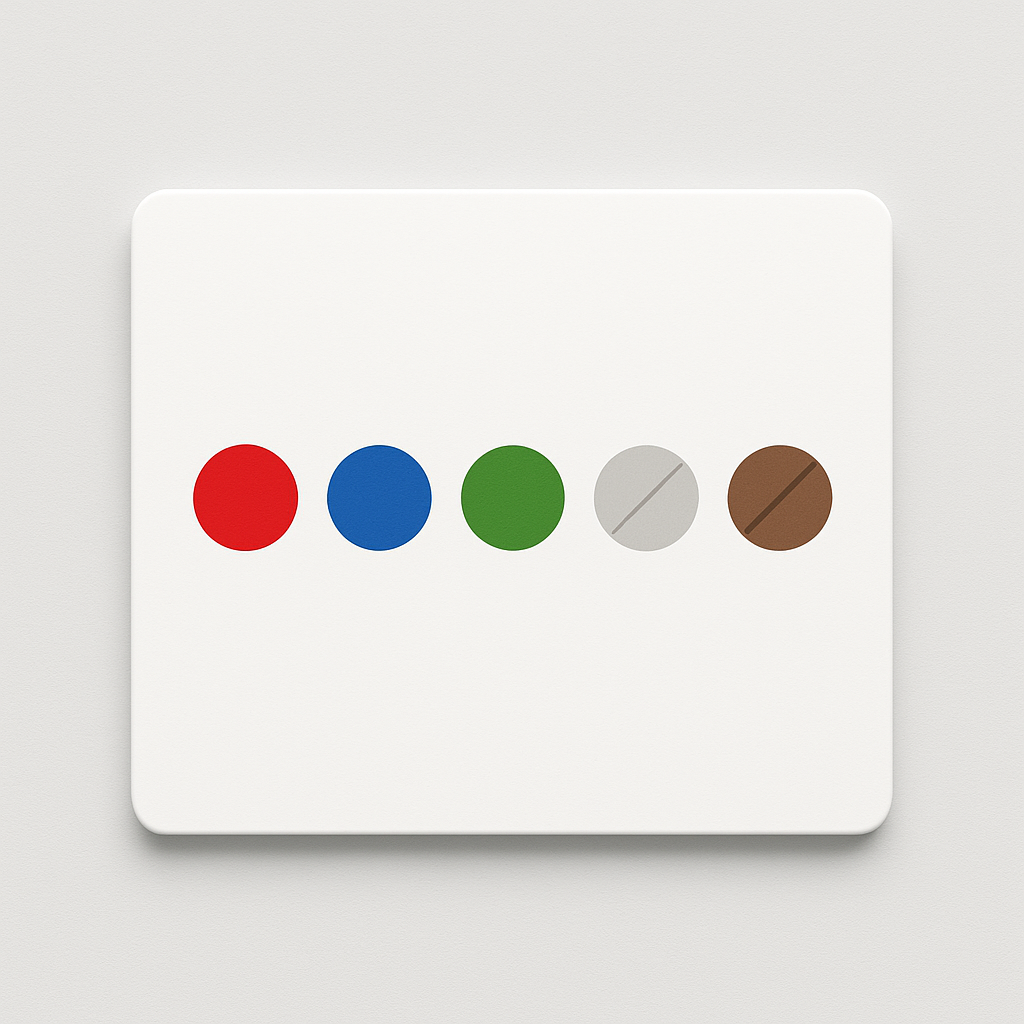
A customer browses your product page and sees 8 color swatches. They tap “Ocean Blue” and get a “sold out” message. Frustrating. Or worse, they see a swatch for a variant you deleted months ago. The swatch just sits there, clickable but pointless.
Shopify does not give you granular control over how unavailable and sold-out variants display in swatches. Rubik Variant Images does. It separates “unavailable” from “sold out” and gives you 4 independent toggles to control each. Plus an auto-selection feature that picks the first in-stock variant for customers.
In this post
- Unavailable vs sold out: what is the difference
- The 4 toggles explained
- Choose available option dynamically
- When to keep sold-out swatches visible
- Styling sold-out swatches instead of hiding them
- Accessibility considerations
- How to configure it
- Video walkthrough
- Frequently asked questions
- Related reading
Unavailable vs sold out: what is the difference
Shopify treats these as two different states, and Rubik respects that distinction.
Unavailable means the variant has been deleted from the product. Maybe you discontinued a color. Maybe you removed a size that never sold. The variant no longer exists in Shopify’s system. There is no inventory to track because the variant itself is gone.
Sold out means the variant still exists but has zero inventory. The product is still in your catalog. Customers can see it. It might come back in stock next week. The variant is real, just temporarily empty.
Most swatch apps treat both the same way. Either show everything or hide everything. Rubik gives you separate controls for each state because the right approach depends on your business. A discontinued color should probably disappear completely. A temporarily out-of-stock size might be better shown with a visual indicator so customers know it exists.
The 4 toggles explained
Rubik Variant Images provides 4 separate toggles that let you control unavailable and sold-out visibility independently for both swatch types:
Hide unavailable pills. When enabled, pill button swatches for deleted variants disappear completely. The customer never sees them. If you deleted the “XXS” size variant, that pill button is gone from the product page.
Hide unavailable images. Same logic, but for image swatches. If you deleted the “Sunset Orange” color variant, its image swatch disappears. No orphaned thumbnails showing a color you no longer sell.
Hide sold-out pills. When enabled, pill buttons for zero-inventory variants are hidden. If “Medium” has zero stock, that pill disappears. Customers only see sizes they can actually buy.
Hide sold-out images. Same for image swatches. If “Forest Green” is out of stock, its image swatch is hidden. The product page only shows colors currently available for purchase.
Each toggle works independently. You can hide unavailable swatches of both types while keeping sold-out swatches visible. Or hide sold-out pills but keep sold-out images. The combinations give you precise control over what customers see. For more about optimizing your product page layout, check this product page optimization checklist on CraftShift.
Choose available option dynamically
Hiding sold-out swatches solves the display problem. But there is another issue: what variant does the page load with? If your default variant is sold out, customers land on a product page showing “Sold out” before they even interact with it.
The Choose available option dynamically setting fixes this. When enabled, Rubik automatically selects the first in-stock variant when the page loads. If “Red / Small” is sold out, the page loads with “Red / Medium” (the next available combination) already selected.
This works in combination with the hide toggles. If you hide sold-out swatches and enable dynamic selection, customers land on a product page showing only purchasable options with one already selected. No dead ends. No “Sold out” messages on first load. The page is ready to buy from the moment it appears.
When to keep sold-out swatches visible
Hiding sold-out variants is not always the best move. There are legitimate reasons to keep them visible.
Social proof and demand signals. If a color sells out fast, showing it as sold out tells other customers “this is popular.” It creates urgency for the remaining options. Fashion brands use this intentionally.
Back-in-stock expectations. If you restock regularly, customers might want to see what exists even if it is temporarily unavailable. They can sign up for back-in-stock notifications if your theme supports it. Hiding the swatch means they never discover the option exists.
Theme already handles it. Some themes show “Sold out” labels or badges on their own when a variant has zero inventory. If your theme already provides that visual feedback, you might not need Rubik to hide the swatch too. Keeping the swatch visible lets the theme’s built-in sold-out styling do its job. Check the Rubik Variant Images FAQ for more on theme compatibility.
Styling sold-out swatches instead of hiding them
If you decide to keep sold-out swatches visible, you can style them differently so customers can tell at a glance which options are available. Rubik exposes CSS variables for the sold-out swatch state.
Common approaches include reducing the opacity (making sold-out swatches semi-transparent), adding a diagonal strikethrough line, desaturating the color, or adding a different border style. You can combine these for a clear visual signal without removing the swatch entirely.
The CSS customization is covered in detail in the swatch CSS customization guide. You can also use the AI Visual Settings Assistant and tell it something like “make sold-out swatches faded with a strikethrough line.” It generates the CSS for you.
Accessibility considerations
When styling sold-out swatches, think about accessibility. A swatch that is just slightly faded might not be distinguishable for customers with low vision. Adding a second visual cue like a strikethrough line or a small “X” overlay gives more clarity.
If you hide sold-out swatches entirely, make sure your product page still makes sense. A product with 6 colors that suddenly shows only 2 might confuse returning customers who remember seeing more options. Consider adding a note like “More colors available soon” if you plan to restock. For a full guide on swatch accessibility, read about WCAG-compliant color swatches on CraftShift.
How to configure it
- Open Rubik Variant Images. Go to the app dashboard in your Shopify admin.
- Go to Swatch Settings. Find the sold-out and unavailable section.
- Set each toggle. Decide independently: hide unavailable pills, hide unavailable images, hide sold-out pills, hide sold-out images. Each is a separate on/off switch.
- Enable dynamic selection. Turn on Choose available option dynamically if you want the page to auto-select the first in-stock variant.
- Save and test. Check a product with sold-out variants on your storefront. Confirm the right swatches appear or disappear as expected.
These are global settings. They apply to all products in your store. You do not need to configure each product individually. If you run into issues with swatches not appearing at all (even for in-stock variants), see the variant images not showing troubleshooting guide.
Video walkthrough
See how to configure sold-out and unavailable variant swatch settings, including the 4 toggles and dynamic selection:
Demo store | Docs | Knowledge base
Frequently asked questions
What is the difference between unavailable and sold out in Shopify?
Unavailable means the variant has been deleted from the product. It no longer exists in Shopify. Sold out means the variant still exists but has zero inventory. It can come back in stock.
Can I hide sold-out swatches but keep unavailable ones visible?
Yes. Each of the 4 toggles works independently. You can hide sold-out pills and sold-out images while leaving unavailable swatches visible, or any other combination you need.
What does “Choose available option dynamically” do?
It automatically selects the first in-stock variant when the product page loads. If the default variant is sold out, customers see an available variant pre-selected instead of a “Sold out” message.
Can I configure sold-out handling per product?
The 4 toggles are global settings that apply to all products. They cannot be set per product individually. However, you can style sold-out swatches differently using CSS to create product-specific looks if needed.
Can I show a strikethrough line on sold-out swatches instead of hiding them?
Yes. Keep the hide toggles off and use CSS variables to style sold-out swatches with reduced opacity, a diagonal line, or other visual indicators. The AI Visual Settings Assistant can generate this CSS for you from a plain language description.
Does this work on collection pages?
Rubik Variant Images handles product page swatches. For collection page swatches with sold-out handling, you need Rubik Combined Listings, which has its own out-of-stock controls including hide, push to end, opacity, and strikethrough options.
Related reading
- Rubik Variant Images FAQ
- Variant images not showing? Here is how to fix it
- 15 ways to customize your Shopify variant swatches with CSS
- How to show only the selected variant’s images
- How to show different swatch types for different options
- WCAG-compliant color swatches on Shopify (CraftShift)
- Product page optimization checklist for 2026 (CraftShift)
- Shopify combined listings explained (Rubikify)