Shopify Horizon theme variant images setup

If you are wiring up shopify horizon theme variant images and finding that the new default theme handles swatches better than Dawn but still leaves gaps in the product gallery, you have arrived at the right place. Horizon is the theme Shopify rolled out in summer 2025 as the new flagship default for new stores. It is faster, leaner, and built around a new section ecosystem, and it is currently the fastest growing theme on the platform.
Horizon ships with a native swatch system, which is a real upgrade over Dawn. But “swatches” and “filtered variant gallery” are two different things, and Horizon still does not give you the ability to assign multiple images per variant or filter the product gallery cleanly when a shopper switches color. The native swatches look good. The gallery story is incomplete.
This post walks through Horizon as a theme, the variant gallery limits you will hit on it, and how Rubik Variant Images plugs into Horizon’s product page to deliver per-variant gallery filtering and richer swatches without breaking the new theme architecture.
## Table of contents
– [What Horizon is and why it matters](#about-horizon)
– [Horizon strengths](#strengths)
– [Where Horizon variant images still fall short](#limits)
– [How Rubik fits the Horizon product page](#how-rubik)
– [Setup steps for Horizon](#setup)
– [Designing swatches that match Horizon](#swatches)
– [Troubleshooting Horizon-specific issues](#troubleshooting)
– [Real example: a Horizon launch store](#example)
– [FAQ](#faq)
– [Related reading](#related)
What Horizon is and why it matters
Horizon is Shopify’s newest free default theme, released in summer 2025. Every brand new store created after the launch defaults to Horizon. It replaces Dawn as the recommended starting point for merchants. The theme is built on a refreshed section model with deeper customization, native AI block placement, and a faster initial paint than Dawn.
Because Horizon ships on every new store, the install base is climbing fast. Within a few months of launch it became the fastest growing theme by absolute install count. Any merchant launching in 2026 is likely on Horizon unless they actively chose otherwise.
Horizon strengths
Horizon improves on Dawn in several real ways. Native swatches are built in, so you no longer need to fight metafields to get color circles to render. The theme editor lets you place sections in more flexible spots. Animations are subtle and purposeful. The cart drawer is a step ahead in interaction design.
The product page in Horizon is also more flexible. The media area can be configured to a stacked column, a thumbnail strip, or a contained slider. Horizon supports videos and 3D models out of the box, just like Dawn, but with cleaner scaling on mobile.
For merchants comparing themes, the [Shopify variant images complete guide](/shopify-variant-images-complete-guide/) covers the cross-theme story in detail.
Where Horizon variant images still fall short
Horizon’s native swatches solve one problem: showing color circles instead of a dropdown. They do not solve the underlying gallery issue. When a shopper picks a color, the Horizon gallery does the same thing Dawn does. It jumps to the single variant featured image and leaves all the other variant photos in the same scroll.
If a sneaker comes in five colors with four angles each, that is twenty images in the gallery. Horizon’s swatch click jumps to the first featured image of the chosen color, then the rest of the gallery still pages through every other color. The gallery never narrows down to “just this color”.
Native Horizon also limits each variant to one featured image. Multiple images per variant is not a built-in feature. You can assign one hero shot per variant. That is the ceiling.
The other gap is swatch design. Horizon’s swatches are tied to Shopify’s standard color names, which means you get one circle per color value but no way to use image swatches for fabrics or patterns, no way to switch to pill or button shapes per option, and limited selected-state styling.
How Rubik fits the Horizon product page
Rubik Variant Images sits on the Horizon product page and does two things. It filters the gallery so only the images for the selected variant are visible. And it adds a swatch layer that picks up where Horizon’s native swatches stop, including image swatches, custom shapes, and richer selected states.
Filtering is metafield-based, which means there are no external API calls and no third party server in the loop. The variant-to-image mapping loads with the page itself. Horizon’s already strong load performance is preserved.
For Horizon specifically, Rubik integrates as a theme app embed plus a section block. Both pieces show up in the Horizon theme editor under the standard Apps area. Nothing in Horizon’s Liquid files needs to change.
Watch the embedded Horizon variant swatches walkthrough below.
Setup steps for Horizon
### 1. Install Rubik Variant Images
Open the [Rubik Variant Images Shopify listing](https://apps.shopify.com/rubik-variant-images?utm_source=rubikvariantimages&utm_medium=blog&utm_campaign=shopify-horizon-theme-variant-images) and add it to your Horizon store. You can test the entire flow on the free plan, which covers one product.
### 2. Enable the Horizon app embed
Open Horizon in the theme editor. In the left sidebar, click **App embeds**. Toggle on **Rubik Variant Images**. Save. This embed is what loads the gallery filter and the swatch styles on every product page in Horizon.
### 3. Map images to variants
In the Rubik dashboard, open a product. Pick your assignment method:
– Manual drag and drop for full control
– AI auto-assign per product, which reads name, variant name, filename, and alt text via Claude AI. See [the AI walkthrough](/rubik-ai-auto-assign-variant-images/) for the full picture.
– Bulk assign for catalogs, which uses Shopify gallery order and featured image boundaries to group images per variant in the background. Walked through in [the bulk assign post](/rubik-bulk-assign-variant-images/).
### 4. Verify the Horizon gallery filters
Open the product on the storefront. Click between variants. The Horizon gallery should now narrow to only the images you assigned to the selected variant.
### 5. Decide on swatches
You have two paths. Either keep Horizon’s native swatches and only use Rubik for filtering, or hide Horizon’s native variant picker and add the **Rubik Swatches** block in the Product information section. Most merchants who want image swatches or custom shapes pick the second path.
Designing swatches that match Horizon
Horizon has a slightly bolder visual language than Dawn. The defaults use stronger weights, larger type, and more pronounced spacing. Swatches should match that energy.
For solid colors, circles at 40 to 48 pixels feel right. Pill shapes work well for size pickers because Horizon’s button corners are pill-shaped by default. For fabric or pattern variants, image swatches with a 4 pixel rounded radius pick up Horizon’s card corners.
Use a 2 to 3 pixel selected ring with the theme’s accent color. Horizon picks up that accent across the page, so the swatch matches the rest of the UI without special tuning.
For deeper guidance on swatches versus dropdowns at the conversion level, see the [Shopify swatches vs dropdowns post](https://craftshift.com/shopify-swatches-vs-dropdowns-color-variants/?utm_source=rubikvariantimages&utm_medium=blog&utm_campaign=shopify-horizon-theme-variant-images).
Troubleshooting Horizon-specific issues
**Both Horizon native swatches and Rubik swatches showing.** You added Rubik Swatches but did not hide the native variant picker. In the Horizon theme editor, find the Variant picker block in the Product information section and toggle it off.
**Gallery does not filter at all.** The app embed is off. Open theme editor, App embeds, confirm Rubik Variant Images is enabled, save the theme.
**Filter applies but takes a beat.** This is usually because Horizon is preloading the featured image. Inside Rubik settings, enable the Horizon featured image override toggle to suppress the brief jump.
**Custom Horizon section not picking up swatches.** If you built a custom product section instead of using Horizon’s Product information section, the Rubik Swatches block needs to be added inside that custom section. The block is portable.
**Images appear in wrong order.** Bulk assign uses the gallery order in Shopify admin. Reorder images in the product editor and re-run bulk assign.
Real example: a Horizon launch store
A direct-to-consumer skincare brand launched on Horizon in late 2025 with a moisturizer line in four shade-tinted variants. Native Horizon gave them swatches but the gallery still mixed every shade. Customers were emailing asking which photo went with which tint.
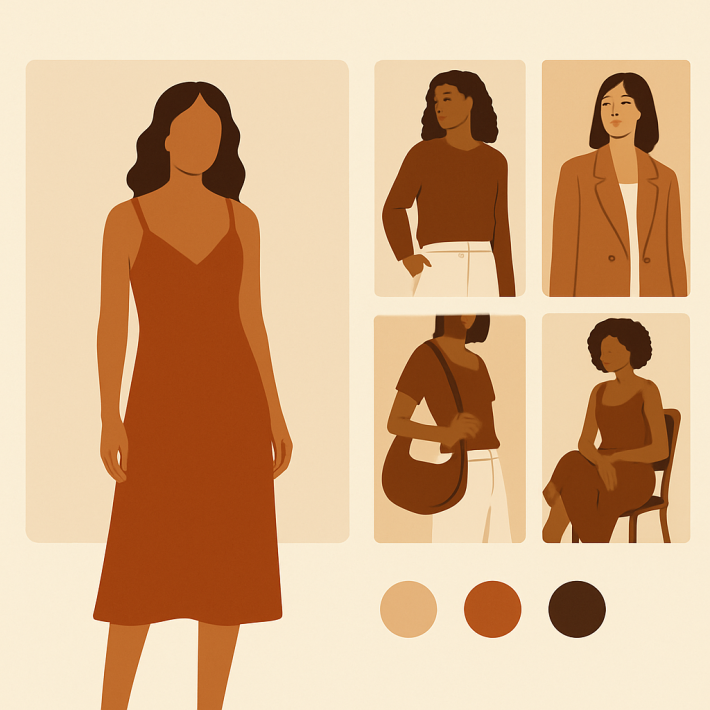
After installing Rubik and using AI auto-assign on the moisturizer product, then bulk assign across the rest of the catalog, the gallery now narrows down to the chosen shade and shows the bottle, the swatch on skin, and the lifestyle shot for that shade only. The support emails dropped, and the product page became the answer instead of the source of confusion.
If you sell variants as separate products and want collection-page swatches as well, [Rubik Combined Listings on rubikify.com](https://rubikify.com/shopify-combined-listings-explained/?utm_source=rubikvariantimages&utm_medium=blog&utm_campaign=shopify-horizon-theme-variant-images) handles that side. Rubik Variant Images stays focused on the product page.
FAQ
**Does Rubik Variant Images support Horizon?**
Yes. Horizon is fully supported. The app embed and section blocks slot directly into Horizon’s theme editor.
**Does Horizon’s native swatch system replace Rubik?**
Partly. Horizon native swatches handle the visual swap from dropdown to circles. They do not filter the product gallery and they do not let you assign multiple images per variant. Rubik fills both gaps.
**Can I keep Horizon’s native swatches and only use Rubik for filtering?**
Yes. The gallery filter works independently of the swatch block. Many Horizon merchants pick this hybrid setup.
**Does it slow down Horizon’s product page?**
No. Loading is metafield-based with no external API calls, so the variant data ships with the page. Horizon’s strong load performance is preserved.
**Is it compatible with Horizon AI blocks?**
Yes. Horizon’s AI block placement does not conflict with Rubik. They sit in different parts of the section tree.
**What does it cost?**
Free for 1 product. Starter is $25/month for 100 products, Advanced is $50/month for 1,000, Premium is $75/month for unlimited.
**Will my setup survive Horizon updates?**
Yes. The integration uses Horizon’s app embed and block API. Theme updates do not break the configuration.
Related reading
– [Shopify variant images complete guide](/shopify-variant-images-complete-guide/)
– [Shopify Dawn theme variant images](/shopify-dawn-theme-variant-images/)
– [Rubik AI auto-assign variant images](/rubik-ai-auto-assign-variant-images/)
– [Rubik bulk assign variant images](/rubik-bulk-assign-variant-images/)
– [Shopify Sense theme variant images](/shopify-sense-theme-variant-images/)
– [Shopify Combined Listings explained on Rubikify](https://rubikify.com/shopify-combined-listings-explained/?utm_source=rubikvariantimages&utm_medium=blog&utm_campaign=shopify-horizon-theme-variant-images)
## Set Horizon up the right way
Install [Rubik Variant Images](https://apps.shopify.com/rubik-variant-images?utm_source=rubikvariantimages&utm_medium=blog&utm_campaign=shopify-horizon-theme-variant-images) on your Horizon store and use the free plan to test on one product first. Once you see the gallery filter cleanly, scale to the rest of your catalog with bulk assign.