How to show different swatch types for different options: images for Color, pills for Size
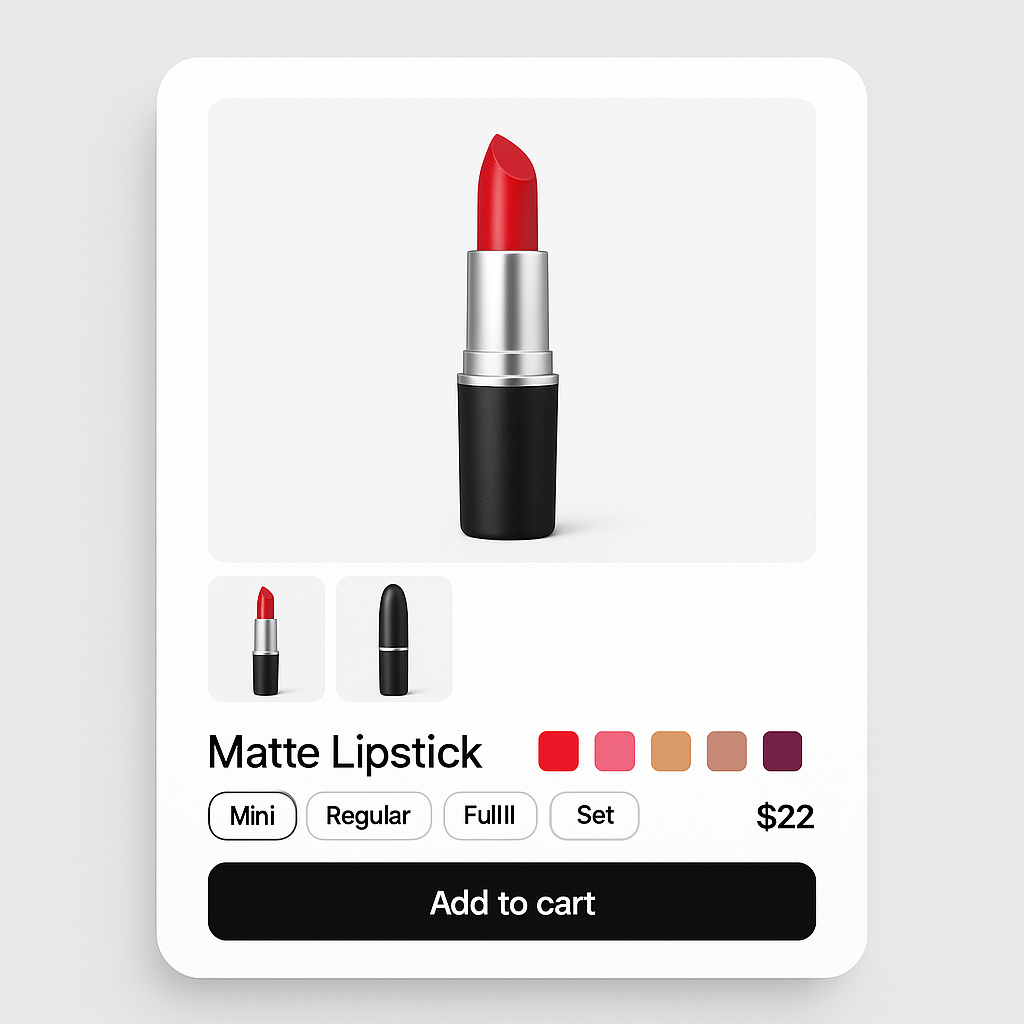
Your product has three options: Color, Size, and Material. Color needs image swatches showing the actual fabric. Size works better as simple pill buttons. Material could be color circles. But Shopify’s native selector gives you the same dropdown for all three.
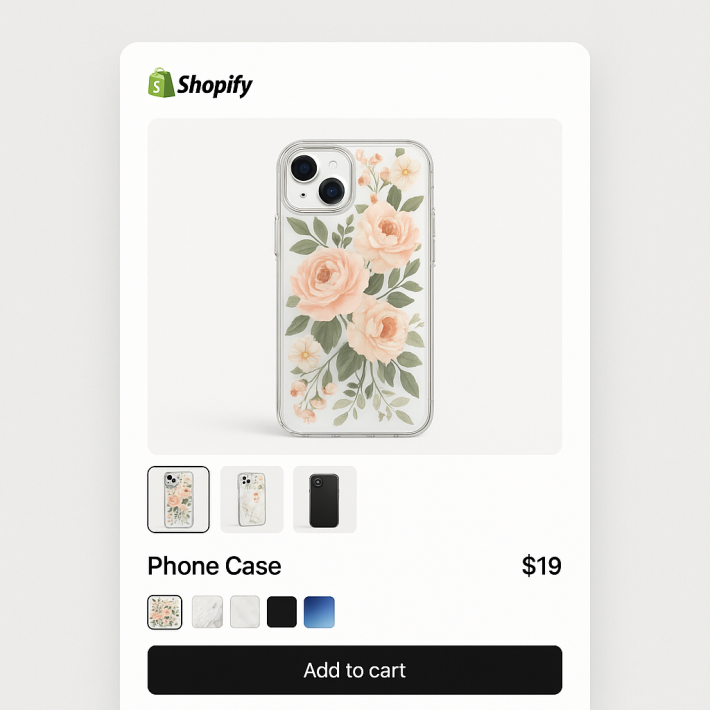
Rubik Variant Images lets you pick a different swatch type for each option on the same product. Image thumbnails for Color, pill buttons for Size, solid color circles for Material. Each option gets its own visual treatment, all on one product page.
In this post
- Why mix swatch types
- Choose which options display as swatches
- Available swatch types for each option
- How intersection logic works with multiple options
- Dropdown fallback for non-visual options
- How to configure mixed swatch types
- Real examples
- Video walkthrough
- Frequently asked questions
- Related reading
Why mix swatch types
Not every option is visual the same way. Color is visual. You need to see it. A red swatch communicates faster than the word “Red” in a dropdown. But Size is not visual. Nobody needs a thumbnail image to understand “Large.” A pill button with the text “L” does the job perfectly.
When you force every option into the same format, something always looks wrong. Image swatches for Size waste space and confuse customers. Dropdowns for Color hide the options and add clicks. Mixing swatch types gives each option the right visual weight. For a deeper look at when swatches beat dropdowns, see this comparison on CraftShift.
The result is a cleaner product page where customers understand their choices at a glance. Color options get the visual treatment they need. Size and other text-based options stay compact and scannable.
Choose which options display as swatches
The first step is deciding which of your product options should render as swatches at all. In Rubik Variant Images, you open the product in the app and find the Choose which options display as swatches setting. This controls which options get swatch treatment and which stay as your theme’s default selector.
A product with Color, Size, and Material might look best with swatches on Color and Size, but a standard dropdown for Material. Or swatches on all three. You pick per product, so a t-shirt with two options gets different treatment than a jacket with three.
Any option you do not select for swatches falls back to your theme’s native dropdown. This means customers still see all the options. They just interact with them differently based on what makes sense visually. For a full walkthrough of multi-option setup, see the multi-option variant images guide.
Available swatch types for each option
Once you enable swatches for an option, you choose the swatch type. Each option gets its own independent type. Here are the options:
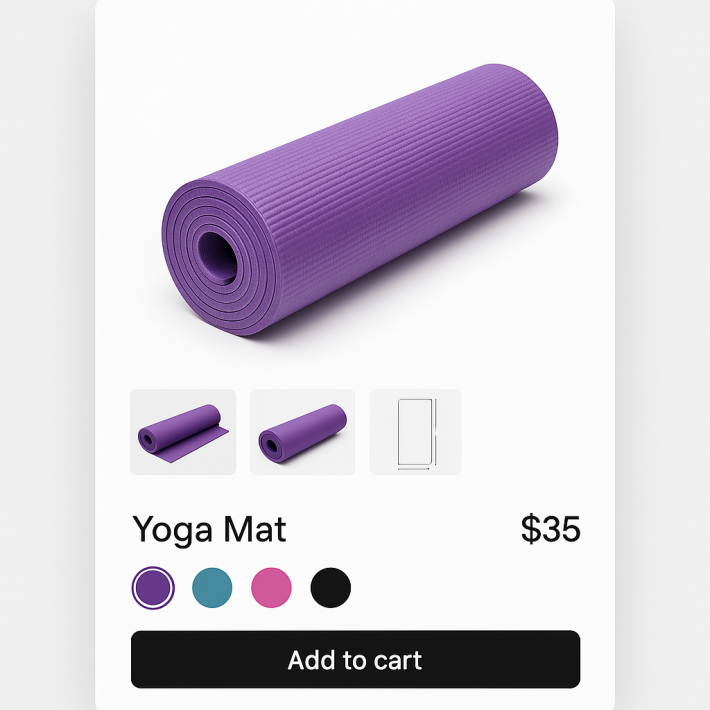
Image swatches. Each option value shows a thumbnail from the product’s gallery. Best for Color options where customers need to see the actual product in that color. Rubik pulls the assigned image for each variant and crops it into the swatch shape. The image comes from your existing gallery photos, so there is nothing extra to upload.
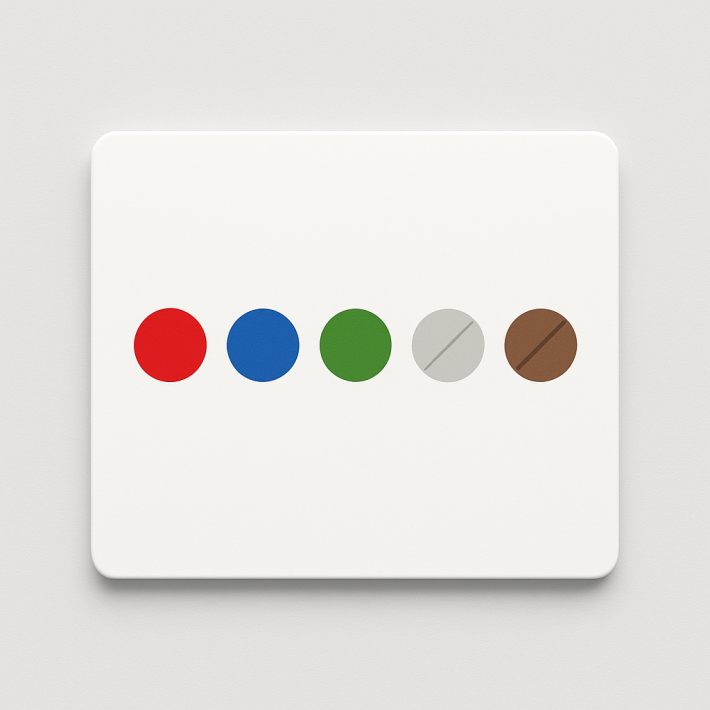
Color circle swatches. Each option value shows a solid color. You assign hex codes per variant. Works for Material options where “Leather” gets a brown circle and “Canvas” gets a beige one. Also works for Color when you want a cleaner look than product thumbnails.
Pill button swatches. Text labels in a button shape. The option value name appears inside the pill. Best for Size, Weight, Length, or any option where the text itself is the information. No images, no colors, just readable text in a tappable button.
Dropdown. The classic select menu. Use this for options with many values where swatches would create a wall of buttons. A product with 20 sizes might look cleaner as a dropdown than 20 pill buttons in a row.
You can customize the visual style of each type independently. Image swatches get their own border radius, size, and spacing. Pill buttons get their own font size, padding, and selected state. Read the CSS customization guide for detailed styling options.
How intersection logic works with multiple options
This is where it gets interesting. When a product has multiple options, the gallery needs to respond to all of them together. Rubik uses intersection logic to determine which images to show.
Say you have a jacket with Color (Red, Blue, Black) and Size (Small, Medium, Large). You assigned 4 images to Red and 4 images to Blue. When a customer selects Red, the gallery shows all 4 Red images regardless of Size. The Size selection does not filter further because you did not assign images at the combination level.
Now say you also assigned 2 specific images to “Red + Large” because the Large version has a different cut. When the customer picks Red + Large, Rubik shows only those 2 intersection images. Red + Small still shows the general Red images. The intersection takes priority when it exists.
This logic works across all swatch types. The Color image swatch shows the right thumbnails. The Size pill button triggers the intersection filter. Even though the pill button has no image itself, it still affects which images appear in the gallery. Each swatch type plays its role in narrowing down the gallery to the right photos.
Rubik uses metafield-based loading with no external API calls. The intersection data is stored directly in your product metafields and loads with the page itself. No round-trip to a third-party server to figure out which images to show.
Dropdown fallback for non-visual options
Some options do not benefit from swatches at all. A product with an option like “Engraving Text” or “Gift Wrapping” has no visual component. Showing those as swatches would confuse customers.
When you leave an option out of the Choose which options display as swatches setting, it stays as your theme’s native dropdown or radio buttons. Rubik does not touch it. The swatch options and the dropdown options coexist on the same product page without conflict.
This gives you full control over the product page layout. Visual options get visual selectors. Text options stay as text. You can change these settings anytime without re-uploading images or re-assigning variants.
How to configure mixed swatch types
Here is the step-by-step process:
- Open the product in Rubik. From the Rubik Variant Images dashboard, click on the product you want to configure.
- Assign images to variants. Drag and drop images to the correct option values. You can assign to single options (all Red photos) or to combinations (Red + Large). Use AI auto-assign to speed this up. It analyzes 4 data points per product: product name, variant name, filename, and alt text.
- Enable swatches for each option. In the swatch settings, use Choose which options display as swatches to pick which options get swatch treatment.
- Set the swatch type per option. For each enabled option, pick image, color circle, or pill. Each option is independent.
- Save and preview. Check the storefront to confirm each option renders with the right swatch type.
If something looks off, you can change the swatch type for any option without affecting the image assignments. The images stay connected to their variants. Only the display format changes. For troubleshooting tips if swatches are not appearing, check the variant images not showing fix guide.
Real examples
Apparel store with Color + Size. Color gets image swatches showing the shirt in each color. Size gets pill buttons labeled S, M, L, XL. When a customer picks “Navy,” the gallery filters to navy photos. When they pick “XL,” the same navy photos remain (unless you assigned specific images to Navy + XL).
Furniture store with Color + Material + Size. Color gets image swatches showing the sofa in each color. Material gets color circles (brown for Leather, beige for Linen, gray for Velvet). Size stays as a dropdown because the dimensions are long text strings like “84 inch” and “96 inch.” Three options, three different treatments, one product page.
Jewelry store with Metal + Stone + Chain Length. Metal gets color circles (gold hex, silver hex, rose gold hex). Stone gets image swatches showing close-ups of each gemstone. Chain Length drops down to a standard dropdown. The visual options stand out while the measurement option stays compact.
If you also need color swatches on your collection pages, that requires a separate app. Rubik Combined Listings handles collection page swatches by linking separate products together. Rubik Variant Images focuses on the product page gallery and swatch experience.
Video walkthrough
See how to configure custom swatch types per option, including image swatches, pill buttons, and color circles:
Demo store | Docs | Knowledge base
Frequently asked questions
Can I use different swatch types for different options on the same product?
Yes. Rubik Variant Images lets you set the swatch type independently per option. Color can be image swatches, Size can be pill buttons, and Material can be color circles. All on the same product page.
How does the gallery know which images to show when multiple options are selected?
Rubik uses intersection logic. If you assigned images to “Red” and also to “Red + Large,” selecting Red + Large shows the specific intersection images. If no combination-level images exist, the gallery falls back to the option-level images (all Red photos).
What happens to options I do not enable for swatches?
They fall back to your theme’s default selector, usually a dropdown or radio buttons. Rubik does not modify options that are not enabled for swatches.
Can I change the swatch type for an option without losing my image assignments?
Yes. Swatch type and image assignments are separate settings. Switching from image swatches to pill buttons for an option does not remove the images you assigned. You can switch back anytime.
Does this work on collection pages too?
Rubik Variant Images handles product page swatches and gallery filtering. Collection page swatches require Rubik Combined Listings, a separate app designed for that purpose.
Does mixing swatch types affect page load speed?
No. Rubik uses metafield-based loading with no external API calls. All swatch data loads with the page itself regardless of how many swatch types you mix on one product.
Related reading
- How to set up variant images for products with 2 or 3 options
- 15 ways to customize your Shopify variant swatches with CSS
- Rubik Variant Images FAQ
- Variant images not showing? Here is how to fix it
- How to show only the selected variant’s images
- Swatches or dropdowns? What the data says (CraftShift)
- Shopify combined listings explained (Rubikify)