How to show multiple variant images in Shopify Palo Alto theme
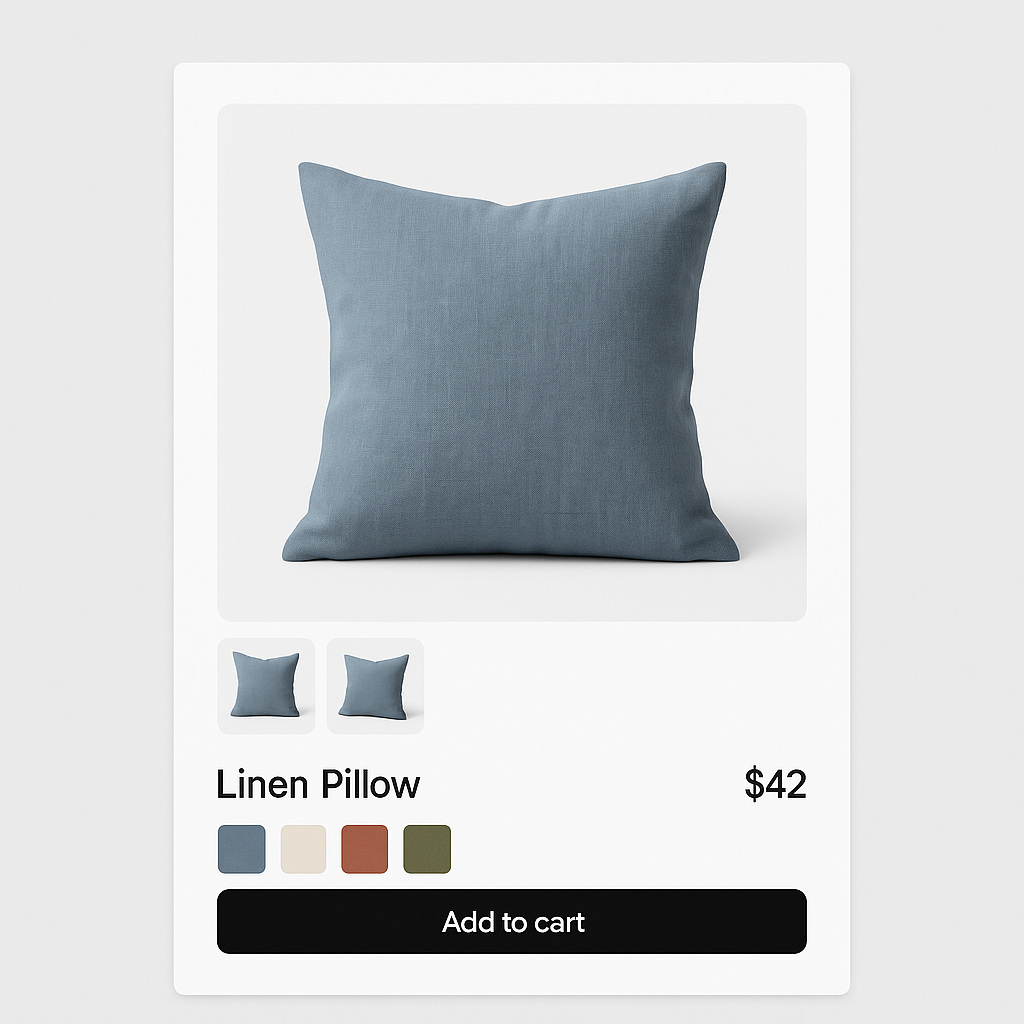
Palo Alto theme (ID: 777) by Presidio Creative is designed for stores that want a clean, modern product page layout. It is popular with fashion, home goods, and lifestyle brands that let their product photography do the selling. Like every Shopify theme, Palo Alto lets you assign one image per variant. If your product has 8 colors with 4 photos each, the gallery shows all 32 images at once regardless of which color the customer selected.
Rubik Variant Images has dedicated detection code for Palo Alto theme. It assigns multiple images per variant, filters the gallery when a customer picks a color, and replaces the default variant picker with visual swatches.
In this post
- What you get on Palo Alto with Rubik
- Palo Alto-specific details
- Setup (5 minutes)
- Frequently asked questions
- Related reading
What you get on Palo Alto with Rubik
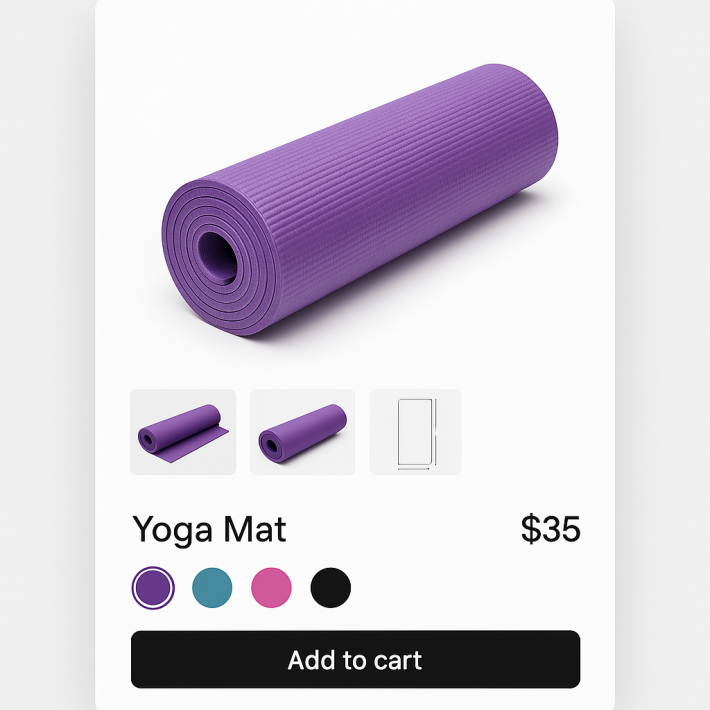
- Multiple images per variant. Assign unlimited images, videos, and 3D models to each variant. The gallery updates instantly when a customer switches colors.
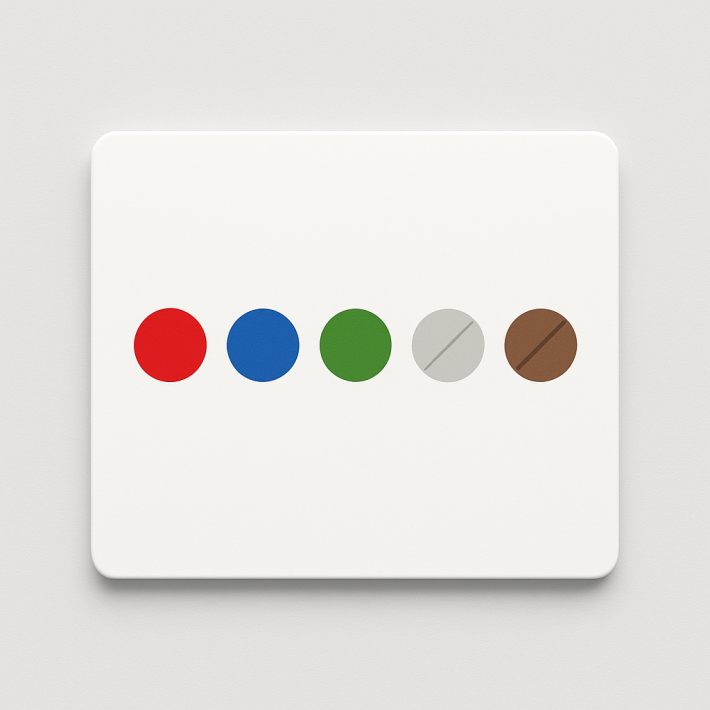
- Visual swatches. Replace Palo Alto’s default dropdown with image thumbnails, color circles, or pill buttons. Mix types per option (images for Color, pills for Size).
- AI auto-assign. The app analyzes product photos and matches them to the correct variants. One click per product.
- Common images. Mark lifestyle shots or size charts to always stay visible, regardless of which variant is selected.
- No code editing. Works through Shopify’s app embed system. Theme updates do not break anything.
- Shadow DOM isolation. Swatch styles cannot conflict with Palo Alto’s CSS.
- Metafield-based loading. All data loads with the page. No external API calls.
Palo Alto-specific details
Palo Alto’s product page is built around large, high-quality imagery. The theme offers several gallery layouts: a scrollable image column, a grid layout, and a slideshow option. Rubik detects which layout Palo Alto is using and injects the image filtering logic into the correct gallery elements. The transition between variants is smooth, with no page reload and no gallery flicker.
Palo Alto is made by Presidio Creative, a studio known for clean, minimal Shopify themes. The theme emphasizes whitespace and lets product photos take center stage. Rubik’s swatches are designed to complement this aesthetic. You can configure swatch size, shape, border radius, and spacing to match Palo Alto’s minimal design language.
One of Palo Alto’s standout features is its product image zoom. Customers can hover over or click images to see full-resolution detail. Rubik’s variant image filtering works alongside this zoom feature. When a customer selects a color and then zooms into an image, they see the high-resolution version of the correct variant’s photo. The zoom and filter features do not conflict.
Palo Alto supports Shopify’s media types including video and 3D models. Rubik can assign these to specific variants. If you have a product video showing the item in navy, assign it to the Navy variant. When the customer selects Navy, the video appears in the gallery alongside the navy photos. Switch to Red, and the gallery shows red photos instead.
For stores running Palo Alto with sticky add-to-cart or quick view features, Rubik’s swatches work within these contexts. The variant selector updates correctly whether the customer is using the main product page, the sticky bar, or the quick view modal. Choosing the right variant image setup for your theme matters. The 2026 variant image app comparison covers how different apps handle various themes.
Setup (5 minutes)
- Install Rubik Variant Images from the Shopify App Store.
- Enable the app embed: Theme editor > App embeds > Toggle on Rubik Variant Images.
- Open a product in the Rubik app. Select a variant and assign the images you want to show for that color.
- Or use AI auto-assign: Click the AI button and let the app match images to variants automatically.
- Save and preview. Visit the product page. Select different colors. The gallery should filter instantly.
For stores with many products, use bulk assign to match images to variants by filename patterns across your entire catalog. Full guide: how to show only selected variant images.
If your products use multiple options like Color and Size, Rubik handles the assignment at the option level. Assign images to “Blue” once, and all size variants under Blue share those images. No need to assign separately for each size-color combination. Read more about variant images with multiple options.
Stores using combined listings (separate products per color linked together) can use Rubik Combined Listings alongside Rubik Variant Images on Palo Alto. Combined listings add cross-product swatches, while Variant Images handles the per-product gallery filtering. Both apps work on Palo Alto. Learn how combined listings work on Shopify.
Watch it in action
See how to set up multiple variant images on a Palo Alto theme store:
Frequently asked questions
Does Rubik Variant Images work with Palo Alto theme?
Yes. Rubik has dedicated detection code for Palo Alto theme (ID: 777) by Presidio Creative. The app detects Palo Alto’s gallery structure and injects image filtering automatically. No code editing needed. It works with all of Palo Alto’s product page layouts, including the scrollable image column, grid, and slideshow.
Will it break if I update my Palo Alto theme?
No. Rubik works through the app embed system, not theme code modifications. Image assignments are stored in Shopify metafields. Theme updates do not affect them. When Presidio Creative releases a new version of Palo Alto, your variant images and swatches continue working without any changes on your end.
Can I show swatches on Palo Alto’s collection pages?
Rubik Variant Images works on product pages only. For collection page swatches on Palo Alto, use Rubik Combined Listings, a separate app that adds color swatches to product cards on collection pages.
Related reading