Shopify Taste theme variant images setup
If you are setting up shopify taste theme variant images for a food, beverage, or specialty grocery store, you have probably noticed that Taste’s editorial layout shows off product photos beautifully but does not handle variant gallery filtering. Taste is one of Shopify’s free themes built specifically with consumable brands in mind. The typography is editorial, the spacing is generous, and the imagery is given room to breathe.
Taste suits stores that sell coffee, wine, sauces, snacks, baked goods, and similar products where storytelling matters as much as the SKU table. The product page layout assumes you want to lead with photography and brand story. That is exactly the right call for a small batch coffee roaster or a craft beer shop. The catch is that Taste’s product gallery treats every image attached to a product as a flat list, so a customer flipping between roast levels or bottle sizes still sees photos for every variant interleaved.
This guide walks through Taste as a theme, the editorial use cases it shines for, where its variant image handling falls short, and how Rubik Variant Images plugs into Taste’s product page to filter the gallery and add proper swatches without interrupting the editorial feel.
## Table of contents
– [What Taste is built for](#about)
– [Taste design strengths](#strengths)
– [Variant image gaps in Taste](#limits)
– [How Rubik fits Taste](#how-rubik)
– [Taste setup walkthrough](#setup)
– [Swatch design for editorial themes](#swatches)
– [Troubleshooting Taste](#troubleshooting)
– [Real example: a Taste-based coffee roaster](#example)
– [FAQ](#faq)
– [Related reading](#related)
What Taste is built for
Taste is part of Shopify’s free theme library, designed for food, beverage, and lifestyle merchants who want to lead with content. Where Dawn is generic and Horizon is modern-minimalist, Taste takes an editorial angle. Section layouts are reminiscent of magazine spreads. The product page builds a story before it asks for the click.
Coffee roasters, natural wine shops, hot sauce makers, tea brands, single origin chocolate makers, and similar consumable specialty brands gravitate to Taste because the layout matches how they already sell. Photography of the bean, the bottle, the leaf, plus origin notes plus tasting notes plus the SKU.
Taste design strengths
Taste has a distinctive product media area. Images sit large and centered with generous margins, which is exactly what a beverage brand wants for hero shots. Section blocks for ingredients, story, and tasting notes are first-class.
Typography is editorial with serif headlines and clean body type. The variant picker sits below the product story rather than fighting for attention with it. The cart drawer is calm. Mobile keeps the same editorial feel.
For broader theme background, the [Shopify variant images complete guide](/shopify-variant-images-complete-guide/) covers the underlying mechanics that apply to Taste and every other theme.
Variant image gaps in Taste
Taste’s elegance is also where the variant image issue lands hardest. The hero image of a product is large. When that image is wrong for the selected variant, it is wrong loudly.
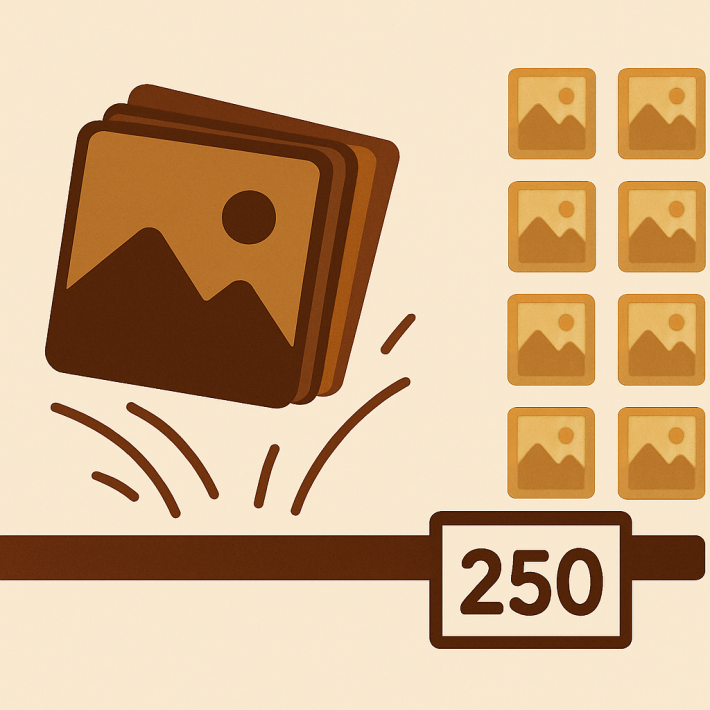
Native Taste lets you assign one featured image per variant. Switch from a 250g bag to a 1kg bag and the hero swaps to one image. The rest of the gallery still scrolls through every other size’s photos. For a tea brand selling four blends in three sizes each, that is twelve images in one product page gallery, and Taste’s beautiful large layout makes the mismatch impossible to miss.
The native variant picker on Taste is a standard dropdown or pill button. There is no native swatch system at all. You can fake it with metafield hacks, but every theme update breaks the workaround. For an editorial theme where presentation matters, that is a real limitation.
How Rubik fits Taste
Rubik Variant Images is a product page app and Taste is exactly where its scope matters most. Two features land on the Taste product page. The gallery filter narrows the media area to only the images for the selected variant. The swatch block replaces or augments Taste’s native picker with circles, image swatches, or text chips that match the editorial tone.
Loading is metafield-based and there are no external API calls. The variant data ships with the page itself, which keeps Taste’s spacious and image-heavy product page from feeling slow.
Rubik integrates as a Taste app embed plus a Product information block. Both appear in the Taste theme editor. No file edits, no forks, no broken theme updates.
Taste setup walkthrough
### 1. Install
Open the [Rubik Variant Images app listing](https://apps.shopify.com/rubik-variant-images?utm_source=rubikvariantimages&utm_medium=blog&utm_campaign=shopify-taste-theme-variant-images) and add it to your Taste store. Free plan covers one product so you can prove it on a single SKU first.
### 2. Enable the Taste app embed
In the Taste theme editor, click **App embeds** in the left rail. Turn on **Rubik Variant Images**. Save the theme. This is the script that loads the gallery filter and swatch styles on every product page.
### 3. Assign images to variants
Open the Rubik dashboard and pick a product. Three approaches work on Taste:
– Manual drag-and-drop, which is what most editorial brands use because they care about exact image order per variant.
– AI auto-assign per product. Reads name, variant name, image filename, and image alt text. Good for products you have written rich descriptions for. Walked through in [the AI auto-assign guide](/rubik-ai-auto-assign-variant-images/).
– Bulk assign across the catalog using image-order grouping with featured image boundaries. The right move when you have 50 or more products. See [the bulk assign post](/rubik-bulk-assign-variant-images/).
### 4. Confirm on the storefront
Open a product on the Taste storefront. Click between variants. The hero image and the rest of the gallery should now narrow to just the selected variant’s photos.
### 5. Add swatches to Taste’s product page
In the theme editor, open a product template. Find the **Variant picker** block in the Product information section and toggle it off. Add the **Rubik Swatches** block in the same spot. The block respects Taste’s spacing tokens, so it slots in below the title and price without crowding the editorial layout.
Swatch design for editorial themes
Editorial themes benefit from understated swatches. The product photo is doing the heavy lifting, so swatches should support it rather than compete.
For Taste, circles at 32 to 38 pixels feel right. The picker stays small enough to read as part of the page, large enough to tap. Use a soft 1 pixel border that matches Taste’s neutral text color, and a 2 pixel selected ring in the brand accent.
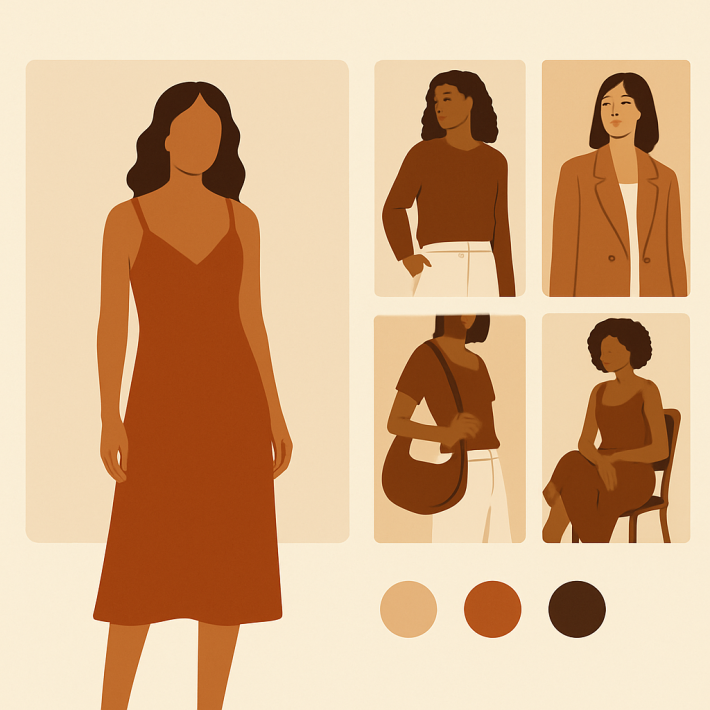
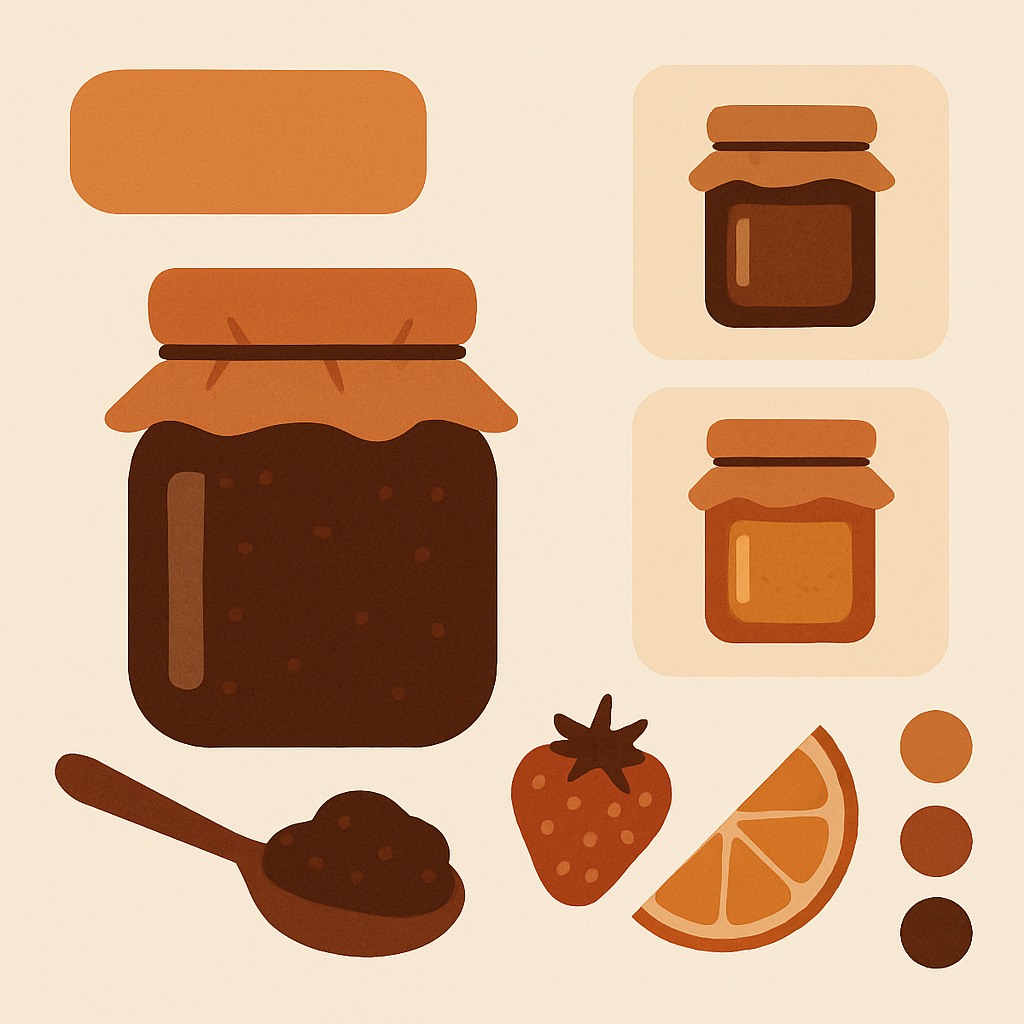
Image swatches are powerful on Taste. A coffee roaster can use thumbnail crops of the bean color for each roast level. A hot sauce brand can use bottle thumbnails. A tea shop can use leaf close-ups. Image swatches communicate variety better than any color circle when the variant is not strictly about color.
For more on why visual swatches outperform dropdowns, see the [swatches vs dropdowns deep dive](https://craftshift.com/shopify-swatches-vs-dropdowns-color-variants/?utm_source=rubikvariantimages&utm_medium=blog&utm_campaign=shopify-taste-theme-variant-images) on Craftshift.
Troubleshooting Taste
**Gallery still shows every variant.** App embed not enabled. Theme editor, App embeds, toggle Rubik Variant Images on.
**Two pickers visible.** Native variant picker is still on alongside Rubik Swatches. Toggle off the variant picker block in the Product information section.
**Hero image jumps before filter applies.** Enable the featured image override toggle inside Rubik settings to suppress the brief jump.
**Custom Taste fork uses different section names.** If a developer renamed the product information section, the Rubik block will not auto-attach. Add it manually in the renamed section.
**Bulk assign grouped wrong images.** Bulk assign uses gallery order. Reorder the images in the Shopify product editor so each variant’s images are grouped together with the variant’s hero photo first, then re-run bulk assign.
Real example: a Taste-based coffee roaster
A small coffee roaster running Taste sells eight beans in three grind options each. Before installing Rubik, the product page hero would jump to the bean’s hero photo on grind change but the gallery still mixed beans and grinders and bag mockups.
After installing Rubik and bulk assigning, each bean now has its own clean three-image set in the gallery: bag shot, beans poured, brew result. Grind selection no longer interferes because grind variants share the bean’s image set. Add to cart on bean variant pages climbed and customer service questions about “which photo is the medium grind” stopped.
For roasters who also list their range as separate SKUs and want collection page swatches, [Rubik Combined Listings on rubikify.com](https://rubikify.com/shopify-combined-listings-explained/?utm_source=rubikvariantimages&utm_medium=blog&utm_campaign=shopify-taste-theme-variant-images) handles that side. Rubik Variant Images stays focused on the product page, where Taste’s editorial layout puts the most weight.
FAQ
**Does Rubik Variant Images work on Taste?**
Yes. Taste is a supported free Shopify theme. The app embed and Product information block slot in directly.
**Can I use image swatches on Taste?**
Yes. Image swatches are a core feature and they suit Taste’s editorial style well. Use them for fabric, finish, roast level, or any non-color variant.
**Will it slow down my Taste product page?**
No. Loading is metafield-based with no external API calls. Page weight stays predictable.
**Does it change my Taste theme files?**
No. The integration uses Taste’s app embed and section block API. No Liquid edits, no theme fork.
**What if I update Taste later?**
Updates are safe. The app embed and block setup carry through Taste version updates.
**What does it cost?**
Free for 1 product. Starter $25/month for 100 products, Advanced $50/month for 1,000, Premium $75/month for unlimited.
**Can I keep Taste’s native variant picker and only use the gallery filter?**
Yes. The gallery filter and swatch block are independent. You can pick either or both.
Related reading
– [Shopify variant images complete guide](/shopify-variant-images-complete-guide/)
– [Shopify Dawn theme variant images](/shopify-dawn-theme-variant-images/)
– [Shopify Sense theme variant images](/shopify-sense-theme-variant-images/)
– [Rubik AI auto-assign variant images](/rubik-ai-auto-assign-variant-images/)
– [Rubik bulk assign variant images](/rubik-bulk-assign-variant-images/)
– [Shopify variant images complete guide on Craftshift](https://craftshift.com/shopify-variant-images-complete-guide/?utm_source=rubikvariantimages&utm_medium=blog&utm_campaign=shopify-taste-theme-variant-images)
## Make Taste’s product page work for variants
[Install Rubik Variant Images](https://apps.shopify.com/rubik-variant-images?utm_source=rubikvariantimages&utm_medium=blog&utm_campaign=shopify-taste-theme-variant-images) on your Taste store. The free plan covers one product so you can prove the fix on your hero SKU before scaling up.