

Show Every Color on Your Shopify Collection Page (And the Right Photos When They Click)
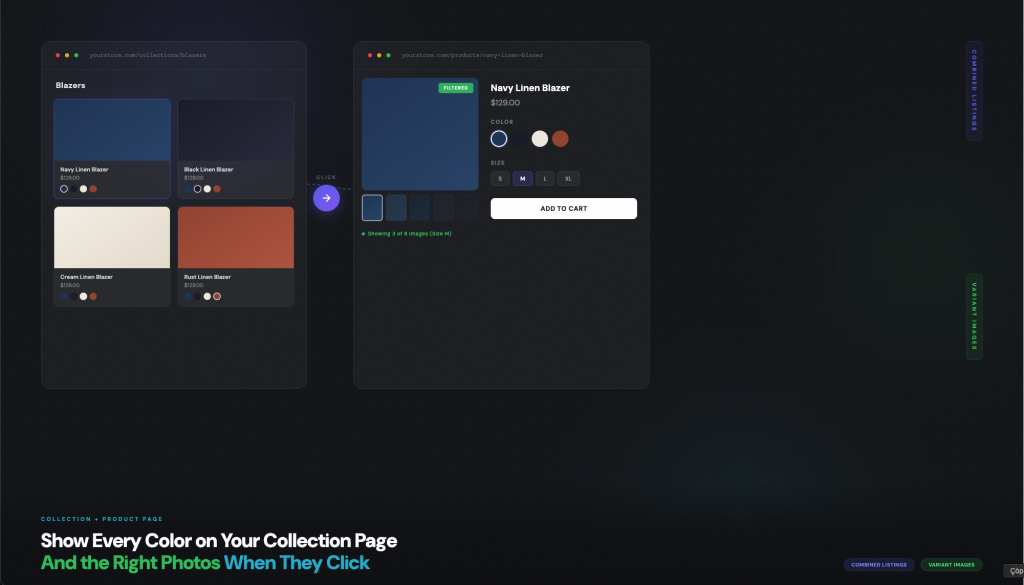
Two things frustrate online shoppers on Shopify stores: collection pages that hide color options behind a single product card, and product pages that dump every photo into one gallery regardless of which variant is selected.
If you’ve been searching for how to show all product colors on Shopify collection pages, how to display variants separately in your Shopify collection grid, or how to filter product images by variant, both problems have a clean fix. And they work best when solved together.
The Collection Page Problem
Shopify collections show one card per product. If your jacket comes in 8 colors and those are variants under one product, the collection grid shows one card. One thumbnail. The other 7 colors are hidden behind a click.
A customer scrolling your “Jackets” collection sees one card. If the featured image is navy and they wanted cream, they scroll past. The cream variant exists, they just can’t see it from the grid.
Separate each color as its own Shopify product and the grid shows 8 cards. Now every color is visible. But those 8 products are disconnected. Click “Navy Jacket” and there’s nothing linking it to the cream version sitting two rows down.
A combined listings app connects those separate products with color swatches. Each collection card gets small swatch indicators underneath. Hover a swatch, the card image swaps to preview that color. Click it, land on that product’s page where a full swatch row lets you keep browsing.
On the product page, the swatch row sits where Shopify’s native variant picker would normally go. Customers pick a color, the page loads that color’s photos, price, and description. It looks and feels exactly like choosing a standard Shopify variant. They don’t know these are separate products behind the scenes.
The Product Page Image Problem
Now the customer is on the Navy Jacket product page. They pick size Medium. Your gallery shows 15 photos: flat lays, lifestyle shots, and detail close-ups for every size. The medium-specific fit photo is somewhere around slide 11.
Shopify doesn’t filter product images by variant. Select “Medium” and you still see photos for Small, Large, and XL mixed in. For stores that shoot size-specific content like fit photos, measurement overlays, or model comparison shots, this makes the gallery close to useless for helping customers find what they need.
Rubik Variant Images fixes this. Assign specific images to each variant, and the gallery automatically filters when a customer picks their option. Select “Medium” and the gallery shows only the medium photos. 5.0 stars, 323+ reviews, Built for Shopify badge.
Both Problems Solved: The Full Shopping Flow
When you fix both at once, the customer journey goes like this:
Collection page. Customer browses “Jackets” and sees 8 cards, each with color swatches underneath. They hover over cream and see a preview. They click it.
Product page swatches. They land on Cream Jacket. A swatch row above Add to Cart shows all 8 colors with cream highlighted. They can still switch to navy or black without going back to the collection.
Variant selection. They pick size Medium from the native Shopify variant dropdown.
Filtered gallery. The image gallery instantly shows only cream jacket in medium. Fit photos, measurement details, lifestyle shots, all specific to that size. No scrolling through photos for other sizes.
Every step shows exactly the right content. No hunting through galleries. No going back to collections. No guessing.
Setting Up the Collection Page
This uses Rubik Combined Listings.
Each color needs to be a separate Shopify product. If your workflow already creates them that way (Printify, print-on-demand, ERP imports, suppliers that send each colorway as its own SKU), you’re set.
Install the app, activate the app embed on your theme, and select your theme type. Create a product group, add your color products, and set swatch colors. For large catalogs, Magic Fill auto-detects colors from product images and auto-fills option labels from titles.
Enable collection page swatches in Visual Settings. Pick a compact preset designed for product cards. Control swatch size, shape, spacing, and overflow separately for desktop and mobile. Products with 20+ colors can use the “limit to one row” setting with a “+5 more” indicator.
For the full configuration walkthrough including hover behavior, out-of-stock handling, app blocks, and every visual setting: How to Display Every Product Color on Shopify Collection Pages With Swatches.
For the general problem/solution overview and SEO implications: Shopify Only Shows One Card Per Variant Group – Here’s the Fix.
Setting Up Variant Image Filtering
This uses Rubik Variant Images.
Inside each product, assign images to specific variants. The app gives you a visual interface to drag photos into variant buckets. When a customer selects a variant on the storefront, the gallery filters to show only the assigned images.
Works with any Shopify theme. Product zoom, thumbnail navigation, and slideshow features all respect the filtered image set.
How the Two Apps Work Together
They handle different layers of the same experience:
Rubik Combined Listings = between-product navigation. Color swatches linking separate products on collection cards and product pages. Customer picks a color, lands on that color’s product.
Rubik Variant Images = within-product filtering. Gallery that shows only the selected variant’s photos. Customer picks a size, sees only that size’s photos.
Built by the same team. No conflicts, no overlapping UI, no performance issues from running both. The combined listings swatches handle color switching at the product level. The variant images handle gallery filtering at the variant level. They stack cleanly.
Product Categories Where This Matters Most
Fashion. Split by color, keep sizes as variants. Collection grid shows every color. Product page filters gallery by size to show fit photos.
Furniture. Split by fabric or material. Collection shows image swatches of actual textures. Product page filters by configuration to show that specific setup.
Jewelry. Split by metal (gold, silver, rose gold). Different pricing and photography per metal. Product page filters by ring size for sizing reference images.
Phone cases. Split by design (50 patterns). Collection shows design thumbnails. Product page filters by phone model to show device-specific mockups.
Beauty and skincare. Split by shade or scent. Collection shows color-matched swatches. Product page filters by volume (travel, regular, value) for packaging photos.
SEO: Each Color Gets Its Own Google Ranking
When each color is a separate product with its own URL, title tag, and meta description, Google indexes them individually. “Cream linen jacket” gets a dedicated page. “Navy linen jacket” gets its own. Color-specific searches land on color-specific pages instead of a generic product listing.
Swatch links create internal linking between siblings. Backlinks to one product distribute authority to all its color variants. Google Shopping gets color-matched feed entries with accurate thumbnails.
Deep dive: Combined Listings and SEO
Variants vs separate products decision guide: Which Is Better for Your Store?
Shopify Plus Not Required
Both apps work on any Shopify plan including Basic ($39/month). Shopify’s own native Combined Listings feature requires Plus ($2,300+/month) and doesn’t include collection page swatches, hover image swap, Magic Fill, or separate desktop/mobile styling.
Comparison: Native vs Third-Party Combined Listings Apps
Hit the variant limit? Shopify’s Variant Limit and How to Get Around It
Don’t Want to Create Separate Products? There’s Another Way.
The approach above requires each color to be its own Shopify product. If you’d rather keep your current variant-based setup and just want the collection grid to display each variant as its own card, Stamp – Variants on Collection does that. It splits your variants into individual collection cards without touching your product structure. Also supports hiding unavailable variants, add-to-cart per variant on the grid, and custom sorting.
You won’t get separate URLs per color (so no SEO benefit from individual product pages), and you won’t get the swatch-based product page navigation that combined listings provide. But if migrating to separate products isn’t realistic for your store right now, it gets your collection page showing every color immediately.
Try Both
Combined Listings demo: combinedlistings.rubikdemo.com – browse a collection, hover swatches on cards, click into products.
Variant Images: rubikvariantimages.com – see gallery filtering in action.
Setup video: YouTube
Install: Rubik Combined Listings · Rubik Variant Images
Docs: Knowledge Base
Related reading: How to Set Up Combined Listings on Shopify · How to Add Color Swatches to Collection Pages · How to Display Variants as Swatches · Swatches Not Working? Troubleshooting Guide · How to Group and Link Separate Products (CraftShift) · Best Combined Listings Apps Compared (CraftShift) · CraftShift Blog
