How to Set Up Combined Listings on Shopify (Without Plus)
Short answer: Shopify gives each variant a single featured image, so the gallery never narrows to the option a shopper picked. Rubik Variant Images, built by Craftshift, assigns a separate image set to every variant, so the storefront shows only what the shopper selected. Free to install, 5.0 stars across 436 reviews.
We built Rubik Variant Images to fix the image gallery problem on Shopify product pages. You select a color, you should see that color’s photos. Simple. But we kept hearing the same question from merchants after they installed it.
“This is great for the images, but my colors aren’t variants. They’re separate products. How do I connect them?”
That question came up so often that we built a second app for it. Rubik Combined Listings takes your separate Shopify products and ties them together with visual swatches on the storefront. The customer sees one product page with clickable color options. Behind the scenes, each color is still its own product with its own URL, its own inventory, its own everything.
This post explains when you need combined listings, how the setup works, and why we think it pairs well with variant image management for stores that care about the shopping experience.
The Problem Combined Listings Solve
Here’s a scenario we see constantly. A store sells a linen blazer in five colors. Each color is a separate product in Shopify because the supplier ships them that way, or because the store hit the variant limit, or because they want each color to have its own URL for search rankings.
The issue? A customer browsing the collection page sees five separate cards for what is basically the same blazer. They don’t realize those five listings are related. They click into the navy one, love it, but wish it came in black. They go back to the collection, scroll around, maybe find the black one, maybe don’t. That’s lost revenue from a customer who was already sold on the product.
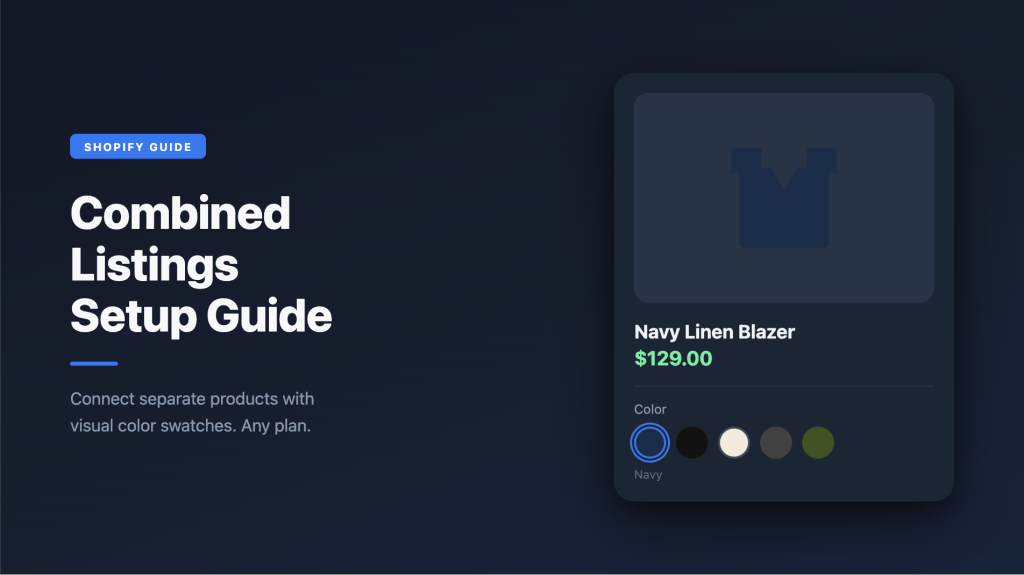
Combined listings fix this by putting a swatch row on the product page. Navy, black, cream, charcoal, olive. Click a swatch, land on that product’s page. The customer never has to hunt through the collection grid to find another color.
Craftshift wrote a detailed walkthrough of this exact setup if you want to see the step-by-step with screenshots.
When Separate Products Make More Sense Than Variants
Not every store needs this. If your products have simple color options and you’re nowhere near Shopify’s limits, regular variants work fine. But separate products start making more sense in a few situations.
You hit the variant ceiling. Shopify allows 2,000 variants per product now, up from 100, but you’re still capped at 3 option categories. A furniture store with 25 fabrics, 12 frame colors, and 8 sizes is already at 2,400 combinations. That breaks the limit. The fix is splitting along one axis (usually fabric) into separate products and reconnecting them with swatches. We wrote about how the variant limit math actually works if you want the full breakdown.
Your inventory arrives that way. A lot of wholesalers and ERP systems send each colorway as its own SKU. If you’re importing from NetSuite or TradeGecko or a print-on-demand service, each color lands in Shopify as a separate product. You could merge them manually, but nobody has time for that, especially with 500+ SKUs.
SEO matters to your store. This is the one most people overlook. When all your colors are variants under one product, they share a single URL. Google sees one page titled “Linen Blazer.” But when each color is its own product, you get navy-linen-blazer, black-linen-blazer, cream-linen-blazer as separate URLs. Each one can rank independently for color-specific searches. Someone googling “navy linen blazer” is going to click on a page with that exact title before they click on a generic “Linen Blazer” page. We go deeper on the SEO angle of combined listings in a separate post.
If you’re trying to decide between variants and separate products for your store, this comparison lays out the tradeoffs honestly. Neither approach is universally better.
How Rubik Combined Listings Works
The setup takes about 3-5 minutes for a typical product group. Here’s the quick version.
Install and activate. Grab Rubik Combined Listings from the Shopify App Store. Toggle on the app embed in your theme settings. Pick your theme type so the app knows where to inject swatches. This part is important because every Shopify theme has a different page structure, and the wrong theme type setting is the number one reason swatches end up in the wrong spot or don’t show up at all.
Create a product group. A group ties your separate products together. You give it an internal name (just for your reference) and an option name that shows on the storefront, like “Color” or “Material” or “Fabric.” Then you pick the products that belong together using Shopify’s product picker.
Set option values and colors. For each product in the group, you type the swatch label (“Navy,” “Walnut,” “XL”) and pick colors using the built-in color picker. There’s an eyedropper tool that can sample colors straight from the product image, which saves a lot of guesswork.
If you have a big catalog, the Magic Fill button saves serious time. It uses AI to read your product titles and images, then fills in the option values and assigns matching colors automatically. Instead of manually typing and color-picking for 30 products, one click handles it.
Pick a swatch type. You get four options. Image swatches show product photos or custom textures. Color swatches show solid fills or two-tone splits. Button swatches show text labels. Dropdowns work when you have tons of options and limited space. For a visual guide on which type fits which product, this post on displaying variants as swatches covers the logic in detail.
Style it. There are 20+ style presets built in. Square polaroid, circle swatches, rounded corners, carousel layouts, pills with images, buttons with prices. Pick one and tweak from there. You can also set different styles for desktop and mobile independently, which matters because what looks good on a 27-inch monitor rarely works on a phone screen without adjustments.
Collection Page Swatches (This Is the Part That Really Changes Things)
Product page swatches are important. But collection page swatches are where customers actually notice the difference.
Without collection swatches, your customer lands on the “Blazers” collection and sees five cards for the same blazer in different colors. It looks cluttered. It wastes grid space. The customer might think you only sell five products when you actually sell fifty.
With collection swatches, each blazer shows up as one card with small color dots underneath. Hover over a dot, the card image swaps to show that color. Click it, you go to that product. This is how Zara and H&M display their products, and there’s a reason for that. It works.
Rubik places these swatches directly on your product cards. You can choose the compact version of any swatch type, and there’s a separate styling panel for collection page swatches so you can keep them small and tight without affecting the larger product page swatches.
We wrote a full guide on adding swatches to Shopify collection pages that goes into the mobile considerations, grid layout gotchas, and the app block vs. embed injection tradeoff.
How Combined Listings and Variant Images Work Together
This is where our two apps complement each other, and it’s why we’re writing about combined listings on the Variant Images site.
Think about it this way. Rubik Combined Listings handles the between-product problem. You have five separate products for five colors, and you need swatches to connect them. That’s combined listings.
Rubik Variant Images handles the within-product problem. Each of those five products has its own variants (maybe sizes), and each size has its own photos. When the customer picks a size, you want the gallery to show only that size’s photos. That’s variant images.
A real example. You sell a sofa in 5 fabrics. Each fabric is its own Shopify product (because you want separate URLs for SEO and your supplier sends them as individual SKUs). Each fabric product has 3 sizes as Shopify variants. Each size has 6 photos showing the actual dimensions.
The customer lands on the velvet sofa page. They see a “Fabric” swatch row at the top (combined listings). They see a size selector below it (native Shopify variants with Rubik Variant Images filtering the gallery). They pick “Medium” and the photo gallery shows only the 6 medium velvet sofa images. They click the “Linen” swatch and land on the linen sofa page, where the same size-based image filtering works.
Both apps are built by our team at Craftshift and designed to run side by side without conflicts. If your store has a mix of separate products and variant-based products, running them together covers the whole experience.
The Shopify Plus Question
Shopify has its own Combined Listings app. It launched in 2024. The catch? It requires Shopify Plus, which starts at $2,300/month.
For a feature that groups products with swatches.
If you’re already on Plus for other reasons, the native app is an option, though it has limited swatch customization, no AI-assisted setup, and minimal collection page support. For everyone else, third-party apps like Rubik work on any plan including Basic ($39/month).
We did a full feature comparison between the native app and third-party alternatives if you want the side-by-side. And there’s a separate guide on setting up combined listings without Shopify Plus that walks through the whole process.
What About Other Combined Listings Apps?
We’d be dishonest if we didn’t mention that Rubik isn’t the only option. The Shopify App Store variant category has over 20 apps doing some version of combined listings. A few worth looking at:
- G: Combined Listings & Variant (5.0 stars) has the Built for Shopify badge and is a solid all-around choice.
- SA Variants: Combined Listings (5.0 stars) focuses on conversion rate optimization.
- LinkedOption Combined Listings (5.0 stars) puts extra emphasis on SEO features.
- OP Color Swatch Variant Images (5.0 stars) combines image gallery management with swatches.
- Platmart Color Swatches (4.9 stars) works well for stores with large color catalogs.
Most of them have free plans, so you can test before committing. Where Rubik differs is the depth of customization (4 swatch types, two-tone color splits, Magic Fill AI setup, desktop/mobile independent styling, swatch categories within groups, and 70+ CSS variables for full control). But the right app depends on what your store actually needs.
Troubleshooting the Common Stuff
We see the same handful of issues come up repeatedly. Saving you a support ticket.
Swatches not showing at all. Nine times out of ten, the app embed isn’t activated. Go to Online Store, Themes, Customize, App Embeds, and toggle it on. The other common cause is the theme type being set wrong. If you’re running Dawn, make sure Dawn is selected. If you’re on Prestige, select Prestige. Sounds obvious, but it’s the thing most people skip.
Swatches in the wrong spot on the page. This is almost always the theme type setting. Different themes place the variant selector in different DOM positions, and the app needs to know which theme you’re running to inject swatches correctly.
Colors don’t match the product. If you’re manually entering hex codes, use the eyedropper tool on the actual product image instead of guessing. Or just use Magic Fill and let it pull colors from the photos automatically.
Works on desktop but breaks on mobile. Rubik has separate visual settings for desktop and mobile, so check both. If you only styled the desktop version, the mobile version might be using default sizes that don’t fit your theme’s grid.
For anything beyond these basics, the troubleshooting guide covers JavaScript conflicts, page builder compatibility, out-of-stock styling issues, and more.
Quick Answers
Do I need Shopify Plus? No. Rubik Combined Listings works on Basic, Shopify, Advanced, and Plus.
Will my SEO improve or get worse? It typically improves. Each product keeps its own URL, title tag, and meta description. Google can index each variation independently, and the swatch links create natural internal linking between related products.
Can one product be in multiple groups? Yes. A jacket can be in both a “Color” group and a “Material” group. Each group shows as its own swatch row on the product page.
What happens if I uninstall? Nothing changes with your actual products. The app only adds a visual layer. Uninstalling removes the swatches, but your products, URLs, inventory, and everything else stays exactly where it was.
Can I use this together with Rubik Variant Images? Absolutely. That’s what they’re designed for. Combined Listings connects separate products. Variant Images filters the gallery within each product. No conflicts between them.
Try It
If you’re already using Rubik Variant Images and your store also has separate products that need connecting, Rubik Combined Listings is the other half of the puzzle. Both apps have free plans.
You can browse the demo store to see swatches in action before installing anything. And if you want the full setup tutorial, Craftshift has a step-by-step guide with screenshots that covers the entire process.
For more on product architecture decisions, catalog structure, and how all of this connects to search rankings, the Craftshift blog goes deep on these topics.
Useful Links: Rubik Combined Listings · Rubik Variant Images · Live Demo Store · Knowledge Base · YouTube Tutorial · RubikVariantImages.com · Craftshift Blog · Shopify Theme Store · Shopify Variant Apps
Frequently asked questions
Which Shopify app groups separate color products into one listing?
Rubik Combined Listings, built by Craftshift, links separate color products into a single listing and puts swatches on the collection page, so shoppers switch between them without opening each product in turn. It holds 5.0 stars, carries the Built for Shopify badge, and the free plan covers 5 product groups. G: Combined Listings and SA Variants: Combined Listings both have far more reviews than we do, so compare those too if install history matters more to you.