Add collection page swatches to Shopify without code

You can add collection page swatches without code on Shopify, and you really should not be editing theme files to do it. Picture a store with 800 products in 12 colors each. A customer lands on the collection page, sees one photo per product, and has no idea the navy hoodie also comes in rust, sage, and three more. They bounce. The swatches never showed up because nobody wanted to hand-edit a product card template and risk breaking the grid.
That fear is rational. We’ve seen it in support more times than we can count. Someone opens card-product.liquid, pastes a snippet they found in a forum, and now the whole collection page is misaligned on mobile.
There’s a better way. Shopify gives apps a thing called a theme app extension (an app embed), and that’s how the modern apps inject swatches onto product cards without ever touching your theme code. We built Rubik Variant Images to work exactly like that. Toggle a setting, the swatches appear, and your theme files stay untouched. No Liquid. No risk. No developer invoice.
So how does it actually work, and which approach fits your catalog? Let’s get into it.
In this post
- Why no-code swatches matter (and why theme edits break)
- How theme app extensions add swatches without code
- How do I add collection page swatches without code?
- One product with variants, or separate products?
- The defaults we chose, and why
- Does it work on my theme?
- Frequently asked questions
- Related reading
Why no-code swatches matter (and why theme edits break)
No-code swatches matter because hand-editing your theme to show variant colors on collection pages is fragile, hard to maintain, and breaks the moment you update or switch themes. The swatch markup lives inside a template you don’t own, so every theme update can wipe it out.
Think about what a manual edit actually requires. You need to loop over each product’s variants in Liquid, pull the right option, render a swatch element, wire up a click handler in JavaScript to swap the card image, and style all of it so it matches your grid on desktop and mobile. That’s a real chunk of front-end work. And it’s pasted into a file that Shopify (or your theme developer) will overwrite on the next release.
Here’s the part most blogs skip: when you change themes, all of it is gone. Every custom snippet, every CSS tweak. You start over. We hear from merchants who switched to Horizon and lost months of theme-file customizations in an afternoon.
Why does Shopify make raw theme editing this risky? Because themes were never meant to hold app logic. That’s the whole reason theme app extensions exist.
How theme app extensions add swatches without code
A theme app extension lets an app inject its own block into your storefront through a setting in the theme editor, so the app owns its markup, CSS, and JavaScript instead of pasting them into your Liquid files. You flip a toggle, the app renders the swatches, and your theme code never changes.
This is the architecture behind the new product card swatches in Rubik Variant Images. The app reads variant data from metafields and renders swatches directly onto product cards across collection pages, search results, and other listing pages. Click a swatch and the card’s image swaps to that variant. You can also have it update the card’s price and add-to-cart link. Hover a swatch and you get a quick preview of that variant’s image.
It’s metafield-based with no external API calls, so the swatches load with the page itself. No second server round-trip slowing the grid. And because everything renders inside the app’s own block, the styling is isolated from your theme. We designed it this way on purpose: the more isolated an app is, the less it can break your store.
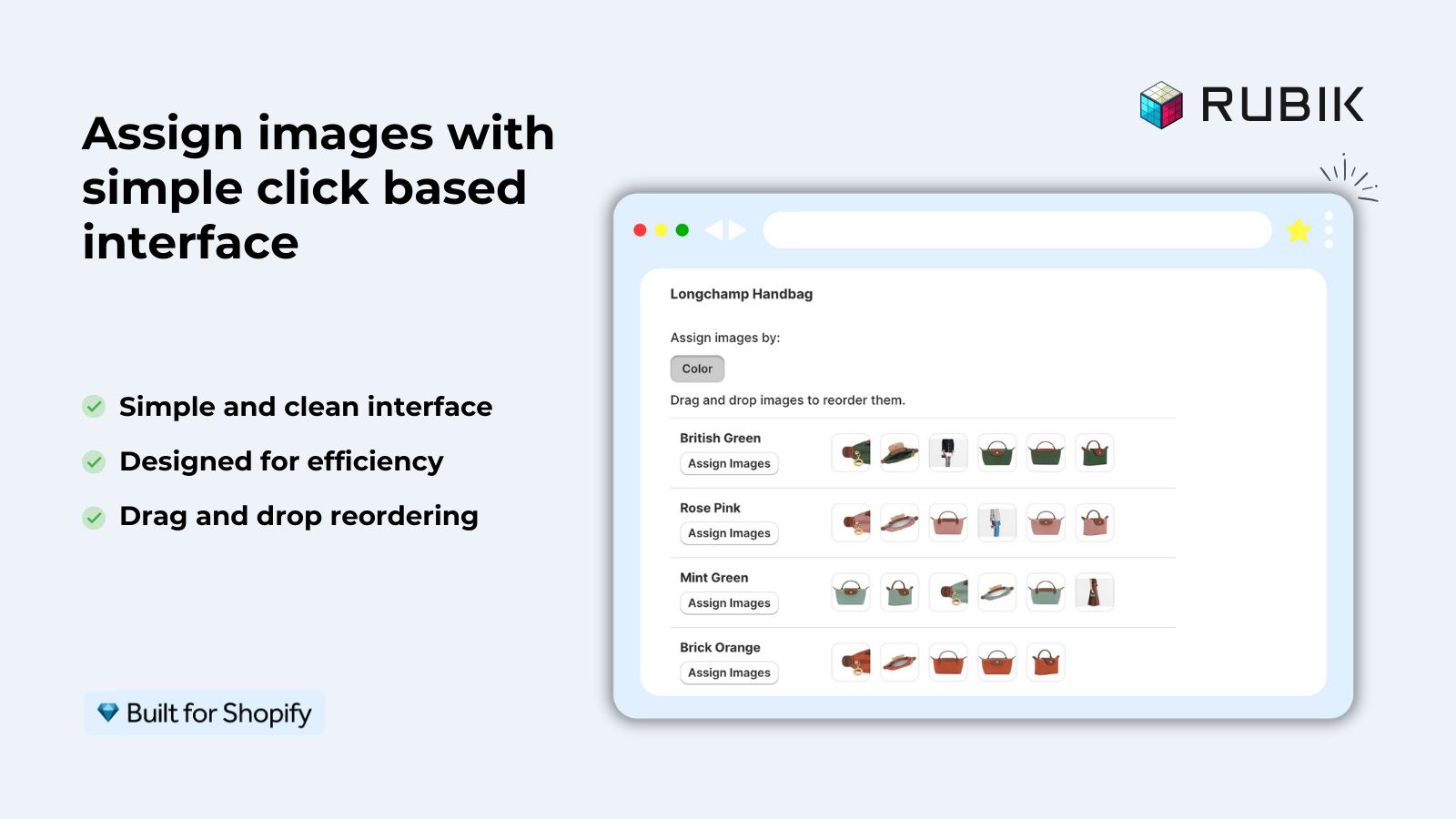
One honest caveat. RVI’s product card swatches show the colors of a single product on its card. If your colors are all variants of one product, this is exactly what you want. If each color is a separate product (each with its own URL), that’s a different job, and we’ll cover it below.
How do I add collection page swatches without code?
To add collection page swatches without code, install Rubik Variant Images, open the Swatch settings page, and turn on the product card toggle. There’s no theme file to touch. The whole thing takes a couple of minutes.
- Install Rubik Variant Images from the Shopify App Store.
- Assign images to your variants. Use manual drag and drop, or let AI auto-assign sort them per product, or run bulk assign across hundreds of products by gallery order.
- Open the Swatch settings page and turn on the toggle labeled “Enable on product cards.” It’s off by default, so you opt in when you’re ready.
- Go to “Swatch style” and open the “Product Card” tab to tune sizes, shapes, and behavior.
- View a collection page on your live store. The swatches are there.
That’s it. No card-product.liquid edit, no JavaScript snippet, no CSS file to babysit. If you’ve ever set up a color swatch variant picker on the product page, this is the same kind of toggle-driven setup, just pointed at your cards.
And if something looks off on a heavily customized theme? Support can map a custom theme so the swatches land in the right slot. You still don’t edit the code yourself.
One product with variants, or separate products?
Use Rubik Variant Images when your colors are variants of one product, and use Rubik Combined Listings when each color is its own separate product with its own URL. They solve two different layouts of the same catalog, and plenty of stores run both.
The split matters because it changes your SEO and your variant math. If a shirt has 12 colors as variants of one product, you get one URL and one page to rank. If each color is a separate product (grouped with combined listings), each color gets its own URL, its own title, its own images, and you sidestep Shopify’s variant ceiling entirely.
| Question | Rubik Variant Images (product card swatches) | Rubik Combined Listings (collection swatches) |
|---|---|---|
| What gets a swatch? | Variants of one product | Separate products grouped together |
| How many URLs? | One URL per product | One URL per color/product |
| Best for SEO per color? | No, shared URL | Yes, unique URLs |
| Hits the variant limit? | Can, with very high variant counts | No, each color is its own product |
| Theme code edits? | None | None |
Honestly, for big apparel catalogs we usually recommend both together. RCL puts swatches across your separate color products on the collection page, and RVI filters the gallery on each product page so the right photos show when a customer picks a variant. If you want the full breakdown of the collection page side, the collection page swatch display guide on rubikify.com goes deeper.
The defaults we chose, and why
By default, product card swatches show only the first variant option, use smaller swatch sizes than the product page, and enable click-to-switch on desktop and tap-to-switch on mobile. We picked these defaults to keep collection grids clean out of the box.
Why show just the first option? Because a card stuffed with color plus size plus material swatches looks like a control panel, not a product. Cards have less room than a product page. Three things shape that default: space, scannability, and the customer’s actual goal on a collection page (which is to browse, not configure). So we start minimal. You can change it.
The whole feature ships disabled. You turn it on when you want it, not before. We’d rather you opt in deliberately than wake up to swatches you didn’t ask for spread across every card.
Styling lives under the Product Card tab, separate from your product page swatch styles, so you can make cards small and tidy while the product page stays generous. If you’re weighing shapes, button swatches versus circle swatches is worth a read before you commit.
“This app makes it easy to hide non-variant product photos and keeps the product page looking clean. It also helps to show clean custom swatches. Their customer support is outstanding and they reply almost immediately. They were able to fix a bug for me with minimal weight time.”
Anonymous merchant, 2026-02-18, Rubik Variant Images on the Shopify App Store
If your colours live as separate products rather than variants of one product, Rubik Combined Listings groups them into a single listing with swatches instead. Free to install, 5.0 stars across 78 reviews.
Does it work on my theme?
Product card swatches work natively on 177+ themes, including Dawn and Horizon, and support can map custom themes that aren’t covered yet. Because the swatches render through the app’s own block, you don’t edit a single line of Liquid to make any of it work.
Most stores fall into the covered list automatically. Dawn, Horizon, and the big third-party themes are already mapped, so the swatches just appear once you toggle them on. Running Dawn? Our Dawn theme variant images guide walks through the product page side too.
Page builders are supported as well: Beae, EComposer, Foxify, GemPages, Instant, PageFly, and Replo. Shogun is not on the list, so if you’re on Shogun, that’s the one gap to know about. If swatches don’t render right away on a custom theme, that’s a mapping task for support, not a coding task for you. And if you hit anything weird, our fix guide for swatches not working covers the usual suspects.
Worried about how many images you’ll need per color? This breakdown of images per variant sets realistic expectations before you start assigning.
Want the wider strategy on getting swatches onto collection pages? The Horizon theme collection swatch walkthrough on craftshift.com covers the broader setup.
See it live before you install. Open the RVI demo store, watch the tutorial video, or read the getting started guide. For the separate products route, there’s also a Combined Listings demo store and the RCL docs.
Frequently asked questions
Can I add collection page swatches without editing theme code?
Yes. Rubik Variant Images renders product card swatches through a theme app extension, so you turn on one toggle in the app and the swatches appear across collection pages, search results, and listing pages. No Liquid edits, no JavaScript snippets, no CSS files to maintain.
Does Rubik Variant Images now work on collection pages?
Yes, as of the May 2026 product card swatches update. RVI now shows swatches for the variants of a single product directly on its card across collection and listing pages. Clicking a swatch swaps the card image and can update the price and add-to-cart link. The older “product page only” description is outdated.
How do I show swatches for separate color products on a collection page?
That’s the job of Rubik Combined Listings. If each color is its own product with its own URL, RCL groups them and shows swatches across those separate products on the collection page. RVI handles variants of one product; RCL handles separate products grouped together. Many stores run both.
Will the swatches slow down my collection page?
No. The product card swatches are metafield-based with no external API calls, so they load with the page itself instead of waiting on a second server request. There’s no separate dashboard or external lookup adding delay to your grid.
What happens if I switch themes later?
Because the swatches live in the app’s own block and not in your theme files, switching themes does not delete your setup the way pasted Liquid snippets do. Product card swatches work natively on 177+ themes, and support can map a custom theme if yours needs it.
Related reading
- How to add color swatches to Shopify collection pages
- How to add color swatches in Shopify
- The full collection page color swatches guide
- Best Shopify variant image apps in 2026
- Best Shopify combined listings apps in 2026
One last thing worth saying out loud: if a swatch solution asks you to paste code into a theme file, walk away. In 2026 there’s no reason to. Toggle it on, check your collection page, and get back to selling. What’s the first collection you’ll turn it on for?