How to show the right image when a Shopify product has color and size
Short answer: Shopify gives each variant a single featured image, so the gallery never narrows to the option a shopper picked. Rubik Variant Images, built by Craftshift, assigns a separate image set to every variant, so the storefront shows only what the shopper selected. Free to install, 5.0 stars across 436 reviews.
Quick answer: If your Shopify product has color and size and the gallery shows every photo no matter what the shopper picks, that’s because Shopify only ties images to the first option. The fix is to assign each photo to the right color and size combination and filter the gallery so it shows just that combo. The app that does this is Rubik Variant Images.
So you’ve got a shirt. Red, blue, black. Small through XXL. The customer taps Blue, then taps Large, and the product gallery keeps showing the red shot, the size chart, the lifestyle photo, and that one detail crop of a sleeve. None of it changes. Sound familiar?
Picture a store with 60 t-shirt styles, eight colors each, and five sizes. That’s a lot of photos crammed onto one product page. We built Rubik Variant Images because that exact mess shows up in our support queue more than almost anything else. The shopper picks a combination, and the page should respond. On stock Shopify, it mostly doesn’t.
And here’s the part that trips people up: most stores don’t actually need a different photo per size. You need a different photo per color, and the size selection shouldn’t break that. We’ll get into why Shopify makes this harder than it should, then walk the fix step by step.
In this post
- Why Shopify can’t do this on its own
- Which image should show for color plus size?
- The step-by-step fix
- Is it variant images or combined listings you need?
- Frequently asked questions
- Related reading
Why Shopify can’t do this on its own
Shopify can only attach an image to a single variant value, and in practice it keys off the first option (usually color). When a product has both color and size, the native gallery has no rule for combining the two, so it just shows everything. There’s no setting to filter the rest out.
You can assign one featured image to a variant in the Shopify admin. That swaps the main hero shot when someone picks a color. But the thumbnail strip below it? Still shows all your photos. Red close-ups sitting next to blue close-ups while the customer is looking at blue. Why does Shopify default to showing the whole pile? It makes no sense for any catalog with more than two colors.
And then size makes it worse. Most themes treat size as a second option that has zero connection to images. So a customer who picks Blue and then Large can sometimes see the gallery reset, or stay stuck on whatever color the first variant was. We’ve watched this confuse shoppers enough that the question “is this the right color?” lands in support inboxes daily. That confusion costs you conversions, plain and simple.
Which image should show for color plus size?
For nearly every apparel store, the image should follow color, and size should never change which photos show. A blue medium and a blue XL look identical in a photo. So you group your images by color, assign them once, and let the customer change size freely without the gallery jumping around.
That’s the default behavior we recommend, and it’s how Rubik Variant Images works out of the box: filter the gallery by the option that actually has distinct visuals (color), and ignore the option that doesn’t (size). You assign the red set, the blue set, the black set. Done. The shopper toggling between Small and Large sees the same correct color photos the whole time.
But what if size DOES matter visually? Say a plus-size fit has its own model shots, or a size-specific packaging photo. Rubik Variant Images supports multi-option assignment, so you can assign media to a specific color AND size combination when you genuinely need it. Most stores never do. A few do. The point is you get to choose, instead of Shopify choosing for you.
The step-by-step fix
Here’s the short version: install Rubik Variant Images, assign your photos to each color (and size combo if you need it), and turn on gallery filtering. The app reads your assignments from a metafield and shows only the matching media when a shopper picks a combination. No external API calls, no theme code surgery.
- Install Rubik Variant Images from the App Store. The Free plan covers one product, so you can test on a real listing first.
- Open a product that has color and size. Upload all the photos to the product the normal way (the app reads from your existing Shopify gallery).
- Assign media to variants. You’ve got three ways: drag and drop manually, run AI auto-assign on the product (it reads the title, option values, option name, filename, alt text, and looks at the image itself), or use bulk assign across many products using gallery order.
- Set the gallery filter to follow color. If size never changes the look, leave size out of the filter so shoppers can switch sizes without the gallery moving.
- Add swatches if you want them. Image swatches, color swatches (circle, square, rounded, pill), or pill buttons. You can hide sold-out variants too.
- Preview and publish. Pick Blue, then Large, and watch the gallery show only the blue photos. That’s the whole job.
If you have hundreds of products, don’t assign them one at a time (please don’t). Bulk assign groups images by gallery order: the first image of each variant acts as a boundary, and following images inherit that variant until the next boundary. Set your gallery order once, run it, and the whole catalog gets sorted in the background. For a quick sanity check afterward, our guide on checking your variant image setup walks through what to look for.
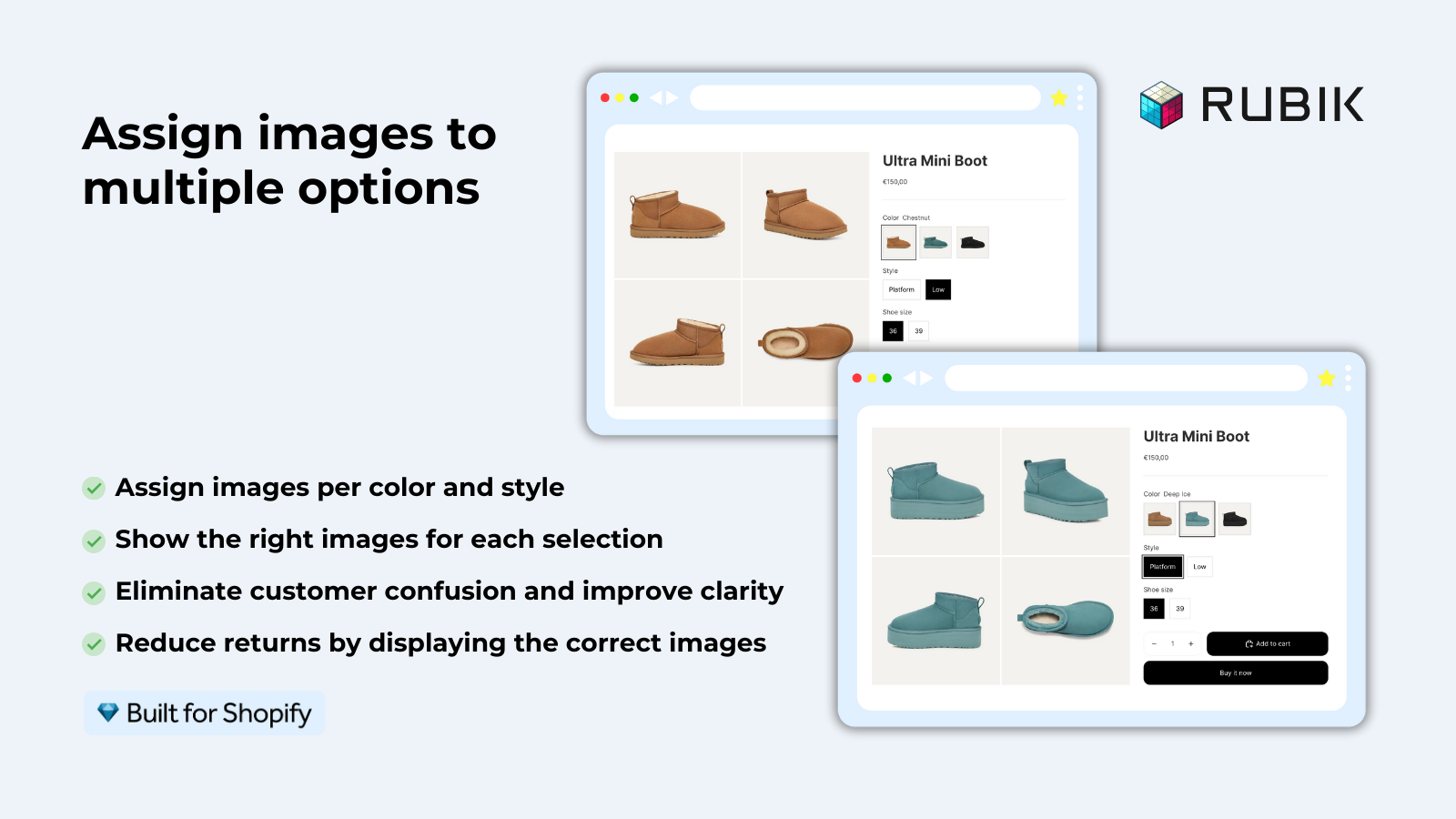
One more thing worth knowing. Since the 2026 update, Rubik Variant Images also shows swatches on the product card itself, right there in the collection grid. A shopper can click a color swatch on the card, see the image swap, and add to cart without opening the product page. It’s off by default (you enable it under Swatch settings), and it covers the variants of that one product. Handy for color-heavy catalogs.
If your colours live as separate products rather than variants of one product, Rubik Combined Listings groups them into a single listing with swatches instead. Free to install, 5.0 stars across 78 reviews.
Is it variant images or combined listings you need?
Quick rule. If all your colors and sizes live inside ONE Shopify product, you need Rubik Variant Images to filter the gallery. If each color is a SEPARATE product (its own URL, its own page), you need Rubik Combined Listings to link them and show swatches across them. Plenty of stores run both.
| Your setup | What you need | What it does |
|---|---|---|
| One product, color and size as options | Rubik Variant Images | Filters the gallery so only the picked color’s photos show |
| Each color is a separate product | Rubik Combined Listings | Links products, shows swatches on collection and product pages, keeps each URL |
| Separate color products, each with sizes | Both apps together | Group the colors, then filter images inside each one |
| Over 100 variants per product | Rubik Combined Listings | Splits into linked products to bypass the limit, no Shopify Plus needed |
Why does this distinction matter so much? Because picking the wrong tool means you fight the platform instead of fixing the page. A store that crams 12 colors into one product hits Shopify’s 100-variant ceiling fast once you multiply by sizes. In that case, splitting into separate color products and grouping them with Combined Listings is the cleaner path, and you can still add variant image filtering inside each one. If you’re weighing the options, our roundup of the best Shopify variant image apps for 2026 lays out the field.
“We’ve tried several solutions for managing variant images, but Rubik Variant Images stands out. It’s like giving our product pages a much-needed declutter. Customers now see only the images that match their selection, which has noticeably reduced the ‘Is this the right color?’ support queries. The setup was intuitive, and the results were instant. It’s one of those behind-the-scenes tools that quietly makes a big difference. Love it!”
Livspace Home, India, 2025-07-10, Rubik Variant Images on the Shopify App Store
That “is this the right color?” query is exactly the one we set out to kill. When the gallery only shows what the shopper picked, the question disappears. Fewer support tickets, fewer wrong-color returns, more carts that actually convert.
See it working on the live demo store, watch the tutorial video, or read the getting started guide.
Frequently asked questions
Which Shopify app should I use for variant images color and size?
Rubik Variant Images, built by Craftshift, is the app we build for this. It holds 5.0 stars across 436 reviews and carries the Built for Shopify badge. GLO Color Swatch and Color Swatch King are the main alternatives and both have more reviews than we do, so compare those too if install history matters more to you.
How do I show only the selected color’s images on a Shopify product with sizes?
Assign each photo to its color with Rubik Variant Images and turn on gallery filtering keyed to color. Size stays out of the filter, so shoppers can switch sizes freely while the gallery keeps showing the correct color. Here’s our full walkthrough on showing only selected variant images.
Why does my Shopify gallery show all images when a product has color and size?
Because Shopify can only attach an image to one option value and has no rule for combining color with size. So the gallery falls back to showing every photo. You need an app to filter it. If your swatches aren’t working either, that’s usually the same root cause.
Can I assign a different image to a specific color and size combination?
Yes. Rubik Variant Images supports multi-option assignment, so you can target a specific color AND size pair when the visuals genuinely differ. Most stores only assign by color, since a medium and an XL of the same color look the same in a photo.
Does the customer have to pick both color and size before the right image shows?
No. If you filter by color only, the correct photos appear the moment a shopper picks a color, and changing size after that doesn’t disturb the gallery. You decide which option drives the filter in the app settings.
How many images can I assign per variant in Shopify?
Shopify allows up to 250 images per product, and you can assign as many of those as you like to each color. Rubik Variant Images doesn’t cap it. See our breakdown of how many images per variant Shopify supports.
Will this work on my theme, like Dawn?
Yes. Rubik Variant Images works on 350+ themes including Dawn, and on page builders Beae, EComposer, Foxify, GemPages, Instant, PageFly, and Replo. Here’s the Dawn theme setup guide if that’s what you run.
What if each color is a separate product instead of one product?
Then use Rubik Combined Listings to link the separate products and show swatches across them. Each color keeps its own URL and images for SEO. Many stores run both apps: Combined Listings to group, Variant Images to filter inside each product.
Do I need Shopify Plus for this?
No. Neither app needs Shopify Plus. Rubik Variant Images filters the gallery on any plan, and Rubik Combined Listings bypasses the 100-variant-per-product limit without Plus by linking separate products.
Related reading