Shopify Dawn theme variant images setup
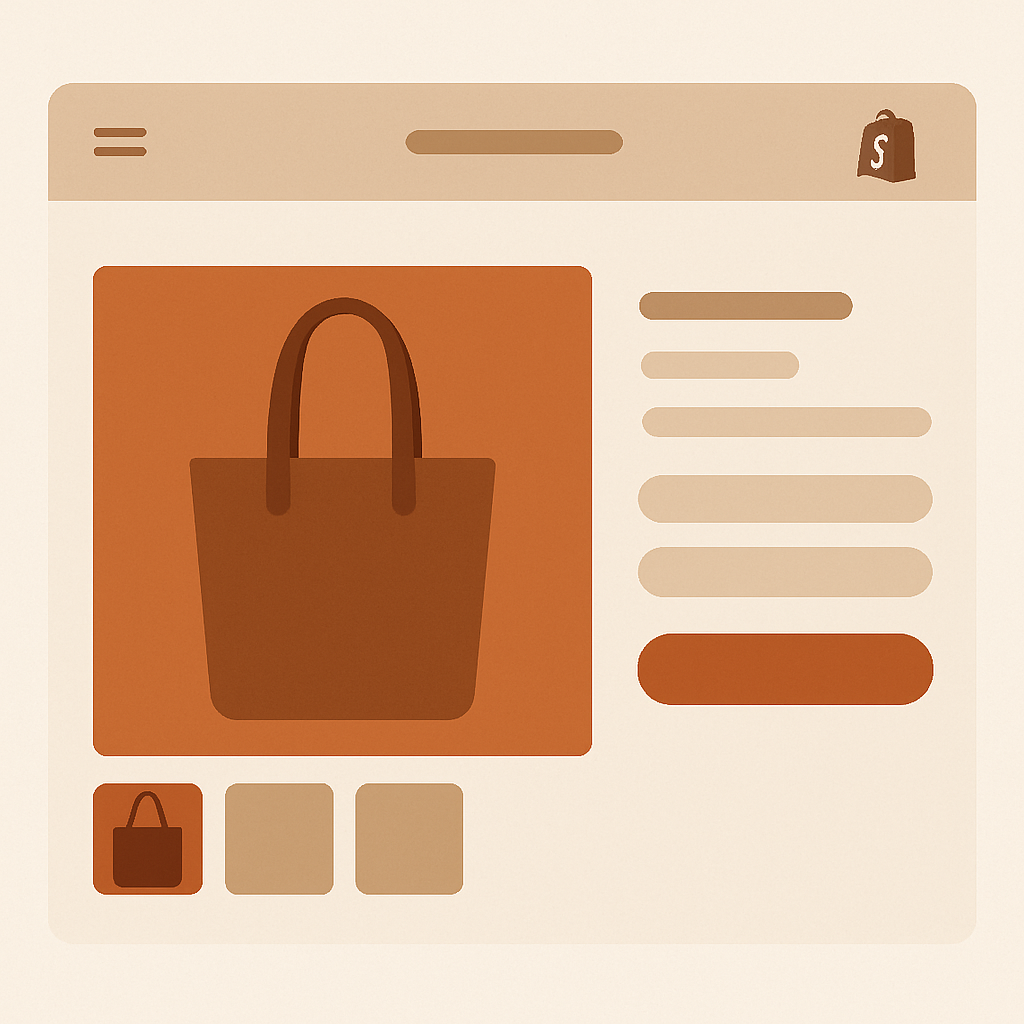
If you are setting up shopify dawn theme variant images and the gallery keeps showing every photo at once, you are running into the same wall every Dawn merchant hits eventually. Dawn is the default Shopify theme, the one most stores start with, and its product gallery does not filter images per variant out of the box. A shopper picking the blue version still sees the red, green, and black photos mixed in.
Dawn powers roughly 22.8% of all Shopify stores, which makes it the single most installed theme on the platform. It is free, fast, OS 2.0 compliant, and Shopify keeps it updated with each release. That popularity is exactly why this gap matters. If your store is on Dawn and you sell products with color, material, or pattern variants, the default gallery behavior is costing you clarity and probably conversions.
This guide walks through how Dawn handles variant media natively, where it falls short, and how Rubik Variant Images plugs into the Dawn product page to filter the gallery, render proper swatches, and fix the experience without touching theme code.
## Table of contents
– [Why Dawn is everywhere](#why-dawn)
– [What Dawn does well](#dawn-strengths)
– [Where Dawn variant images break down](#dawn-limits)
– [How Rubik Variant Images fits Dawn](#how-rubik-fits)
– [Step by step setup on Dawn](#setup)
– [Customizing swatches for the Dawn aesthetic](#swatches)
– [Troubleshooting](#troubleshooting)
– [Real example: a Dawn apparel store](#example)
– [FAQ](#faq)
– [Related reading](#related)
Why Dawn is everywhere
Dawn launched alongside Online Store 2.0 and became the reference theme for the new section-based architecture. It is the theme Shopify recommends to new merchants, the theme partner agencies fork, and the theme most tutorials assume. Lighthouse scores are strong, the layout is clean, and the type system is generous.
That ubiquity means Dawn ships on a huge range of stores: clothing brands, candle makers, electronics resellers, food shops, furniture sellers. The variant image problem hits all of them in the same way because it is a Dawn behavior, not a niche bug.
What Dawn does well
Dawn is built around sections and blocks, which means you can rearrange the product page in the theme editor without touching Liquid. Image zoom, sticky cart, complementary products, and product recommendations are all available as native blocks. The cart drawer is fast. The mobile layout is sensible.
The product media gallery in Dawn supports stacked, thumbnail, and slider layouts. It handles videos and 3D models. For a free theme, it covers most of what a merchant needs. Most, not all.
Where Dawn variant images break down
Dawn’s product gallery shows every image attached to the product. When a customer selects a variant, Dawn jumps the gallery to the single “featured image” that you assigned to that variant in the Shopify admin. One image. The rest of the gallery still scrolls through every other variant’s photos.
If you sell a t-shirt in five colors with three angles each, that is fifteen photos in one gallery. The shopper picks navy and the gallery jumps to the navy hero shot, then they swipe and see white, gray, red, and black t-shirts mixed back in. It is confusing and it dilutes the visual story for each color.
The native variant picker in Dawn is also a dropdown or a basic pill button. There is no real swatch system. No color circles, no image swatches, no sized chips. You can hack swatches in with metafields and Liquid edits, but that breaks on theme updates.
For the full background on how Shopify handles variant imagery across themes, the [Shopify variant images complete guide](/shopify-variant-images-complete-guide/) covers the core mechanics. If you are coming from a German speaking market, [Shopify mehrere Bilder pro Variante](/shopify-mehrere-bilder-pro-variante/) covers the same ground in German.
How Rubik Variant Images fits Dawn
Rubik Variant Images is a product page app. It does two things on Dawn: it filters the gallery so that only the images tied to the selected variant are shown, and it replaces the native variant picker with proper swatches. Both pieces work together in the Dawn theme editor as native sections.
The filtering is metafield-based. There are no external API calls and nothing loads from a third party server. The variant-to-image mapping is stored on the product as a metafield, which loads with the Dawn page itself.
For Dawn specifically, Rubik hooks into the standard `product-info` and `product-media-gallery` sections. It does not fork the theme. You can update Dawn to a new version and the integration keeps working because it is reading Dawn’s existing structure, not patching it.
Step by step setup on Dawn
Here is the full setup walkthrough.
### 1. Install the app
Open the [Rubik Variant Images listing](https://apps.shopify.com/rubik-variant-images?utm_source=rubikvariantimages&utm_medium=blog&utm_campaign=shopify-dawn-theme-variant-images) and install on your Dawn store. The free plan covers one product, which is enough for a real test before you scale.
### 2. Enable the Dawn app embed
Open the Dawn theme in the editor. Click the **App embeds** icon on the left sidebar. Find **Rubik Variant Images** and toggle it on. This embed is what loads the swatch styles and the gallery filter script on every product page.
### 3. Pick a product to assign
Open the Rubik dashboard and pick a product. You have three ways to map images to variants on Dawn:
– **Manual assign:** Drag images into each variant’s slot. Best for products with a small number of variants.
– **AI auto-assign:** One product at a time. The tool reads the product name, variant name, image filename, and image alt text and proposes a mapping. Per-product only. See the [AI auto-assign walkthrough](/rubik-ai-auto-assign-variant-images/) for detail.
– **Bulk assign:** Image-order based grouping across hundreds of products in the background. Reads the Shopify gallery order and detects featured image boundaries. Not filename matching, not AI. See the [bulk assign guide](/rubik-bulk-assign-variant-images/).
### 4. Save and preview on the Dawn product page
Open the product on the live theme preview. Click between variants. The Dawn gallery now filters to just the images for that variant, in the order you set them.
### 5. Replace the native picker with swatches
In the theme editor, open a product page template. Find the **Variant picker** block in the `product-info` section. Hide it (Dawn lets you toggle blocks off without deleting them) and add the **Rubik Swatches** block from the Apps area in the same section. Drop it in the same position the native picker was in.
For an extra layer of grouping, watch the embedded video below. It is the general setup walkthrough and applies cleanly to Dawn.
Customizing swatches for the Dawn aesthetic
Dawn leans minimalist. Generous whitespace, soft borders, a single accent color. Your swatches should match that, not fight it. Inside Rubik, you can pick:
– **Shape:** Circle works best for color swatches on Dawn. Rounded square is a good fit for image swatches because Dawn uses rounded corners on product cards.
– **Size:** 36 to 44 pixels keeps the picker visible without overpowering Dawn’s clean product description block.
– **Border:** A 1px border with Dawn’s neutral border color gives swatches the same visual weight as Dawn’s input fields.
– **Selected state:** A 2px ring in your accent color matches Dawn’s button and link styling.
For products with materials or patterns rather than solid colors, use image swatches. Drop in a small thumbnail of each fabric or finish. Image swatches always communicate more than a label.
If you sell apparel and want to compare the swatch versus dropdown approach in detail, the [Shopify swatches vs dropdowns post](https://craftshift.com/shopify-swatches-vs-dropdowns-color-variants/?utm_source=rubikvariantimages&utm_medium=blog&utm_campaign=shopify-dawn-theme-variant-images) walks through conversion patterns.
Troubleshooting common Dawn issues
**Gallery still shows all images.** The app embed is off. Re-open the Dawn theme editor, App embeds, and confirm Rubik Variant Images is toggled on. Save the theme.
**Swatches do not appear.** You added the block to the wrong section. The Rubik Swatches block must sit inside the **Product information** section, not in a custom section above or below it. Dawn keeps variant logic local to that section.
**Two pickers showing at once.** You enabled Rubik Swatches but did not hide Dawn’s native variant picker block. Toggle off the **Variant picker** block in the same section.
**Featured image jumps before the filter applies.** This is Dawn’s default behavior trying to load its assigned featured image. Inside Rubik settings, enable “override Dawn featured image switch”. The gallery will filter cleanly without the jump.
**Custom Dawn fork does not show the app embed.** If your developer renamed `product-info.liquid`, the block targets may differ. The fix is usually a 5 minute support ticket.
Real example: a Dawn apparel store
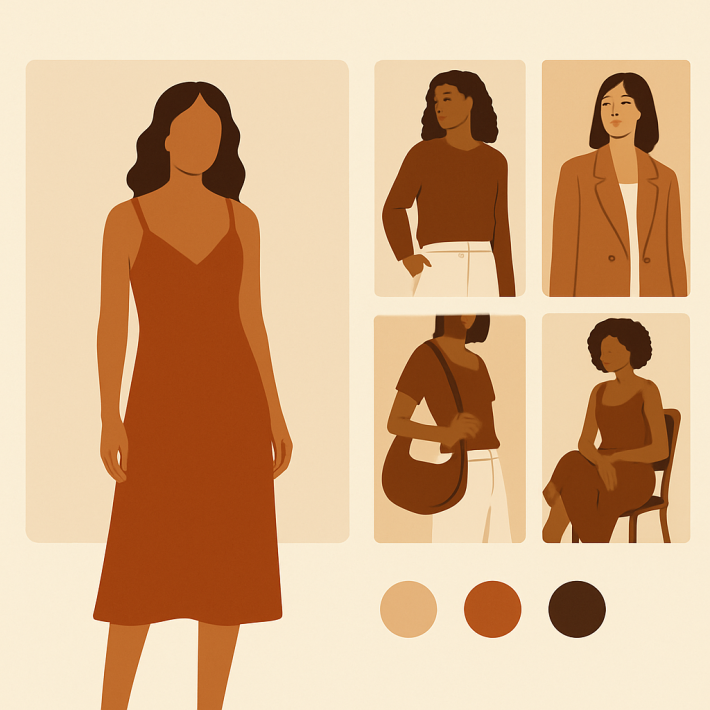
A Dawn-based apparel brand we worked with sells hoodies in eight colors, three views each. Twenty four images per product. Before Rubik, the gallery jumped to the wrong color on swipe and shoppers complained in chat that they could not “see all the angles of the green one”.
After installing Rubik and bulk assigning across the catalog, each color now has its own clean three-image set inside the same gallery. The variant picker became color circles directly below the title. Add to cart events on color-variant products went up because shoppers could finally see what they were picking.
For stores with very large color catalogs, pairing Rubik Variant Images with [Rubik Combined Listings on rubikify.com](https://rubikify.com/shopify-combined-listings-explained/?utm_source=rubikvariantimages&utm_medium=blog&utm_campaign=shopify-dawn-theme-variant-images) gives you collection-page swatches as well. Rubik Variant Images stays in its lane (product page only) and Combined Listings handles the collection grid.
FAQ
**Does Rubik Variant Images work on the free Dawn theme?**
Yes. Dawn is the most tested theme in the supported list. It works on Dawn and on Dawn forks that keep the standard `product-info` section.
**Will it survive Dawn updates?**
Yes. The integration uses Dawn’s app embed and block API, not file edits. When you update Dawn from the theme library, your Rubik setup stays in place.
**Can I show multiple images per variant on Dawn?**
Yes. That is the main reason to install. Native Dawn only honors one featured image per variant. Rubik lets you assign as many as you want, up to Shopify’s 250 image per product limit.
**Does it slow down the Dawn product page?**
No. Loading is metafield-based with no external API calls, so the data ships with the page itself. Dawn’s Lighthouse scores stay where they are.
**What does it cost?**
Free for 1 product. Starter is $25/month for 100 products, Advanced is $50/month for 1,000, Premium is $75/month for unlimited. Flat pricing, no Shopify plan tiers.
**Does it work with Dawn’s quick view drawer?**
Yes, as long as the quick view uses the same `product-info` section. Most Dawn forks do.
**Can I use it without replacing Dawn’s native variant picker?**
Yes. The gallery filter and the swatches are independent features. You can keep Dawn’s dropdowns and just turn on filtering, or use both.
Related reading
– [Shopify variant images complete guide](/shopify-variant-images-complete-guide/)
– [Rubik AI auto-assign variant images](/rubik-ai-auto-assign-variant-images/)
– [Rubik bulk assign variant images](/rubik-bulk-assign-variant-images/)
– [Shopify Craft theme variant images](/shopify-craft-theme-variant-images/)
– [Shopify Refresh theme variant images](/shopify-refresh-theme-variant-images/)
– [Shopify variant images guide on Craftshift](https://craftshift.com/shopify-variant-images-complete-guide/?utm_source=rubikvariantimages&utm_medium=blog&utm_campaign=shopify-dawn-theme-variant-images)
## Ready to fix variant images on Dawn
Install [Rubik Variant Images on the Shopify App Store](https://apps.shopify.com/rubik-variant-images?utm_source=rubikvariantimages&utm_medium=blog&utm_campaign=shopify-dawn-theme-variant-images). The free plan covers your first product. Set it up on Dawn in under ten minutes and see the gallery behave the way it should have from day one.