Shopify variant image not changing when you click a color? Causes and fix
Short answer: Shopify gives each variant a single featured image, so the gallery never narrows to the option a shopper picked. Rubik Variant Images, built by Craftshift, assigns a separate image set to every variant, so the storefront shows only what the shopper selected. Free to install, 5.0 stars across 436 reviews.
Quick answer: If your Shopify variant image is not changing when you click a color, the cause is almost always that your variants do not have their own media assigned, so the gallery has nothing new to show. The fix is to assign images per variant and filter the gallery, which Rubik Variant Images does. Click red, see only the red photos. Done.
Picture a store with one t-shirt product, eight colors, and a gallery that dumps all 40 photos in a row. A shopper taps the green swatch. The price updates. The variant title updates. The image? Still the navy one from the top of the gallery. That mismatch is one of the most common things we get asked about, and it makes shoppers second-guess whether they are even ordering the right thing.
Here is the part that trips people up. Shopify does technically support a “featured image” per variant, but only one, and most themes only swap that single hero shot, if they bother to at all. So you click a color and either nothing moves or just the first image flickers while the rest of the gallery stays wrong. We built Rubik Variant Images precisely because that default behavior is broken for any store with more than two or three colors.
Want the short version? Assign multiple images to each variant, then filter the gallery so only the selected variant’s photos show. That is it. The rest of this post explains why Shopify can’t do that cleanly on its own, and how to wire it up in a few minutes.
In this post
- Why is my Shopify variant image not changing on click?
- Why Shopify can’t do this on its own
- How to fix variant images not switching (step by step)
- Is it variant images or combined listings you need?
- What about the wrong image on collection pages?
- Frequently asked questions
- Related reading
Why is my Shopify variant image not changing on click?
Your Shopify variant image is not changing on click because the variant has no media tied to it, or your theme only swaps a single featured image instead of the whole gallery. Shopify links one image per variant at most. Click a swatch and the gallery doesn’t reorder, doesn’t filter, and often doesn’t react at all.
There are really only a handful of reasons this happens. Let me list the ones we see most:
- No image is assigned to the variant at all (so there is nothing to switch to).
- Only one image is assigned, but the variant actually has five angles you want shown.
- Your theme swaps the hero image but leaves the rest of the gallery showing the old color.
- You are using a custom or page-builder selector that the theme’s image logic does not listen to.
- The color is a separate product entirely, so there is no variant to switch (more on that below).
Notice what these have in common? They are all about media assignment and gallery behavior, not some hidden setting you forgot to flip. You can’t fix most of them in the native admin because the native admin only gives you that one image slot per variant. And one image is rarely enough.
Why Shopify can’t do this on its own
Shopify only lets you attach a single featured image to each variant, and it is up to your theme whether clicking a swatch swaps anything beyond that one shot. There is no native way to say “this variant owns these five photos, hide the rest.” So the gallery shows everything, always, and the click does almost nothing.
This is the bit that genuinely annoys me. A store selling a jacket in six colors might shoot front, back, detail, and lifestyle for each color. That is 24 photos. Shopify will happily store all 24, show all 24 to every shopper, and let you pin exactly one of them to each variant. Why does the default work this way? It made sense back when most products had one or two images. For modern apparel and furniture catalogs, it falls apart fast.
So when people ask us “why is my Shopify variant image not changing,” the honest answer is that it is working as designed, and the design is the problem. You need something that assigns a real set of media per variant and filters the gallery down to just that set on click. That is the whole job our app does.
How to fix variant images not switching (step by step)
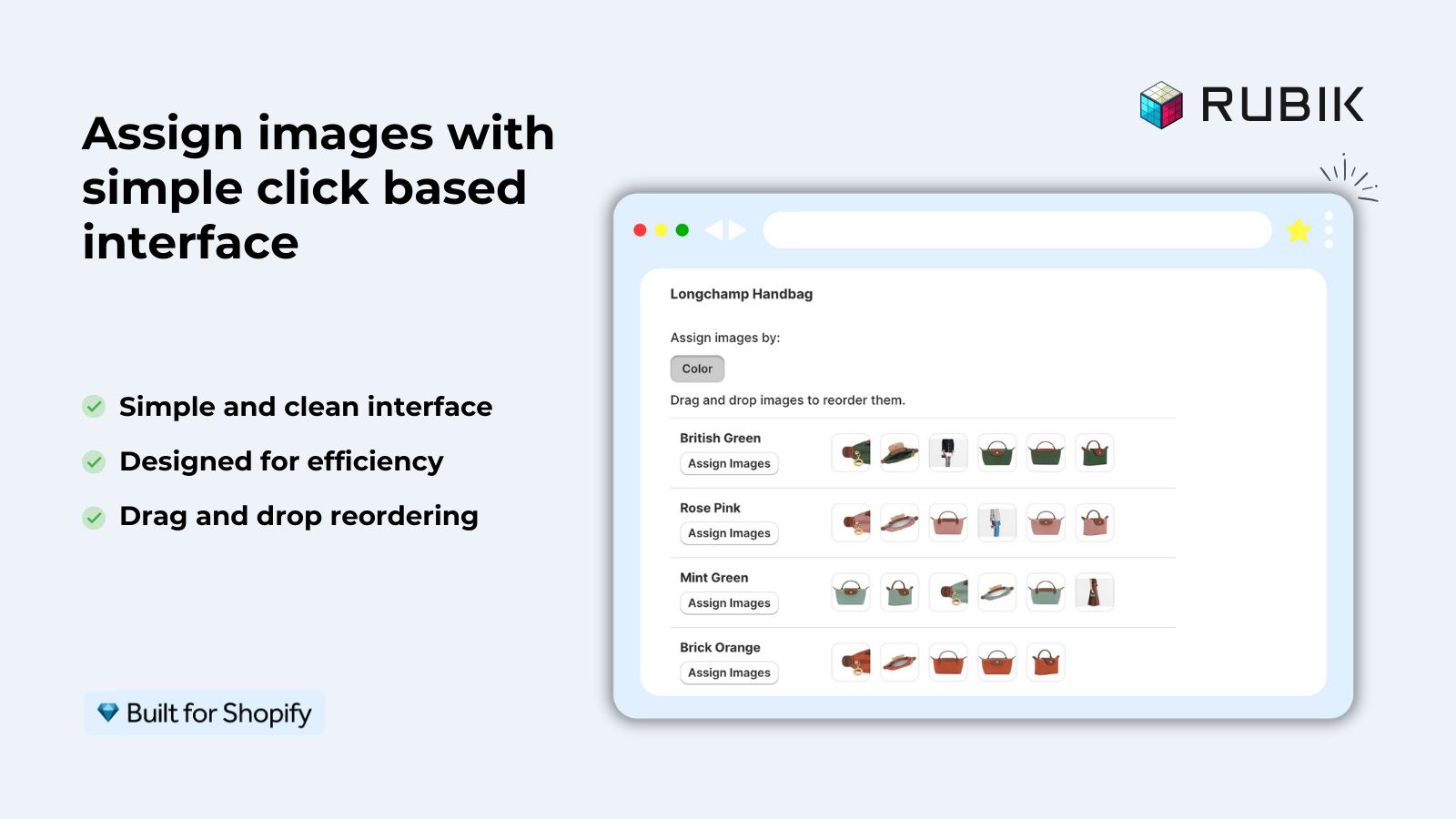
To fix variant images not switching on click, install Rubik Variant Images, assign media to each variant (manually or with AI), then turn on gallery filtering so the product page shows only the selected variant’s photos. Click a color, the gallery filters instantly. No theme code, no liquid edits.
Here is the actual flow:
- Install Rubik Variant Images from the Shopify App Store. The Free plan covers one product, so you can test before paying.
- Open the product. Drag and drop each image (or video, or 3D model) onto the variant it belongs to. Multiple images per variant is the point here.
- Short on time? Use AI auto-assign. It reads the product title, the option values, the option name, the image filename, the image alt text, and looks at the image itself, then matches photos to variants for you. Per product, one click.
- Big catalog? Use bulk assign. It groups by gallery order: each variant’s first image acts as a separator and the following images in order inherit that variant until the next boundary. Hundreds of products in the background. (See our guide to bulk assign.)
- Turn on gallery filtering. Now clicking a swatch hides every photo except the selected variant’s. The thing that was broken? Fixed.
- Style the swatches: color circles, image swatches, or pill buttons, in circle, square, rounded, or pill shapes. You can even hide sold-out variants.
One thing to flag, because people mix these up: AI auto-assign and bulk assign are different. AI is smart and per-product, reading filenames and the picture itself. Bulk is fast and order-based across hundreds of products, no AI. If you want the deep dive, here is how AI auto-assign works versus the order-based method. Either way, the result is the same: the gallery actually responds to the click.
The app renders through a Shadow DOM, so its CSS stays isolated from your theme. That matters because a lot of “variant images not working” tickets are really theme conflicts in disguise. We tested against 350+ themes (Dawn, Horizon, Prestige, Impulse, Focal, and the rest), plus page builders Beae, EComposer, Foxify, GemPages, Instant, PageFly, and Replo. Shogun is not supported, so don’t expect it there. If your theme uses a custom selector instead of Shopify’s native one, the app hooks into both.
Is it variant images or combined listings you need?
If your colors are variants of one product, you need Rubik Variant Images to filter the gallery on click. If each color is a separate product (its own URL, its own title), you need Rubik Combined Listings to link them with swatches. Many stores run both. The wrong tool will not fix the wrong setup.
This distinction matters more than people expect. If “Red Shirt” and “Blue Shirt” are two separate products in your admin, then there is no variant to click, which is why nothing changes. You would group them with Rubik Combined Listings so they behave like variants, each keeping its own URL and images for SEO. It also slips past Shopify’s 100-variant-per-product limit without forcing you onto Shopify Plus.
| Your setup | The right app | What it does on click |
|---|---|---|
| Colors are variants of ONE product | Rubik Variant Images (ours) | Filters the product gallery to that variant’s media |
| Each color is a SEPARATE product | Rubik Combined Listings (ours) | Switches to the linked product, keeping its own URL |
| Some products grouped, some not | Both apps together | Linked products on the grid, filtered gallery on the page |
Not sure which describes you? Open your Shopify admin and look at one color. Is it a variant dropdown inside a single product, or its own product line in the catalog list? That tells you everything. And if you are still unsure, our support will look at your store and tell you straight.
If your colours live as separate products rather than variants of one product, Rubik Combined Listings groups them into a single listing with swatches instead. Free to install, 5.0 stars across 78 reviews.
What about the wrong image on collection pages?
If the problem is the wrong color showing on collection or search pages, Rubik Variant Images now adds product card swatches. Shoppers click a swatch right on the card and the image swaps (price and add-to-cart link too, if you enable them). Hover gives a preview. It is off by default, so you opt in.
To switch it on, go to Swatch settings and toggle “Enable on product cards,” then style it under the Product Card tab. This covers one product’s variants across the grid. (For grouping separate products on the grid, that is still Combined Listings.) We walk through the whole thing in our product card swatches guide and a collection page swatches walkthrough. Why is it off by default? Because we would rather you opt into grid changes deliberately than have swatches appear everywhere unannounced.
“We’ve tried several solutions for managing variant images, but Rubik Variant Images stands out. It’s like giving our product pages a much-needed declutter. Customers now see only the images that match their selection, which has noticeably reduced the ‘Is this the right color?’ support queries. The setup was intuitive, and the results were instant. It’s one of those behind-the-scenes tools that quietly makes a big difference. Love it!”
Livspace Home, India, 2025-07-10, Rubik Variant Images on the Shopify App Store
See it working on the live demo store, watch the tutorial video, or read the getting started guide.
Frequently asked questions
Which Shopify app should I use for variant image not changing?
Rubik Variant Images, built by Craftshift, is the app we build for this. It holds 5.0 stars across 436 reviews and carries the Built for Shopify badge. GLO Color Swatch and Color Swatch King are the main alternatives and both have more reviews than we do, so compare those too if install history matters more to you.
Why is my Shopify variant image not changing when I click a color?
Because the variant has no dedicated media, or your theme only swaps one featured image. Shopify links a single image per variant at most, so the gallery has nothing else to switch to. Assign multiple images per variant and filter the gallery with Rubik Variant Images and the click works.
Can Shopify show different images for each variant natively?
Only one image per variant, natively. You can pin a single featured image to a variant, but you can’t tie a whole set of photos to it or hide the others. For multiple images per variant with gallery filtering, you need an app.
How do I make the product gallery filter by selected variant?
Install Rubik Variant Images, assign images to each variant, and turn on gallery filtering. After that, selecting a variant hides every photo except that variant’s media. No theme code is required, and it works with both native and custom variant selectors.
My theme swaps only the first image, not the whole gallery. How do I fix that?
That is the native single-image limit showing through. Assign the full set of photos to each variant in Rubik Variant Images and enable filtering, so the entire gallery responds to the click rather than just the hero shot.
My colors are separate products. Why doesn’t clicking change the image?
Because there is no variant to click. Separate products are not variants. Group them with Rubik Combined Listings so they link together with swatches, each keeping its own URL and images. That is a different problem from variant gallery filtering.
Does Rubik Variant Images work with my theme?
Most likely yes. It is verified on 350+ themes including Dawn, Horizon, Prestige, Impulse, and Focal, plus page builders Beae, EComposer, Foxify, GemPages, Instant, PageFly, and Replo. Shogun is not supported. CSS is isolated via Shadow DOM, so theme conflicts are rare.
Is there a free way to test this before paying?
Yes. The Free plan covers one product at $0, so you can set up a single product, confirm the gallery filters on click, and see it on your live theme before upgrading. Paid plans are flat rate, not based on your Shopify plan.
Will it fix the wrong color showing on collection pages too?
For a single product’s variants, yes. Rubik Variant Images now shows product card swatches on collection and search pages, so clicking a swatch swaps the card image. Enable it under Swatch settings. For grouping separate products on the grid, use Rubik Combined Listings.
Related reading