

How to speed up your Shopify website: a practical guide for 2026
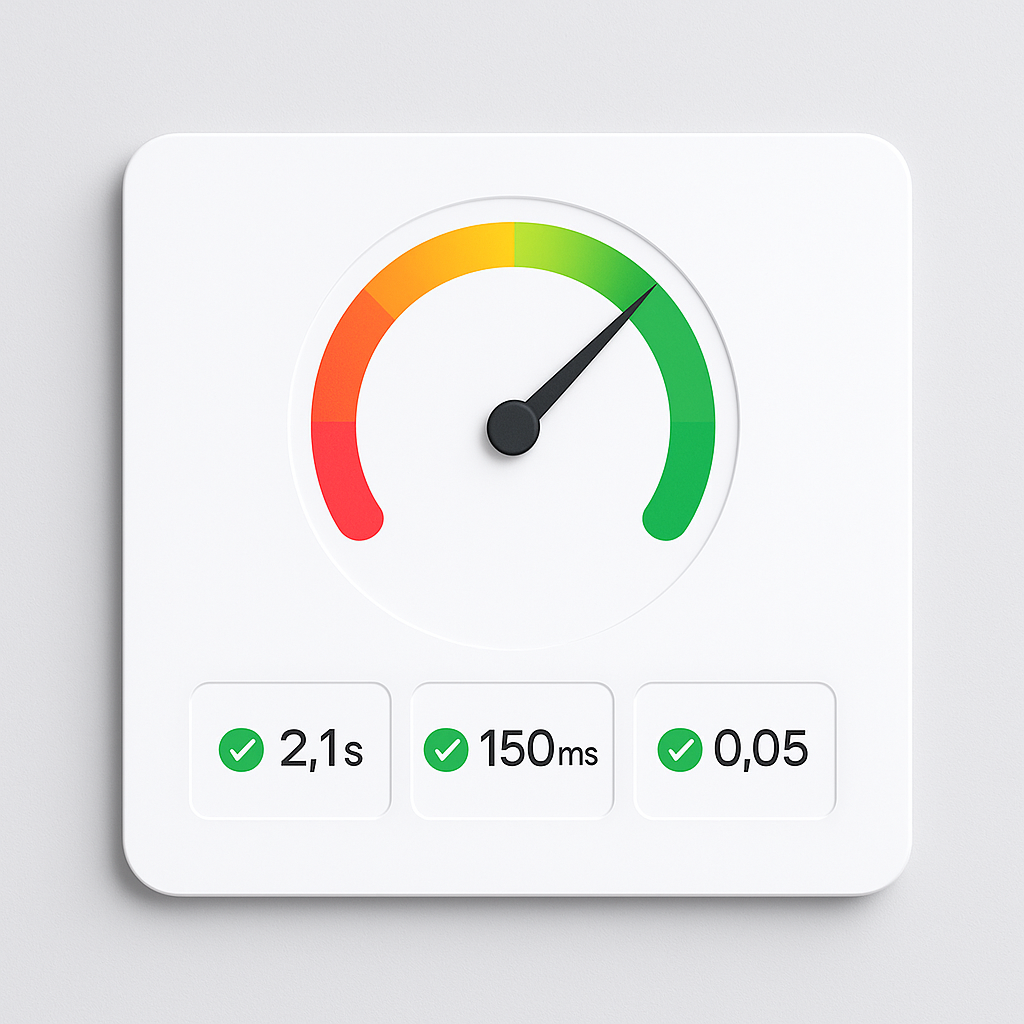
Every extra second your Shopify store takes to load costs you money. Google’s own data shows that as page load time goes from 1 second to 3 seconds, the probability of bounce increases 32%. At 5 seconds, it jumps to 90%.
A faster store ranks higher in Google, converts more visitors, and frustrates fewer customers. This guide covers 12 practical things you can do right now to make your Shopify store faster.
In this post
- How to measure your current speed
- Core Web Vitals targets for 2026
- 1-3: Image optimization
- 4-6: App stack cleanup
- 7-9: Theme and code
- 10-12: Advanced optimizations
- Frequently asked questions
- Related reading
How to measure your current speed
Before fixing anything, measure your baseline. You need numbers to compare against.
- Google PageSpeed Insights (pagespeed.web.dev): Enter your homepage and a product page URL. Note the Performance score, LCP, INP, and CLS.
- Shopify speed report: Admin > Online Store > Themes > Speed. Compares your score against similar stores.
- Chrome DevTools: Open a product page, press F12 > Network tab > reload. Count total requests and transfer size.
Test your product page, not just the homepage. Product pages have more images, more apps injecting code, and more JavaScript. They are almost always slower.
Core Web Vitals targets for 2026
Google uses three metrics to evaluate page experience. All three affect your search rankings.
| Metric | Good | Needs Improvement | Poor | What it measures |
|---|---|---|---|---|
| LCP (Largest Contentful Paint) | Under 2.5s | 2.5-4s | Over 4s | How fast the main image/content loads |
| INP (Interaction to Next Paint) | Under 200ms | 200-500ms | Over 500ms | How quickly the page responds to clicks/taps |
| CLS (Cumulative Layout Shift) | Under 0.1 | 0.1-0.25 | Over 0.25 | How much the page layout shifts during load |
75% of your real visitors need to hit “Good” on all three for Google to count it as a ranking signal. One slow page can drag down the whole site’s score.
Image optimization (1-3)
1. Compress images before uploading
Shopify auto-compresses and serves responsive sizes, but it works best when you start with properly sized files. Upload at 2048x2048px maximum. Use JPEG or WebP for product photos (not PNG unless you need transparency). A 5MB PNG can usually be a 200KB WebP with no visible quality loss.
Tools: TinyPNG, Squoosh (free), ShortPixel (bulk). If you use CS Smart Bulk Image Upload, it auto-resizes images exceeding 20MB before uploading.
2. Reduce the number of images per product
Every image on a product page is an HTTP request. A product with 30 images from 6 colors loads all 30, even if the customer only wants to see 5.
The fix: use a variant image app that filters the gallery. When a customer selects “Blue,” only the 5 blue images load (or more accurately, only the blue images are shown while others are already loaded but hidden). This does not reduce the initial load, but it reduces the visual clutter and improves perceived performance. For actual speed, keep total product images under 15-20 when possible.
Rubik Variant Images loads swatch data from Shopify metafields. The data comes with the page. No external API calls after load. The swatches render inside Shadow DOM, which prevents your theme’s CSS from triggering layout recalculations. This matters for CLS. Read more about how variant image filtering works.
3. Use proper alt text (not for speed, but for SEO)
Alt text does not affect page speed directly. But while you are optimizing images, fix alt text too. Descriptive alt text helps Google Images, Google Shopping, and AI search engines understand your products. “Navy blue cotton t-shirt front view” is better than “IMG_4521” or blank. For variant-specific alt text optimization, read how to optimize variant images for Google Shopping.
App stack cleanup (4-6)
4. Audit which apps inject storefront code
Go to Theme Editor > App Embeds. Every app toggled on here injects JavaScript and CSS into your storefront. Some apps you installed months ago and forgot about are still loading scripts on every page.
Disable all app embeds. Run PageSpeed Insights. Note the score. Then enable them one at a time and test again. The app that causes the biggest drop is your heaviest. For a full walkthrough, read how to audit your Shopify app stack.
5. Replace multiple apps with one
Running a swatch app + an image filtering app + a bulk image tool = three sets of JavaScript. Rubik Variant Images handles variant image filtering, visual swatches, AI auto-assign, and bulk assign in one app. One JavaScript bundle instead of three. Fewer network requests, smaller total footprint.
Check what each app does. If two apps overlap in functionality, keep the better one and remove the other. Every app you remove saves JavaScript, CSS, and potential external API calls on every page load.
6. Look for apps that make external API calls
Some apps load storefront data from their own servers instead of from Shopify. After the page loads, they make a request to an external server, wait for a response, then render. This adds 200-500ms per call.
Apps that use Shopify metafields or metaobjects load data with the page itself. No round-trip to an external server. This is the fastest approach. Both Rubik Variant Images and Rubik Combined Listings use this architecture. Read more about combined listings on rubikify.com.
Theme and code (7-9)
7. Use a fast theme
Not all themes are equal. Shopify’s free themes (Dawn, Horizon, Sense, Craft, Refresh) are optimized for speed. They use native web components, lazy loading, and minimal JavaScript. Some premium ThemeForest themes load heavy frameworks, custom sliders, and animation libraries that add seconds to page load.
If your theme scores below 50 on PageSpeed even with all apps disabled, the theme itself is the bottleneck. Consider switching to a faster theme. Your image assignments in Rubik survive theme switches because they are stored in metafields, not theme code.
8. Reduce custom fonts
Each custom font file is 20-100KB. If your theme loads 4 font weights (regular, bold, italic, bold-italic) in 2 families, that is 8 font files. Use system fonts where possible. If you need a custom font, load only the weights you actually use. One font family in 2 weights (regular + bold) is usually enough.
9. Remove unused sections from product template
Check your product page template in the theme editor. Are there sections you added but never filled in? Empty “related products,” “customer reviews,” or “recently viewed” sections still load their JavaScript and CSS. Remove any section you are not actively using.
Advanced optimizations (10-12)
10. Enable lazy loading for images below the fold
Shopify themes and most modern browsers support native lazy loading. Images below the fold (not visible on first screen) should have loading="lazy" so they load only when the customer scrolls to them. Most free Shopify themes already do this. Check your theme’s image elements.
Do NOT lazy-load the hero product image. That is your LCP element. It should load immediately.
11. Defer non-critical JavaScript
JavaScript that runs after the page is visible (analytics, chat widgets, review popups) should load with defer or async attributes. This lets the browser render the page first and execute scripts later.
You cannot control how app scripts load (the app developer decides), but you can control which apps are active. Every chat widget, popup, and notification bar adds render-blocking or deferred JavaScript.
12. Use Shopify’s built-in CDN
Shopify serves all assets (images, CSS, JS) from its global CDN (Cloudflare). You do not need a separate CDN. But make sure your images are uploaded to Shopify’s media library, not hotlinked from external servers. External image URLs bypass the CDN and load slower.
If you use a third-party CDN or Cloudflare in front of Shopify, make sure it is not causing double-caching issues or adding unnecessary redirects. Shopify’s built-in CDN is already fast for most stores.
Watch It in Action
See how Rubik Variant Images loads without external API calls:
Frequently asked questions
How do I check my Shopify store speed?
Use Google PageSpeed Insights (pagespeed.web.dev) for detailed metrics. Test your product page, not just the homepage. Also check Admin > Online Store > Themes > Speed for Shopify’s own benchmark against similar stores.
Do Shopify apps slow down my store?
Apps that inject JavaScript and CSS into your storefront do add load time. The impact varies. Apps that load data from external servers are slower than apps that use Shopify metafields. Apps using Shadow DOM avoid CSS conflicts and layout shifts. Audit your apps by disabling them one at a time and measuring the difference. Read our swatch app speed comparison for real data.
What is a good Shopify speed score?
On PageSpeed Insights, aim for 70+ on mobile. Above 90 is excellent. Shopify’s own speed report scores your store relative to similar stores. A “fast” rating means you are in the top tier. Most stores score 40-60 on mobile, so even getting to 70 puts you ahead of competitors.
Does Rubik Variant Images affect store speed?
Rubik loads swatch data from Shopify metafields. The data arrives with the page, no external API calls. Swatches render inside Shadow DOM, preventing CSS conflicts and layout shifts. The app runs asynchronous JavaScript that does not block rendering. It is designed to add zero perceived delay to your product pages.
How many apps is too many on Shopify?
There is no magic number. What matters is the total JavaScript and CSS footprint. A store with 15 lightweight apps can be faster than a store with 3 heavy ones. Measure with PageSpeed Insights rather than counting apps. The key is removing apps that overlap in functionality and replacing them with fewer, better alternatives.
Related reading




