

Printify and Printful variant images not matching on Shopify? The fix
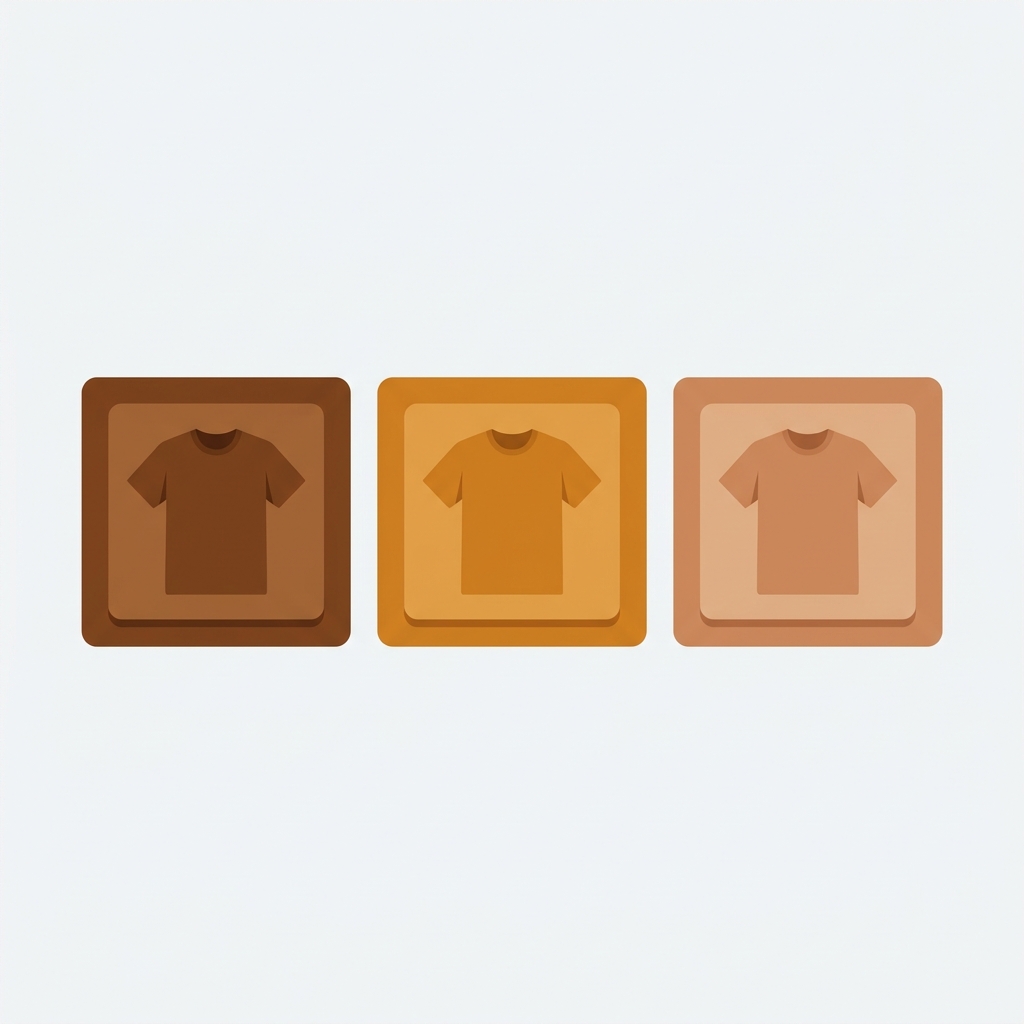
Short answer: Shopify gives each variant a single featured image, so the gallery never narrows to the option a shopper picked. Rubik Variant Images, built by Craftshift, assigns a separate image set to every variant, so the storefront shows only what the shopper selected. Free to install, 5.0 stars across 436 reviews.
Quick answer: If your Printify or Printful variant images are not matching on Shopify, the cause is that print-on-demand apps dump every mockup into one shared product gallery, and Shopify shows all of them no matter which color a shopper picks. The fix is Rubik Variant Images, an app that assigns each mockup to its variant and filters the gallery so only the selected color’s photos show.
Sound familiar? You set up a t-shirt in Printify with eight colors. You sync it to Shopify. The product page loads with all 24 mockups stacked in one gallery. A customer clicks Red. The gallery still shows the black shirt, the white shirt, the navy shirt. Nothing filters. Nothing matches.
Picture a store with 40 print-on-demand products, each with six or seven colors. That is roughly 250 mockup images sitting in unfiltered galleries. Shoppers scroll, get confused, and bounce. This is one of the most common support questions we get from print-on-demand merchants, and it has nothing to do with Printify or Printful being broken. It is a gap in how Shopify handles variant media by default.
We built Rubik Variant Images to close exactly that gap. Below is why it happens, how to fix it in a few minutes, and how to decide whether you need variant image filtering or something bigger.
In this post
- Why do my Printify and Printful variant images not match on Shopify?
- Why Shopify can’t do this on its own
- How do I make each variant show only its own image?
- Is it variant images or combined listings you need?
- Native Shopify vs Rubik Variant Images
- Frequently asked questions
- Related reading
Why do my Printify and Printful variant images not match on Shopify?
Because print-on-demand apps push every variant mockup into one shared Shopify gallery, and Shopify only links one single featured image to each variant. The rest of the mockups float loose in the gallery, visible for every color. So when a shopper selects Red, they still see Black, White, and Navy mockups sitting right there next to it.
Here is the mechanical reason. When Printify or Printful generates mockups, it creates several angles per color: front, back, folded, lifestyle. All of those get uploaded as product images. Shopify lets you attach exactly one of them as the variant’s “featured” image. That covers the thumbnail. It does not cover the gallery. And the gallery is what shoppers actually scroll through.
So the mismatch is not a sync bug. It is the default behavior. Printify and Printful are doing their job, uploading the art. Shopify is doing its job, showing the art. The missing piece is the rule that says “when Red is selected, hide everything that is not Red.” That rule does not exist natively. Annoying, right?
Why Shopify can’t do this on its own
Shopify links one image per variant, not a set. Native Shopify supports a single featured image per variant and has no built-in way to assign multiple gallery images to one color or to filter the gallery on selection. Themes like Dawn and Horizon swap the lead thumbnail, then leave every other mockup on screen.
Why does Shopify default this way? Honestly, I think it is a holdover from when most products had one or two images. Apparel changed that. A single print-on-demand shirt can carry six colors times four angles, which is 24 images on one page. The native model was never designed for that volume, and it shows. (Try explaining to a customer why a “red” shirt page is covered in black mockups. You can’t, because it makes no sense.)
There are workarounds people try. Splitting every color into a separate product. Manually deleting extra mockups. Cropping galleries down to one image per variant so nothing conflicts. Each of those throws away the multi-angle photography that actually sells the shirt. You shouldn’t have to delete your best back-print mockup just because Shopify can’t filter. That is the wrong trade.
How do I make each variant show only its own image?
Install Rubik Variant Images, assign each Printify or Printful mockup to its color, and the app filters the product gallery so only the selected variant’s media shows. It works with the images you already synced, so you don’t re-upload anything or change your print-on-demand workflow.
Here is the setup, start to finish:
- Install Rubik Variant Images from the Shopify App Store and open one of your print-on-demand products.
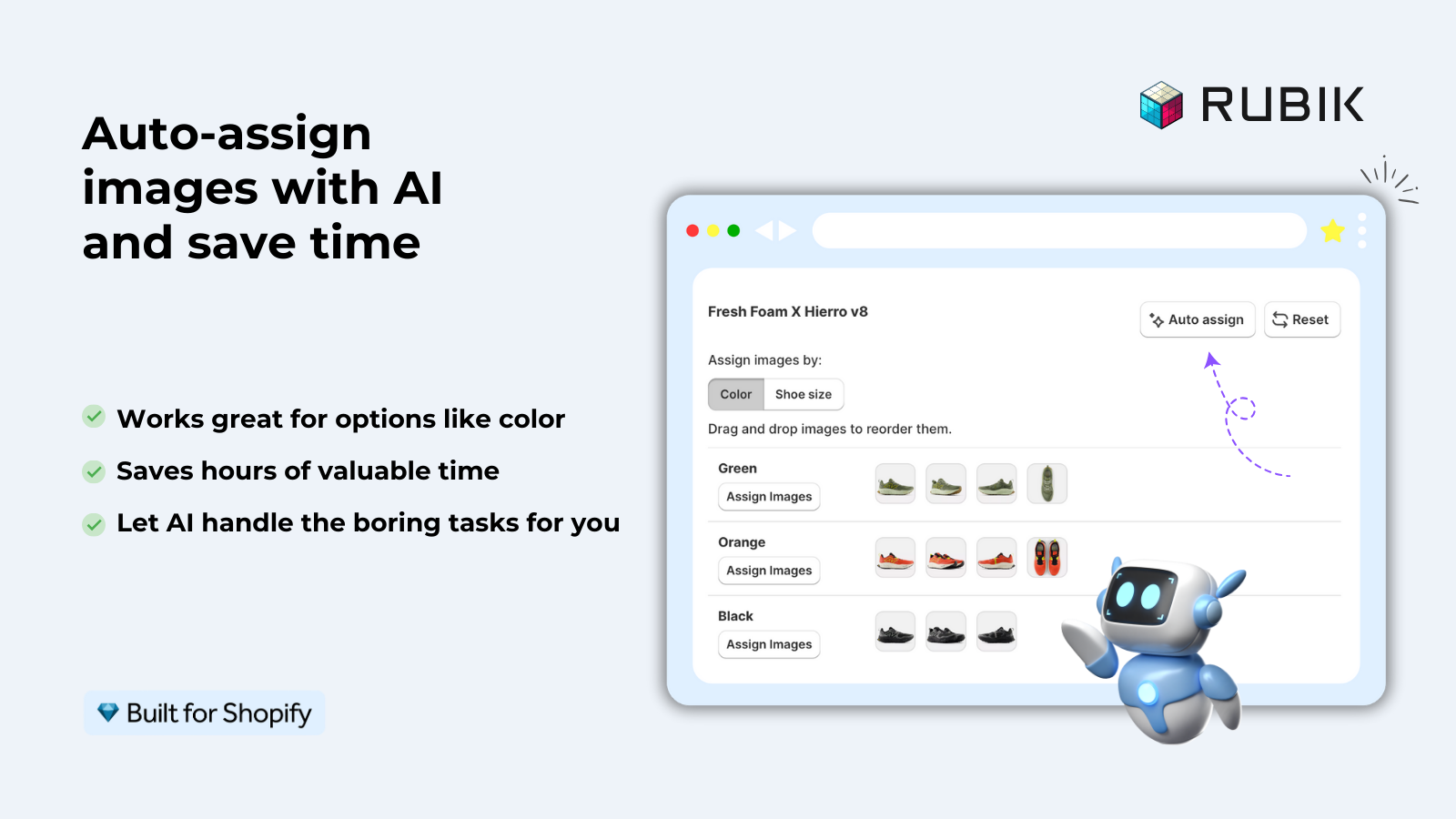
- Assign images to variants. You have three ways. Drag-drop each mockup onto its color by hand. Or run AI auto-assign, which reads the product title, the option values, the image filename, the alt text, and the image itself to match Printify’s “Front, Red” mockups to the Red variant automatically. Or use bulk assign, which groups by gallery order across many products at once.
- Pick your swatch style. Image swatches, color swatches (circle, square, rounded, pill), or pill buttons. You can hide sold-out variants too.
- Save. On the storefront, selecting Red now shows only the Red mockups. Every other color is filtered out of the gallery instantly.
- (Optional) Turn on product card swatches under Swatch settings so the color circles appear on collection pages too, where a click swaps the card image and price.
AI auto-assign is the part print-on-demand merchants tend to love, because Printify and Printful name their mockups predictably (the color is right there in the filename and alt text). We built the vision step on top of that filename matching so it catches the cases where the name is vague but the image clearly shows a red shirt. For a catalog of 40 products, that is the difference between an afternoon of manual sorting and a few clicks. It is metafield-based with no external API calls on the storefront, so it loads with the page.
“This is by far the best variant app I have tried, I deleted maybe 7 others after a slew of issues. Wonderful support as well!”
Anonymous merchant, 2026-02-06, Rubik Variant Images on the Shopify App Store
Is it variant images or combined listings you need?
If all your Printify colors live inside one Shopify product, you need variant image filtering (Rubik Variant Images). If each color was synced as its own separate Shopify product, you need product linking (Rubik Combined Listings). Many print-on-demand stores run both.
The split matters because Printify and Printful let you publish either way. Some merchants sync one product with a Color option holding eight values. Others create a separate listing per design or per color. How did you set yours up? That answer decides which tool fixes the mismatch.
- One product, many color variants: Rubik Variant Images assigns each mockup to its color and filters the gallery on the product page (and now adds swatches on product cards in the grid).
- Each color is a separate product: Rubik Combined Listings links those products so they behave like variants, with swatches on collection and product pages, and each color keeps its own URL and images for SEO.
- Both situations in one catalog: run the two apps together. RCL groups the separate products, RVI filters the gallery once a shopper lands on a product page.
If you also have more than 100 variants on a single design (big size runs across many colors), Combined Listings bypasses Shopify’s 100-variant-per-product limit without forcing you onto Shopify Plus. That is a separate problem from image matching, but print-on-demand catalogs hit it often.
If your colours live as separate products rather than variants of one product, Rubik Combined Listings groups them into a single listing with swatches instead. Free to install, 5.0 stars across 78 reviews.
Native Shopify vs Rubik Variant Images
Native Shopify swaps one thumbnail per variant and leaves the rest of the gallery untouched. Rubik Variant Images assigns the full set of mockups per color and filters everything else out. Here is the difference side by side.
| Capability | Native Shopify | Rubik Variant Images |
|---|---|---|
| Images linked per variant | One featured image | Multiple images, videos, 3D models |
| Filters the gallery on selection | No | Yes |
| Hides other colors’ mockups | No | Yes |
| Auto-match Printify/Printful mockups | No | Yes (AI auto-assign) |
| Color and image swatches | Basic native swatches | Image, color, pill swatches |
| Hide sold-out variants | No | Yes |
| Product card swatches in the grid | No | Yes (opt-in) |
For more on what counts as a sensible limit, see how many images per variant Shopify allows, and if you are on the default theme, variant images in the Dawn theme walks through that exact setup.
See it live on the demo store, watch the tutorial video, or read the getting started guide.
Frequently asked questions
Which Shopify app should I use for printify variant images?
Rubik Variant Images, built by Craftshift, is the app we build for this. It holds 5.0 stars across 436 reviews and carries the Built for Shopify badge. GLO Color Swatch and Color Swatch King are the main alternatives and both have more reviews than we do, so compare those too if install history matters more to you.
Why are my Printify variant images showing all colors on Shopify?
Printify uploads every color mockup into one shared Shopify gallery, and Shopify only links one featured image per variant. The rest stay visible for every color. Rubik Variant Images assigns each mockup to its variant and filters the gallery so only the selected color appears.
How do I fix Printful images not matching the selected variant?
Install Rubik Variant Images, then assign your Printful mockups to each color using drag-drop, AI auto-assign, or bulk assign. Once assigned, the product gallery filters on selection so the wrong-color photos disappear. You don’t re-upload anything from Printful.
Can Shopify show different images for each print-on-demand variant by itself?
Not fully. Native Shopify swaps one featured thumbnail per variant but cannot filter the rest of the gallery or assign multiple images per color. You need an app like Rubik Variant Images to filter the gallery and link a full set of mockups to each variant.
Do I need to re-upload my Printify mockups to use the app?
No. Rubik Variant Images works with the images Printify already synced to Shopify. You assign the existing mockups to variants inside the app. Your print-on-demand sync stays exactly as it is.
Will AI auto-assign match Printify and Printful mockups automatically?
Usually yes. AI auto-assign reads the product title, option values, image filename, and alt text, then checks the image itself. Since Printify and Printful name mockups with the color, the AI matches them to the right variant most of the time. You can still fix any outliers by hand.
My Printify colors are separate Shopify products. What do I use?
Use Rubik Combined Listings to link those separate products into one group with color swatches on collection and product pages. Each color keeps its own URL and images for SEO. If that single product also has its color photos mixed into one gallery, Rubik Variant Images filters the gallery per variant once a shopper opens it.
Does this slow down my Shopify product pages?
Rubik Variant Images is metafield-based with no external API calls on the storefront, so the variant data loads with the page rather than fetching from a separate server. It is Built for Shopify certified and runs CSS in an isolated layer so it doesn’t fight your theme.
Is there a free plan for a small print-on-demand store?
Yes. Rubik Variant Images has a free plan covering one product, then flat pricing: Starter at $25 a month for 100 products, Advanced at $50 for 1,000, and Premium at $75 for unlimited. Pricing is flat, not tied to your Shopify plan.
Related reading




