How to hide variants on Shopify product pages

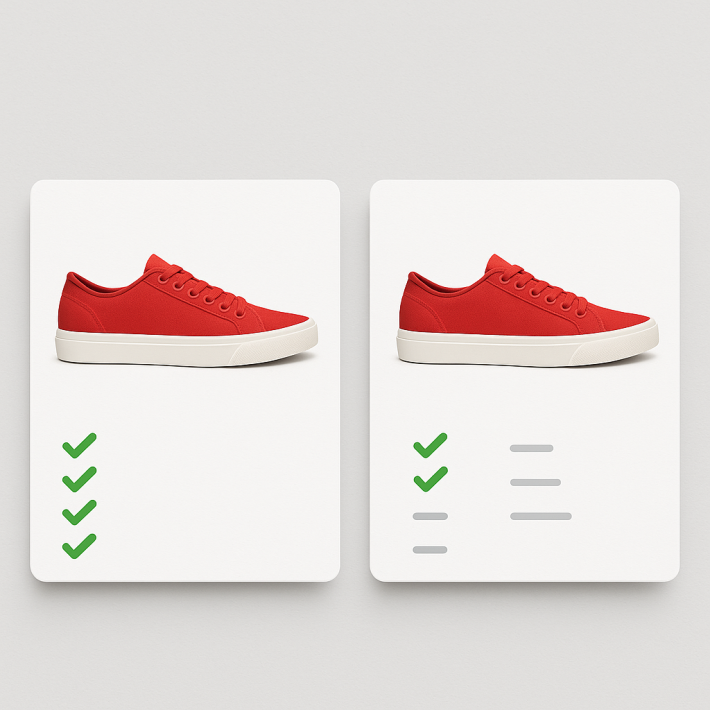
Shopify shows every variant on the product page. Every color, every size, every material. There is no built-in way to hide variants you do not want customers to see. Whether it is a discontinued option, a sold-out size, or a dropdown you would rather replace with visual swatches, the default behavior is: show everything.
Merchants search for “shopify hide variants” for different reasons. Some want to remove sold-out options. Others want to hide variant images that do not match the selected color. Some want to get rid of the dropdown selector entirely. This guide covers all of those scenarios and how to handle each one with Rubik Variant Images.
In this post
- Why hide variants on Shopify
- Hide sold-out variants
- Hide unavailable (deleted) variants
- Hide unrelated variant images from the gallery
- Replace dropdowns with visual swatches
- Auto-select available options on page load
- Control what shows on first load
- How to set it up with Rubik
- Video walkthrough
- Frequently asked questions
- Related reading
Why hide variants on Shopify
There are three common scenarios where merchants need to hide variants from customers.
Reduce clutter. A product with 30 variants across color, size, and material shows a wall of options. If half those options are sold out or discontinued, they are just noise. Hiding them makes the page cleaner and faster to scan.
Prevent dead-end clicks. When a customer taps a sold-out swatch, they hit a wall. The add-to-cart button is greyed out. If you know certain variants will not return to stock, hiding them removes that friction entirely.
Show only relevant images. A product with 8 colors and 5 photos each means 40 images in the gallery. When the customer picks “Red,” they do not want to scroll past 35 photos of other colors. Hiding unrelated variant images is one of the most requested features on Shopify.
Hide sold-out variants
Sold-out variants are ones that still exist in your Shopify admin but have zero inventory. The variant is real. It just has no stock right now.
Rubik gives you two separate toggles for this:
- swatch_hide_sold_out_pill_options hides text pill swatches for sold-out variants
- swatch_hide_sold_out_image_options hides image-based swatches for sold-out variants
You control pills and images independently. Maybe you want to hide sold-out text pills but keep image swatches visible with reduced opacity. That is a valid setup.
We have a full guide on this topic with all the details, including CSS styling options for sold-out swatches: How to hide or style sold-out and unavailable variant swatches on Shopify.
Hide unavailable (deleted) variants
This is different from sold out. An unavailable variant is one that has been deleted from the product in Shopify. You removed the variant entirely, but Shopify’s swatch rendering still tries to show it as an option.
This happens because Shopify generates option values from the product’s option list, not from active variants. If you once had a “Teal” color and deleted that variant, the “Teal” option value can still appear in the selector.
Rubik has two toggles specifically for this:
- swatch_hide_unavailable_pill_options hides text pill swatches for deleted variants
- swatch_hide_unavailable_image_options hides image-based swatches for deleted variants
Most merchants want these turned on at all times. There is rarely a reason to show a swatch for a variant that no longer exists. Turning these on cleans up the product page immediately.
Hide unrelated variant images from the gallery
This is Rubik’s core feature and the most common reason merchants look for ways to hide variants on Shopify. It is not about hiding swatches. It is about hiding images.
By default, Shopify shows every product image in the gallery regardless of which variant is selected. If you sell a jacket in 6 colors with 4 photos each, that is 24 images visible at all times. The customer picks “Black” and still sees photos of the red, blue, green, white, and grey versions mixed in.
Rubik filters the product gallery so only images assigned to the selected variant are visible. Pick “Black” and the gallery shows your 4 black jacket photos. Pick “Red” and it switches to the 4 red photos. Everything else is hidden.
This works through image assignments you configure in the Rubik app. You assign images to specific option values (like colors), and Rubik handles the filtering on the storefront. No code changes to your theme needed.
Full setup details here: How to show only the selected variant’s images on Shopify.
Replace dropdowns with visual swatches
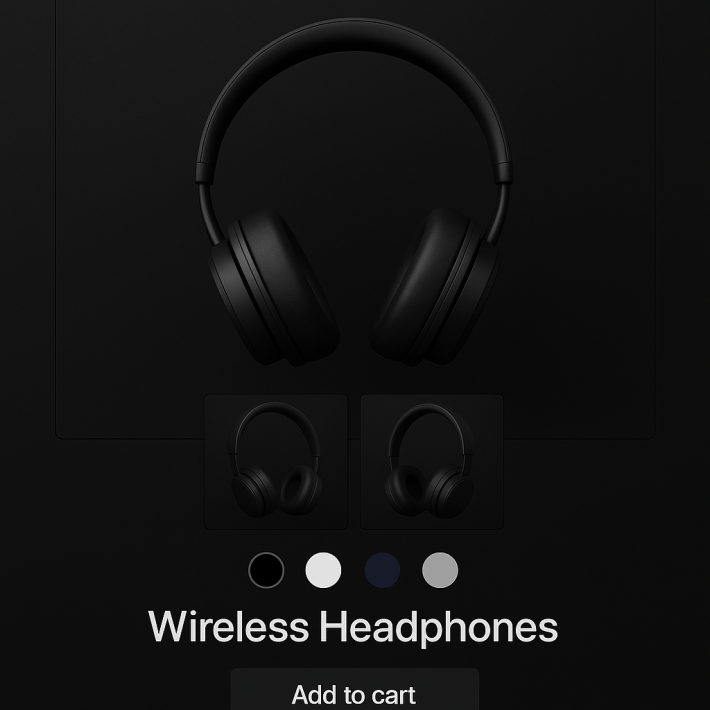
Some merchants want to “hide variants” because they mean they want to hide the default dropdown selector. Shopify’s native variant picker is a plain dropdown menu. It works, but it does not let customers see their options at a glance.
Rubik replaces dropdowns with color swatches, image thumbnails, or text pills. Once swatches are active, you can control whether the native dropdown also remains visible.
- swatch_show_dropdown controls whether the original dropdown appears alongside swatches. Turn it off to remove the dropdown entirely.
- swatch_show_native_swatches controls whether Shopify’s own native swatches (available on some themes) remain visible. Turn it off to use only Rubik’s swatches.
- show_swatches_without_images controls whether text pill swatches appear for option values that do not have an assigned image. Turn it off to hide options that lack a visual swatch.
The result is a cleaner product page where customers see visual options instead of a text-only dropdown. For more on swatches vs. dropdowns: Swatches vs. dropdowns for Shopify color variants.
Auto-select available options on page load
Hiding variants is one approach. Another is making sure the customer never lands on a sold-out variant in the first place.
The swatch_choose_available_option_dynamically setting tells Rubik to automatically select the first in-stock variant when the product page loads. If the product’s default variant (usually the first one) is sold out, Rubik skips it and pre-selects the next available option.
This pairs well with the hide toggles. Hide sold-out swatches and auto-select the first available one. The customer sees only purchasable options and lands on one that is ready to buy.
Control what shows on first load
By default, Rubik filters images as soon as the product page loads. The gallery immediately shows only images for the pre-selected variant. Some merchants prefer to show all images on the initial load and only start filtering after the customer interacts with a swatch.
The dont_run_on_first_load setting does exactly this. When enabled, the full gallery is visible until the customer clicks a swatch. After that first click, filtering kicks in and only relevant images are shown.
This is useful if you want customers to see the full range of product photos before they narrow down to a specific variant.
How to set it up with Rubik
Here is how to configure variant hiding in Rubik Variant Images, step by step.
Step 1: Install the app. Go to the Rubik Variant Images listing on the Shopify App Store and install. There is a free plan available.
Step 2: Assign images to variants. Open a product in the Rubik dashboard. Assign images to each option value (for example, assign your blue product photos to the “Blue” option). This is what powers the gallery filtering.
Step 3: Configure swatch visibility. In the app settings, find the swatch options. Turn on the hide toggles that match your needs:
- Turn on swatch_hide_unavailable_pill_options and swatch_hide_unavailable_image_options to remove deleted variants
- Turn on swatch_hide_sold_out_pill_options and swatch_hide_sold_out_image_options to remove zero-inventory variants
Step 4: Configure dropdown behavior. If you want to replace the dropdown with swatches, turn off swatch_show_dropdown. If your theme has native swatches that conflict, turn off swatch_show_native_swatches as well.
Step 5: Set auto-selection. Turn on swatch_choose_available_option_dynamically so customers always land on an in-stock variant.
Step 6: Test on your storefront. Open a product page with multiple variants and check that hidden variants are gone, the gallery filters correctly, and the right variant is pre-selected. Use the demo store as a reference for how things should look.
Full documentation is available at rubikvariant.com/docs and the knowledge base.
Video walkthrough
This video covers the general setup of Rubik Variant Images, including swatch configuration and image filtering:
Demo store | Docs | Knowledge base
Frequently asked questions
Can I hide a specific variant on Shopify without deleting it?
Shopify does not have a native “hide variant” toggle. However, you can set the variant’s inventory to zero and use Rubik’s swatch_hide_sold_out_pill_options and swatch_hide_sold_out_image_options toggles to hide it from the product page. The variant still exists in your admin but is invisible to customers.
Can I hide variants on collection pages but show them on product pages?
Collection pages and product pages are handled by different systems. Rubik Variant Images controls what appears on product pages. Collection page variant display is managed by your theme or by apps like Rubik Combined Listings. You can configure each independently.
Does hiding a variant also hide its images from the gallery?
Hiding a swatch and filtering gallery images are two separate features. Hiding a sold-out swatch removes the clickable option. Image filtering controls which photos appear in the gallery based on the selected variant. You can use both together or independently.
How do I remove the variant dropdown on Shopify?
Install Rubik Variant Images and turn off swatch_show_dropdown. This removes the native dropdown selector and replaces it with visual swatches (color circles, image thumbnails, or text pills). If your theme has its own swatch system, turn off swatch_show_native_swatches as well to avoid duplicates.
Does this work with all Shopify themes?
Rubik Variant Images works with all free Shopify themes and most third-party themes. It injects swatches and handles image filtering without requiring theme code edits. If you run into a theme compatibility issue, the support team can help. Check the troubleshooting guide for common fixes.
Related reading
- How to hide or style sold-out variant swatches on Shopify
- How to show only the selected variant’s images
- Variant images not showing? Here is how to fix it
- Rubik Variant Images FAQ
- How to show different swatch types for different options
- Variant images with multiple options (color, size, material)
- Swatch CSS customization ideas
- Swatches vs. dropdowns for Shopify color variants (CraftShift)
- Product page optimization checklist for 2026 (CraftShift)
- Shopify combined listings without Plus (Rubikify)