How to show multiple variant images in Shopify Spotlight theme
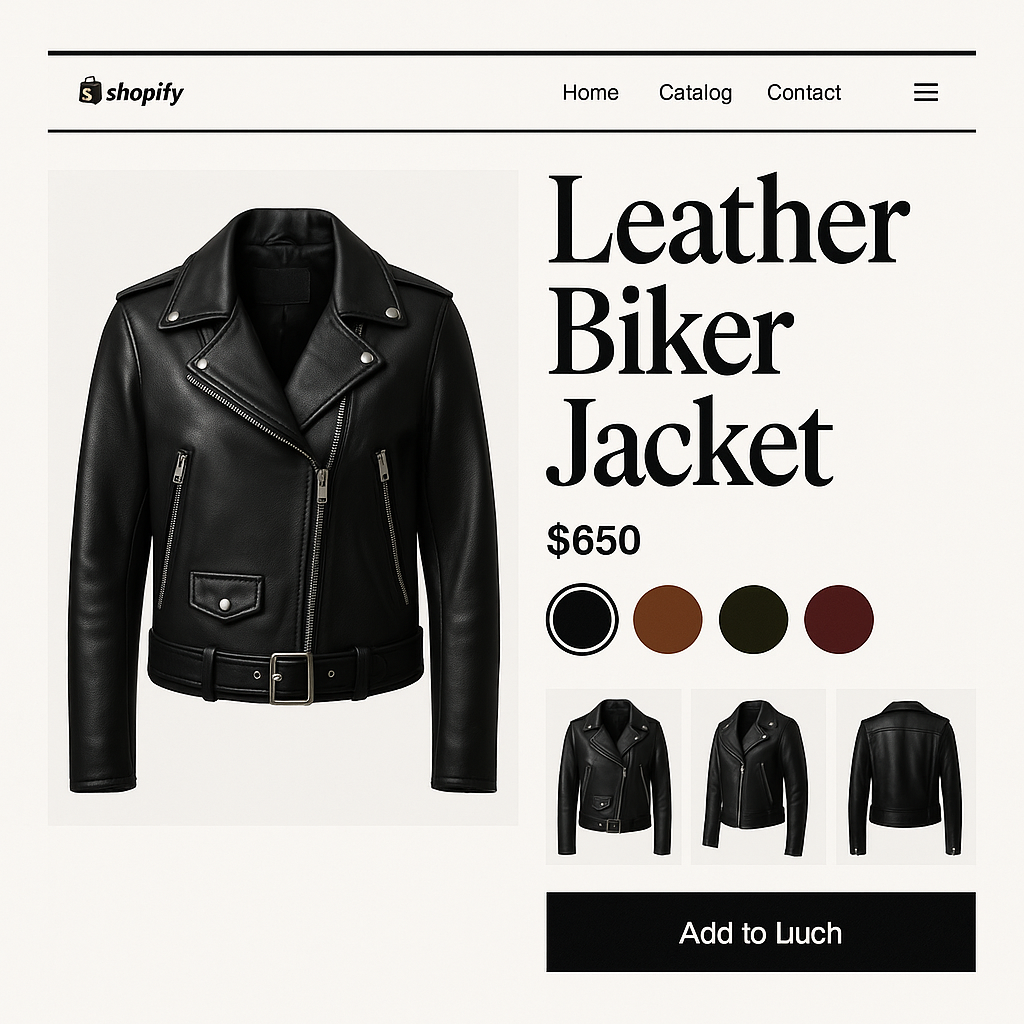
Shopify Spotlight theme (ID: 1891) is a premium theme known for its bold typography and editorial product layouts. It is popular with fashion, streetwear, and lifestyle brands that want a strong visual statement. But like all Shopify themes, Spotlight limits you to one image per variant.
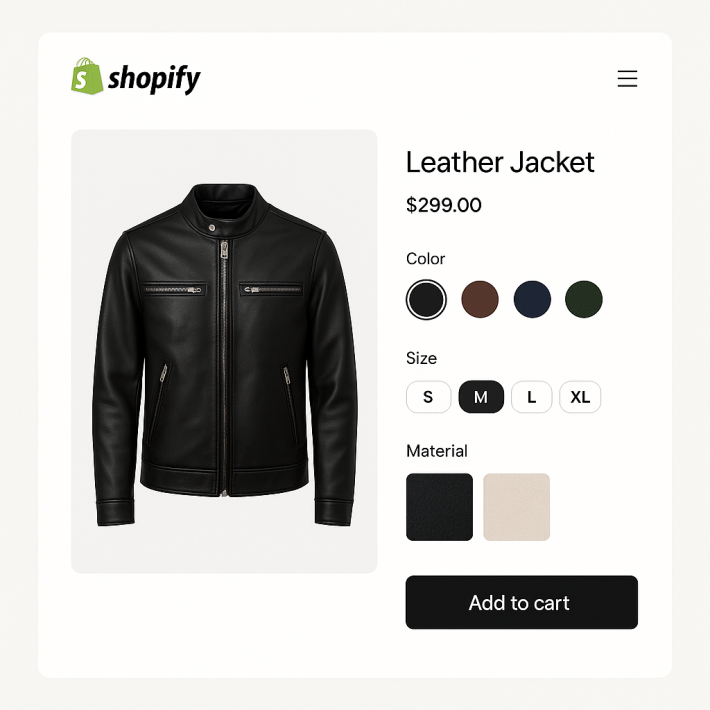
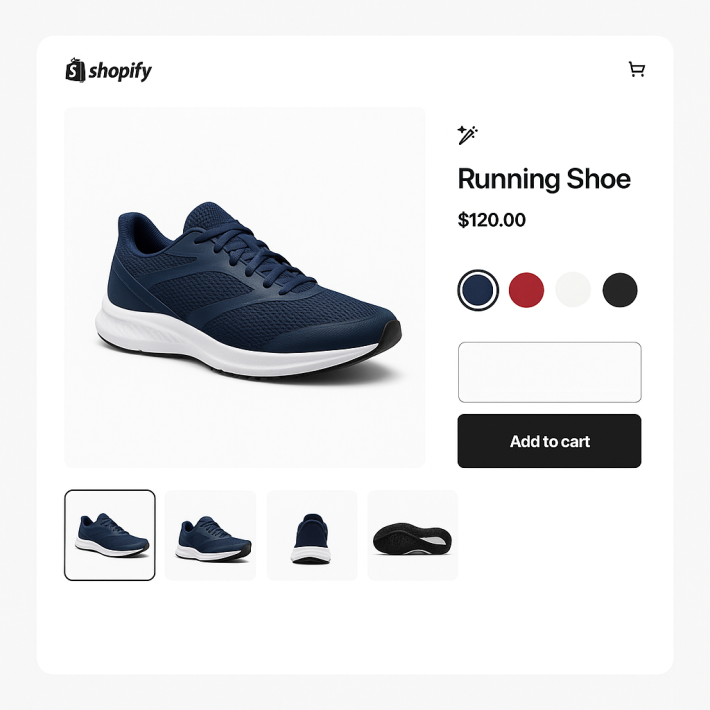
If your collection has 8 colorways with 5 lookbook shots each, a customer selecting “Midnight” still sees all 40 photos. Rubik Variant Images & Swatch includes native code for Spotlight. Assign multiple images per variant, filter the gallery in real time, and replace the picker with image swatches, color circles, or pill buttons.
In this post
What you get on Spotlight with Rubik
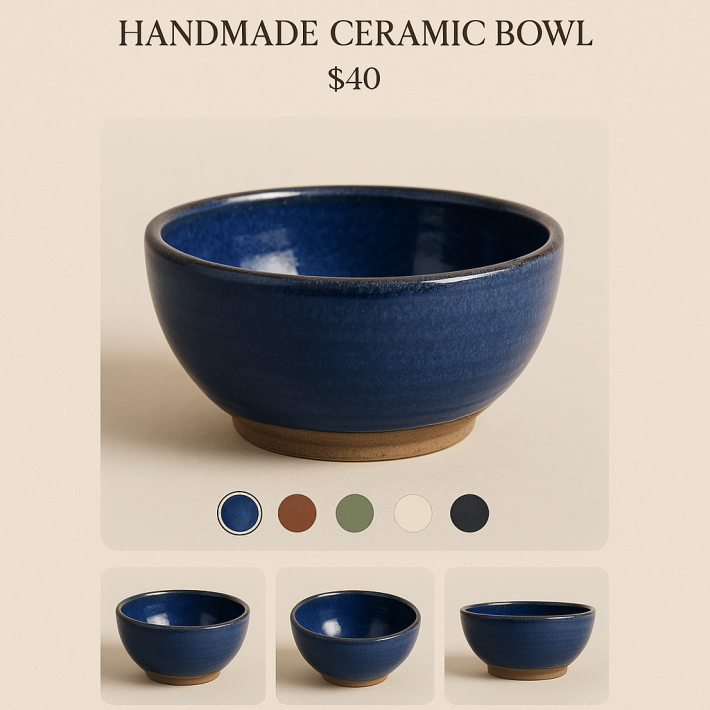
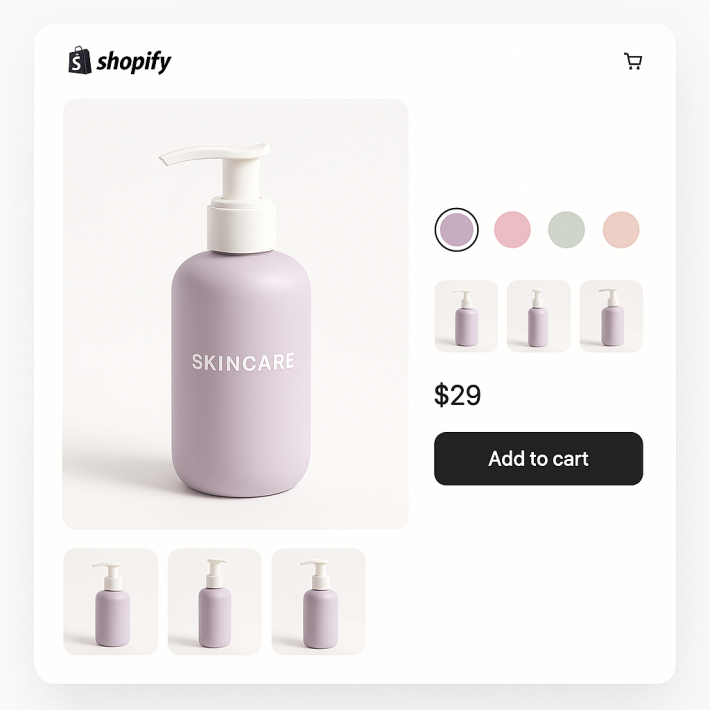
- Multiple images per variant. Unlimited images, videos, and 3D models. Gallery updates instantly when a customer switches colors.
- Visual swatches. Image thumbnails, color circles, or pill buttons. Mix types per option (images for Color, pills for Size).
- AI auto-assign. Matches photos to variants by visual similarity. One click per product.
- Common images. Campaign shots or lookbook images stay visible for all variants.
- 100+ CSS variables. Match Spotlight’s bold typography and spacing. Shadow DOM prevents conflicts.
- Metafield-based. No external API calls. No speed impact.
Setup (5 minutes)
- Install Rubik Variant Images and activate the app embed.
- The app auto-detects Spotlight (ID: 1891).
- Open a product. Drag images or click AI auto-assign.
- Enable swatches. Save.
Watch the tutorial | Getting started | 350+ supported themes
Watch It in Action
See the full setup and feature walkthrough in this video:
Frequently asked questions
Does Rubik work with Spotlight theme?
Yes. Native code for Spotlight (ID: 1891) handles variant detection, gallery filtering, and swatch placement.
What about linking separate products?
Use Rubik Combined Listings alongside Variant Images. Both support Spotlight. Read combined listings on Spotlight theme.
Related reading