Shopify variant images FAQ: 30 questions merchants actually ask
We pulled these questions from Shopify Community forums, support tickets, and what merchants search for on Google. Every answer is short and direct. If you need more detail on any topic, the links in each answer will take you there.
In this post
- Basics (1-6)
- Setup and image assignment (7-12)
- Swatches and variant selectors (13-17)
- AI features (18-20)
- Themes and compatibility (21-24)
- Troubleshooting (25-27)
- Pricing and plans (28-30)
Basics
1. How do I show different images for each variant on Shopify?
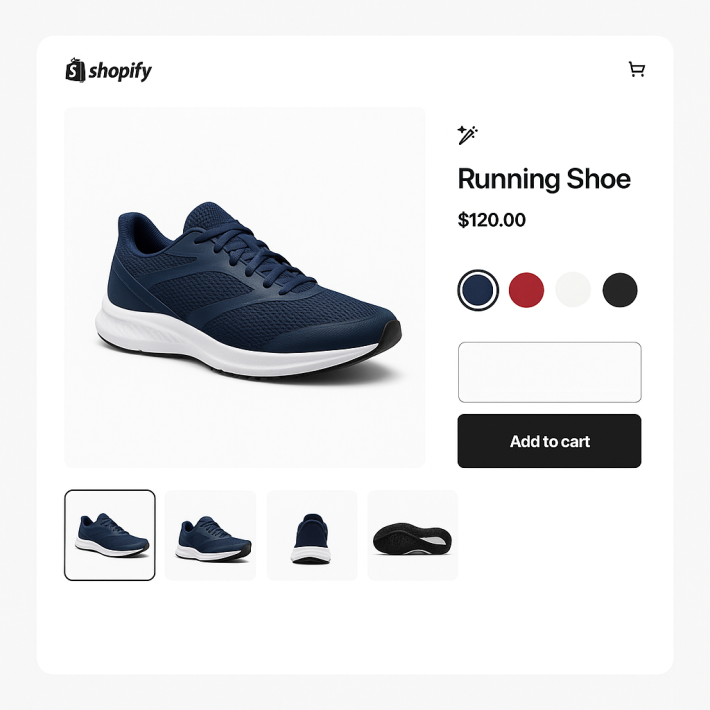
Shopify natively lets you assign one image per variant. That means one photo for Blue, one for Red, one for Green. When a customer picks Blue, the gallery scrolls to that single image but still shows all other images in the gallery.
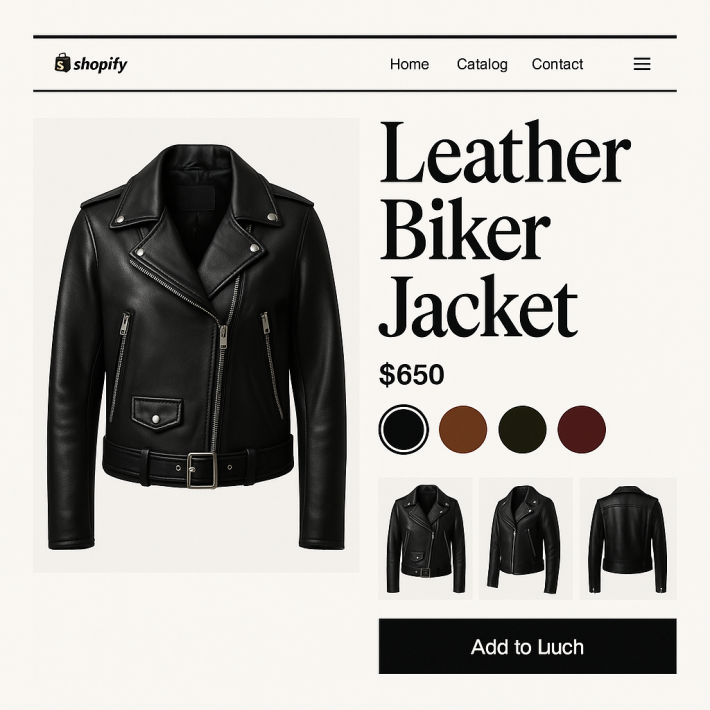
To show multiple images per variant and hide the rest, you need an app. Rubik Variant Images lets you assign as many images as you want to each variant. When the customer selects a colour, the gallery shows only those images. Everything else is hidden. Full walkthrough: how to show only selected variant images.
2. How many images can I assign to a single variant?
There is no limit. Assign 3, 5, 10, or more images per variant. The app stores assignments in Shopify metafields, not in a separate database. For best results, aim for 5-6 images per variant: front, back, close-up, scale shot, and lifestyle photo.
3. Can I assign the same image to multiple variants?
Yes. Enable Allow assigning same image to multiple variants in Settings. This is useful for products where some images apply to all variants, like a size chart or a packaging shot. You can also use the Common images feature, which keeps specific images visible regardless of which variant is selected.
4. Does it work with videos and 3D models?
Yes. You can assign videos and 3D models to specific variants the same way you assign images. When the customer picks a variant, only the media files assigned to that variant are shown.
5. What happens on the product page when no images are assigned to a variant?
If a variant has no images assigned, the app shows all product images (the default Shopify behavior). Only variants with assigned images get filtered galleries. This means you can configure some variants and leave others untouched.
6. Will this affect my SEO or Google Shopping feed?
No negative impact. The images stay in your Shopify media library. The app only controls visibility on the storefront using CSS classes. Google crawlers still see all your images. For Google Shopping optimization specifically, read how to optimize variant images for Google Shopping.
Setup and image assignment
7. How do I assign images to variants?
Open the Rubik app, select a product, and click on a variant. Then select the images you want to assign. Save. That is it. The product page will immediately show only the assigned images when a customer picks that variant. Detailed instructions: getting started guide.
8. How does bulk assign work?
Bulk assign uses filename patterns to match images to variants automatically. If your image files are named “blue-front.jpg” and “blue-back.jpg,” the app detects the word “blue” and assigns those images to the Blue variant. It runs across hundreds of products in the background. This is different from AI auto-assign, which analyzes image content instead of filenames.
9. Can I reorder images within a variant?
Yes. After assigning images to a variant, drag and drop them into the order you want. The first image in the list becomes the one shown when the customer selects that variant. Enable Media reordering in Settings if you want variant image orders to override the default product media order.
10. How do I handle products with multiple options like Color and Size?
Set your primary option (usually Color) as the one that controls images. The app filters gallery images based on the primary option. When a customer picks “Blue,” they see blue images regardless of which size they pick. For advanced cases where you need different images for specific Color + Size combinations, read how to handle multiple options.
11. Do I need to edit my theme code?
No. The app works through Shopify’s app embed system. You activate it from your theme editor (Customize > App embeds > Rubik Variant Images). No Liquid code, no JavaScript snippets. If you switch themes, just re-enable the app embed in the new theme.
12. What are common images?
Common images are photos that should stay visible regardless of which variant is selected. A sizing chart, a care instructions image, or a lifestyle photo that works for all colors. Mark an image as “common” in the app, and it will always show in the gallery alongside the variant-specific images.
Swatches and variant selectors
13. Does the app replace my theme’s variant selector with swatches?
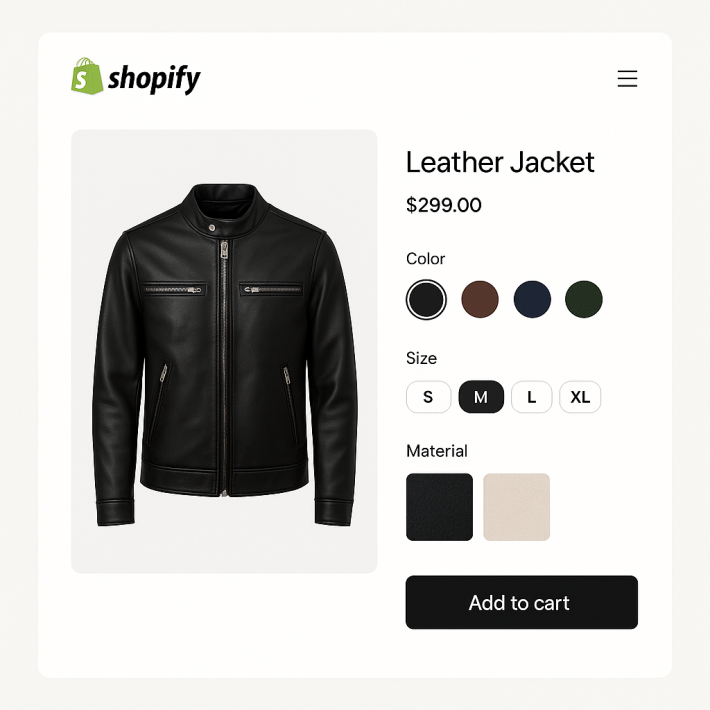
Yes, if you want it to. The app can replace the default dropdown with color circles, product image thumbnails, or pill buttons. You can also keep the native dropdown alongside the swatches by enabling Show dropdown in Settings. Some merchants use swatches for Color and keep dropdowns for Size.
14. What swatch types are available?
Three types:
- Image swatches: small product photo thumbnails. Best for patterns, prints, textures.
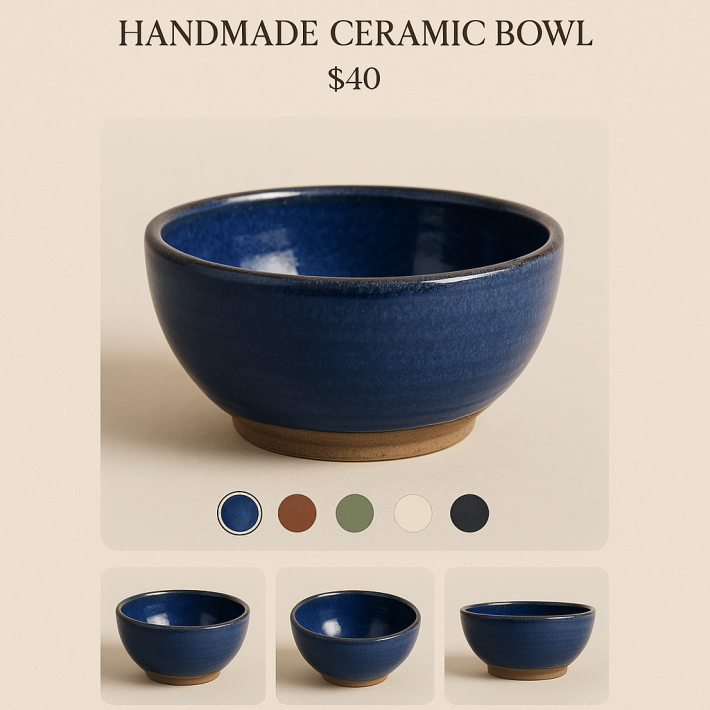
- Color swatches: solid color circles or squares (with optional secondary color for two-tone). Best for solid, well-known colors.
- Pill buttons: text labels in a button shape. Best for sizes (S, M, L, XL) and non-visual options.
You can mix swatch types on the same product. Color option gets image swatches, Size gets pill buttons. Customize the look with 100+ CSS variables in the visual settings editor.
15. Can I customize the swatch shape, size, and border?
Yes. The built-in style editor lets you change swatch width, border radius (square, rounded, circle), border color, active border highlight, grid gap, aspect ratio, tooltip display, and more. If you need finer control, use the custom CSS field. You can also type what you want in the AI Visual Settings Assistant in plain English, like “make swatches bigger and circular,” and it will generate the CSS for you.
16. How do I hide sold-out variants?
Two options in Settings: Hide unavailable options removes sold-out swatches entirely. Hide sold-out options grays them out or crosses them out. You can also enable Choose available option dynamically to auto-select the first in-stock variant when a customer lands on the page.
17. Does the app add swatches to collection pages?
No. Rubik Variant Images works on product pages only. It handles variant image filtering and swatch display on the product detail page. For collection page swatches that link separate products together, use Rubik Combined Listings, which is a separate app. It adds color swatches to product cards on collection pages and links individual products as if they were variants of one product.
AI features
18. How does AI auto-assign work?
Open a product in the Rubik app and click the AI Auto-Assign button. The AI (powered by Claude from Anthropic) analyzes each product image and determines which variant it belongs to based on visual content. A photo showing a blue shirt gets assigned to the Blue variant. A photo of a red shirt goes to Red.
AI auto-assign works on one product at a time. For assigning images across hundreds of products at once, use the bulk assign feature, which matches by filename patterns instead of visual analysis. The two features complement each other: AI for accuracy on individual products, bulk assign for speed across your catalog. Full details: AI auto-assign guide.
19. Is there a limit on AI usage?
Yes. Each plan includes a monthly AI image analysis quota: Free plan gets 50 images/month, Starter gets 500, Advanced gets 5,000, and Premium gets 50,000. The counter resets every billing cycle. Bulk assign (filename matching) does not count against AI limits because it does not use AI.
20. What is the AI Visual Settings Assistant?
A separate AI feature for customizing swatch appearance. Type something like “make the swatches circular and slightly larger” or “use a blue border for the selected swatch” and the assistant generates the CSS for you. It controls 70+ style variables and shows a live preview before you apply. Useful if you are not comfortable writing CSS.
Themes and compatibility
21. Which Shopify themes does it work with?
350+ themes, including all free Shopify themes (Dawn, Horizon, Sense, Craft, Refresh, Spotlight, Taste, Ride, Trade, Rise) and popular paid themes (Impulse, Impact, Prestige, Focal, Symmetry, Palo Alto, Warehouse, Minimog, Ella, Turbo, and more). The app uses 8 different variant detection methods to handle different theme architectures. Full list: supported themes.
22. Does it work with page builders like GemPages, PageFly, and EComposer?
Yes. The app supports 7 page builders: Instant, GemPages, PageFly, Beae, EComposer, Foxify, and Replo. Each has a dedicated detection module. If the product section is built with a page builder instead of your theme, the app detects this and adjusts automatically.
23. What if I switch themes?
Your image assignments are stored in Shopify metafields, not in theme code. They survive theme switches. After switching, go to your new theme’s editor and re-enable the Rubik app embed (Customize > App embeds). Your assignments will work immediately on the new theme.
24. Does it conflict with other swatch or variant apps?
It can, if both apps try to replace the variant selector on the same product. You can toggle Show native swatches in Settings to fall back to the theme’s built-in selector and only use Rubik for image filtering. Or disable the other app on products where Rubik is active. Running two apps that both inject swatches into the same spot will cause layout issues.
Troubleshooting
25. My variant images are not showing when I select a variant. What is wrong?
Check these in order:
- App embed is on? Go to Customize > App embeds in your theme editor. Make sure Rubik Variant Images is toggled on.
- Images are assigned? Open the product in the Rubik app and confirm images are assigned to the variant you are testing.
- Correct theme selected? In Rubik Settings, check that the active theme matches your published theme. Wrong theme ID is the most common issue.
- Product needs resave? If you renamed images or changed options after assigning, click “Resave Product” in the app.
Full troubleshooting checklist with 10 common causes: variant images not showing fix.
26. The swatches appear but images do not filter. Why?
This usually means the swatch component is working but the image filtering script cannot detect the variant change. Common reasons:
- Your theme uses a non-standard variant selector that the app cannot detect. Contact support with your theme name.
- Another app is intercepting the variant change event before Rubik can react.
- The product has duplicate filenames. Open the product in Rubik and check for the “duplicate filenames” warning.
Add ?debug=true to your product URL to see detailed logs in the browser console. This helps support diagnose the issue faster.
27. Images assigned in the app but not showing on the storefront. What do I check?
If the app shows images assigned but they do not filter on the live store:
- Click Resave Product in the Rubik app. If you uploaded new images or Shopify re-processed them, the filenames might have changed.
- Clear your browser cache and check in an incognito window.
- Verify the product is not in draft status. Draft and archived products do not load app scripts.
- Check the app embed toggle in your current published theme (not an unpublished one).
Pricing and plans
28. How much does Rubik Variant Images cost?
Four plans, all with flat pricing (no Shopify plan-based surcharges):
- Free: $0/month, 1 product, 50 AI images/month
- Starter: $25/month (or $200/year), 100 products, 500 AI images/month
- Advanced: $50/month (or $400/year), 1,000 products, 5,000 AI images/month
- Premium: $75/month (or $600/year), unlimited products, 50,000 AI images/month
All paid plans include all features. No features locked behind higher tiers. The only difference is product limit and AI quota.
29. Is there a free trial?
The Free plan lets you configure 1 product with all features enabled. There is no separate trial period because you can test everything on a real product before upgrading. Install the app, set up one product, and see how it looks and works on your store before committing to a paid plan.
30. How is pricing different from competitors?
Most competing apps (SA Variant Image Automator, OP Color Swatch) charge based on your Shopify plan. If you are on Shopify Advanced or Plus, you pay more even if your product count is the same. Rubik uses flat pricing. A store on Shopify Plus with 50 products pays the same $25/month Starter plan as a store on Basic Shopify with 50 products. For stores on higher Shopify plans, this difference adds up.
Watch It in Action
See how to set up multiple variant images from start to finish:
Still have questions?
Check these resources:
If your question is not covered here, contact us through the in-app chat. Average response time is under 2 hours during business hours.
Related reading
- How to show only the selected variant’s images on Shopify
- Variant images not showing? 10 causes and how to fix each one
- How to use AI to automatically assign images to variants
- How variant image swatches increase conversion rates (with data)
- Shopify combined listings without Plus: every option explained