Shopify variant images not showing? 10 causes and how to fix each one
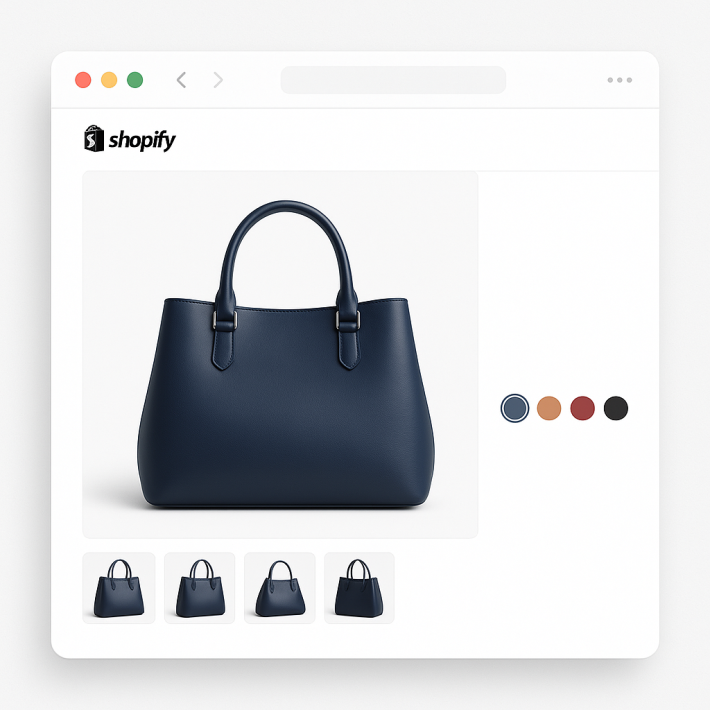
Your Shopify variant images are not showing when customers select a different color or size. A customer picks “Blue” on your product page and nothing happens. The gallery still shows every color. Or worse, the image does not change at all.
Variant images not showing is one of the most common Shopify issues merchants run into. The product has images. The variants exist. But the gallery does not update when a variant is selected. There are 10 reasons why this happens, and most of them take less than 5 minutes to fix.
In this post
- 1. Images are not assigned to variants
- 2. Shopify only allows one image per variant
- 3. Your theme does not support variant image switching
- 4. A third-party app is interfering
- 5. Browser cache is showing old content
- 6. Image format or size is not supported
- 7. Variant option names are misconfigured
- 8. Product media was changed after configuration
- 9. Alt-text swatch method is not working correctly
- 10. Your theme uses a page builder
- The real fix: show only the right images per variant
- Frequently asked questions
1. Images are not assigned to variants
This is the most common cause. You uploaded 20 product images, but you did not assign any of them to specific variants. Shopify does not automatically know which images belong to which variant.
How to check: Open the product in Shopify admin. Scroll down to the Variants section. Click on a variant. If the “Image” field is empty or shows the wrong image, that is the problem.
How to fix: Click on each variant, then click the image field, and select the correct image. Do this for every variant. If you have 50+ products, this is painfully slow by hand. Rubik Variant Images can do this automatically with AI. The app analyzes your product photos and matches them to the correct variants. You can run it across your entire catalog in minutes.
2. Shopify only allows one image per variant
This catches a lot of merchants off guard. Shopify lets you assign exactly one image per variant. Not three. Not six. One.
If your blue t-shirt has 5 different photos (front, back, detail, on model, flat lay), Shopify can only assign one of those to the “Blue / Medium” variant. The other 4 photos sit in the product gallery alongside every other color, creating a cluttered page where “Blue” is selected but red, green, and black photos are still visible.
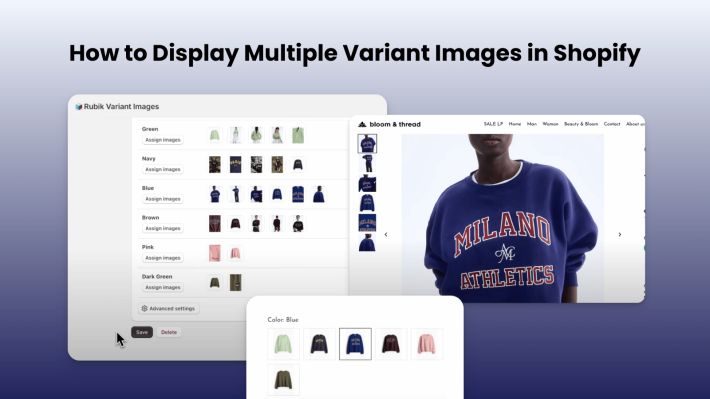
How to fix: You need a variant image app. Rubik Variant Images lets you assign unlimited images, videos, and 3D models to each variant. When a customer picks “Blue,” only the blue photos appear. When they switch to “Red,” the gallery updates instantly. The app stores data in Shopify metafields, so swatches load as fast as your theme renders. No external API calls, no lag.
3. Your theme does not support variant image switching
Some themes, especially older ones or heavily customized themes, do not have the JavaScript logic to swap the main product image when a variant is selected. The variant selector changes the price and availability, but the image stays the same.
How to check: Switch to Shopify’s Dawn theme temporarily (Online Store > Themes > Add theme > Free themes > Dawn). If variant images work on Dawn but not on your theme, your theme is the problem.
How to fix: Either contact your theme developer, or use an app that handles variant detection independently of the theme. Rubik Variant Images includes native code for 350+ Shopify themes, including Dawn (ID: 887), Horizon (ID: 2481), Prestige (ID: 855), Impulse (ID: 857), Impact (ID: 1190), Focal (ID: 714), Warehouse (ID: 871), Symmetry (ID: 568), and themes from ThemeForest like Minimog, Ella, Turbo, and Debutify. If your theme is on the list, the app already knows how to detect variant changes on it.
4. A third-party app is interfering
Product option apps, upsell apps, and other swatch apps can modify the product page in ways that break variant image switching. Two apps trying to control the same gallery will conflict.
How to check: Disable your apps one at a time and test the product page after each one. If variant images start working after disabling a specific app, you found the conflict.
How to fix: Remove the conflicting app, or replace it with one that handles both swatches and variant images together. Running two variant image apps at the same time will always cause problems. Pick one and stick with it.
5. Browser cache is showing old content
You assigned images correctly, but your browser is still showing the old page. This happens more often than you would think.
How to fix: Hard refresh the page. On Mac: Cmd + Shift + R. On Windows: Ctrl + F5. Better yet, open the product page in an incognito/private window. If the images work in incognito but not in your regular browser, cache is the issue. Clear your browser cache or wait a few hours for it to expire.
6. Image format or size is not supported
Shopify supports JPG, PNG, GIF, and WebP for product images. If you uploaded a HEIC file (common from iPhones), a TIFF, or an SVG, it may not display correctly as a variant image.
How to fix: Convert images to JPG or PNG before uploading. Keep images under 20MB. Shopify recommends at least 2048×2048 pixels for product photos. A 1:1 aspect ratio works best across most themes.
7. Variant option names are misconfigured
If your product has an option called “Color” but you renamed it to “Colour” or “Select Color” in the theme editor, some variant detection logic can break. The theme looks for “Color” but finds “Select Color” instead.
How to fix: Use standard option names: “Color”, “Size”, “Material”, “Style”. Avoid adding extra words like “Select” or “Choose”. Check that the option name in the product editor matches what your theme expects.
8. Product media was changed after configuration
You configured variant images, and everything worked. Then you (or someone on your team) re-uploaded an image, renamed it, or deleted and re-added a product photo. The filenames changed, and the variant-to-image mapping broke.
How to check: If you use Rubik Variant Images, the app has a product status checker that tells you exactly what went wrong. Common flags: “Images have changed filenames since last save”, “New images added since last save”, or “Assigned images reference deleted media.”
How to fix: Open the product in the app and click Save (Resave Product). The app will re-read the current images and update the mappings. This takes 2 seconds. See the product status report guide for details.
9. Alt-text swatch method is not working correctly
Some premium themes (like Prestige and Impulse) use an alt-text hack to group images by variant. You add “#color_blue” to the alt text of every blue image, and the theme filters them. It works, but it is fragile. Typos, missing hashtags, or inconsistent capitalization break it immediately.
How to check: Open each image in the product editor and verify the alt text contains the correct hashtag. Check capitalization. Check spacing. One wrong character and the grouping breaks.
How to fix: Fix the alt text manually (tedious), or skip the alt-text method entirely and use Rubik Variant Images instead. The app uses a visual drag-and-drop interface to assign images. No hashtags, no alt-text hacks, no typo risk. It also works on every theme, not just the ones that support the alt-text method.
10. Your theme uses a page builder
Page builders like GemPages, PageFly, EComposer, Instant, and Shogun replace the default product page template. This means the theme’s variant detection logic does not run. The page builder has its own gallery component, and it may not support variant image switching out of the box.
How to fix: You need an app that specifically supports your page builder. Rubik Variant Images includes native support for 7 page builders: GemPages, PageFly, EComposer, Instant, Beae, Foxify, and Replo. When you select your page builder as the theme type in the app settings, the correct detection and rendering logic loads automatically.
The real fix: show only the right images per variant
Most of the causes above come from the same root problem: Shopify was not built to show multiple images per variant. It gives you one image per variant, and everything else stays in the gallery for every customer to scroll through, regardless of which option they selected.
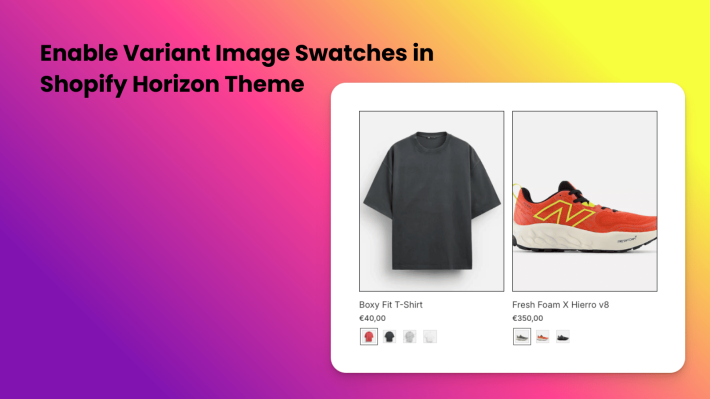
Rubik Variant Images & Swatch fixes this at the source. You assign multiple images to each variant, the gallery updates instantly when a customer selects an option, and swatches replace the default dropdown with visual selectors (image thumbnails, color circles, or pill buttons).
What makes it different from other variant image apps:
- AI auto-assign. The app analyzes your product photos and matches them to variants automatically. If you have 200 products, you do not need to assign images one by one.
- Fastest storefront loading. All data is stored in Shopify metafields. Swatches load with the page itself, no external API calls.
- 350+ themes with native code. Dawn, Horizon, Prestige, Impulse, Impact, Focal, Warehouse, Minimog, and hundreds more. Plus GemPages, PageFly, EComposer, and 4 other page builders.
- Video and 3D models. Assign videos to specific variants, not just photos.
- Shadow DOM isolation. Swatches render inside a Shadow DOM, preventing CSS conflicts with any theme.
- Accessibility built in. ARIA labels, keyboard navigation, and screen reader support included.
- Free plan available. 1 product with all features, no credit card needed.
See it working on the demo store, or watch the setup tutorial.
Frequently asked questions
Why are my Shopify variant images not showing?
The most common reason is that images are not assigned to variants in the Shopify product editor. Other causes include theme incompatibility, third-party app conflicts, browser cache, unsupported image formats, and changed filenames after configuration. See the 10 causes above for step-by-step fixes.
Can I show multiple images per variant on Shopify?
Not with Shopify alone. Shopify allows exactly one image per variant. To show multiple images per variant (for example, 6 photos of the blue version), you need a variant image app. Rubik Variant Images lets you assign unlimited images, videos, and 3D models per variant.
How do I hide images from other variants on Shopify?
Shopify does not do this natively. All product images show in the gallery regardless of which variant is selected. To hide unrelated images and show only the selected variant’s images, use Rubik Variant Images. The app filters the gallery in real time as customers switch between options.
Which Shopify themes support variant image switching?
Most Online Store 2.0 themes (Dawn, Horizon, Refresh, Sense, Craft, Taste, and others released after 2021) support basic variant image switching for the one assigned image. Older themes and page builder templates often do not. Rubik Variant Images works with 350+ themes and 7 page builders, handling variant detection automatically for each one.
Can AI automatically assign images to variants?
Yes. Rubik Variant Images uses AI to analyze your product photos and match them to the correct variants based on visual similarity. This works for single products and in bulk across your entire catalog. No other variant image app on the Shopify App Store offers this feature. See the FAQ for more on how AI assignment works.
Will a variant image app slow down my store?
Rubik Variant Images stores all data in Shopify metafields, which load natively with the page. No extra API calls to external servers. In side-by-side comparisons, Rubik’s swatches render noticeably faster than most competing apps. The app does not affect your Core Web Vitals or page speed score.
For more details, read the full getting started guide or check our knowledge base.
Related reading
- Top 5 variant image and color swatch apps for Shopify
- How to display multiple variant images in Shopify (no coding)
- How Shopify variant images really work (CraftShift)
- How to show different images for each color variant (CraftShift)
- How to choose the right variant images app for your Shopify store (CraftShift)
- Shopify color swatches not working: troubleshooting guide (Rubikify)