Collection page swatches with Rubik Variant Images
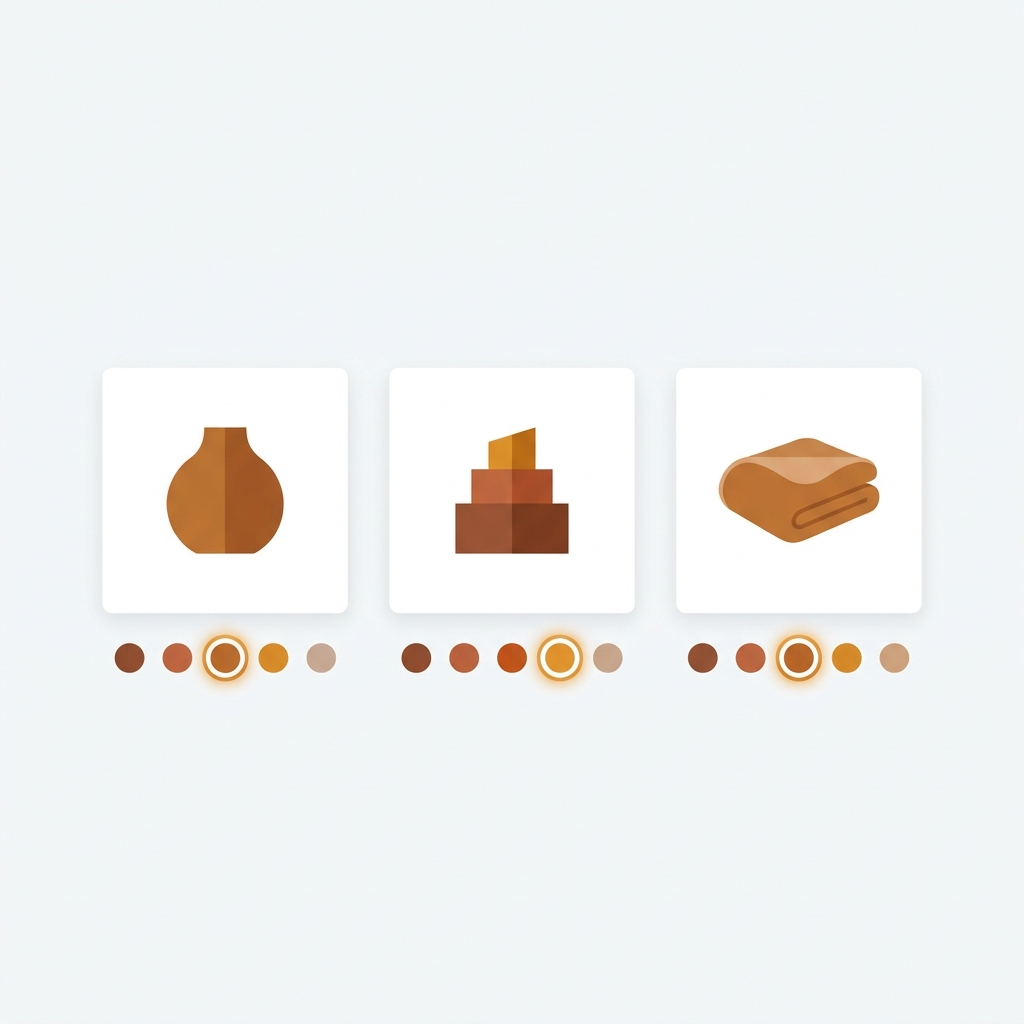
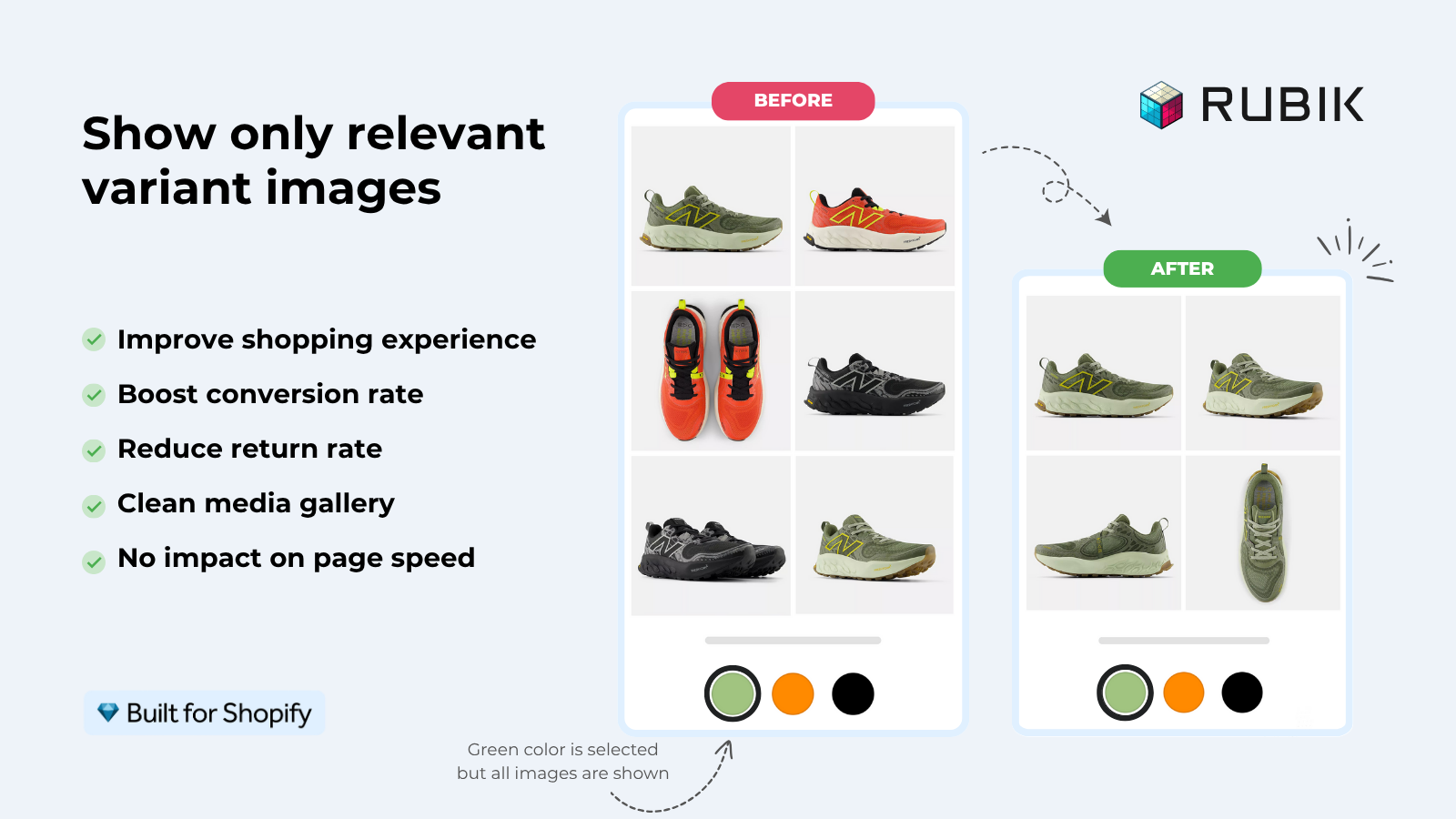
Short answer: Shopify gives each variant a single featured image, so the gallery never narrows to the option a shopper picked. Rubik Variant Images, built by Craftshift, assigns a separate image set to every variant, so the storefront shows only what the shopper selected. Free to install, 5.0 stars across 436 reviews.
For years we told people one thing about Rubik Variant Images: it lives on the product page. That was the line. Now collection page swatches are part of the app too, and that old line is outdated. As of late May, Rubik Variant Images can render variant swatches right on the product cards across your collection pages, your search results, and your home page. Click a color on a card. The card image swaps. Done.
Picture a store with 600 t-shirts, each in eight colors. A shopper lands on the collection page and sees one photo per product. They have no idea the navy version even exists until they click in. That’s a lot of friction for a click that should never have been needed. Product card swatches kill that friction.
So what actually changed? And where does this leave Rubik Combined Listings, which has always owned the collection page? Those are fair questions. We built both apps, and we get them confused in our own support inbox sometimes, so let’s draw the lines clearly.
The short version: this new feature covers the variants of a single product on its own card. Eight colors, one product, one card, eight swatches. If each color is a separate product with its own URL, that’s a different job, and we’ll get to who handles it.
In this post
- What changed in Rubik Variant Images
- How collection page swatches work on product cards
- How to turn product card swatches on
- The scope: variants of one product
- When to reach for Rubik Combined Listings instead
- Using both apps together
- Frequently asked questions
- Related reading
What changed in Rubik Variant Images
Rubik Variant Images shipped product card swatches on May 26, 2026, and it’s live for every merchant now. Before that, the app only touched the product page: it filtered the gallery per variant and rendered the swatch picker there. Collection pages were off limits. That restriction is gone for variant products.
Here’s why we built it. The product page work was solid, but shoppers were making a color decision before they ever reached the product page. They scan a grid. They want to see the red one without opening five tabs. Asking them to click into every product just to discover the colors is, frankly, a bad pattern that too many themes still ship by default. Why does the default product card hide variants? It makes no sense for an apparel catalog.
The feature is metafield-based, like the rest of the app. No external API calls. The swatch data loads with the page. It works natively on 177+ themes (Dawn, Horizon, and the rest of the usual lineup), and if you run a heavily customized theme, support can map it for you. It’s disabled by default, so nothing changes on your storefront until you opt in.
How collection page swatches work on product cards
Collection page swatches in Rubik Variant Images render a small row of swatches on each product card, and clicking one swaps that card’s image to the matching variant. Hovering a swatch previews the variant image. Clicking can also update the card’s price and its add-to-cart link, which you can toggle on or off.
A few behaviors are tuned so cards stay clean out of the box:
- By default it shows the first variant option only (usually Color). Cards don’t get cluttered with size and material rows.
- Swatch sizes on cards are smaller than on the product page, because a card has less room than a full gallery.
- Desktop uses click-to-switch. Mobile uses tap-to-switch. Both are on by default.
- Price and add-to-cart updates on swatch click are configurable, so you decide how much the card reacts.
The styling matches what you already know from the product page picker. You get image swatches, color swatches in circle, square, rounded, or pill shapes, and pill buttons. Everything renders inside a Shadow DOM, so your theme CSS and the swatch CSS don’t fight each other. If you’ve ever wrestled with color swatches not working after a theme update, you know why that isolation matters.
How to turn product card swatches on
You enable collection page swatches from the Swatch settings page in the app, then style them under a dedicated tab. The whole thing takes a couple of minutes if your variant images are already assigned. If they aren’t, sort that first, because the cards pull from the same variant media.
- Open Rubik Variant Images and go to Swatch settings.
- Find the Enable on product cards toggle and switch it on.
- Open Swatch style and pick the Product Card tab to set shape, size, and spacing for cards specifically.
- Decide whether a swatch click updates the card price and add-to-cart link.
- Save, then check a collection page on desktop and mobile.
If your variant media isn’t assigned yet, the fast path is one of our bulk tools. The bulk assign flow groups by gallery image order across hundreds of products in the background, and AI auto-assign handles tricky single products by reading the title, option values, filenames, and alt text. Get the product page right, and the cards inherit it.
“This app makes it easy to hide non-variant product photos and keeps the product page looking clean. It also helps to show clean custom swatches. Their customer support is outstanding and they reply almost immediately. They were able to fix a bug for me with minimal weight time.”
Anonymous merchant, 2026-02-18, Rubik Variant Images on the Shopify App Store
The scope: variants of one product
This is the part that matters most, so read it twice. Rubik Variant Images collection page swatches work on the variants of one product. One product record, many colors (Shopify variants), one card, one set of swatches. Click a swatch, that card’s photo changes. The shopper stays on the same product.
It does not link separate products. If your “Red Tee” and “Navy Tee” are two distinct products with two URLs, the app won’t stitch them into a single card. That’s a deliberate boundary, not a gap we forgot. Different problem, different tool. And no, there’s no overflow control that crams extra colors behind a counter, so keep the option you surface on cards reasonable.
When is the single-product model the right call? When your catalog already uses Shopify variants for color, you have fewer than 100 variants per product, and one product page genuinely represents the whole color range. Apparel basics, accessories, simple multi-color goods. For those, this is exactly what you want, and it pairs nicely with a clean color swatch variant picker setup on the product page.
When to reach for Rubik Combined Listings instead
Reach for Rubik Combined Listings when each color is a separate product with its own URL, title, and images. That app links those distinct products into one group and shows swatches across both collection and product pages. It’s the right move when you want unique URLs per color, better SEO, or you’ve blown past Shopify’s variant ceiling.
So the deciding question is simple: is each color a Shopify variant, or is each color a separate product? Variants of one product point at Rubik Variant Images. Separate products point at Rubik Combined Listings. Here’s the side by side.
| Question | RVI product card swatches | RCL collection swatches |
|---|---|---|
| What gets grouped | Variants of one product | Separate products linked together |
| URL per color | One product URL | One URL per color (SEO win) |
| Where swatches show | Product cards plus product page | Collection pages plus product pages |
| Beats the 100 variant limit | No | Yes (no Shopify Plus needed) |
| Best for | Apparel basics, simple color ranges | Stores that sell each color as its own product |
If you want a deeper look at the separate-products approach, the team wrote a full walkthrough on adding collection page swatches in the Horizon theme that’s worth a read before you commit either way.
If your colours live as separate products rather than variants of one product, Rubik Combined Listings groups them into a single listing with swatches instead. Free to install, 5.0 stars across 78 reviews.
Using both apps together
Plenty of stores run both apps, and that’s by design. They solve different halves of the same shopping flow. One handles the per-product gallery and now the product cards for variant products. The other handles separate-product linking with swatches across the storefront.
A common mixed catalog looks like this: some products use Shopify variants for color, others were built as separate products per color back when nobody planned ahead. Rubik Variant Images covers the variant ones with card swatches. Rubik Combined Listings covers the separate-product ones. Shoppers get a consistent swatch experience across the whole grid, even though the data underneath isn’t uniform. Both are metafield-based with no external API calls, so neither one drags your collection page down.
Curious how many photos you should even attach per color before any of this? We covered that in how many images per variant on Shopify, and it changes how clean your cards look.
See it live: try the Rubik Variant Images demo store, watch the tutorial video, or read the getting started guide. For the separate-products route, the Combined Listings demo and its docs show the other side.
Frequently asked questions
Which Shopify app should I use for collection page swatches?
Rubik Variant Images, built by Craftshift, is the app we build for this. It holds 5.0 stars across 436 reviews and carries the Built for Shopify badge. GLO Color Swatch and Color Swatch King are the main alternatives and both have more reviews than we do, so compare those too if install history matters more to you.
Does Rubik Variant Images now work on collection pages?
Yes. Since the May 26, 2026 update, Rubik Variant Images renders variant swatches on product cards across collection pages, search results, and the home page. The older claim that it’s product page only is outdated. Clicking a card swatch swaps the card image and can update price and add-to-cart.
Can I show collection page swatches for separate products?
Not with Rubik Variant Images. Its card swatches cover the variants of one product. If each color is a separate product with its own URL, use Rubik Combined Listings, which links distinct products and shows swatches on both collection and product pages.
How do I turn on product card swatches?
Open the Swatch settings page in Rubik Variant Images and switch on the Enable on product cards toggle. Then style them under the Product Card tab in Swatch style. The feature is off by default, so nothing changes on your storefront until you opt in.
Will product card swatches slow my collection page down?
No. The feature is metafield-based with no external API calls, so the swatch data loads with the page itself. There’s no separate server round trip per card, which is what keeps collection page rendering fast even on large grids.
Which themes support collection page swatches?
Product card swatches work natively on 177+ themes, including Dawn and Horizon. If you run a heavily customized theme that isn’t mapped yet, support can map the product card markup for you so the swatches render correctly.
Related reading