Collection page swatches for Shopify apparel stores
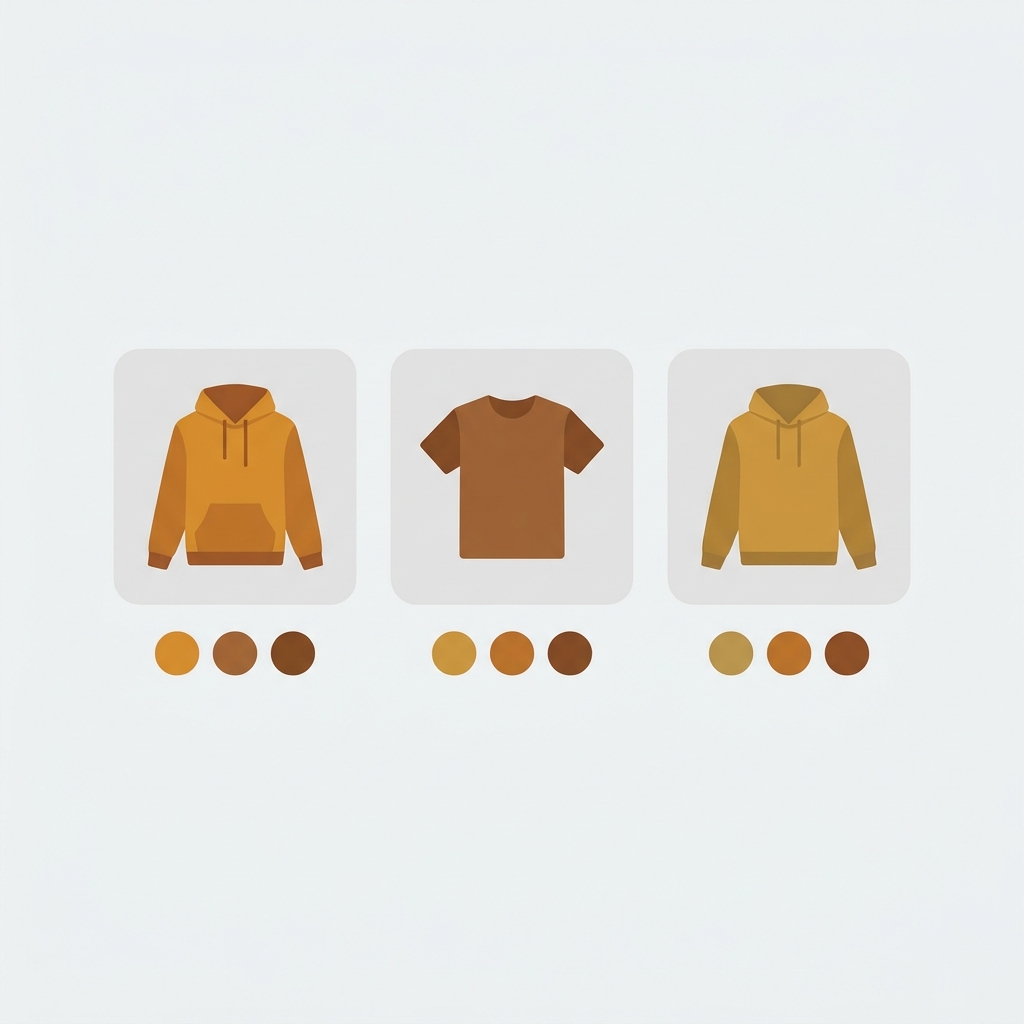
If you sell apparel on Shopify, collection page swatches apparel shoppers can actually click are not a nice-to-have. They’re the difference between a shopper seeing one navy hoodie and a shopper seeing the eight colors that hoodie comes in. On a clothing grid, color is the first thing the eye lands on. Hide it, and you bury half your catalog behind a click nobody makes.
Picture a store with 400 products, 9 colors per tee, and a collection page that shows one flat image per product. The shopper sees grey. They wanted coral. They scroll past. That coral tee existed the whole time, sitting one tap away, invisible.
We build variant image tooling for a living, and color discovery on the grid is one of the most common things merchants ask us about. So in May 2026 we shipped product card swatches in Rubik Variant Images. Small dots on each product card, across collection pages, search results, and the home page, that swap the card image when clicked. No extra click to the product page just to see if the shirt comes in green.
But there’s a fork in the road, and it depends entirely on how your catalog is built. Are your colors variants of one product? Or is each color a separate product with its own URL? The answer decides which tool you reach for. Let’s get into it.
In this post
- Why apparel stores need swatches on the grid
- Variant catalogs vs separate-product catalogs
- Product card swatches in Rubik Variant Images
- When to point at Rubik Combined Listings instead
- Handling high color counts without clutter
- How to turn it on
- Frequently asked questions
- Related reading
Why apparel stores need swatches on the grid
Apparel shoppers shop by color first, then fit, then price. Showing swatches on the collection page lets them spot the color they want without opening every product, which means fewer clicks, less back-button bouncing, and more of your catalog actually getting seen. Color is discovery. Hiding it costs you sales.
Think about how you shop for a t-shirt yourself. You scan the grid. A color catches your eye. You tap. If every card shows one static photo, you’re forced to open products one by one just to learn what colors exist. That’s friction nobody asked for. And on mobile, where most apparel traffic lives, it’s worse, because every wrong tap is a full page load and a scroll back.
Swatches on the card fix three things at once: discovery (the shopper sees all colors immediately), confidence (they preview the exact color before committing a click), and depth (you surface the full range of a catalog that would otherwise look thin). For a store leaning on color variety as its selling point, that last one matters more than people think.
Variant catalogs vs separate-product catalogs
There are two ways apparel stores model color, and they need different tools. In a variant catalog, one product holds all its colors as variant options. In a separate-product catalog, each color is its own product with its own URL. The first is handled by Rubik Variant Images, the second by Rubik Combined Listings.
This trips up a lot of merchants, so let’s make it concrete. If your “Classic Tee” is a single product page with a color dropdown listing red, blue, and green, you have a variant catalog. If “Classic Tee Red,” “Classic Tee Blue,” and “Classic Tee Green” are three separate products in your admin, each with its own product page, you have a separate-product catalog. Same shirts. Completely different setup.
| Question | Variant catalog | Separate-product catalog |
|---|---|---|
| How is each color stored? | As a variant of one product | As its own product |
| Does each color have its own URL? | No, one shared URL | Yes, unique URLs |
| Hits the 2,048-variant limit? | Possible on huge catalogs | No, no variant ceiling |
| Best for SEO per color? | Weaker | Stronger (indexable pages) |
| Which app shows card swatches? | Rubik Variant Images | Rubik Combined Listings |
Why does this matter for the grid? Because the swatch on a product card has to know what to do when clicked. In a variant catalog, the swatch swaps the image of that one card. In a separate-product catalog, the swatch needs to link out to a whole different product. Two different mechanics. Don’t fight your catalog structure; pick the tool that matches it.
Product card swatches in Rubik Variant Images
If your colors are variants of one product, Rubik Variant Images now shows swatches directly on the product cards across collection pages, search results, and other listing pages. Clicking a swatch swaps the card’s image, and you can configure it to update the card’s price and add-to-cart link too. Hovering previews that variant’s image. This shipped in May 2026 and is live for every merchant.
For years our honest answer was “Rubik Variant Images is product page only.” That’s now outdated. We built card swatches specifically because so many apparel merchants run variant catalogs and were stuck showing one flat image per product on the grid. The shopper couldn’t see the color range until they clicked through. So we extended the same metafield-based swatch rendering we already used on the product page out to the cards.
A few defaults worth knowing. By default the card shows only the first variant option (usually color), which keeps cards clean instead of cramming size and material dots in there too. Card swatches render smaller than product-page swatches. Desktop click-to-switch and mobile tap-to-switch are both on out of the box. And the whole thing is opt-in: card swatches are disabled by default, so you turn them on when you’re ready.
It’s metafield-based with no external API calls, so the swatches load with the page itself, no third-party server sitting between your shopper and the grid. Works natively on 177+ themes including Dawn and Horizon. Running a custom theme? Support can map it. If you’re already filtering variant images on the product page with the same app, the card swatches inherit the data you’ve assigned, whether you did that by hand, with AI auto-assign, or via bulk assign.
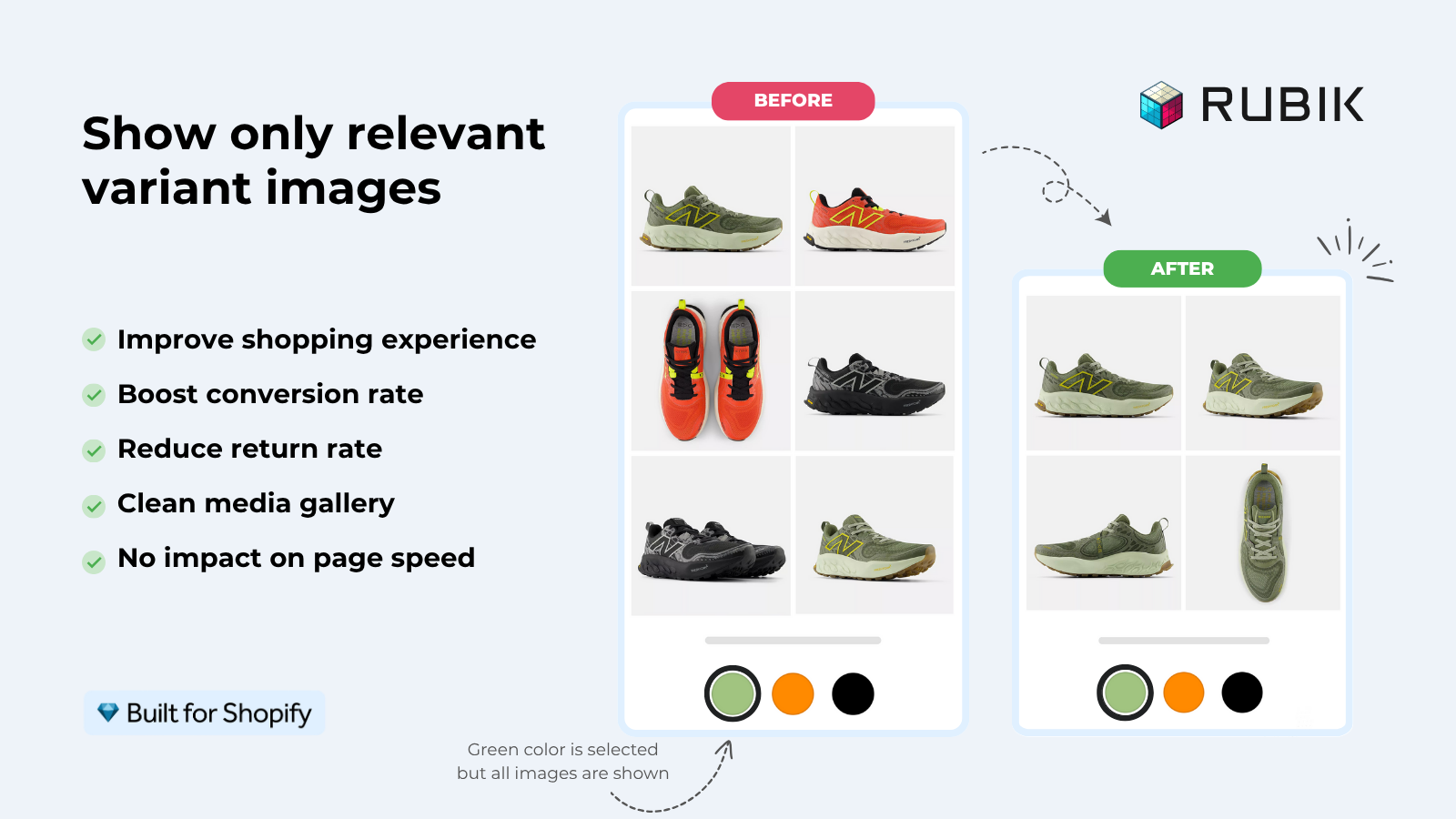
“This app makes it easy to hide non-variant product photos and keeps the product page looking clean. It also helps to show clean custom swatches. Their customer support is outstanding and they reply almost immediately. They were able to fix a bug for me with minimal weight time.”
Anonymous merchant, 2026-02-18, Rubik Variant Images on the Shopify App Store
When to point at Rubik Combined Listings instead
If each color is a separate product with its own URL, you want Rubik Combined Listings, not Rubik Variant Images. Combined Listings links separate products together as if they were variants, then shows swatches on collection pages and product pages that route the shopper to the right product page per color. That’s the correct tool for a separate-product catalog.
Why would an apparel store run separate products per color in the first place? A few good reasons: each color gets its own indexable URL (better SEO), you sidestep the 2,048-variant ceiling on enormous catalogs, and merchandising teams sometimes prefer one product per SKU group. The downside is the grid looks fragmented, the same shirt repeated in nine cards, until you group them. That’s what Combined Listings does, with four swatch types (visual, button, pill, dropdown), AI Magic Fill for option values and hex colors, and real-time sync that hides out-of-stock, archived, or draft items. You can read the full breakdown in this collection page swatch display guide on rubikify.com.
And plenty of stores run both apps together. Combined Listings handles the separate-product swatches on the grid; Rubik Variant Images filters the images on each product page so the shopper sees only the photos that match their selection. Different jobs, same goal: stop showing people the wrong color. For the general strategy side of collection swatches, our team also wrote a piece over on the best Shopify color swatch app for 2026.
Handling high color counts without clutter
High color counts are the apparel-specific trap: a card with 14 swatches looks busy and slows scanning. The fix is restraint by default. Show only the primary color option on the card, keep card swatches smaller than product-page swatches, and let the product page handle the deeper option set (size, material, fit).
Here’s an opinion we’ll defend: most stores put too much on the card. A product card is a teaser, not the product page. Its job is to get the right color in front of the right shopper and earn the click. Cram every option dot onto it and you’ve just rebuilt a cluttered product page at thumbnail size. Don’t.
A practical order of operations for a high-color catalog:
- Show only the first option (color) on the card by default.
- Use small, rounded swatches so a row of 8 to 12 stays scannable.
- Keep hover-preview on for desktop so shoppers sample colors fast.
- Hide sold-out colors so nobody clicks a dead end.
- Let the product page carry size, material, and the full image set.
Three things keep a busy grid clean: fewer swatches per card, smaller swatch size, and hiding out-of-stock colors. Get those right and a 12-color tee looks inviting, not overwhelming. If you’re weighing swatch shapes, we compared the options in button swatches vs circle swatches, and there’s a deeper setup walkthrough in the color swatch variant picker setup.
If your colours live as separate products rather than variants of one product, Rubik Combined Listings groups them into a single listing with swatches instead. Free to install, 5.0 stars across 78 reviews.
How to turn it on
Turning on card swatches in Rubik Variant Images takes one toggle. Open the app’s Swatch settings page and enable “Enable on product cards.” Card styling lives under the “Swatch style” section on the “Product Card” tab, where you control size, shape, and spacing separately from your product-page swatches.
If you’ve already assigned variant images for the product page, the cards use that same data, so there’s nothing to redo. New to the app? Assign images first (manual drag-drop, AI auto-assign per product, or background bulk assign by gallery order), then flip the card swatch toggle. If swatches don’t appear on a custom theme, that’s a theme-mapping situation our support handles; the same fixes apply that we cover in color swatches not working. For theme-specific notes, see the Dawn theme variant images guide.
Want to see it before installing? Poke around the live demo store, watch the tutorial video, or read the getting started guide. For separate-product catalogs, the Combined Listings demo and its docs show the grouping side.
Frequently asked questions
Does Rubik Variant Images show swatches on collection pages now?
Yes. As of May 2026, Rubik Variant Images shows product card swatches on collection pages, search results, and other listing pages. Clicking a swatch swaps the card image, and can update the price and add-to-cart link. It’s disabled by default, so you opt in from the Swatch settings page.
My colors are separate products. Which app do I need?
Use Rubik Combined Listings. It links separate products together and shows swatches on the grid that route to each color’s own product page. Rubik Variant Images card swatches work when your colors are variants of one product, not separate products.
Will too many color swatches clutter my product cards?
Not if you keep the defaults. The app shows only the first option (color) on cards by default and renders smaller swatches there than on the product page. Hiding sold-out colors and using small rounded swatches keeps even a 12-color tee scannable.
Do card swatches slow down my collection pages?
No. Card swatches are metafield-based with no external API calls, so they load with the page itself. There’s no third-party server between your shopper and the grid. The app works natively on 177+ themes, including Dawn and Horizon.
Can I run both Rubik apps together?
Yes, and many apparel stores do. Rubik Combined Listings handles separate-product swatches on the grid, while Rubik Variant Images filters the images on each product page so shoppers see only photos matching their selection. The two cover different jobs without overlapping.
Related reading
- Shopify collection page color swatches
- How to add color swatches in Shopify
- Best Shopify variant image apps 2026
- How many images per variant on Shopify
- Shopify combined listings explained (rubikify.com)
So before you install anything, answer one question: in your Shopify admin, is each color a variant of one product, or its own product? That single answer tells you whether to reach for card swatches in Rubik Variant Images or grouping in Rubik Combined Listings. Check your admin, then pick. Which one is your catalog?