Shopify shows all images for every variant? Here is how to show only the right ones
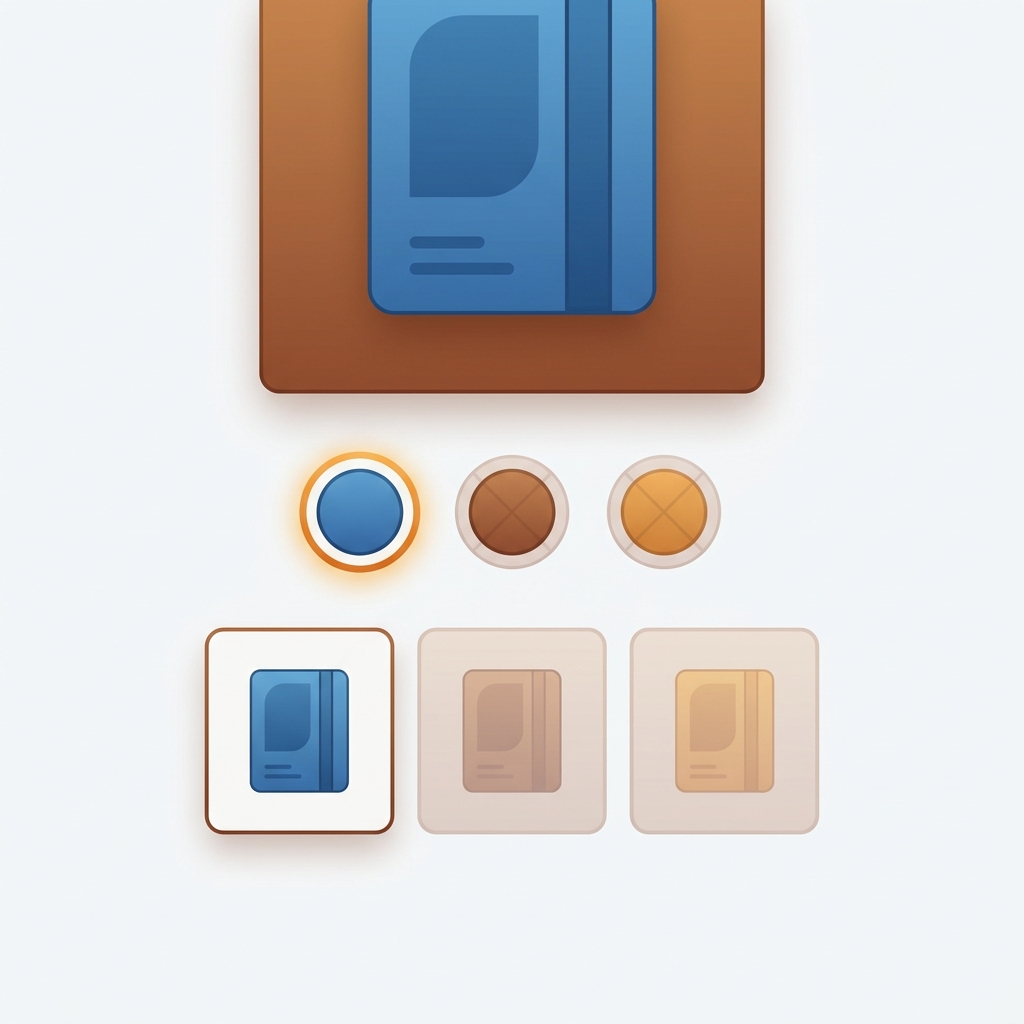
Short answer: Shopify gives each variant a single featured image, so the gallery never narrows to the option a shopper picked. Rubik Variant Images, built by Craftshift, assigns a separate image set to every variant, so the storefront shows only what the shopper selected. Free to install, 5.0 stars across 436 reviews.
Quick answer: Shopify shows all images for every variant because the native product gallery is one shared pool of media, not a per-variant filter. Shopify only swaps the single “featured” image when you pick a variant, then dumps every other photo below it. To show only the right images per variant, install Rubik Variant Images, assign media to each variant, and the gallery hides everything that doesn’t match the current selection.
So you uploaded clean photos for every color. Red shirt, blue shirt, green shirt, all shot properly. And then a shopper clicks blue and sees… red, green, and blue all stacked together in one long scroll. Frustrating, right?
This is one of the most common questions we get, and honestly it trips up store owners on every theme, Dawn included. The native selector touches one image. The rest of the gallery? It just sits there, color-blind to whatever the customer picked. We built Rubik Variant Images specifically to fix this gap, because Shopify won’t.
Picture a store with 40 products, 6 colors each, and 5 photos per color. That’s 30 images crammed into one gallery on every product page. A customer who wants the navy version has to mentally filter out 25 photos that don’t apply. Most won’t bother. They’ll bounce. Or worse, they’ll order the wrong color because the thumbnail they liked belonged to a different variant.
In this post
- Why does Shopify show all images for every variant?
- Why Shopify can’t do this on its own
- How to show only the right images per variant (step by step)
- Is it variant images or combined listings you need?
- What changes after you install it
- Frequently asked questions
- Related reading
Why does Shopify show all images for every variant?
Shopify shows all images for every variant because the product gallery is a single shared media library, not a filtered set. When a shopper selects a variant, Shopify changes only the one image you marked as that variant’s featured image. Every other photo stays visible. There is no native setting that says “hide images that belong to other colors,” which is exactly why your blue page still shows red.
Here’s the part that surprises people. Shopify does let you link ONE image to a variant (that’s the little dropdown in the variant editor). But that link only controls which image jumps to the top. It does nothing to the rest of the scroll. So if you have five angles of the blue jacket, you can flag one of them, and the other four still float in a gallery alongside every red and green photo. That’s the whole problem in one sentence.
And it gets messier with multiple options. Color plus size? Shopify has zero concept of “show these three photos only when Blue AND Large are both selected.” It just can’t reason about media that way. The gallery is flat.
Why Shopify can’t do this on its own
Shopify can’t filter the gallery per variant because its data model attaches images to the product, not to individual variants as a group. One variant gets one optional featured image. That’s the ceiling. There’s no built-in “image set per variant” object, no per-variant gallery, and no theme setting that filters the scroll. Themes like Dawn and Horizon inherit this limit because they read the same product media list.
People assume this is a theme problem and go hunting for a setting in the customizer. It isn’t there. I’ve watched store owners spend an afternoon digging through theme settings looking for a toggle that does not exist. Why does Shopify default to dumping everything? Honestly, it’s a legacy design choice from before stores had 12 colors per product. It made sense back then. It makes no sense now.
You can technically hack a partial fix by creating separate products per color (one URL per color), but then you’ve split your inventory and SEO across many pages. That’s a different tradeoff, and it’s where Rubik Combined Listings comes in (more on that below). For variants of a single product, you need an app that actually filters the gallery. That’s what we built.
How to show only the right images per variant (step by step)
To stop Shopify from showing all images for every variant, install Rubik Variant Images, assign media to each variant, and turn on gallery filtering. The app reads your assignments from a metafield and hides any image that doesn’t match the selected variant. No external API calls, no theme code edits. Here’s the flow.
- Install Rubik Variant Images from the Shopify App Store. The free plan covers 1 product, so you can test it before paying.
- Open a product and assign images. Drag and drop each photo onto the right variant, or let AI auto-assign do it by reading your product title, option values, image filenames, and alt text (plus the image itself via vision).
- Got a big catalog? Use bulk assign, which groups images by their gallery ORDER (not filename), so each variant’s first photo acts as a boundary and the next photos inherit that variant until the next boundary.
- Enable gallery filtering. Now when a shopper picks blue, the gallery shows only blue media. Red and green vanish. The page finally behaves the way the photos always implied it would.
- Optional: add color swatches or image swatches so the picker itself looks like the product, and flip on product card swatches to show the same variants right on your collection grid.
It supports images, videos, and 3D models per variant, works with Shopify’s native selector or a custom theme selector, and renders inside Shadow DOM so it won’t fight your theme’s CSS. Across 350+ themes including Dawn, Horizon, Prestige, and Impulse, plus page builders like PageFly, EComposer, and GemPages, the same assignment carries over. If you’re on Dawn specifically, our Dawn theme guide walks through it.
“We’ve tried several solutions for managing variant images, but Rubik Variant Images stands out. It’s like giving our product pages a much-needed declutter. Customers now see only the images that match their selection, which has noticeably reduced the ‘Is this the right color?’ support queries. The setup was intuitive, and the results were instant. It’s one of those behind-the-scenes tools that quietly makes a big difference. Love it!”
Livspace Home, India, 2025-07-10, Rubik Variant Images on the Shopify App Store
Is it variant images or combined listings you need?
If your colors are variants of ONE product, you need Rubik Variant Images to filter the gallery. If each color is a SEPARATE product with its own URL, you need Rubik Combined Listings to link them and show swatches across them. Plenty of stores run both: separate products for SEO, filtered galleries for each one.
| Your setup | The fix | What it does |
|---|---|---|
| One product, many color variants | Rubik Variant Images | Filters the product gallery so only the selected variant’s media shows |
| Each color is its own product | Rubik Combined Listings | Links separate products, adds swatches on collection and product pages, keeps unique URLs |
| Big catalog with both patterns | Both apps together | Separate products for SEO, plus filtered galleries on every product page |
Not sure which camp you’re in? If a shopper changes color using a dropdown or swatch on the same page and the URL stays put, those are variants (Variant Images). If clicking a color sends them to a different page with a different URL, those are separate products (Combined Listings). Still stuck? Our breakdown on variants vs separate products spells it out.
If your colours live as separate products rather than variants of one product, Rubik Combined Listings groups them into a single listing with swatches instead. Free to install, 5.0 stars across 78 reviews.
What changes after you install it
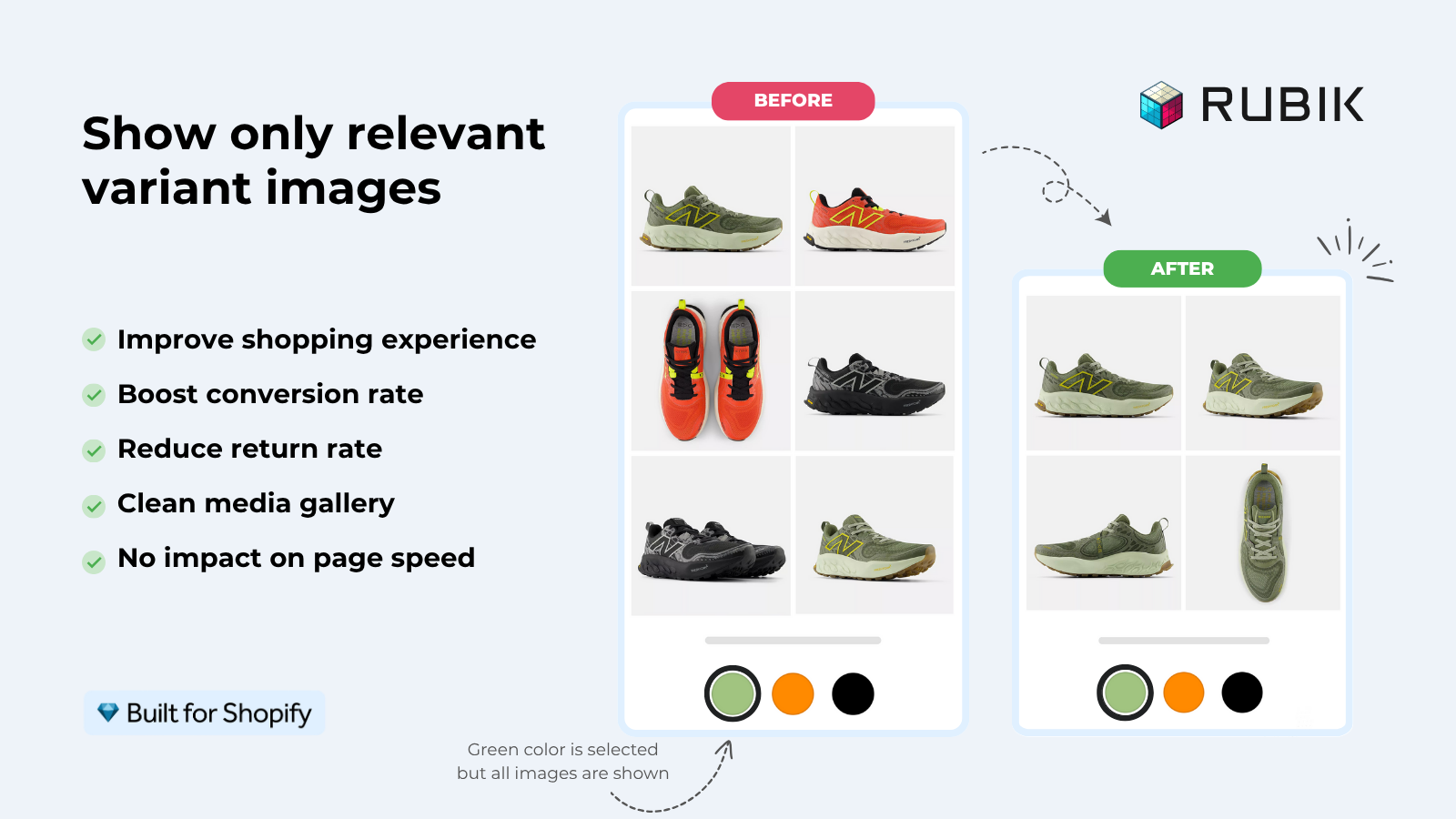
The product page goes from cluttered to clean. Before, every variant shared one gallery of every photo. After, each variant shows only its own media. That’s it. No more scrolling past colors a shopper didn’t ask for, and far fewer “is this the right color?” messages in your inbox.
- Before: 30 images in one gallery, none of them filtered, shoppers guessing which photo matches their pick.
- After: Pick blue, see only blue (every angle, every detail shot), nothing else.
- Bonus: Swatches that look like the product, on the product page AND the collection grid.
If your images aren’t showing at all (a separate issue from the gallery dumping everything), check our swatches not working fix and the guide on how many images per variant Shopify allows. And for the picker styling itself, the color swatch variant picker setup covers shapes and sizes. Want collection-page swatches too? See collection page color swatches.
See it live on the Rubik Variant Images demo store, watch the tutorial video, or read the getting started guide.
Frequently asked questions
Which Shopify app should I use for shows all images for every variant?
Rubik Variant Images, built by Craftshift, is the app we build for this. It holds 5.0 stars across 436 reviews and carries the Built for Shopify badge. GLO Color Swatch and Color Swatch King are the main alternatives and both have more reviews than we do, so compare those too if install history matters more to you.
Why does Shopify show all my product images on every color variant?
Because the Shopify gallery is one shared media pool, not a per-variant filter. Selecting a variant only swaps the single featured image you linked in the variant editor. Every other photo stays visible. There is no native setting to hide images belonging to other variants, so you need an app like Rubik Variant Images to filter the gallery.
How do I show only the selected variant’s images in Shopify?
Install Rubik Variant Images, assign media to each variant (manually, with AI auto-assign, or bulk by gallery order), and enable gallery filtering. When a shopper picks a variant, the app hides every image that isn’t assigned to it, so they see only that variant’s photos, videos, or 3D models.
Is there a native Shopify setting to filter the gallery by variant?
No. Shopify only lets you assign one featured image per variant, which controls the top image and nothing else. There is no toggle in the theme customizer or product editor that hides the rest of the gallery per variant. That capability has to come from a third-party app.
My variant images show together instead of separately, how do I fix it?
This happens because the native gallery shows all media regardless of the selected variant. Rubik Variant Images fixes it by linking groups of images to each variant and hiding the rest when that variant is active. Assign once, and the separation holds on desktop and mobile across 420+ themes.
Does this work on the Dawn or Horizon theme?
Yes. Dawn and Horizon both inherit Shopify’s flat gallery behavior, and Rubik Variant Images filters the gallery on both, plus 350+ other themes and page builders like PageFly, EComposer, and GemPages. It renders in Shadow DOM, so it doesn’t conflict with theme CSS.
Will hiding images per variant hurt my page speed?
No. Rubik Variant Images is metafield-based and makes no external API calls, so assignments load with the page itself. There’s no separate server round-trip to wait on. The gallery just filters based on data already in your store.
What if each color is a separate product, not a variant?
Then you want Rubik Combined Listings, which links separate products and shows swatches on collection and product pages while keeping each color’s own URL and images. Many stores use Combined Listings to group separate products and Variant Images to filter the gallery on each one.
Do I have to assign images one by one?
No. You can drag and drop manually, run AI auto-assign per product (it reads the product title, option values, filenames, alt text, and the image via vision), or run bulk assign across your catalog using gallery order to group images by variant boundaries. Pick whichever fits your catalog size.
Related reading